
1. Product Overview
The Godrej Neo Pro View Digital Lock is an advanced smart locking solution designed for wooden doors, offering enhanced security and convenience. It integrates a camera, view screen, Wi-Fi connectivity, and multiple access modes to provide comprehensive control over your door access.

Figure 1: Godrej Neo Pro View Digital Lock with mobile app view.
Key Features:
- Pro Camera with Full-Frame Clarity: In-built HD camera captures a wide-angle view of your doorstep.
- 3.3-inch HD Display Screen: Located behind the lock for real-time visitor viewing.
- Integrated Video Monitoring: See who's outside and unlock from your phone.
- Built-In Doorbell: Triggers instant video feed on the lock screen and app.
- Smart Mobile App Control & Audit Trail: Monitor, lock/unlock, manage access remotely via Wi-Fi or Bluetooth. Track all actions and review camera footage.
- Flexible Access Modes: Fingerprint, PIN, RFID card, or mechanical key.
- Privacy & Anti-Prank Security Features: Activate privacy mode and anti-prank alarm.
- Premium Build & Door Compatibility: Luxury matte black finish, compatible with wooden doors (35–65mm thickness).
- Triple Bolt Locking: Ensures enhanced security against forced entry.
2. What's in the Box
Carefully unpack the contents and ensure all items are present:
- 1 Unit Front Handle Cover Plate
- 1 Unit Back Handle Cover Plate
- 1 Unit Lock Body
- 2 Units Mechanical Key
- 1 Unit Striker Box
- 1 Unit Screw Packet
- 2 Units Anti-Theft Stud & Screw
- 1 Unit Striker Plate
- 1 Unit Handle Shank with Cotter Pin
- 2 Units RFID Card
- 1 Unit User Manual (this document)
- 1 Unit Marker
3. Setup and Installation
3.1. Handle Switch Procedure (Outside Assembly)
Before physical installation, the handle orientation may need to be adjusted based on your door's opening direction.
Video 1: Demonstrates the handle switch procedure for the outside assembly of the Godrej Neo Pro View Digital Lock.
- Remove the Allen screw from inside the shank slot to release the handle.
- Rotate and insert the handle by 180 degrees.
- Tighten the Allen screw to secure the handle in the new orientation.
3.2. Handle Switch Procedure (Inside Assembly)
Similar to the outside assembly, adjust the inside handle's orientation if necessary.
Video 2: Demonstrates the handle switch procedure for the inside assembly of the Godrej Neo Pro View Digital Lock.
- Remove the Allen screw from inside the shank slot to release the handle.
- Rotate and insert the handle by 180 degrees.
- Tighten the Allen screw to secure the handle in the new orientation.
3.3. Physical Installation Procedure
Follow these steps for the physical installation of the lock on your door.
Video 3: Provides a visual guide for the complete physical installation of the Godrej Neo Pro View Digital Lock.
- Place the provided marker on the door and punch at the center of the marked points with a punch tool.
- Mark the points on the door with a pencil.
- Drill holes for the outside and inside body and the Mortise Lock.
- Chisel out the Mortise slot in the door as per the marker.
- Insert the Mortise into the door hole, then fix it with ST3.5X25 screws.
- Place the marker for the Strike Plate as shown and chisel out a slot for the Strike Plate.
- Insert the Strike Box, then insert the Strike Plate and fix it with ST3.5X25 screws.
- Insert the Shank into the Mortise.
- Insert the outside assembly.
- Insert the inside assembly after joining Connector B and Connector A.
- Connect external power supply for emergency use via the Type-C USB port if needed.
- Insert 4 AA batteries into the battery compartment.
3.4. App Installation and Registration
To utilize the smart features of your lock, install and register the Godrej Digital Lock app.
Video 4: Guides through the Godrej Neo Connect App configuration, including installation, registration, and device pairing.
- Go to the Play Store or App Store.
- Search for "Godrej Digital Lock".
- Click on "Install" to download the app.
- Once installed, open the app.
- Click on "Agree" to the User Agreement and Privacy Policy.
- Click on "Sign Up" for a new user.
- Enter your email ID or phone number, tick on "I agree", then click on "Get Verification Code".
- Enter the code that you received in your email, and click "Done".
- Set your password and click "Done".
- Give the required permissions and click on "Go to App".
- Click on "Add Device" to add the lock.
- Give the required permissions for Bluetooth, Nearby (in settings), and Location, then click on "Continue".
- In the "Add Device" section, click on "Lock (Wi-Fi)".
- Select the 2.4GHz network and enter the Wi-Fi password, then click on "Connect".
- Enter the Master Password followed by #7#1# and make sure the light is blinking on the lock.
- Click on "Next" if the light is blinking.
- After the lock is connected to the app, click on "Done".
4. Operating Instructions
4.1. Access Modes
The Godrej Neo Pro View Digital Lock offers multiple ways to access your premises:
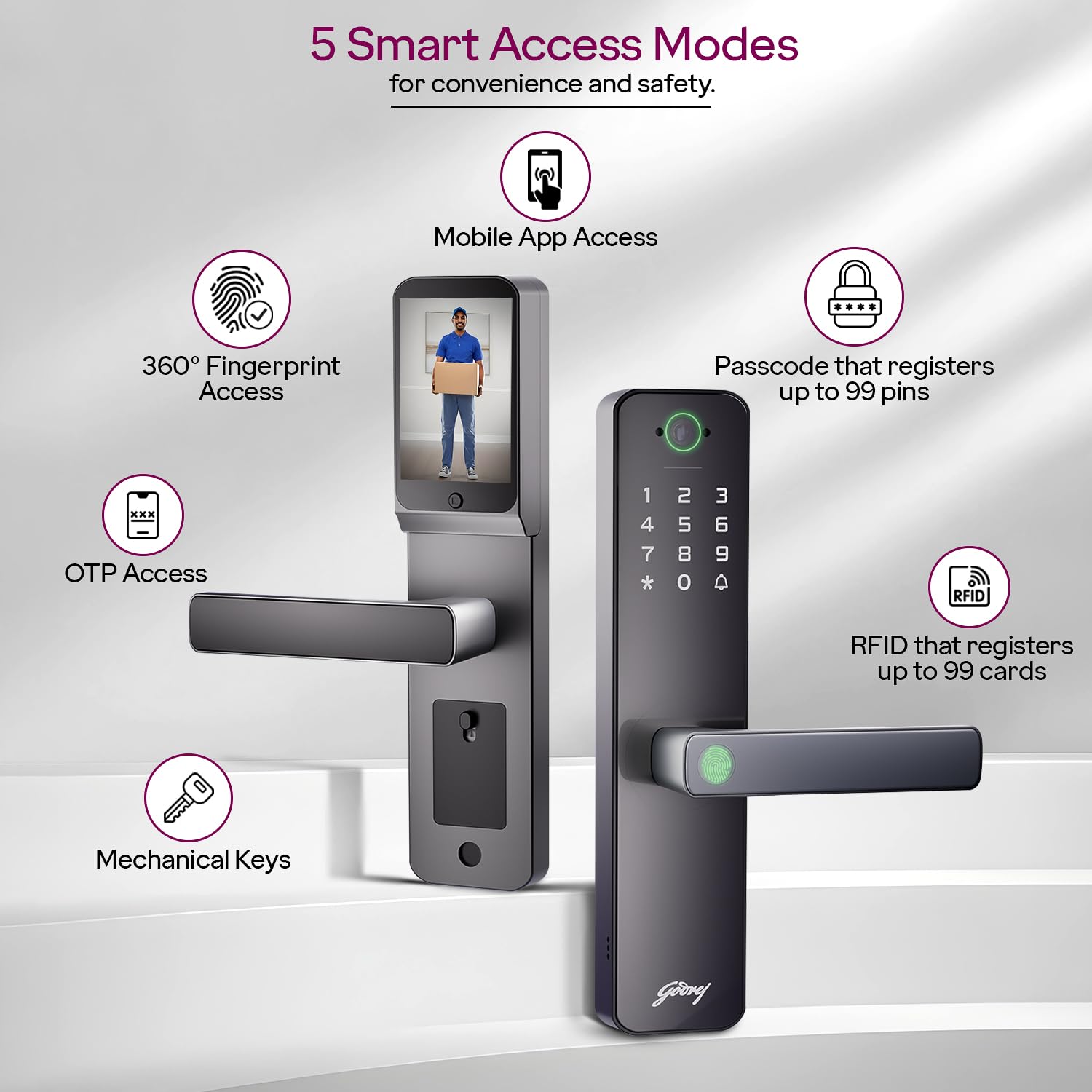
Figure 2: Overview of the 5 Smart Access Modes.
- Fingerprint Access: The 360° fingerprint sensor recognizes up to 99 users.
- PIN Access: Set up to 99 unique PINs with adjustable spy codes.
- RFID Card Access: Use RFID cards for quick entry.
- Mechanical Key: For traditional and emergency access.
- Mobile App Access: Control the lock remotely via the app.
4.2. Home and Member Management
Manage your home and users through the app.
Video 5: Details on Home Management and Member Management within the Godrej Neo Connect App.
- Click on "Me" in the app.
- Select "Home Management".
- Add a Home Name and click "Save".
- To add a member, go to "Member Management".
- Click on the "+" icon at the top right corner.
- Enter the user details and click "Save" to complete the process.
4.3. Remote Unlock
Unlock your door remotely using the app.
Video 6: Instructions for remote unlocking using the Godrej Neo Connect App.
- Press 0# on your Door Lock Unit to generate a response request on your app.
- You'll receive a Remote Unlocking Request on your app.
- The Remote Unlocking Request stays active for only 50 seconds.
- Slide right to Agree or left to Reject the Request.
4.4. One-Time Password
Generate temporary one-time passwords for guests or service providers.
Video 7: How to generate and use a One-Time Password via the Godrej Neo Connect App.
- Open "Temporary Password" in the app.
- Select "One-Time Password".
- Click on "Add".
- Retrieve and copy the password.
4.5. Unlimited Use Password
Create passwords with unlimited uses within a set expiration time.
Video 8: Guide to setting up an Unlimited Use Password in the Godrej Neo Connect App.
- Open "Temporary Password" in the app.
- Select "Unlimited Use Password".
- Click on "Add".
- Set the Expiration time.
- Retrieve and copy the password.
4.6. Audit Trail
Review the history of all unlocking operations.
Video 9: Explains how to access and review the Audit Trail in the Godrej Neo Connect App.
- Go to "History of Unlocking Operations" in the app.
- The complete history of the lock will be displayed.
4.7. Delete Home and Member
Manage your home and member settings by deleting them from the app.
Video 10: Instructions for deleting a home or member from the Godrej Neo Connect App.
- Go to "Me" and open "Home Management".
- Select the created Home.
- Click on a Member and choose "Remove Member".
- Then, click on "Home", select the Home Name, and choose "Delete Home".
- Confirm the action.
5. Safety Features
The Godrej Neo Pro View Digital Lock incorporates several features to enhance security:
- Privacy Mode: Blocks all electronic access; only master password or mechanical key can override.
- Anti-Prank Alarm: Stops the lock for 3 minutes after three failed attempts and triggers an alert.
- Low Battery Indication: Alerts you when the battery is low, ensuring timely replacement.
- Emergency Power Backup: Type-C USB port for temporary power in case of full battery drain.

Figure 3: Next-Gen Features for Smart Protection.
6. Specifications
| Feature | Detail |
|---|---|
| Model Number | 9690 |
| Product Dimensions | 26.5 x 17 x 10.5 cm |
| Item Weight | 2.2 kg |
| Door Compatibility | Wooden doors, thickness 35–65mm, 60mm backset |
| Access Modes | Fingerprint (up to 99 users), PIN (up to 99), RFID card (up to 99), Mechanical Key, Mobile App |
| Camera | In-built HD camera |
| Display Screen | 3.3-inch HD display |
| Connectivity | Wi-Fi, Bluetooth |
| Locking Mechanism | Triple Bolt |
| Emergency Power | Type-C USB |
| Country of Origin | India |

Figure 4: Product Dimensions and Included Accessories.
7. Warranty and Support
7.1. Warranty Information
The Godrej Neo Pro View Digital Lock comes with a 3-year warranty from the date of purchase.
7.2. Installation Services
Free professional installation services are available within 72 hours in over 350+ cities. To avail installation services from company-trained technicians, please use the contact information below.

Figure 5: Godrej Installation Service Coverage and Contact Information.
7.3. Contact Support
For any queries, installation requests, repairs, or other support needs, please contact Godrej customer service:
- Toll-Free Number: 1800 209 4543
- Mobile: +91 80 6743 6743, +91 9321 6655 11
- Email: glafsescalation@godrej.com
- Website: www.godrejenterprises.com/support/locks-and-security


