
Introduction
This manual provides comprehensive instructions for the setup, operation, and maintenance of your ASUS ROG Strix 27” 5K HDR Gaming Monitor (Model: XG27JCG). Please read this manual thoroughly before using the monitor to ensure proper functionality and to maximize your user experience.
The ROG Strix XG27JCG is a 27-inch 5K (5120 x 2880) Fast IPS display designed for high-performance gaming and detailed visual tasks. It features a 180Hz (overclocked) refresh rate, 0.3ms GTG response time, and a Dual Mode function allowing switching between 5K 180Hz and QHD 330Hz. Advanced features include G-SYNC Compatible technology, VESA DisplayHDR 600, and ROG Gaming A.I. Technology.
Video: Overview of the ASUS ROG Strix XG27JCG 27-inch 5K monitor, highlighting its key features and design.
What's in the Box
Verify that all components are present in the packaging before proceeding with the setup.
- ASUS ROG Strix XG27JCG Monitor
- DisplayPort cable
- Quick start guide
- ROG pouch
- ROG sticker
- ROG tripod stand
- Warranty Card
- Power Cord
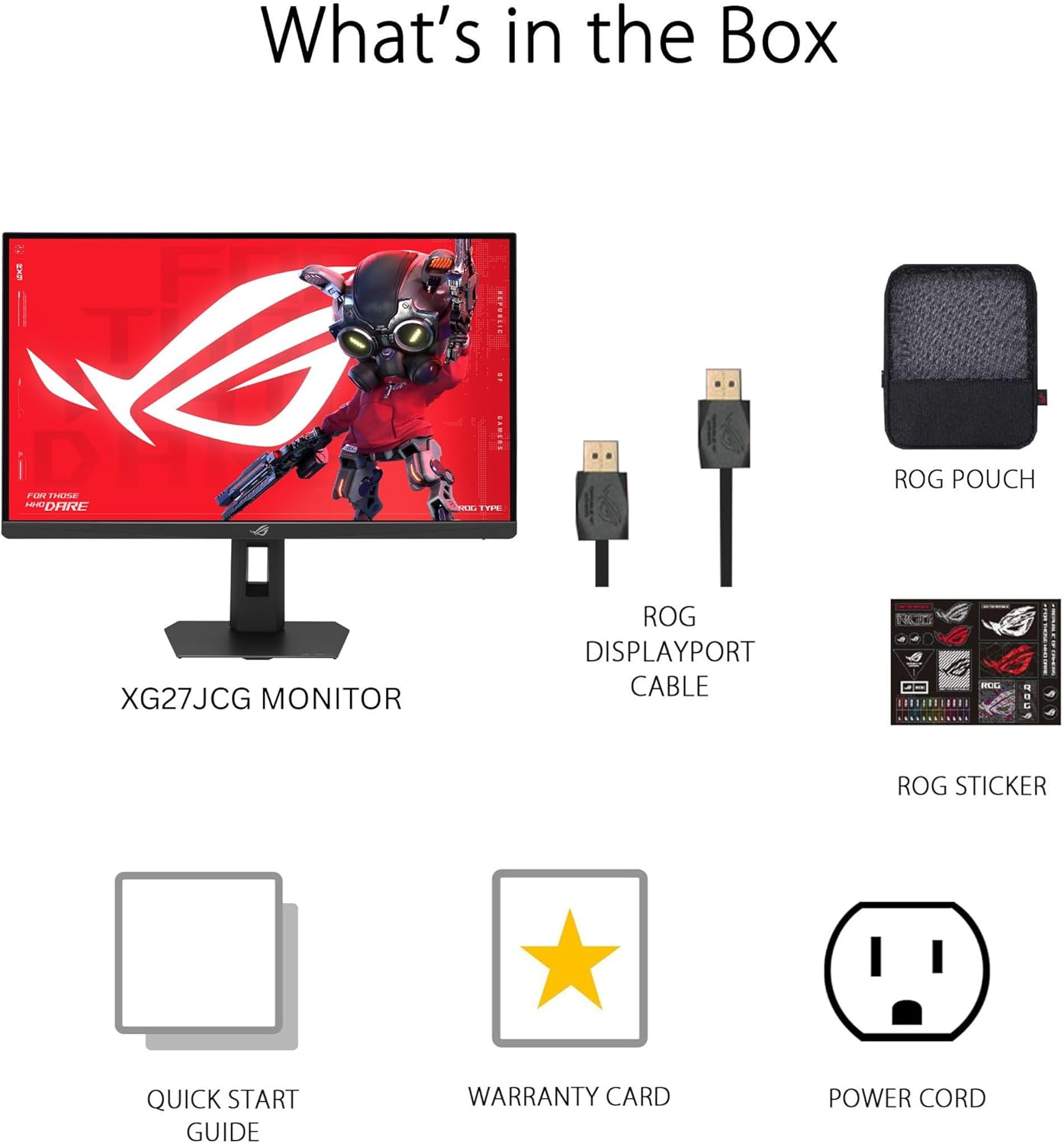
Image: Contents of the monitor packaging, showing the monitor, DisplayPort cable, ROG pouch, ROG sticker, Quick Start Guide, Warranty Card, and Power Cord.
Setup Instructions
1. Assembling the Stand
Carefully remove the monitor from its packaging. Attach the stand base to the stand neck, securing it with the provided screw. Then, attach the assembled stand to the back of the monitor until it clicks into place. Ensure all connections are firm.
2. Connecting to a Computer
The monitor supports DisplayPort 1.4 (DSC), HDMI 2.1, and USB-C connectivity. Choose the appropriate cable for your system.
- DisplayPort: Connect one end of the DisplayPort cable to the monitor's DisplayPort input and the other end to your computer's DisplayPort output.
- HDMI: Connect one end of an HDMI 2.1 cable to the monitor's HDMI input and the other end to your computer's HDMI output.
- USB-C: Connect a USB-C cable to the monitor's USB-C port and to a compatible USB-C port on your computer. This connection also supports 15W power delivery.

Image: Rear view of the monitor's connectivity ports, including HDMI 2.1, DisplayPort 1.4, USB Type-C, and a Headphone Jack.
3. Power Connection
Connect the power cord to the monitor's power input, then plug the other end into a power outlet.
4. Initial Power On
Press the power button located on the monitor to turn it on. The monitor will automatically detect the input source. If no image appears, ensure all cables are securely connected and the computer is powered on.
Operating Instructions
On-Screen Display (OSD) Menu
Use the joystick and buttons on the back of the monitor to navigate the OSD menu. The OSD allows you to adjust various settings such as brightness, contrast, color, input source, and gaming features.
Display Modes and Refresh Rate
The monitor features a Dual Mode function, allowing you to switch between two primary display configurations:
- 5K (5120 x 2880) at 180Hz (OC): Provides ultra-sharp, immersive visuals suitable for cinematic content and detailed work.
- QHD (2560 x 1440) at 330Hz: Offers extremely high frame rates and responsive gaming action, ideal for competitive esports.
Switching between modes can be done via the OSD menu or a dedicated hotkey, if configured.

Image: Visual representation of the monitor's Dual Mode, allowing users to switch between 5K 180Hz and QHD 330Hz for different gaming experiences.
ROG Gaming A.I. Technology
This monitor includes AI-powered features designed to enhance your gaming experience:
- Dynamic Shadow Boost: Automatically brightens dark areas of the game world without overexposing bright areas, improving visibility of hidden enemies or details.
- Dynamic Crosshair: Provides an on-screen crosshair that can adapt to the game environment, ensuring it remains visible against various backgrounds.
- AI Visual: Optimizes visual settings based on the game content for improved clarity and detail.

Image: Examples of Dynamic Crosshair and Dynamic Shadow Boost in action, showing how these features enhance visibility in games.
DisplayWidget Center
The DisplayWidget Center software provides seamless control over monitor settings directly from your Windows or macOS operating system. This utility allows for easy adjustment of GameVisual modes, MultiScreen configurations, and system settings without using the OSD buttons.

Image: Screenshot of the DisplayWidget Center software, demonstrating its user interface for adjusting monitor settings.
Ergonomics and Adjustments
The monitor stand offers multiple adjustment options to optimize your viewing comfort:
- Tilt: +20° to -5°
- Swivel: +40° to -40°
- Pivot: +90° to -90° (for portrait mode)
- Height Adjustment: 0 to 110mm
Adjust the monitor to an ergonomic position that reduces strain on your neck and eyes. Ensure the top of the screen is at or slightly below eye level.

Image: Diagram illustrating the monitor's ergonomic adjustments, including tilt, swivel, pivot, and height.
Maintenance
Cleaning the Monitor
- Always power off the monitor and unplug the power cord before cleaning.
- Use a soft, lint-free cloth slightly dampened with water or a mild, non-abrasive screen cleaner.
- Do not spray cleaner directly onto the screen. Apply it to the cloth first.
- Avoid using alcohol-based cleaners, ammonia, or abrasive materials, as these can damage the screen surface.
General Care
- Keep the monitor away from direct sunlight, excessive heat, and humidity.
- Ensure adequate ventilation around the monitor to prevent overheating.
- Avoid placing heavy objects on the monitor or its cables.
Troubleshooting
| Problem | Possible Solution |
|---|---|
| No image on screen |
|
| Image is blurry or distorted |
|
| Screen flickers or shows artifacts |
|
| No sound from headphones (if connected to monitor) |
|
Specifications
| Feature | Detail |
|---|---|
| Brand | ASUS |
| Model Number | XG27JCG |
| Screen Size | 27 Inches |
| Resolution | 5120 x 2880 (5K UHD) |
| Panel Type | Fast IPS |
| Refresh Rate | 180 Hz (OC) / QHD 330Hz (Dual Mode) |
| Response Time | 0.3 ms (GTG) |
| Aspect Ratio | 16:9 |
| Contrast Ratio | 600:1 |
| Viewing Angle | 178 Degrees (H/V) |
| HDR Support | VESA DisplayHDR 600 |
| Color Gamut | 97% DCI-P3 |
| Adaptive Sync | AMD FreeSync Premium Pro, G-SYNC Compatible |
| Connectivity | 1x DisplayPort 1.4 (DSC), 2x HDMI 2.1, 1x USB-C (with 15W PD), Headphone Jack |
| Power Consumption | 40 Watts |
| Item Dimensions (D x W x H) | 8.59"D x 24.2"W x 20.1"H |
| Item Weight | 6.9 Pounds |
| Ergonomic Adjustments | Tilt (+20° ~ -5°), Swivel (+40° ~ -40°), Pivot (+90° ~ -90°), Height (0~110mm) |
Warranty and Support
This ASUS ROG Strix XG27JCG monitor comes with a 3-year warranty. For warranty claims, technical support, or service inquiries, please contact ASUS customer support. Refer to the included Warranty Card for detailed terms and conditions.
You can find additional support resources, drivers, and FAQs on the official ASUS support website: www.asus.com/support/


