
Product Overview
The Blaupunkt Bremen SQR 46 DAB Retro Car Stereo is a modern reinterpretation of the classic 1-DIN car radio from the 1980s. It combines vintage aesthetics with contemporary technology, offering a comprehensive in-car entertainment experience. This unit features Bluetooth connectivity, dual USB ports, SD card slot, AUX input, and AM/FM radio, along with DAB+ digital tuner capabilities. The package includes the receiver, a fully enclosed under-dash/overhead installation mounting kit, and a 22-inch radio antenna, providing a complete solution for various vehicle installations.
What's in the Box
- Blaupunkt Bremen SQR 46 DAB Retro Car Stereo Receiver: The main head unit for audio playback and control.
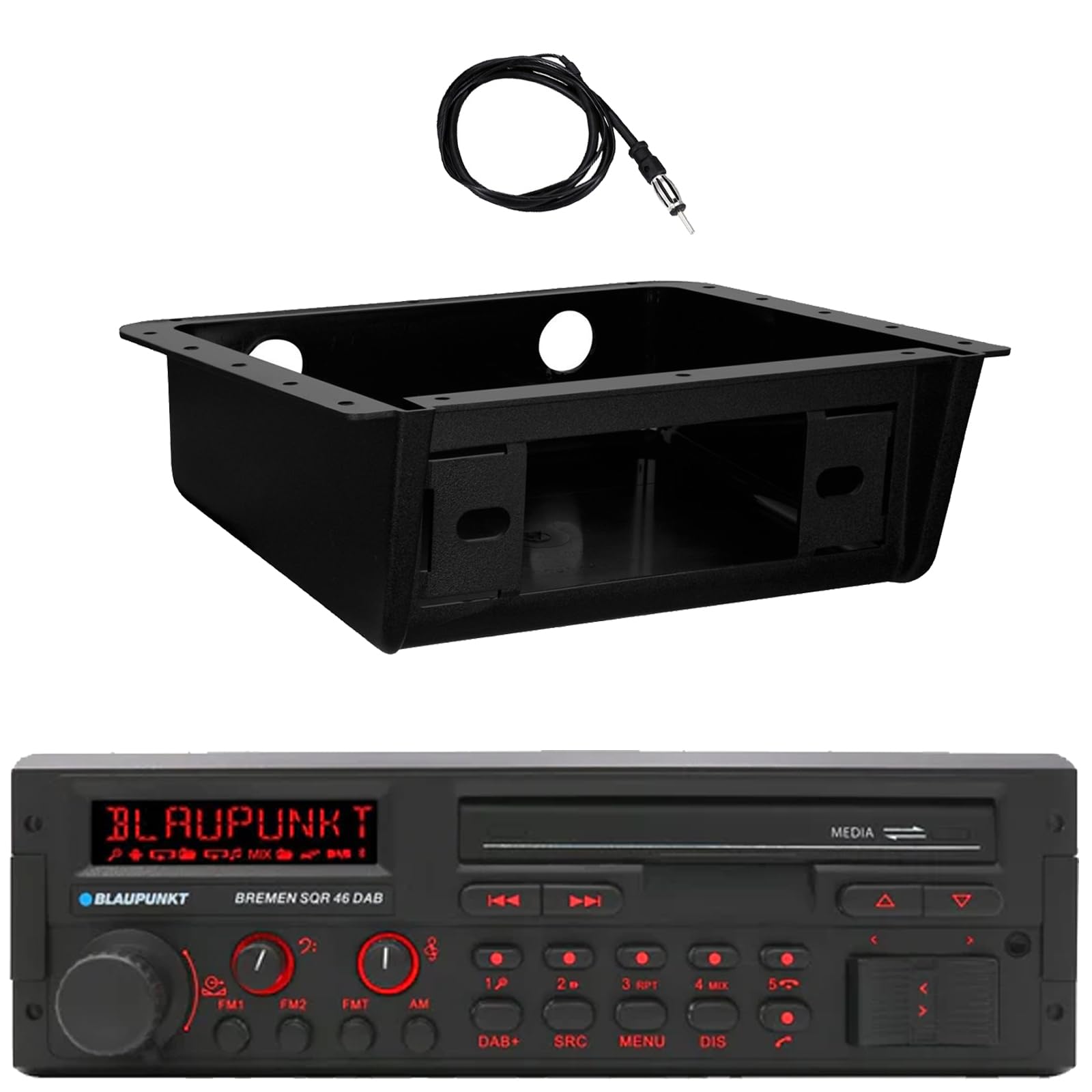
Image: Front view of the Blaupunkt Bremen SQR 46 DAB car stereo receiver, showing the display, control knobs, and buttons.
- Fully Enclosed Under Dash/Overhead Installation Mounting Kit: A premium housing designed for secure installation of the receiver under the dashboard or overhead.

Image: Black, rectangular under-dash/overhead mounting kit, designed to house a single DIN car stereo.
- 22" Radio Antenna: A flexible marine-grade antenna for improved AM/FM radio reception.

Image: Coiled black wire antenna with a silver connector at one end.
Setup and Installation
Proper installation is crucial for optimal performance. It is recommended that installation be performed by a qualified professional. This section provides general guidelines.
1. Mounting the Receiver
- Under Dash/Overhead Installation: The included mounting kit is designed to fully enclose the single DIN receiver. Secure the kit to a suitable flat surface under the dashboard or overhead using appropriate fasteners (not included).
- Insert the Blaupunkt Bremen SQR 46 receiver into the mounting kit. Ensure it is securely seated and locked into place.
- Alternatively, the unit can be installed in a standard single DIN opening in your vehicle's dashboard.
2. Wiring Connections
- Power Connection: Connect the yellow wire to a constant 12V power source, the red wire to a switched 12V accessory power source, and the black wire to a chassis ground.
- Speaker Connections: Connect the speaker wires to your vehicle's speakers, ensuring correct polarity for each speaker.
- Antenna Connection: Connect the 22" radio antenna to the antenna input on the rear of the receiver. Route the antenna cable away from other wiring to minimize interference.
- Auxiliary Inputs: If using external devices, connect them to the AUX-in port.
- RCA Outputs: For connecting external amplifiers, use the RCA pre-outs.
3. Initial Power On
- After all connections are made, turn on your vehicle's ignition.
- Press the power button on the receiver to turn it on.
- Follow any on-screen prompts for initial setup, such as language selection or clock setting.
Operating Instructions
Basic Controls
- Power Button: Press to turn the unit on or off.
- Volume Knob: Rotate to adjust the volume level. Press to mute/unmute.
- SRC (Source) Button: Press to cycle through available audio sources: AM, FM, DAB+, Bluetooth, USB, SD, AUX.
- MENU Button: Access system settings and audio adjustments.
- DIS (Display) Button: Change display information or dim the display.
- Track/Tune Buttons (<< / >>): Use to skip tracks in media modes or tune radio frequencies.
Radio Operation (AM/FM/DAB+)
- Press the SRC button until AM, FM, or DAB+ is selected.
- Use the Track/Tune buttons to manually tune frequencies or seek for the next strong station.
- Preset Stations: Press and hold numbered buttons (1-6) to save the current station as a preset. Press briefly to recall a saved station.
Bluetooth Operation
- Pairing:
- Ensure Bluetooth is enabled on your mobile device.
- Select Bluetooth as the source on the receiver using the SRC button.
- On your mobile device, search for available Bluetooth devices and select "Blaupunkt Bremen SQR 46".
- Confirm pairing if prompted.
- Audio Streaming: Once paired, you can stream audio from your device. Use the Track/Tune buttons on the receiver to skip tracks.
- Hands-Free Calling: When a call comes in, the unit will display caller information. Press the green call button to answer, or the red call button to reject/end.
USB/SD Card Playback
- Insert a USB drive into one of the USB ports or an SD card into the SD card slot.
- The unit will automatically switch to the USB or SD source and begin playback. If not, press the SRC button to select the correct source.
- Use the Track/Tune buttons to navigate through tracks.
AUX Input
- Connect an external audio device (e.g., MP3 player) to the AUX-in port using a 3.5mm audio cable.
- Select AUX as the source using the SRC button.
- Control playback from the connected device.
Audio Settings
- Press the MENU button to access audio settings such as Bass, Treble, Balance, Fader, and Equalizer presets.
- Rotate the volume knob to adjust values and press it to confirm selections.
Maintenance
- Cleaning the Unit: Use a soft, dry cloth to wipe the front panel and display. For stubborn dirt, slightly dampen the cloth with water. Avoid using harsh chemicals, abrasive cleaners, or solvents.
- USB/SD Ports: Keep the USB and SD card slots free of dust and debris.
- General Care: Avoid exposing the unit to extreme temperatures, direct sunlight for prolonged periods, or excessive moisture.
Troubleshooting
| Problem | Possible Cause | Solution |
|---|---|---|
| No power | Incorrect wiring; Blown fuse; Vehicle ignition off. | Check power and ground connections. Verify vehicle fuse and unit fuse. Ensure vehicle ignition is on. |
| No sound | Volume too low; Mute activated; Incorrect speaker wiring; Source not selected. | Increase volume. Deactivate mute. Check speaker connections. Select correct audio source. |
| Bluetooth not connecting | Device not in pairing mode; Unit not in Bluetooth source; Interference. | Ensure Bluetooth is enabled on device and unit. Put device in pairing mode. Try re-pairing. Move closer to the unit. |
| Poor radio reception | Antenna not connected; Damaged antenna; Weak signal area. | Check antenna connection. Inspect antenna for damage. Try tuning to a stronger station or moving to a different location. |
| USB/SD not playing | Unsupported file format; Corrupted media; Incorrect source selected. | Ensure files are in a supported format (e.g., MP3, WMA). Try a different USB drive/SD card. Select USB/SD source. |
Specifications
| Feature | Detail |
|---|---|
| Brand | BLAUPUNKT |
| Model Number | Bremen SQR 46 |
| Connectivity Technology | Auxiliary, Bluetooth |
| Controller Type | Push Button |
| Special Features | Built-In Bluetooth, USB, SD Card, AUX-in, DAB+ digital tuner |
| Compatible Devices | Amplifier, Smartphones, USB drives, SD cards |
| Audio Output Mode | Stereo |
| Audio Output Type | RCA (6 channels) |
| Unit Count | 1 (Receiver) |
| Included Components | Receiver, Stereo Install Kit, Radio Antenna |
Warranty Information
This Blaupunkt Bremen SQR 46 DAB Retro Car Stereo comes with a 1 Year Manufacturer Warranty. This warranty covers defects in materials and workmanship under normal use. Please retain your proof of purchase for warranty claims. For detailed terms and conditions, refer to the warranty card included with your product or visit the official Blaupunkt website.
Customer Support
For further assistance, technical support, or warranty inquiries, please contact Blaupunkt customer service. You can typically find contact information on the official Blaupunkt website or in the documentation provided with your product.
Official Website: www.blaupunkt.com (Please note: This link is a general placeholder. Refer to your product's specific documentation for the most accurate support contact information.)


