1. Introduction
The Diivoo Brass WiFi Sprinkler Timer 2 Zone is designed to automate your garden and lawn watering. This smart device offers remote control capabilities, multiple irrigation plans, and compatibility with voice assistants, ensuring efficient and convenient watering management.
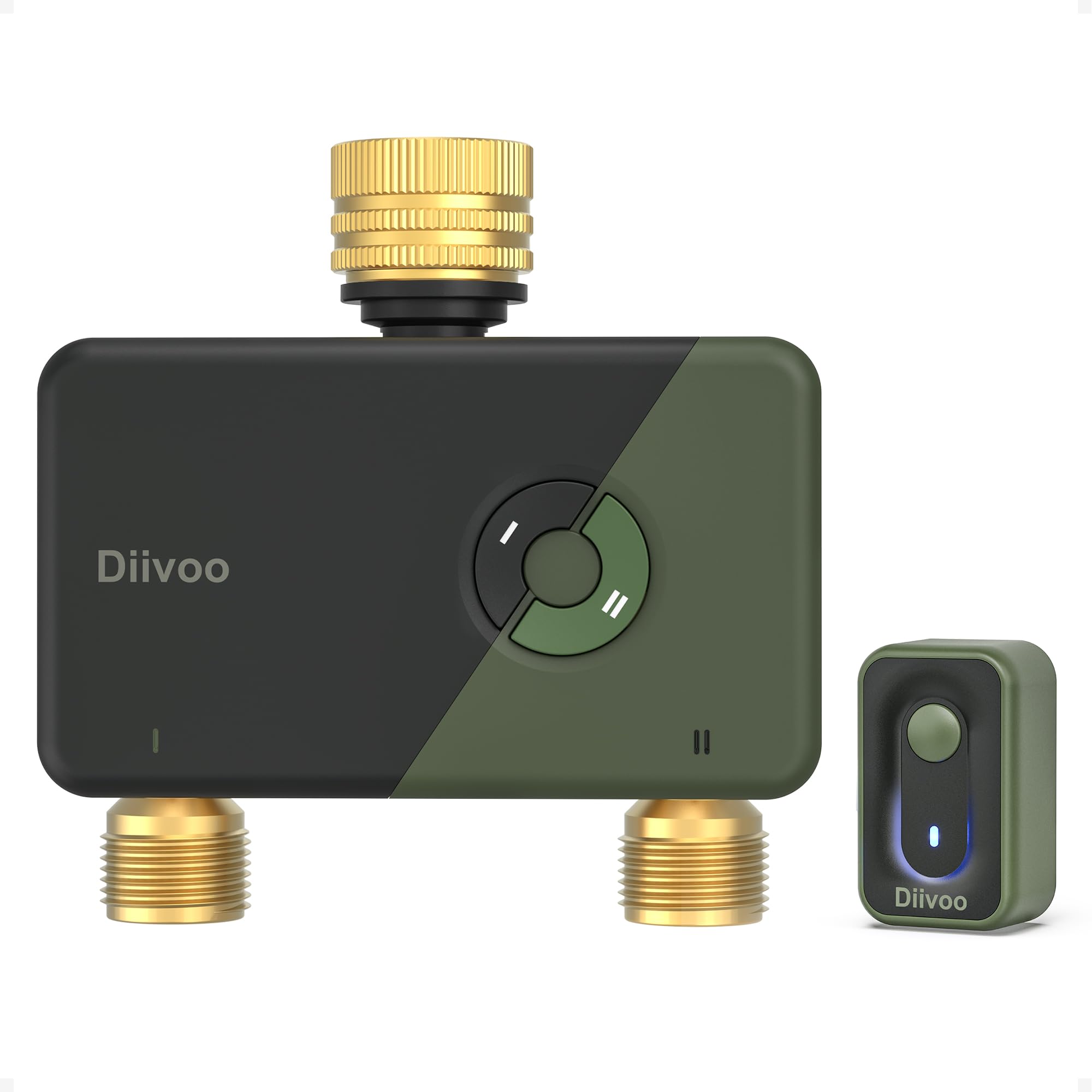
Image: Diivoo Brass WiFi Sprinkler Timer 2 Zone with its accompanying WiFi Hub.
2. Key Features
- Durable Leak-Resistant Brass Connectors: Features upgraded solid brass inlet and outlet to prevent cracking and corrosion. Designed to withstand 7.25–116 PSI, includes a metal filter and sealing kit for a secure connection.
- Smart Remote & Voice Control: Connects to your hub via 2.4GHz WiFi for remote management of watering schedules. Compatible with Alexa and Google Assistant for voice commands.
- 2 Zone Independent Watering: Allows two outlets to operate independently with up to 12 individual watering schedules. Each zone can be programmed separately for precise control.
- Dual Irrigation Modes: Offers Irrigation Mode for continuous watering (lawns, pools) and Mist Mode for repeated intervals (misting systems, outdoor cooling). Schedules can be daily, odd/even days, or custom.
- Multi-Function Flexibility: Includes Rain Delay (24-72 hours) to pause schedules and Manual Mode for instant, on-demand watering without disrupting preset plans.
3. What's in the Box
Upon unboxing, you should find the following components:
- Diivoo 2 Zone WiFi Sprinkler Timer (WT-09W)
- Diivoo WiFi Hub (WG03)
- User Manual
- Assorted connectors and sealing kit (including metal filter and rubber washers)
Video: This video demonstrates the unboxing and initial setup steps for the Diivoo WiFi Water Timer, including registering the app and pairing the hub and timer.
4. Setup
4.1. App Installation & Registration
- Download the "HomGar" app from the App Store or Google Play.
- Open the app and click on "Register".
- Enter your email address and send a verification code.
- Enter the received verification code.
- Set a password for your account.
- Log in to the app.
4.2. Hub Pairing (WG03)
Ensure your device is connected to a 2.4GHz WiFi frequency.
- Plug in the WiFi Hub (WG03) into a power outlet.
- Press and hold the button on the hub for 5-10 seconds until the blue LED light flashes quickly. This indicates pairing mode.
- In the HomGar app, go to "Home" and click "Add Device".
- Scan the QR code on the hub (or manually select "WG03" from the device list).
- Confirm/set your WiFi information with the correct WiFi password.
- Once detected, add the device and set its name.
4.3. Water Timer Pairing (WT-09W)
- Insert 4*AA (1.5V) alkaline batteries (not included) into the water timer.
- Press and hold the button on the timer for 5 seconds until the blue LED flashes quickly.
- In the HomGar app, click "+" (Add Device).
- Scan the QR code on the timer (or manually select "WT-09W" from the device list).
- Set the device name.
4.4. Physical Installation
- Prepare the Faucet: If your faucet is 1/2", install the provided 1/2" rubber washer into the 1/2" inlet adapter, then connect it to the faucet. For a 3/4" faucet, simply connect the water timer directly.
- Install Washers and Filter: Install the 3/4" rubber washer and filter into the water timer's inlet.
- Attach to Faucet: Securely screw the water timer onto your outdoor faucet. Ensure it is tightened to prevent leaks.
- Connect Hoses: Attach your garden hoses to the two independent outlets of the timer.
- Turn on Faucet: Slowly turn on the faucet to inspect for any leaks.
Video: This video provides a visual guide to the physical installation of the Diivoo 2 Zone Brass Water Timer to a faucet and connecting hoses.
Video: This video demonstrates the leakproof setup process for the Diivoo WiFi Water Timer 2 Zone, ensuring a secure connection.
5. Operating Instructions
5.1. Setting Watering Schedules (Dual Irrigation Modes)
The timer supports up to 12 separate watering schedules across its two zones.

Image: The Diivoo WiFi Water Timer offers two distinct watering modes: Misting Mode and Normal Mode, allowing for up to 12 separate watering schedules to meet daily needs.
- Normal Irrigation Mode: Ideal for lawns and pools, providing continuous watering for a set duration (0 min - 12 hours). You can choose specific days (Monday-Sunday or Odd/Even days).
- Mist Mode: Suitable for misting systems, outdoor cooling, and dust reduction. Water at repeated intervals during the scheduled period (Interval Run Time: 0 sec - 60 min, Interval Time: 0 sec - 60 min).
To set a schedule:
- Open the HomGar app and select your water timer.
- Navigate to the "Plan" section.
- Choose the desired zone (Zone 1 or Zone 2).
- Select either "Normal Irrigation" or "Misting Irrigation".
- Set the Start Time, Irrigation Duration (and Interval Run/Time for Mist Mode).
- Choose the Repeat frequency (Everyday, Odd Dates, Even Dates, or Custom).
- Confirm your settings.
5.2. Rain Delay
Use the Rain Delay function to pause preset schedules, conserving water after rainy days.

Image: The Diivoo WiFi Sprinkler Timer app interface displaying options for setting a rain delay (24H, 48H, 72H) to avoid unnecessary watering.
- In the app, select your water timer.
- Go to the "Rain Delay" option.
- Select a delay duration (24, 48, or 72 hours).
- Confirm the delay.
5.3. Manual Watering
For instant, on-demand watering without affecting your programmed schedules.
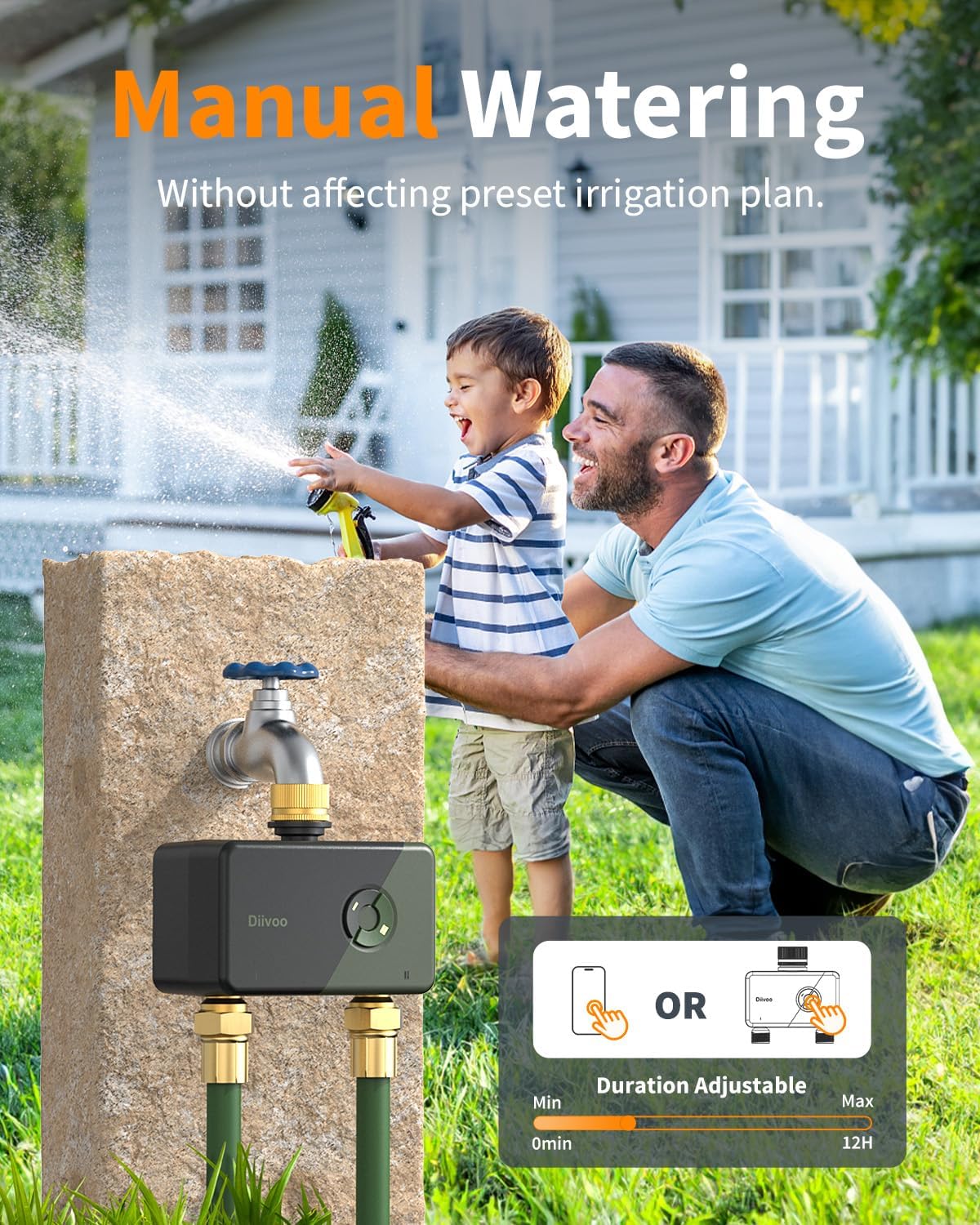
Image: The Diivoo WiFi Sprinkler Timer showing manual watering options, allowing users to adjust duration from 0 minutes to 12 hours either via the app or directly on the timer.
- In the app, select your water timer.
- Go to the "Manual" section.
- Set the desired watering duration (0 min - 12 hours).
- Start manual watering.
5.4. Remote Control & Voice Control
Manage your watering schedules from anywhere using the app or voice commands.
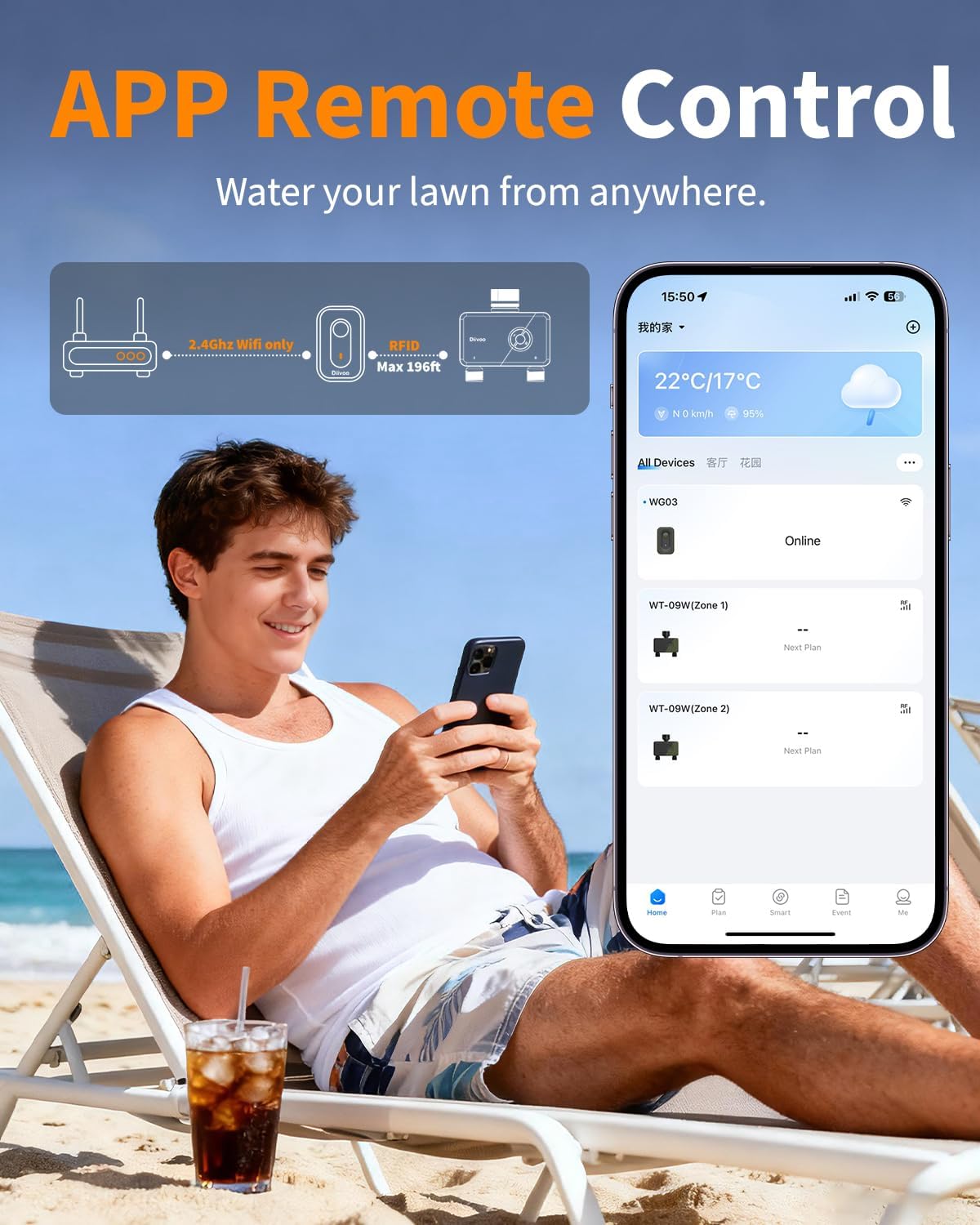
Image: A man on a beach remotely controlling his Diivoo WiFi Sprinkler Timer via a mobile app, demonstrating the convenience of managing watering from anywhere.
- App Control: Use the HomGar app to start, stop, or adjust schedules remotely.
- Voice Control: Integrate with Alexa or Google Assistant. Use commands like "Alexa, turn on/off the smart water timer."
5.5. Watering History Check
Track irrigation status and review past watering events.

Image: The Diivoo app interface displaying watering history, real-time notifications, and water usage statistics, allowing users to monitor their irrigation effectively.
- In the HomGar app, navigate to the "Event" or "History" section.
- Review past watering records, including start times, durations, and zones.
5.6. Family Sharing
Allow multiple users to manage the watering system.

Image: A family using the Diivoo app on their phones, illustrating the family sharing feature where multiple users can manage the smart watering system.
- In the app settings, look for "Family Management" or "Share Device".
- Invite family members by entering their account details.
- Shared users can then control the timer from their own devices.
6. Maintenance
6.1. Battery Installation and Replacement
The water timer is powered by 4*AA (1.5V) alkaline batteries. Ensure batteries are replaced when the battery level is low to maintain functionality.

Image: The Diivoo water timer highlighting its low power consumption, long battery life, and waterproof sealed battery compartment, along with durable brass inlet and outlet.
- Open the battery compartment cover on the back of the timer.
- Insert or replace 4*AA alkaline batteries, ensuring correct polarity.
- Securely close the battery compartment cover.
6.2. Leak Prevention
Regularly check connections to prevent leaks.
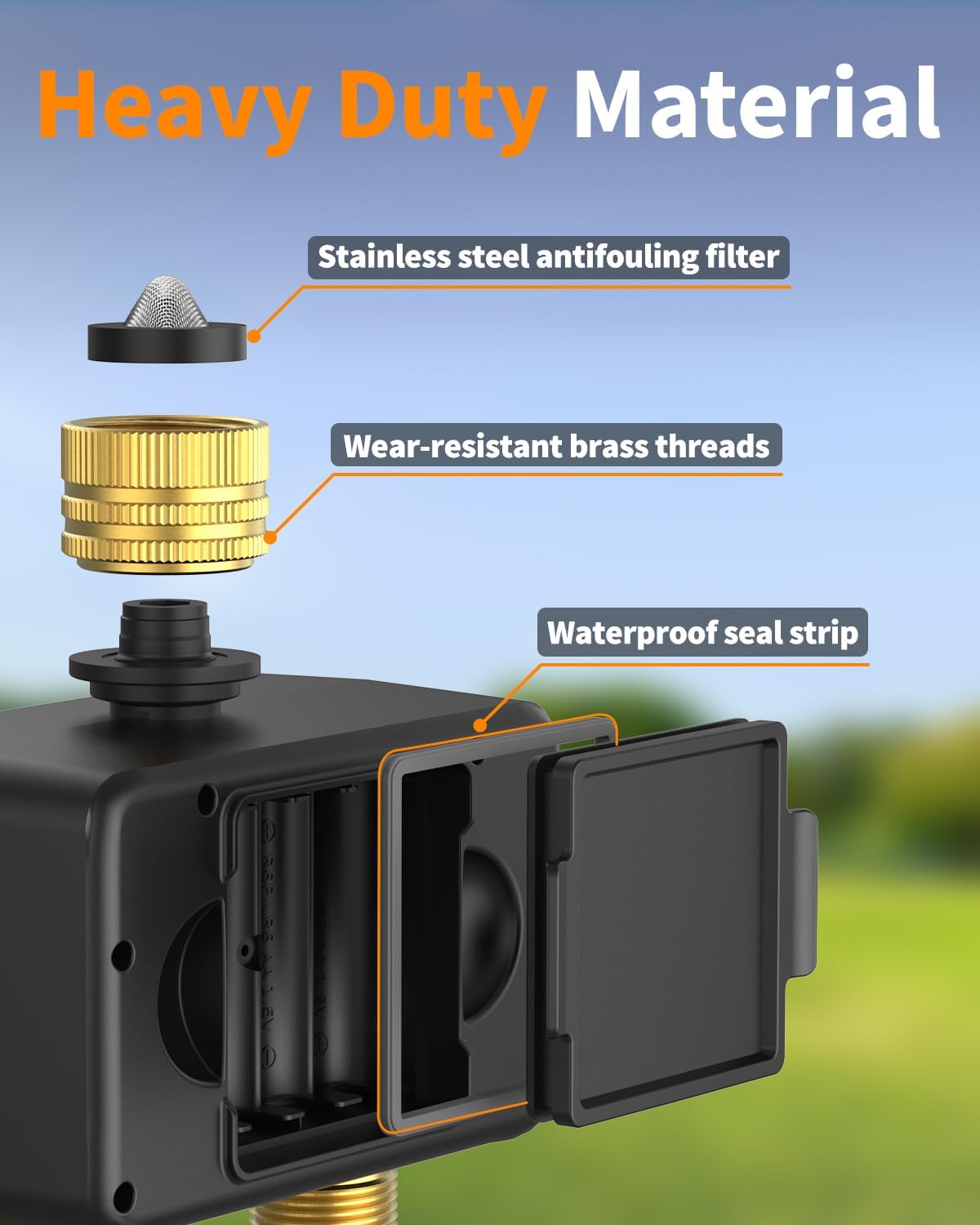
Image: The Diivoo WiFi Sprinkler Timer highlighting its heavy-duty construction with a stainless steel antifouling filter, wear-resistant brass threads, and a waterproof seal strip for leak prevention.
- Ensure the metal filter and sealing kit are correctly installed in the inlet.
- Tighten all brass connectors securely to the faucet and hoses.
- Check for any visible water drips after turning on the faucet.
7. Troubleshooting
7.1. Device Offline
If your device appears offline in the app:
- Check the distance: Move the timer closer to the WiFi Hub (WG03) to see if it reconnects. A weak signal due to excessive distance is a common cause of disconnection.
- Re-pair the devices: Remove both the Hub and the timer from the app, then go through the setup process again to re-pair them.
- Reset Router & Reinstall App: If the issue persists, reset your WiFi router, uninstall, and then reinstall the HomGar app.
7.2. Water Leaks
If you experience water leaks:
- Check Teflon Tape: Ensure Teflon tape is properly installed on the faucet threads.
- Verify Filter Presence: Check if the filter is missing from the water timer's inlet.
- Tighten Water Inlet: Make sure the water inlet is securely tightened to the faucet.
8. Specifications
| Attribute | Value |
|---|---|
| Product Dimensions | 5.12 x 5.12 x 2.76 inches |
| Item Weight | 1.54 pounds |
| Manufacturer | Zhuhai Tessan Power Technology Co., Ltd |
| Model Number | WT-09W/WG03 |
| Color | Green |
| Connectivity | 2.4GHz WiFi (Hub), RFID (Hub to Timer) |
| Pressure Range | 7.25–116 PSI |
| Power Source | 4*AA (1.5V) alkaline batteries (Timer) |
9. Warranty & Support
For warranty information and technical support, please refer to the contact details provided in your product packaging or visit the official Diivoo website. Keep your purchase receipt for warranty claims.
10. Safety Information
- Do not immerse the device in water.
- Use only alkaline batteries of the specified type.
- Do not mix old and new batteries, or different types of batteries.
- Remove batteries if the device will not be used for an extended period.
- Keep out of reach of children.
- Ensure all connections are secure to prevent water damage.


