1. Introduction
The Symcode MJ-5500DW is a high-resolution omnidirectional 2D barcode scanner designed for efficient and accurate data capture. This desktop scanner features a 90-degree rotating window, making it suitable for various applications including retail, supermarkets, and airport ticket gates. It supports both 1D and 2D barcodes, including QR codes, and offers multiple connectivity options for seamless integration into existing systems.
2. Key Features
- High-Resolution Scan Engine: Captures 1D and 2D barcodes with exceptional clarity and accuracy, including moving codes.
- Omnidirectional Scanning: Features a 90-degree rotating scan window for flexible scanning angles and positions, accommodating various item sizes.
- TFT Color LCD Screen: Displays barcode content, type, number, length, remaining battery power, signal strength, and transmission status in real-time.
- Versatile Application: Ideal for retail stores, supermarkets, and airport ticket gates, capable of reading QR codes and traditional barcodes.
- Desktop Design: Sturdy desktop mount provides hands-free operation and maintains an optimal scanning position for increased efficiency.
- Multiple Connectivity Options: Supports Bluetooth, 2.4GHz Wireless, and Wired USB connections for broad compatibility.
- NFC Functionality: (Optional) Supports Near Field Communication for reading NFC-enabled cards.
- Long Standby Time: Built-in 3000mAh battery provides up to 30 days standby or 12-13 hours of continuous scanning after a 5-hour charge.

Figure 2.1: High-resolution scan engine capturing barcodes.

Figure 2.2: Omnidirectional scanning with 90-degree rotating window.
3. Setup
3.1 Unpacking
Carefully remove the scanner and all accessories from the packaging. Verify that all components are present:
- Symcode MJ-5500DW Barcode Scanner
- USB Cable
- User Manual (this document)
3.2 Initial Charging
Before first use, ensure the scanner is fully charged. Connect the scanner to a power source using the provided USB cable. The battery indicator on the LCD screen will show charging status. A full charge typically takes approximately 5 hours.
3.3 Connecting to a Host Device
The scanner supports three connection modes: Wired USB, 2.4GHz Wireless, and Bluetooth. Select the appropriate mode based on your host device and application.
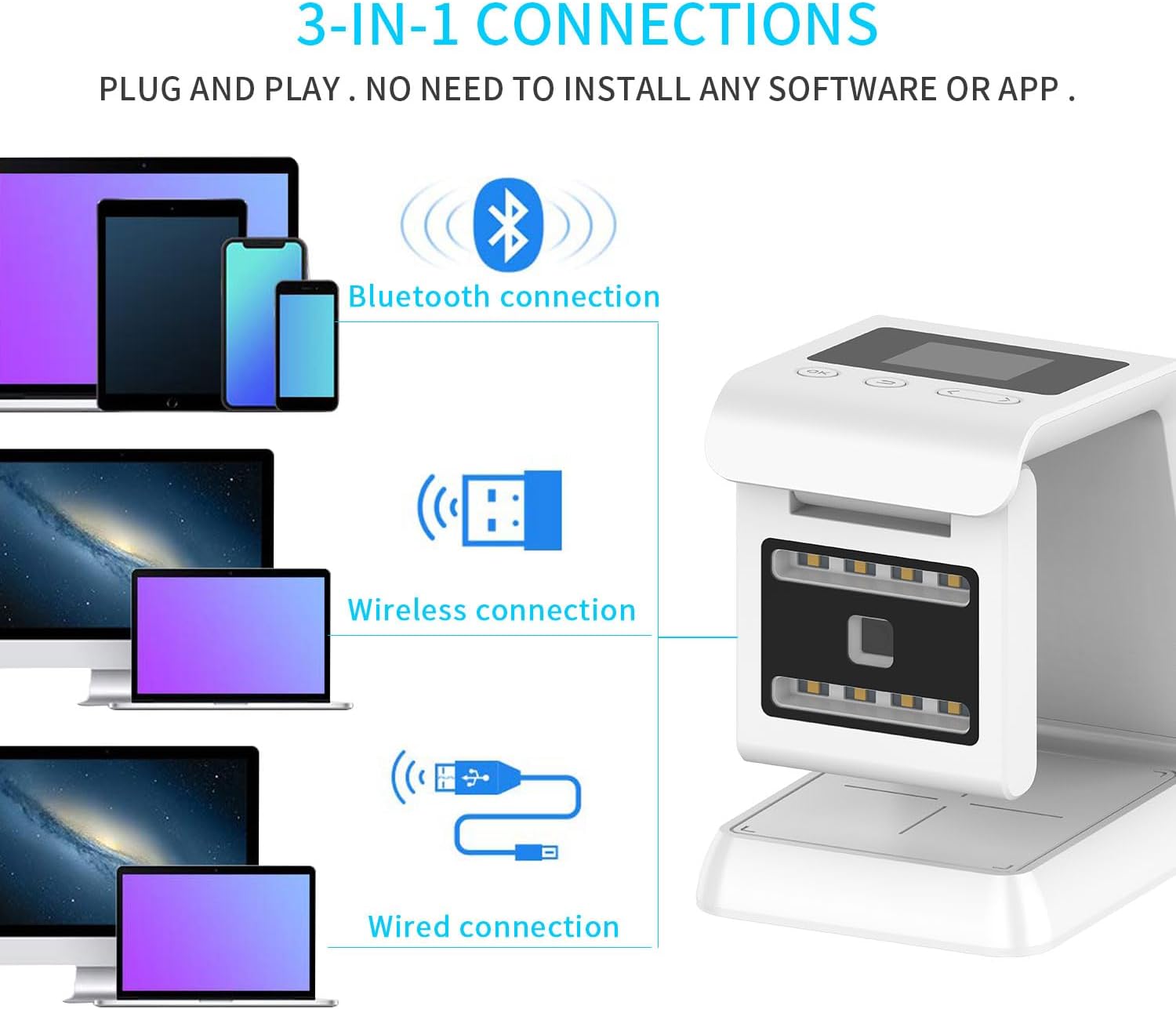
Figure 3.1: 3-in-1 connection options.
- Wired Connection: Connect the scanner directly to your computer or POS system using the USB cable. The scanner will be recognized as a keyboard device.
- 2.4GHz Wireless Connection: Plug the 2.4GHz USB dongle into your host device. The scanner will automatically pair with the dongle.
- Bluetooth Connection: Enable Bluetooth on your host device. Put the scanner into Bluetooth pairing mode (refer to the scanner's on-screen menu or quick start guide for specific instructions). Select "Symcode MJ-5500DW" from your device's Bluetooth list to pair.
No software installation is typically required for basic operation; it functions as a plug-and-play device.
4. Operating Instructions
4.1 Basic Scanning
Place the barcode within the scanning window. The omnidirectional design allows for scanning from various angles without precise alignment. The scanner will emit a beep and the scanned data will appear on the connected host device and the scanner's LCD screen upon successful reading.

Figure 4.1: Scanner in use for retail and airport applications.
4.2 Adjusting the Scan Window
The scan window can be rotated up to 90 degrees to optimize scanning for different item sizes and shapes. Gently rotate the upper part of the scanner to adjust the window angle as needed.
4.3 Scanning 1D and 2D Barcodes
The MJ-5500DW is capable of reading a wide range of 1D and 2D barcodes, including UPC/EAN, Code 39, Code 128, QR Code, Data Matrix, and PDF417. Ensure the barcode is clear and well-lit for optimal performance.
5. Connectivity
The Symcode MJ-5500DW offers flexible connectivity options to suit various operational environments.
- Bluetooth 4.0: Provides a wireless connection range of up to 15 meters (49 feet) in typical indoor environments.
- 2.4GHz Wireless: Utilizes a dedicated USB dongle for a wireless connection range of up to 30 meters (98 feet) indoors.
- Wired USB: Direct connection via USB cable for reliable data transmission and charging.
- Barrier-Free Environment Range: In open, barrier-free environments, Bluetooth range can extend up to 50 meters (164 feet), and 2.4GHz Wireless up to 150 meters (492 feet).

Figure 5.1: Wireless transmission ranges.
6. LCD Screen Display
The integrated TFT color LCD screen provides real-time feedback and status information. Key indicators include:

Figure 6.1: LCD screen and control layout.
- Connections: Indicates the current connection status (e.g., Bluetooth, 2.4GHz, Wired).
- Time: Displays the current time.
- Battery Power: Shows the remaining battery level.
- Scan Number: The number of barcodes scanned.
- Barcode Content: Displays the data of the last scanned barcode.
- Storage Mode: Indicates if data is being stored internally.
- Storage Number: The number of barcodes currently stored.
- Navigation Buttons (OK, Return, Up, Down): Used to navigate through the scanner's menu and settings.
The screen also features 8 LED distributed lighting in the window, designed to be non-irritating to human eyes.
7. NFC Function (Optional)
Some models of the MJ-5500DW scanner may include an optional Near Field Communication (NFC) function. This allows the scanner to read data from NFC-enabled cards by simply swiping the card over the designated NFC area on the scanner.
This feature is useful for applications involving metro cards, VIP cards, loyalty cards, gift cards, cash cards, and other cards equipped with an NFC chip.

Figure 7.1: Using the NFC function to read a card.
8. Maintenance
8.1 Cleaning the Scanner
To ensure optimal scanning performance, keep the scanning window clean. Use a soft, lint-free cloth lightly dampened with water or a mild, non-abrasive cleaning solution. Do not spray cleaning solution directly onto the scanner. Avoid using harsh chemicals or abrasive materials.
8.2 Battery Care
The scanner is equipped with a built-in 3000mAh nonstandard battery. For best battery life, avoid fully discharging the battery frequently. Charge the scanner when the battery indicator shows low power. If the scanner will not be used for an extended period, charge it to approximately 50% before storage and recharge every few months.

Figure 8.1: Battery capacity and standby/operating times.
8.3 Storage
Store the scanner in a cool, dry place away from direct sunlight, extreme temperatures, and corrosive materials.
9. Troubleshooting
If you encounter issues with your Symcode MJ-5500DW scanner, refer to the following common problems and solutions:
- Scanner not powering on:
- Ensure the battery is charged. Connect the scanner to a power source using the USB cable.
- Verify the power button (if applicable) is pressed.
- Scanner not reading barcodes:
- Check if the barcode is damaged or poorly printed.
- Ensure the scanning window is clean and free of obstructions.
- Verify the scanner is properly connected to the host device (wired, 2.4GHz, or Bluetooth).
- Adjust the distance and angle between the scanner and the barcode.
- Confirm the barcode type is supported by the scanner.
- No data transmitted to host device:
- For wired connection, ensure the USB cable is securely connected to both the scanner and the host device.
- For 2.4GHz wireless, ensure the USB dongle is plugged in and the scanner is paired.
- For Bluetooth, ensure the scanner is paired and connected to the host device's Bluetooth.
- Check the host device's input settings (e.g., ensure a text editor or input field is active).
- Bluetooth connection issues:
- Ensure Bluetooth is enabled on both the scanner and the host device.
- Unpair and re-pair the scanner with the host device.
- Move the scanner closer to the host device to reduce interference.
If the problem persists, please contact customer support.
10. Specifications
| Feature | Detail |
|---|---|
| Model Number | MJ-5500DW |
| Package Dimensions | 7.76 x 7.05 x 4.41 inches |
| Item Weight | 1.15 pounds |
| Battery | 1 Nonstandard Battery (3000mAh, included) |
| Connectivity Technology | Bluetooth, USB Cable, 2.4GHz Wireless |
| Power Source | USB |
| Compatible Devices | Desktop Computers, Laptop, POS Systems, Retail Terminals |
| Manufacturer | Symcode |
| Scanning Capability | 1D and 2D Barcodes (e.g., QR Code, Data Matrix, UPC/EAN, Code 128) |
| Scan Window Rotation | 90 degrees |
| Display | TFT Color LCD Screen |
11. Warranty and Support
11.1 Warranty Information
Please refer to the warranty card included with your product or visit the official Symcode website for detailed warranty terms and conditions. The warranty typically covers manufacturing defects for a specified period from the date of purchase.
11.2 Customer Support
For technical assistance, troubleshooting, or product inquiries, please contact Symcode customer support. Contact information can usually be found on the product packaging, the official Symcode website, or the warranty card.
When contacting support, please have your product model number (MJ-5500DW) and purchase details ready.


