
Introduction
The ATTACK SHARK X8 Ultimate is a high-performance wireless gaming mouse designed for precision and responsiveness. It features a lightweight design, tri-mode connectivity, an advanced PixArt PAW3950MAX sensor, and an 8K polling rate for an optimal gaming experience.

Image: Overview of the ATTACK SHARK X8 Ultimate Wireless Gaming Mouse highlighting its key features.
Key Features:
- Ultra-Lightweight Design: Weighing only 55g, with a Nano-ice coating for comfortable grip during extended use.
- 8K Polling Rate: Supports up to 8KHz polling rate in both wireless and wired modes for low latency and fast response.
- Tri-mode Connectivity: Seamlessly switch between Bluetooth, 2.4GHz wireless, and wired USB connections.
- PixArt PAW3950MAX Sensor: Advanced gaming sensor with up to 42,000 DPI sensitivity, 700 IPS accuracy, and 60G acceleration.
- Durable Switches & Long Battery Life: Equipped with Omron micro switches rated for over 100 million clicks and an 800mAh battery providing up to 800 hours of intermittent use at 1000Hz polling rate.
- Cloud Driver: Innovative web-based driver for DPI adjustment, polling rate settings, competitive mode, customized buttons, macro recording, and personalized key mapping.
Package Contents
Please check the package for the following items:
- ATTACK SHARK X8 Ultimate Wireless Gaming Mouse
- USB Receiver (2.4GHz)
- USB-C Charging/Data Cable
- User Manual (this document)
Setup Guide
1. Charging the Mouse
Before first use, it is recommended to fully charge the mouse. Connect the provided USB-C cable to the mouse's charging port and the other end to a USB power source (e.g., computer USB port, USB wall adapter).

Image: The ATTACK SHARK X8 Ultimate mouse connected via its USB-C charging cable, illustrating the 800mAh battery capacity.
The LED indicator on the mouse will show charging status. A full charge provides up to 800 hours of intermittent use at a 1000Hz polling rate.
2. Connecting the Mouse (Tri-mode Connectivity)
The X8 Ultimate mouse offers three connection modes: 2.4GHz Wireless, Bluetooth, and Wired USB.

Image: The ATTACK SHARK X8 Ultimate mouse illustrating its three connection modes: Type-C wired, 2.4GHz wireless, and Bluetooth wireless.
2.1. 2.4GHz Wireless Connection
- Locate the USB receiver (dongle) included in the package.
- Plug the USB receiver into an available USB port on your computer.
- Turn on the mouse using the power switch located on the bottom. Ensure it is set to 2.4GHz mode (usually indicated by a specific switch position or LED color).
- The mouse should automatically connect to your computer.
2.2. Bluetooth Connection
- Turn on the mouse and set it to Bluetooth mode (usually indicated by a specific switch position or LED color).
- On your computer or device, go to Bluetooth settings and enable Bluetooth.
- Search for new devices. The mouse should appear as "ATTACK SHARK X8 Ultimate" or similar.
- Select the mouse to pair.
2.3. Wired USB Connection
- Connect the provided USB-C cable to the mouse's front port.
- Connect the other end of the USB-C cable to an available USB port on your computer.
- The mouse will automatically switch to wired mode and begin charging.
Operating Instructions
1. Basic Mouse Functions
- Left Click: Primary action.
- Right Click: Secondary action/context menu.
- Scroll Wheel: Scroll up/down, middle click.
- Side Buttons: Typically for forward/backward navigation in web browsers. These can be customized.
2. DPI Adjustment
The X8 Ultimate features an adjustable DPI range from 50 to 42,000. DPI settings can be changed using the dedicated DPI button (if present) or through the Cloud Driver software. Refer to the Cloud Driver section for detailed customization.

Image: The ATTACK SHARK X8 Ultimate mouse highlighting the PixArt PAW3950MAX sensor and its capabilities (750 IPS, 60G, 8000Hz wireless polling rate, 50-42000 DPI).
3. Polling Rate Settings
The mouse supports an 8KHz polling rate for both wireless (2.4GHz) and wired modes, reducing operation latency to 0.163ms. The polling rate can be configured via the Cloud Driver software.
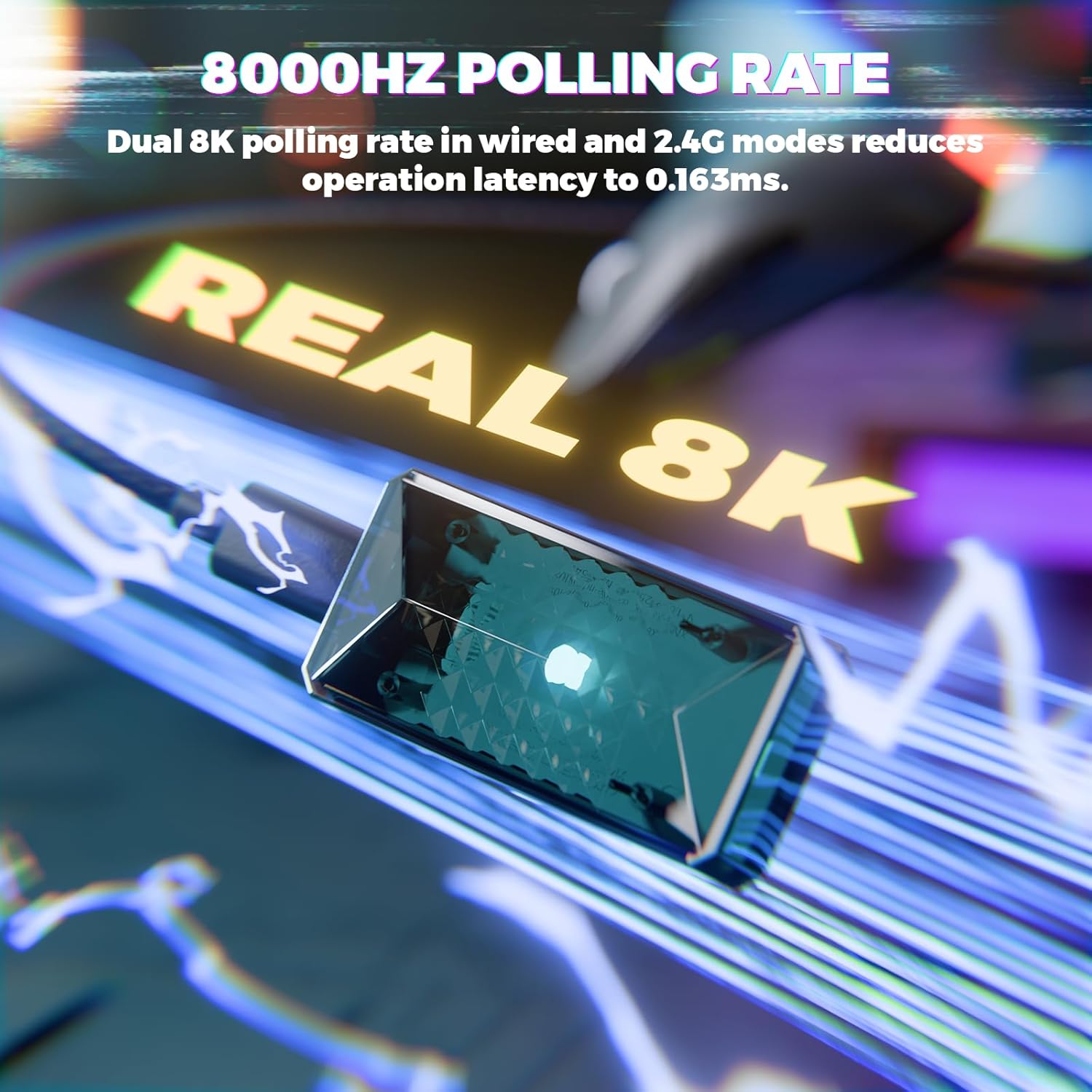
Image: Visual representation of the 8000Hz polling rate feature of the ATTACK SHARK X8 Ultimate mouse.
4. Cloud Driver Software
The X8 Ultimate utilizes an innovative cloud-driven webpage for customization. This eliminates the need for traditional software installation.
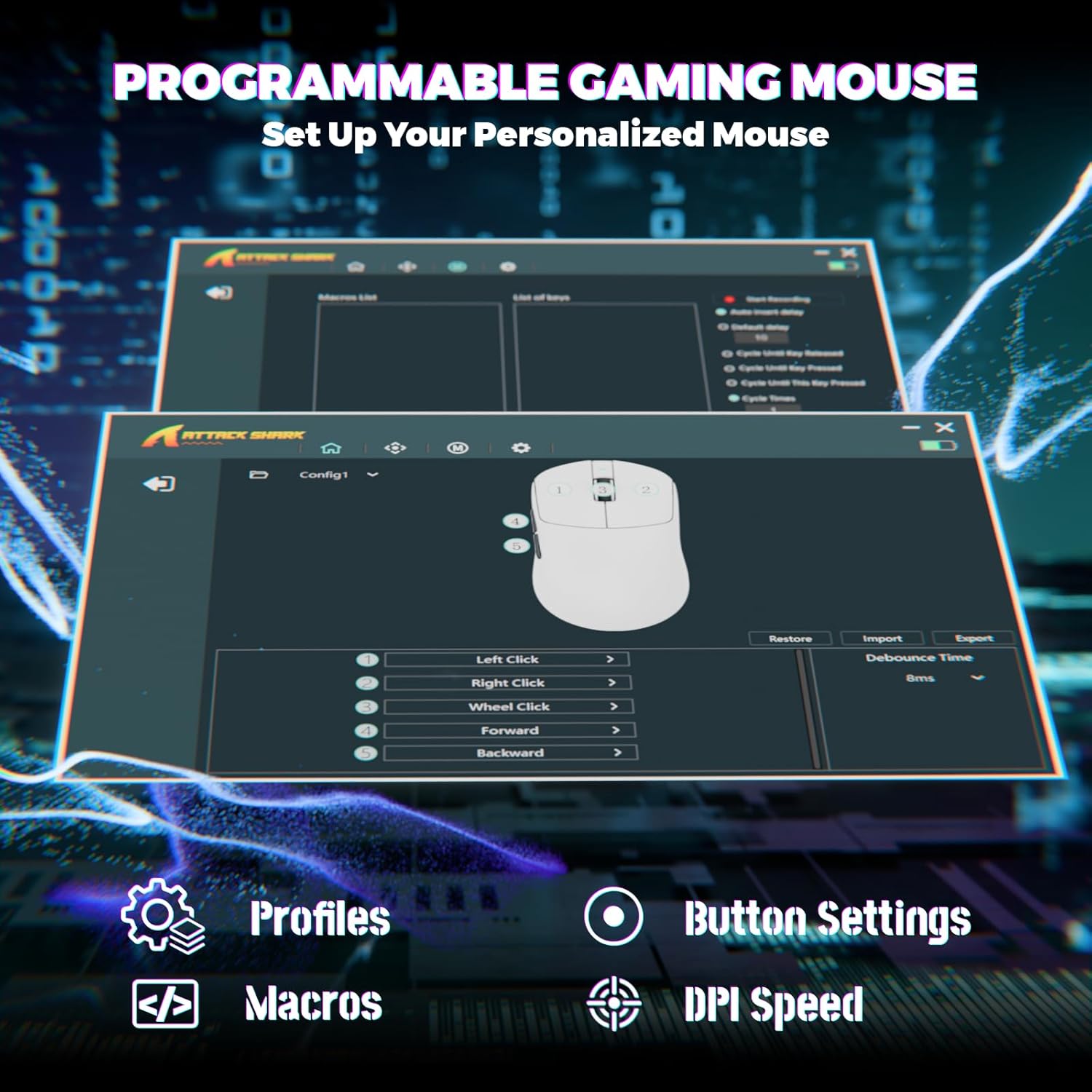
Image: Screenshot of the Cloud Driver interface for the ATTACK SHARK X8 Ultimate mouse, showing options for profiles, button settings, macros, and DPI speed.
To access the Cloud Driver:
- Ensure your mouse is connected to your computer.
- Open a web browser and navigate to the official ATTACK SHARK support page or the specific Cloud Driver URL (refer to packaging or official website for the exact link).
- The open-source driver will automatically identify your computer system.
- From the Cloud Driver interface, you can:
- Adjust DPI sensitivity.
- Set polling rate.
- Configure competitive modes.
- Customize button assignments.
- Record and assign macros.
- Personalize key mapping and other advanced functions.
Maintenance
1. Cleaning
To maintain optimal performance and appearance, clean your mouse regularly:
- Use a soft, lint-free cloth slightly dampened with water or a mild cleaning solution.
- Avoid harsh chemicals, solvents, or abrasive materials.
- Clean the optical sensor on the bottom of the mouse gently with a cotton swab to ensure accurate tracking.
2. Battery Care
To prolong battery life:
- Avoid exposing the mouse to extreme temperatures (hot or cold).
- Do not fully discharge the battery frequently. Charge it when the battery indicator is low.
- If storing the mouse for an extended period, charge it to about 50% before storage.
Troubleshooting
If you encounter issues with your ATTACK SHARK X8 Ultimate mouse, try the following solutions:
- Mouse not responding:
- Ensure the mouse is powered on.
- Check battery level and charge if necessary.
- Verify the connection mode (2.4GHz, Bluetooth, or Wired) is correctly selected and established.
- For 2.4GHz, ensure the USB receiver is securely plugged in.
- For Bluetooth, ensure Bluetooth is enabled on your device and the mouse is paired.
- Try connecting the mouse via the wired USB cable.
- Intermittent connection or lag:
- Ensure the USB receiver is not obstructed and is close to the mouse.
- Avoid using the mouse near other wireless devices that may cause interference.
- Update your computer's USB or Bluetooth drivers.
- DPI or button settings not working:
- Access the Cloud Driver software to verify and reconfigure your settings.
- Ensure the mouse firmware is up to date (check via Cloud Driver).
- Mouse tracking issues:
- Clean the optical sensor on the bottom of the mouse.
- Use the mouse on a clean, uniform surface or a high-quality mouse pad.
Specifications
| Feature | Description |
|---|---|
| Brand | ATTACK SHARK |
| Model | X8 Ultimate |
| Connectivity Technology | 2.4Ghz Wireless, Bluetooth, USB (Tri-mode) |
| Movement Detection Technology | Optical (PixArt PAW3950MAX Sensor) |
| DPI Sensitivity | 50 - 42,000 DPI (Adjustable) |
| Polling Rate | Up to 8000Hz (Wireless/Wired) |
| Acceleration | 60G |
| Tracking Rate | 700 IPS |
| Weight | 55g (Ultra-Lightweight) |
| Battery Capacity | 800mAh |
| Switch Type | Omron Micro Switches (100 Million Clicks lifespan) |
| Button Quantity | 5 (Programmable) |
| Hand Orientation | Ambidextrous |
| Compatible Devices | Gaming Console, Personal Computer, Tablet |
| Hardware Platform | PC |
| UPC | 752010401109 |

Image: The ATTACK SHARK X8 Ultimate mouse emphasizing its 59g ultra-light design and smooth-gliding double-layer feet.

Image: Detailed view of the optical micro switches inside the ATTACK SHARK X8 Ultimate mouse, highlighting their instant click and zero rebound lag features, and 100 million click lifespan.
Warranty and Support
The ATTACK SHARK X8 Ultimate Wireless Gaming Mouse comes with a 1-Year Warranty from the date of purchase.
For technical support, warranty claims, or further assistance, please contact ATTACK SHARK customer service through their official website or the retailer where the product was purchased. Please have your proof of purchase and product model information ready.
Official ATTACK SHARK Store: ATTACK SHARK Store on Amazon


