
1. Introduction
Thank you for choosing the HYTOBP H867 GPS 4K Drone. This manual provides essential information for the safe operation, setup, and maintenance of your drone. Please read this manual thoroughly before operating the drone to ensure proper use and to avoid damage or injury. Keep this manual for future reference.
The HYTOBP H867 is equipped with GPS positioning, a 4K camera for high-quality aerial photography and videography, and intelligent flight modes designed to enhance your flying experience.
2. Safety Information
Operating a drone requires responsibility. Failure to follow safety guidelines can result in injury, property damage, or legal issues.
- Pre-Flight Check: Always inspect the drone, remote controller, and batteries before each flight. Ensure all components are in good working order.
- Flight Environment: Fly in open areas, away from people, buildings, trees, and power lines. Avoid flying in strong winds, rain, or fog. Do not fly over crowds.
- Battery Safety: Use only original HYTOBP batteries and chargers. Do not overcharge or over-discharge batteries. Store batteries in a cool, dry place, away from flammable materials.
- Propeller Safety: Keep hands, face, and loose clothing away from rotating propellers. Ensure propellers are correctly installed and free from damage.
- Respect Privacy: Be mindful of privacy laws when using the camera.
- Legal Compliance: Familiarize yourself with local drone regulations and obtain any necessary permits or licenses.
3. Package Contents
Verify that all items are present in your package:
- HYTOBP H867 GPS 4K Drone
- Remote Controller
- Flight Battery (Lithium-polymer)
- USB Charging Cable
- Spare Propellers
- Screwdriver
- User Manual
4. Product Overview
4.1 Drone Components
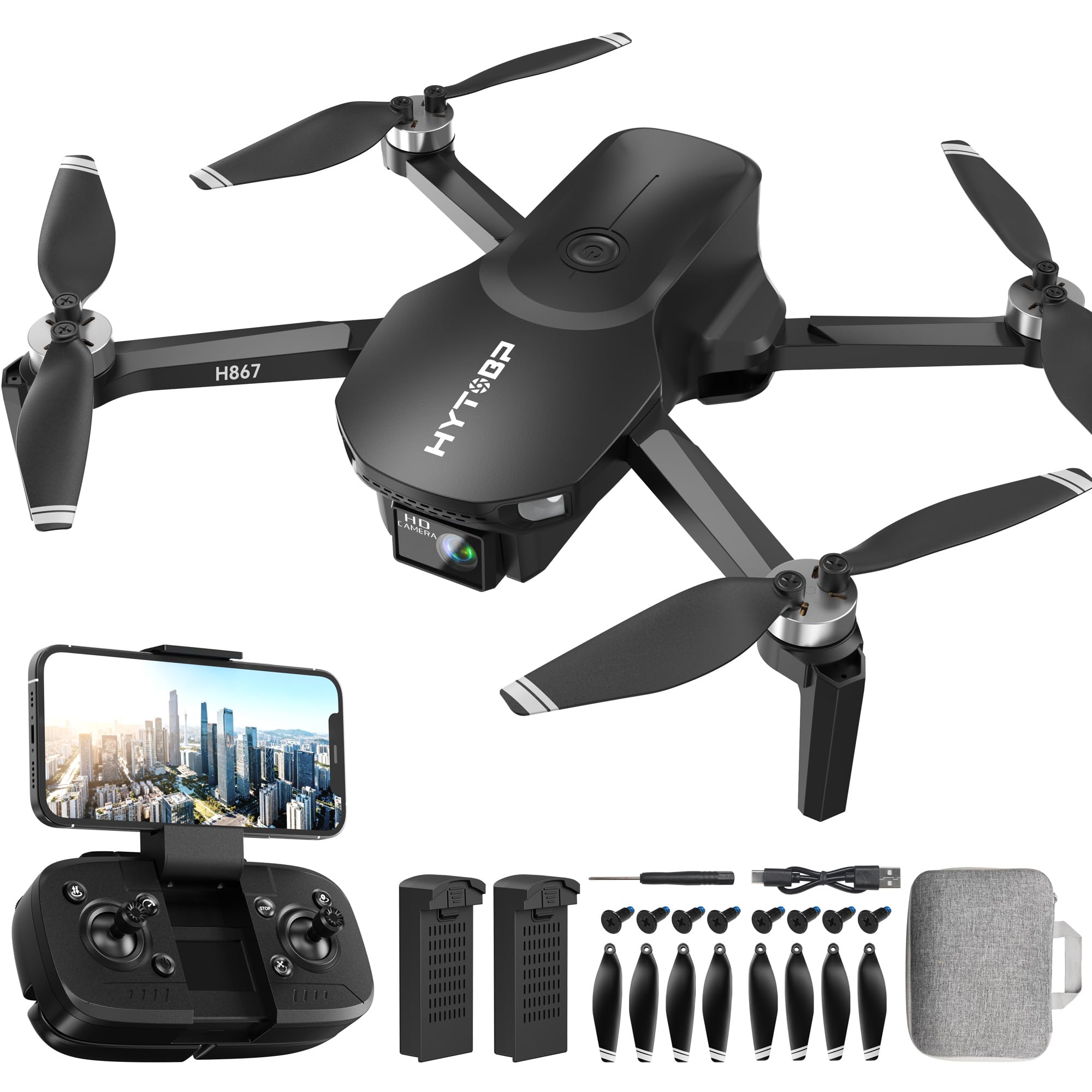
Image: The HYTOBP H867 GPS 4K Drone. This image displays the drone from a slightly elevated front-side angle, highlighting its four propellers, central body, and the integrated camera unit at the front. The drone features a sleek design with visible landing gear.
- Propellers: Generate lift for flight.
- Motors: Drive the propellers.
- Camera: 4K resolution for photo and video capture.
- Battery Compartment: Houses the flight battery.
- LED Indicators: Provide status information (e.g., GPS signal, battery level).
- Landing Gear: Provides stability during takeoff and landing.
4.2 Remote Controller
The remote controller allows you to control the drone's flight and camera functions.
- Left Joystick: Controls throttle (up/down) and yaw (rotate left/right).
- Right Joystick: Controls pitch (forward/backward) and roll (left/right).
- Takeoff/Landing Button: One-key automatic takeoff and landing.
- Return-to-Home (RTH) Button: Initiates automatic return to the takeoff point.
- Photo/Video Button: Captures photos or starts/stops video recording.
- Mode Switch: Toggles between flight modes (e.g., GPS mode, Altitude Hold).
5. Setup
5.1 Charging the Flight Battery
- Connect the USB charging cable to the flight battery.
- Plug the other end of the USB cable into a 5V/2A USB power adapter (not included).
- The LED indicator on the battery will show charging status. It will typically turn solid green or off when fully charged.
- Charging time is approximately 120-180 minutes.
5.2 Installing the Flight Battery
- Ensure the drone is powered off.
- Locate the battery compartment on the drone.
- Insert the fully charged flight battery into the compartment until it clicks securely into place.
- Close the battery compartment cover.
5.3 Installing Propellers
The propellers are marked 'A' and 'B'. Match them to the corresponding motor arms.
- Identify the 'A' and 'B' markings on the propellers and motor arms.
- Place the propeller onto the motor shaft.
- Rotate the propeller in the direction indicated by the arrow on the motor base until it locks securely.
- Ensure all propellers are firmly attached before flight.
5.4 Remote Controller Setup
- Install 3x AAA batteries (not included) into the remote controller's battery compartment.
- Power on the drone first, then power on the remote controller.
- The remote controller will automatically pair with the drone. A successful pairing is usually indicated by a solid light on both devices.
6. Operating the Drone
6.1 Pre-Flight Checklist
- Ensure drone and remote controller batteries are fully charged.
- Propellers are correctly installed and undamaged.
- Flight environment is safe and clear of obstacles.
- GPS signal is strong (indicated by solid green LED on drone).
6.2 Calibration
Before the first flight and after any significant change in location, perform compass and gyroscope calibration.
- Compass Calibration: Follow the instructions in the accompanying quick start guide or app for specific rotation patterns.
- Gyroscope Calibration: Place the drone on a flat, level surface. Move both joysticks to the bottom-left or bottom-right corners simultaneously for a few seconds until the drone's lights flash, indicating calibration is complete.
6.3 Takeoff
- Automatic Takeoff: Press the One-Key Takeoff/Landing button on the remote controller. The drone will automatically ascend to a safe altitude and hover.
- Manual Takeoff: Push both joysticks to the bottom-outer corners to unlock the motors. Slowly push the left joystick (throttle) upwards to ascend.
6.4 Flight Controls
- Left Joystick (Throttle/Yaw):
- Up/Down: Ascend/Descend
- Left/Right: Rotate drone left/right (Yaw)
- Right Joystick (Pitch/Roll):
- Up/Down: Fly forward/backward (Pitch)
- Left/Right: Fly left/right (Roll)
6.5 GPS Functions
- Return-to-Home (RTH): Press the RTH button. The drone will automatically return to its takeoff point. Ensure a clear path.
- Waypoint Flight: Available via the companion app. Set specific points on a map, and the drone will fly along the designated path.
- Follow Me: Available via the companion app. The drone will follow the remote controller or connected smart device.
6.6 Camera Operation
- Take Photo: Press the Photo button on the remote controller once.
- Record Video: Press the Video button on the remote controller once to start recording, and press again to stop.
- View Footage: Connect the drone to your smartphone via the app or remove the SD card (if applicable) to view recorded media.
6.7 Landing
- Automatic Landing: Press the One-Key Takeoff/Landing button. The drone will slowly descend and land.
- Manual Landing: Slowly pull the left joystick (throttle) downwards until the drone lands. Once landed, push both joysticks to the bottom-inner corners to stop the motors.
7. Maintenance
- Cleaning: Use a soft, dry cloth to clean the drone and remote controller. Avoid using liquids or solvents.
- Propeller Inspection: Regularly check propellers for cracks, bends, or damage. Replace damaged propellers immediately.
- Battery Care: Store batteries at approximately 50% charge if not used for extended periods. Do not expose batteries to extreme temperatures.
- Storage: Store the drone and its accessories in a cool, dry place, away from direct sunlight.
8. Troubleshooting
- Drone does not respond: Ensure both drone and remote controller are powered on and paired. Check battery levels.
- Poor GPS signal: Fly in an open outdoor area, away from tall buildings or interference. Wait for the GPS indicator to show a strong signal.
- Drone drifts during flight: Perform gyroscope calibration on a flat surface. Check for damaged propellers.
- Camera not recording/taking photos: Ensure an SD card is inserted (if applicable) and has sufficient storage. Check connection to the app.
- Motors not spinning: Ensure motors are unlocked (refer to manual takeoff section). Check for obstructions.
9. Specifications
| Feature | Specification |
|---|---|
| Brand | HYTOBP |
| Model | H867 |
| Dimensions (L x W x H) | 20L x 12.5W x 15.5H centimeters |
| Battery Composition | Lithium-polymer |
| Batteries Included | Yes |
| Camera | 4K |
| GPS | Yes |
10. Warranty and Support
HYTOBP products are designed and manufactured to the highest quality standards. For warranty information, please refer to the warranty card included in your package or visit the official HYTOBP website.
For technical support, troubleshooting assistance, or spare parts, please contact HYTOBP customer service through the contact information provided on the official website or your purchase platform. Please have your model number (H867) and purchase details ready when contacting support.


