
HYTOBP H867
HYTOBP H867 4K Drone User Manual
Model: H867
1. Introduction
Thank you for choosing the HYTOBP H867 4K Drone. This manual provides essential information for the safe operation, setup, and maintenance of your drone. Please read this manual thoroughly before operating the drone to ensure proper usage and to prevent damage or injury.
2. Safety Guidelines
Operating a drone requires responsibility. Adhere to the following safety guidelines:
- Local Regulations: Always comply with local aviation regulations and restrictions.
- Pre-Flight Check: Ensure the drone, remote control, and batteries are in good working condition before each flight.
- Environmental Conditions: Do not fly in strong winds, rain, snow, or fog. Avoid extreme temperatures.
- Line of Sight: Maintain visual line of sight with the drone at all times.
- Obstacles: Keep clear of people, animals, buildings, trees, power lines, and other obstacles.
- Battery Safety: Use only approved chargers and batteries. Do not overcharge or puncture batteries.
- Privacy: Respect the privacy of others when recording photos or videos.
- Age Restriction: This product is not suitable for children under 14 years old.
3. Package Contents
Verify that all items are present in your package:
- HYTOBP H867 4K Drone
- Remote Control
- Flight Battery (Lithium-polymer)
- USB Charging Cable
- Spare Propellers
- Screwdriver
- User Manual (this document)
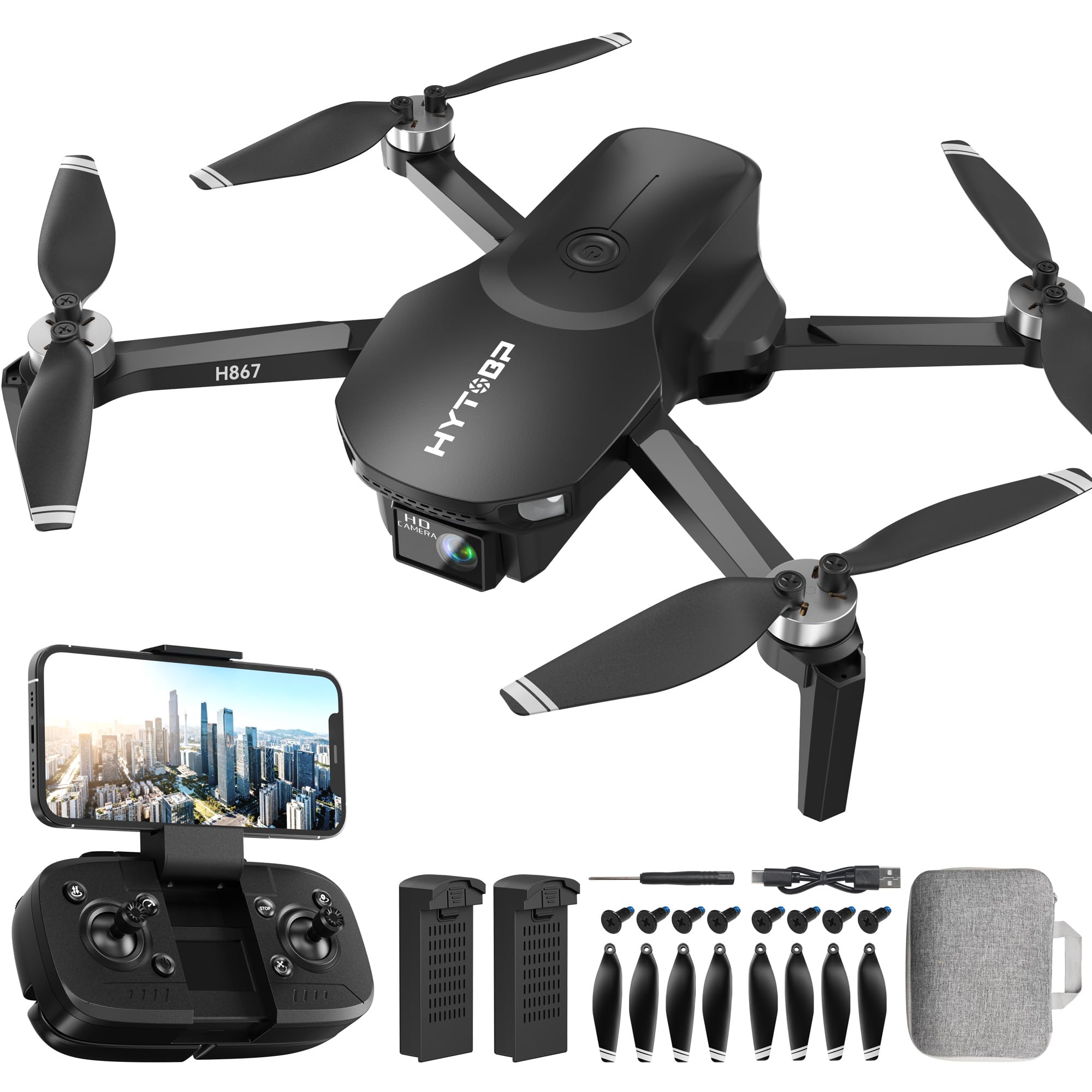
Image 1: HYTOBP H867 4K Drone and its included accessories. This image shows the drone, remote control, batteries, charging cable, and spare parts.
4. Component Identification
4.1. Drone Components
- Propellers: For lift and propulsion.
- Motors: Drive the propellers.
- Camera: 4K camera for photo and video recording.
- Battery Compartment: Houses the flight battery.
- LED Indicators: Display drone status (e.g., power, signal).
- Landing Gear: Provides stability during landing.
4.2. Remote Control Components
- Left Joystick: Controls altitude (throttle) and rotation (yaw).
- Right Joystick: Controls forward/backward (pitch) and left/right (roll).
- Power Button: Turns the remote control on/off.
- Take-off/Landing Button: One-key take-off and landing.
- Photo/Video Button: Activates camera functions.
- Return-to-Home Button: Initiates automatic return to the take-off point.
- Phone Holder: For mounting a smartphone to view live feed.
5. Setup
5.1. Charging the Flight Battery
- Remove the flight battery from the drone.
- Connect the USB charging cable to the battery and a suitable USB power adapter (not included, 5V/2A recommended).
- The indicator light on the battery will show charging status (e.g., red for charging, green for fully charged).
- Charging typically takes 60-90 minutes. Do not leave unattended while charging.
5.2. Installing the Flight Battery
- Ensure the drone is powered off.
- Insert the fully charged flight battery into the battery compartment on the drone until it clicks securely into place.
5.3. Installing Remote Control Batteries
- Open the battery cover on the back of the remote control.
- Insert 3x AAA batteries (not included) according to the polarity markings.
- Close the battery cover securely.
5.4. Propeller Installation
The propellers are marked 'A' or 'B'. Match them to the corresponding motor shafts. Ensure they are securely fastened with the provided screws.
5.5. Pairing the Drone and Remote Control
- Place the drone on a flat, level surface.
- Power on the drone. The LED indicators will flash.
- Power on the remote control.
- Push the left joystick (throttle) all the way up, then all the way down. The drone's LEDs will stop flashing and become solid, indicating successful pairing.
5.6. App Installation (Optional)
For advanced features and live video feed, download the "HYTOBP Drone" app from your smartphone's app store. Connect your phone to the drone's Wi-Fi network (usually named "HYTOBP-H867-XXXXXX").
6. Operating the Drone
6.1. Pre-Flight Checks
- Ensure batteries are fully charged in both drone and remote.
- Propellers are correctly installed and secure.
- Drone and remote are paired.
- Fly in an open area, free from obstacles and people.
6.2. Take-off and Landing
- Manual Take-off: Push both joysticks down and outwards simultaneously to arm the motors. Then, slowly push the left joystick (throttle) up to ascend.
- One-Key Take-off: Press the dedicated Take-off/Landing button on the remote. The drone will automatically ascend to a certain height and hover.
- Manual Landing: Slowly pull the left joystick (throttle) down until the drone lands. Once landed, push both joysticks down and inwards to disarm the motors.
- One-Key Landing: Press the dedicated Take-off/Landing button again. The drone will automatically descend and land.
6.3. Flight Controls
| Joystick | Movement | Drone Action |
|---|---|---|
| Left Joystick (Up/Down) | Up | Ascend (Increase Altitude) |
| Down | Descend (Decrease Altitude) | |
| Left Joystick (Left/Right) | Left | Yaw Left (Rotate Left) |
| Right | Yaw Right (Rotate Right) | |
| Right Joystick (Up/Down) | Up | Pitch Forward (Fly Forward) |
| Down | Pitch Backward (Fly Backward) | |
| Right Joystick (Left/Right) | Left | Roll Left (Fly Left Sideways) |
| Right | Roll Right (Fly Right Sideways) |
6.4. Camera Operation
- Take Photo: Briefly press the Photo/Video button on the remote control.
- Start/Stop Video: Press and hold the Photo/Video button for 2 seconds to start recording. Press again to stop.
- Viewing Media: Connect your smartphone to the drone's Wi-Fi and use the app to view live feed and recorded media. Alternatively, remove the drone's SD card (if applicable) and insert it into a card reader.
6.5. Intelligent Flight Modes
- Headless Mode: Press the Headless Mode button. In this mode, the drone's orientation is irrelevant; it will always move relative to the pilot's position. Press again to exit.
- Return-to-Home (RTH): Press the RTH button. The drone will automatically fly back to its take-off point. Press any joystick to cancel RTH. Ensure sufficient battery for RTH.
7. Maintenance
7.1. Cleaning
- Wipe the drone and remote control with a soft, dry cloth.
- Do not use alcohol or other chemical solvents.
- Keep motors and propellers free from dust and debris.
7.2. Battery Care
- Store batteries in a cool, dry place, away from direct sunlight and heat.
- Do not fully discharge batteries. Charge them to about 50-60% for long-term storage.
- If a battery swells, leaks, or shows signs of damage, discontinue use immediately and dispose of it properly.
7.3. Propeller Replacement
If propellers are damaged, replace them with new ones from the spare parts kit. Ensure you match the 'A' and 'B' markings correctly to the motor shafts. Use the provided screwdriver for replacement.
7.4. Storage
When not in use for extended periods, remove batteries from both the drone and remote control. Store the drone in its original packaging or a protective case.
8. Troubleshooting
| Problem | Possible Cause | Solution |
|---|---|---|
| Drone does not respond to remote. | Not paired; low battery; out of range. | Re-pair drone and remote; charge batteries; fly within operational range. |
| Drone drifts during flight. | Not calibrated; uneven surface at take-off; wind interference. | Perform gyroscope calibration (refer to app or remote instructions); take off from a flat surface; avoid flying in windy conditions. |
| Propellers do not spin. | Motors not armed; damaged propellers; motor malfunction. | Arm motors (joysticks down and out); replace damaged propellers; contact support if motor issue persists. |
| Poor camera image quality or no video feed. | Weak Wi-Fi signal; dirty lens; SD card issue. | Ensure strong Wi-Fi connection; clean camera lens; check SD card for proper insertion and format. |
| Drone loses power quickly. | Battery not fully charged; aging battery. | Ensure battery is fully charged; consider replacing old batteries. |
9. Specifications
| Feature | Detail |
|---|---|
| Brand | HYTOBP |
| Model | H867 |
| Camera Resolution | 4K |
| Drone Dimensions (L x W x H) | 20L x 12.5W x 15.5H centimeters |
| Battery Type | Lithium-polymer |
| Batteries Included | Yes (for drone) |
| Remote Control Batteries | 3x AAA (not included) |
| Recommended Age | 14+ years |
10. Warranty Information
HYTOBP products are covered by a limited warranty from the date of purchase. This warranty typically covers manufacturing defects but does not cover damage caused by misuse, accidents, unauthorized modifications, or normal wear and tear. For specific warranty terms and conditions, please refer to the warranty card included with your product or visit the official HYTOBP website.
11. Customer Support
If you encounter any issues or have questions regarding your HYTOBP H867 4K Drone, please contact our customer support team. You can usually find contact information (email, phone, or support portal) on the official HYTOBP website or on the product packaging. Please have your model number (H867) and proof of purchase ready when contacting support.
Online Resources: For FAQs, video tutorials, and software updates, please visit the official HYTOBP website: HYTOBP Official Store
Related documentsH867

Ask a question about this manual
Ask about setup, troubleshooting, compatibility, parts, safety, or missing instructions. Manuals+ will review the question and use this page’s manual context to help answer it.