
1. Product Overview
The BN-LINK WiFi Smart Plug (Model CP-J31WT) allows you to control your home appliances remotely, set schedules, and use voice commands for a smarter, more convenient lifestyle. This compact plug is designed for ease of use and integrates seamlessly with popular smart home platforms.

Image: BN-LINK WiFi Smart Plug overview with icons for WiFi, timer, app control, voice control, remote operation, and group control.
Key Features:
- Remote Control: Turn appliances ON/OFF from anywhere using your smartphone.
- Voice Control: Compatible with Alexa and Google Home for hands-free operation.
- Timer Function: Schedule appliances to turn ON/OFF automatically, saving energy and preventing overcharging.
- Compact Design: Small size ensures it doesn't block adjacent outlets.
- Safety Features: Equipped with high-temperature flame-retardant material, overload protection, electric shock prevention, and anti-tracking design.

Image: Diagram highlighting the smart plug's features: LED indicator, ON/OFF button, WiFi connection, timer function, remote operation, and voice control.
2. Safety Information
Please read and understand all safety instructions before using this product. Failure to follow these instructions may result in electric shock, fire, or serious injury.
- Do not disassemble or modify the device.
- Do not use in wet environments or near water.
- Ensure the plug is fully inserted into the outlet.
- Do not exceed the maximum load rating of 15A / 1500W.
- Keep out of reach of children.
- Unplug the device from the outlet before cleaning.
- This product is designed for indoor use only.
Built-in Safety Features:
- High-Temperature Flame-Retardant Material: Reduces fire risk.
- Overload Protection: Automatically cuts power to prevent damage from excessive current.
- Electric Shock Prevention Design: Enhanced safety against accidental contact.
- Anti-Tracking Design: Prevents dust accumulation and potential short circuits.
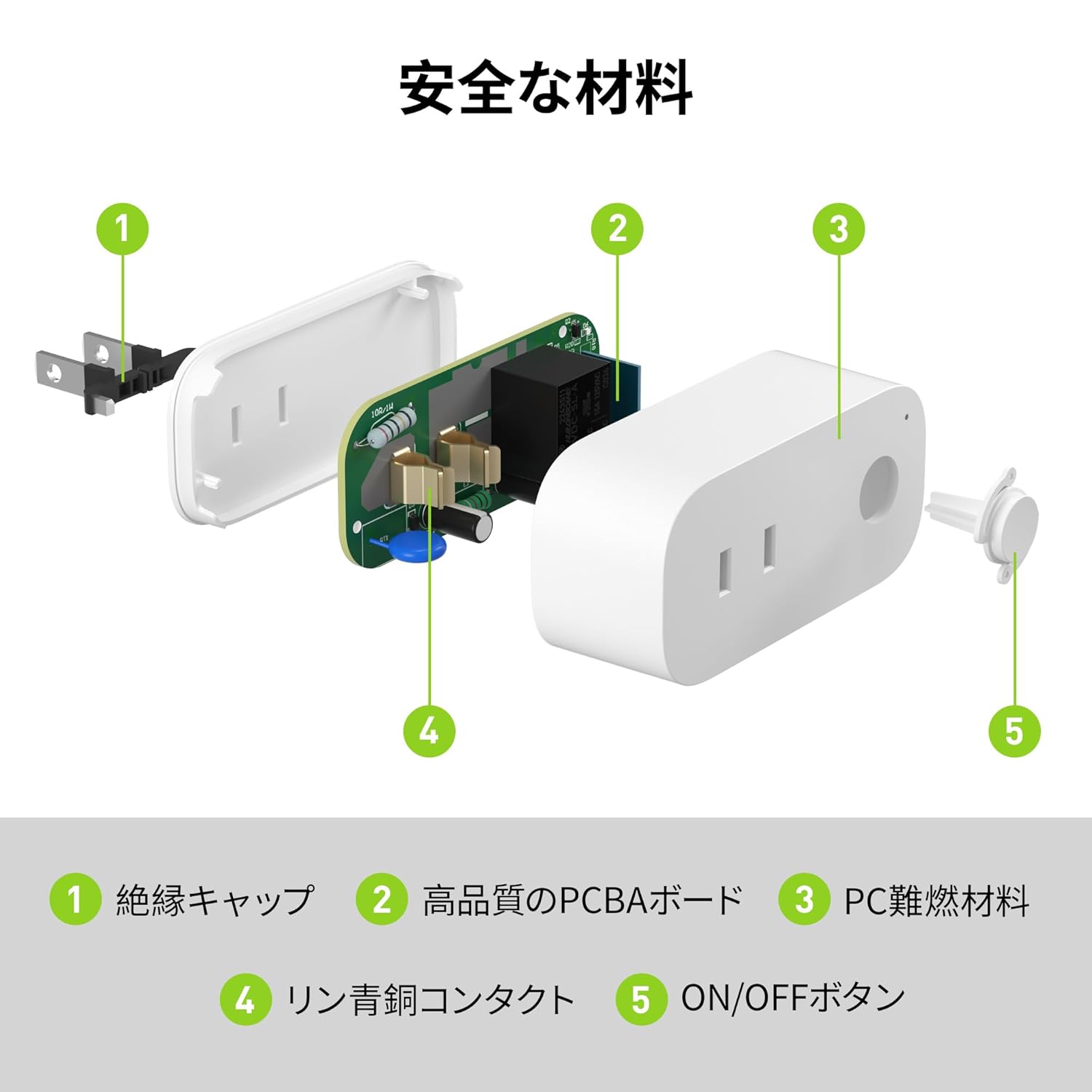
Image: Internal components of the smart plug, highlighting safety features such as the insulation cap, high-quality PCBA board, PC flame-retardant material, phosphor bronze contacts, and the ON/OFF button.
3. Setup Instructions
3.1. Initial Setup
- Unpack the BN-LINK Smart Plug from its packaging.
- Plug the smart plug into a standard wall outlet.
- Observe the indicator light on the plug. It should start blinking. If it does not blink, press and hold the ON/OFF button for approximately 5 seconds until it starts blinking rapidly.
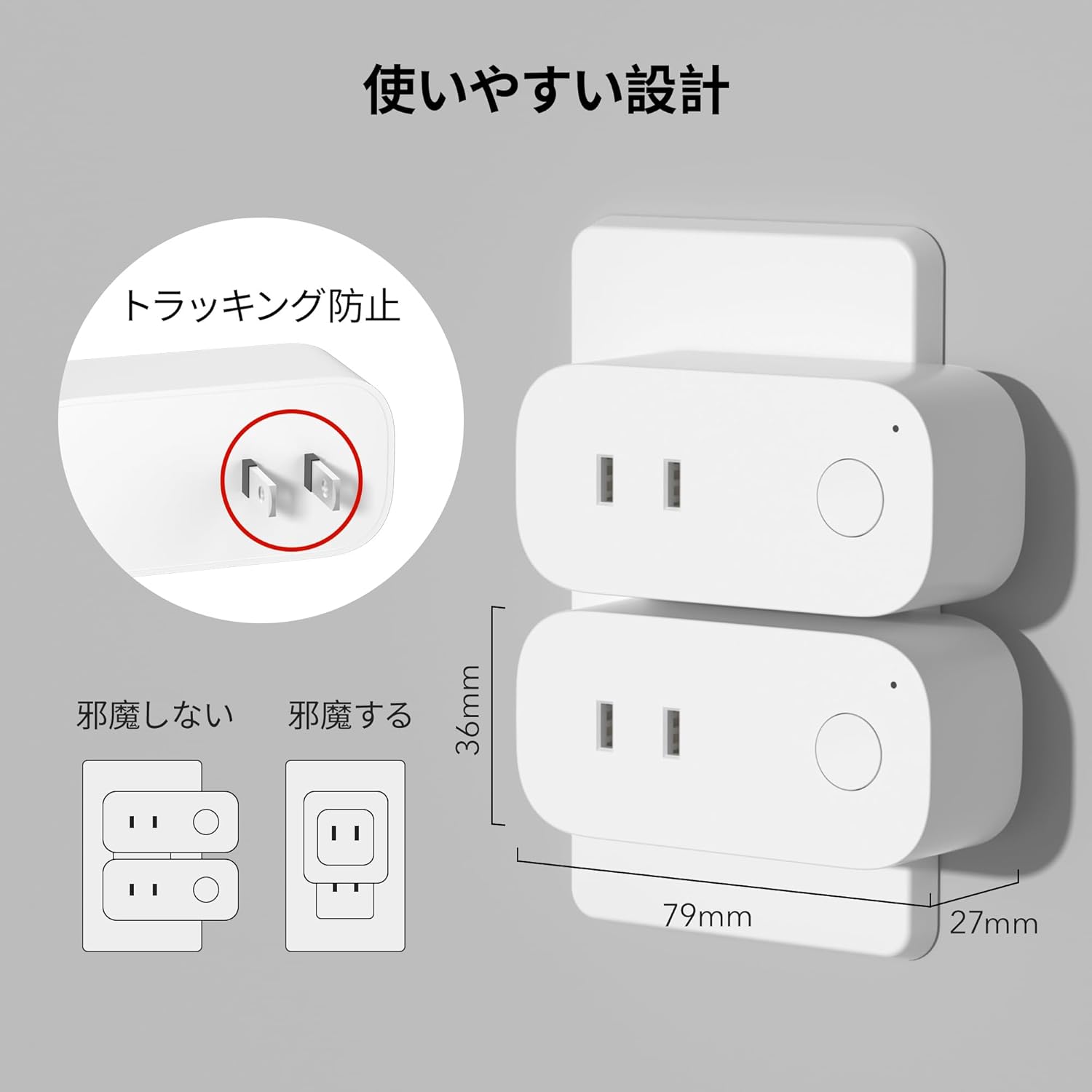
Image: The compact design of the smart plug, illustrating how it fits into an outlet without obstructing the adjacent one. Dimensions are also shown.
3.2. App Installation and Wi-Fi Connection
To utilize all smart features, you need to install the BN-LINK app and connect the plug to your 2.4GHz Wi-Fi network. This device only supports 2.4GHz Wi-Fi.
- Download the "BN-LINK" app from your smartphone's app store (Google Play Store for Android or Apple App Store for iOS).
- Open the app and create an account or log in if you already have one.
- Tap the "+" icon or "Add Device" to begin the pairing process.
- Select "Smart Plug" from the device list.
- Follow the on-screen instructions to connect the smart plug to your 2.4GHz Wi-Fi network. Ensure your phone is also connected to the 2.4GHz network during setup.
- Once connected, you can rename your smart plug for easy identification (e.g., "Living Room Lamp," "Coffee Maker").
Video: This video demonstrates the process of connecting the smart plug to the BN-LINK app and your Wi-Fi network, including resetting the device and confirming indicator light status.
Video: This video provides a step-by-step guide on setting up the ePlugBT and connecting it to Wi-Fi, which is similar to the BN-LINK Smart Plug setup process.
4. Operating Instructions
4.1. Remote Control via App
Once connected to Wi-Fi, you can control your appliances from anywhere with an internet connection.
- Open the BN-LINK app.
- Tap on the device name you wish to control.
- Use the ON/OFF toggle button within the app to switch your appliance on or off.

Image: Remote operation of the smart plug via the BN-LINK app on a smartphone. The image shows the app's ON/OFF control for a device connected to the smart plug, with a WiFi router in the background.

Image: A user controlling a smart plug remotely with their smartphone in a modern kitchen environment.
4.2. Voice Control
Integrate your smart plug with Amazon Alexa or Google Home for convenient voice commands.
- Ensure your smart plug is successfully connected to the BN-LINK app and your Wi-Fi network.
- Open the Alexa or Google Home app.
- Follow the app's instructions to add a new device or skill, searching for "BN-LINK" or "Smart Plug."
- Once linked, you can use voice commands such as:
- "Alexa, turn on [device name]."
- "Hey Google, turn off [device name]."

Image: A user in a living room controlling a lamp connected to a smart plug using voice commands with an Alexa device. The image also indicates Google Home compatibility.

Image: A smart plug connected to an outlet, being controlled by a Google Home device. A person is shown in bed, illustrating hands-free operation.
4.3. Timer Function and Scheduling
Set custom schedules to automate your appliances and manage energy consumption.
- In the BN-LINK app, select your smart plug.
- Navigate to the "Timer" or "Schedule" section.
- Set specific ON/OFF times for your appliances. You can create daily, weekly, or one-time schedules.
- Use the countdown timer for temporary automation, such as turning off a charger after a set period to prevent overcharging.

Image: The BN-LINK app displaying timer and scheduling features. Examples show a coffee maker turning on at 7:15 AM and a lamp turning off at 10:00 PM, demonstrating automated control.

Image: A smart plug connected to a microwave, with the app interface showing a timer set to turn the device ON at 7:00.
5. Maintenance
To ensure optimal performance and longevity of your BN-LINK Smart Plug, follow these maintenance guidelines:
- Cleaning: Disconnect the smart plug from the power outlet before cleaning. Use a dry, soft cloth to wipe the surface. Do not use liquid cleaners or sprays.
- Storage: If not in use for an extended period, unplug the device and store it in a cool, dry place away from direct sunlight and moisture.
- Inspection: Periodically check the plug and outlet for any signs of damage, wear, or overheating. If any issues are found, discontinue use and contact customer support.
6. Troubleshooting
If you encounter issues with your BN-LINK Smart Plug, refer to the following common problems and solutions:
| Problem | Possible Cause | Solution |
|---|---|---|
| Device cannot connect to Wi-Fi. | Incorrect Wi-Fi password, 5GHz Wi-Fi network, weak signal, or device not in pairing mode. |
|
| Remote control not working. | No internet connection on phone or smart plug, or app issue. |
|
| Voice control not responding. | Incorrect device name, smart assistant not linked, or internet connection issue. |
|
| Plug is unresponsive. | Power outage, device malfunction, or firmware issue. |
|
7. Specifications
| Feature | Detail |
|---|---|
| Brand | BN-LINK |
| Model Number | CP-J31WT |
| Item Weight | 70 g |
| Package Dimensions | 8.2 x 4.7 x 4.3 cm |
| Size | 1 Pack |
| Switch Type | 1-way |
| Included Components | Smart Plug body, Instruction Manual |
| Batteries Used | No |
| Operating Mode | ON-OFF |
| Current Rating | 15 Amps |
| Operating Voltage | 100 Volts |
| Connector Type | Plug-in |
| Material | Plastic |
| Circuit Type | 1-way |
8. Warranty and Support
BN-LINK products are designed for quality and reliability. For warranty information and customer support, please refer to the contact details provided in the product packaging or visit the official BN-LINK website.
For further assistance, you may also contact the seller directly through the Amazon platform.
Online Resources:
- Official BN-LINK Website: www.bn-link.com (Please note: This is a placeholder URL, replace with actual if available)
- Amazon Product Page: Amazon.co.jp Product Page


