1. Introduction
This manual provides detailed instructions for the installation, operation, and maintenance of your Wonsidary 11.26-inch Wireless CarPlay & Android Auto Screen. This portable display system enhances your driving experience by integrating smartphone functionalities, navigation, and entertainment directly into your vehicle. Please read this manual thoroughly before use to ensure proper functionality and safety.
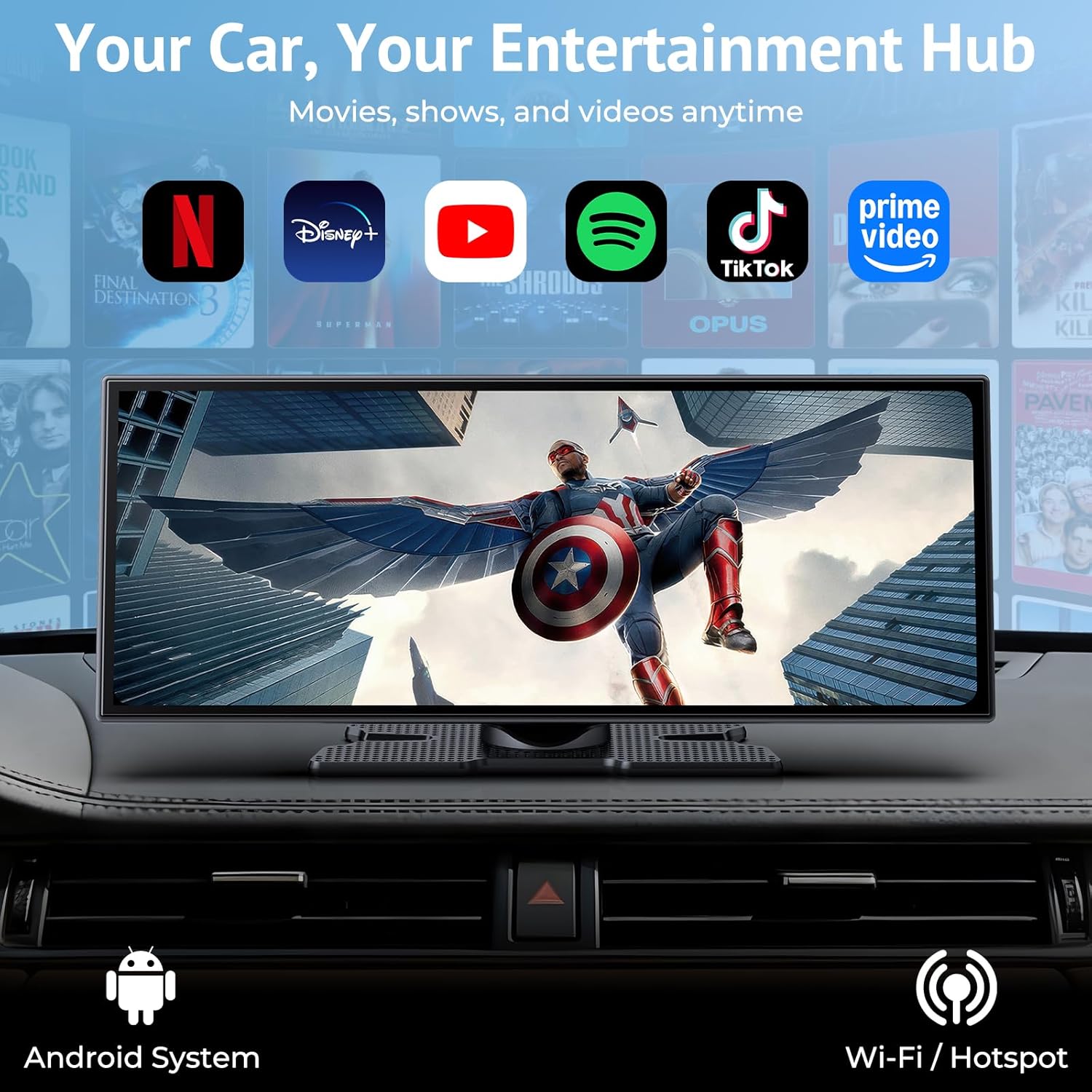
Image: The Wonsidary 11.26-inch screen displayed on a car dashboard, showcasing its sleek design and wide aspect ratio.
2. Package Contents
Verify that all items listed below are included in your package:
- 11.26-inch Wireless CarPlay & Android Auto Screen
- 1080P Backup Camera
- CD Slot Mount
- Suction Cup Mount
- Adhesive Mount
- Type-C to Cigarette Lighter Power Cord with USB Port
- AUX Audio Cable
- User Manual (this document)

Image: An illustration of the main screen unit alongside its various components, including the backup camera, power cable, AUX cable, and three types of mounting brackets.
3. Safety Information
Always prioritize safety while operating your vehicle. Do not attempt to operate the screen or its features in a way that distracts you from driving. Ensure the device is securely mounted and does not obstruct your view of the road or interfere with vehicle controls. Adhere to all local traffic laws and regulations regarding in-car displays.
4. Setup
4.1 Mounting the Screen
The Wonsidary screen offers three mounting options to suit various vehicle dashboards and windshields:
- Suction Cup Mount: Ideal for windshields or smooth dashboard surfaces. Clean the surface thoroughly before attaching the suction cup for a strong hold. Adjust the arm for optimal viewing angle.
- Adhesive Mount: Provides a clean, space-saving installation on the dashboard. Ensure the dashboard surface is clean and dry before applying the adhesive base. Allow sufficient time for the adhesive to cure before attaching the screen.
- CD Slot Mount: Offers a stable and vibration-free mounting solution by inserting into your vehicle's CD player slot. This option is suitable if the CD slot location does not obstruct other controls or your view.
Choose the mount that best fits your vehicle and ensures the screen is stable, visible, and does not impede driving.

Image: Visual representation of the CD slot mount, suction cup mount, and adhesive mount, demonstrating how each can be used to secure the screen in a vehicle.
4.2 Power Connection
Connect the Type-C end of the power cord to the screen and the cigarette lighter adapter end into your vehicle's 12V power outlet. The screen will power on automatically when the vehicle starts. The power cord also includes a USB port for charging other devices.
4.3 Backup Camera Installation
The included 1080P backup camera provides enhanced safety when reversing. Install the camera at the rear of your vehicle, typically above the license plate. Route the camera cable through the vehicle's interior to the main screen unit. Connect the camera's video cable to the designated input on the screen. The camera will automatically activate when the vehicle is shifted into reverse, displaying a clear view with dynamic guidelines.

Image: The screen displaying a clear, wide-angle view from the 1080P backup camera, complete with adjustable parking guidelines for safe maneuvering.
5. Operating Instructions
5.1 Power On/Off
The screen powers on automatically with your vehicle's ignition. To manually turn off the screen, press and hold the power button located on the top left of the unit. A short press will put the screen into standby mode.
5.2 Wireless CarPlay & Android Auto Connection
To connect your smartphone wirelessly:
- Ensure Bluetooth and Wi-Fi are enabled on your smartphone.
- On the Wonsidary screen, select the 'CarPlay' or 'Android Auto' icon.
- On your phone, search for and connect to the screen's Bluetooth name (e.g., "Wonsidary_CarPlay").
- Confirm the pairing request on both devices. Once paired, the system will automatically establish a Wi-Fi connection for CarPlay or Android Auto functionality.
The screen will automatically connect to your phone upon subsequent vehicle startups.

Image: The screen showcasing various CarPlay and Android Auto functions, including music streaming, hands-free calling, voice control, and navigation, indicating seamless wireless integration.
5.3 Split-Screen Functionality
The split-screen feature allows you to view two applications simultaneously. For example, you can display navigation on one side and media playback on the other. To activate, swipe from the edge of the screen or use the dedicated split-screen icon in the quick access menu. This feature is particularly useful for multitasking without switching between apps.
Image: A driver viewing navigation on one side of the screen while a passenger watches a video on the other, illustrating the dual-screen mode for multitasking.
5.4 Media Playback and Entertainment
The screen supports various media and entertainment options:
- Streaming Apps: Connect to your phone's hotspot to access pre-installed apps like Netflix, YouTube, and TikTok for video streaming when parked.
- SD Card Playback: Insert a TF (Micro SD) card (not included) into the designated slot to play music, videos, and view photos directly from the card.
- CarPlay/Android Auto: Access your phone's music, podcast, and navigation apps through the integrated smartphone interface.

Image: The screen's interface showing icons for various applications, including Phone, Music, Maps, Messages, YouTube, Netflix, and TikTok, highlighting its entertainment capabilities.
5.5 Voice Control
Utilize Siri or Google Assistant for hands-free operation. Once connected via CarPlay or Android Auto, you can use voice commands for navigation, making calls, sending messages, and controlling music playback. This feature enhances safety by minimizing driver distraction.

Image: A driver interacting with the screen using voice commands, with speech bubbles indicating Siri and Google Assistant activation, emphasizing hands-free control.
5.6 Audio Output Modes
The screen offers multiple ways to output audio to your vehicle's sound system:
- Built-in Speaker: The screen has an integrated speaker for direct audio output.
- Bluetooth Transmission: Connect the screen to your car's existing Bluetooth system for audio playback.
- FM Radio Transmitter: Transmit audio to your car's FM radio by tuning both devices to the same FM frequency.
- AUX Input: Use the provided AUX audio cable to connect the screen to your car's AUX input for a wired audio connection.

Image: Illustrations demonstrating the different audio output methods: Bluetooth, AUX cable, FM transmission, and the built-in speaker, highlighting compatibility with various car audio systems.
5.7 Customization
Personalize your screen's appearance:
- Boot Logos: Upload custom boot logos via an SD card to display your preferred brand or image when the device starts.
- Wallpapers: Choose from built-in wallpapers or import your own images via an SD card to customize the background.

Image: The screen's settings menu showing options for display, boot logo, and wallpaper, with examples of custom wallpapers and logos, demonstrating personalization features.
5.8 OTA Updates
The system supports Over-The-Air (OTA) updates for bug fixes and new features. Connect the device to a Wi-Fi network (e.g., your phone's hotspot) and navigate to the system settings to check for and install available updates. Regular updates ensure optimal performance and access to the latest functionalities.

Image: The screen showing a system update interface, indicating that an update is available and providing options to check online or perform a local upgrade.
6. Maintenance
To ensure the longevity and optimal performance of your Wonsidary screen:
- Cleaning: Use a soft, lint-free cloth to clean the screen. For stubborn smudges, slightly dampen the cloth with water or a screen-safe cleaner. Avoid abrasive materials or harsh chemicals.
- Temperature: Avoid exposing the device to extreme temperatures. If left in direct sunlight for extended periods, consider removing it or using a sunshade.
- Connections: Periodically check all cable connections to ensure they are secure.
7. Troubleshooting
| Problem | Possible Cause | Solution |
|---|---|---|
| Screen does not power on. | No power, loose connection, faulty power adapter. | Check if the cigarette lighter adapter is fully inserted and the vehicle's 12V outlet is functional. Ensure the Type-C cable is securely connected to the screen. |
| Wireless CarPlay/Android Auto fails to connect. | Bluetooth/Wi-Fi off on phone, incorrect pairing, interference. | Ensure Bluetooth and Wi-Fi are active on your phone. Forget the device in your phone's Bluetooth settings and re-pair. Move away from strong Wi-Fi interference sources. |
| Backup camera not displaying. | Loose cable, incorrect wiring, camera malfunction. | Check the camera's video cable connection to the screen. Ensure the camera is receiving power (usually from the reverse light circuit). |
| No audio output. | Incorrect audio mode selected, low volume, loose AUX cable. | Verify the selected audio output mode (Bluetooth, FM, AUX). Adjust volume on both the screen and your car stereo. Ensure AUX cable is fully inserted. |
| Screen is unresponsive or frozen. | Software glitch, temporary error. | Perform a soft reset by pressing and holding the power button until the device restarts. If the issue persists, disconnect power for a few minutes and reconnect. |
8. Specifications
| Feature | Detail |
|---|---|
| Screen Size | 11.26 inches |
| Display Resolution | 1920 x 720 |
| Connectivity Technology | Bluetooth, Wi-Fi (Dual-Band) |
| Controller Type | Android, iOS |
| Special Features | Wireless Android Auto, Wireless Apple CarPlay, Built-In Bluetooth, Built-In YouTube & Netflix apps, Voice Control, Split-Screen, OTA Updates |
| Compatible Devices | Smartphone |
| Connector Type | USB Type-C (for power) |
| Audio Output Mode | Stereo (Built-in Speaker, Bluetooth, FM Transmitter, AUX) |
| Video Encoding | H.264, H.265/HEVC |
| Supported Internet Services | Netflix, YouTube |
| Backup Camera | 1080P AHD with 170° Wide-Angle View, Adjustable Parking Guidelines, IP67 Waterproof |
| Storage Expansion | Supports TF (Micro SD) card up to 256GB (not included) |
| Power Input | 12-24V (via cigarette lighter adapter) |
| Item Weight | 2.6 pounds |
| Package Dimensions | 11.3 x 4.53 x 4.06 inches |
9. Warranty Information
Wonsidary products are manufactured to high-quality standards. This product is covered by a limited warranty against defects in materials and workmanship. Please refer to the warranty card included in your package or contact customer support for specific warranty terms and conditions. Keep your purchase receipt as proof of purchase.
10. Customer Support
For any questions, technical assistance, or troubleshooting not covered in this manual, please contact Wonsidary customer support. Our team is available to assist with installation, operation, and any concerns you may have. Contact information can typically be found on the product packaging or the official Wonsidary website.