
1. Introduction
The Autel MaxiSys MS909S2 is an advanced diagnostic scanner designed for professional automotive technicians. It provides comprehensive vehicle diagnostics, service functions, and programming capabilities. This manual outlines the setup, operation, maintenance, and specifications of the MS909S2 to ensure proper and efficient use.

Image 1.1: Overview of the Autel MaxiSys MS909S2 Diagnostic Scanner highlighting its key features and components.
2. Setup
2.1 Unpacking and Initial Inspection
Carefully unpack all components from the packaging. Verify that all items listed in the 'What's in the Box' section are present and undamaged. If any items are missing or damaged, contact Autel support immediately.
2.2 Charging the Device
Before first use, fully charge the MS909S2 tablet. Connect the power adapter to the tablet's charging port and plug it into a power outlet. The charging indicator will show the charging status. A full charge ensures optimal performance during diagnostic sessions.
2.3 Connecting the VCI 2 Vehicle Communication Interface
The VCI 2 is essential for communication between the MS909S2 tablet and the vehicle. It can connect via USB, Wi-Fi (5G), or Bluetooth.
- Power On: Ensure the VCI 2 is powered on. It typically draws power from the vehicle's OBDII port.
- Vehicle Connection: Plug the VCI 2 into the vehicle's OBDII port, usually located under the dashboard.
- Tablet Connection:
- Bluetooth: On the MS909S2 tablet, navigate to the VCI Manager and select Bluetooth for wireless connection.
- Wi-Fi: Configure the VCI 2 and tablet to connect to the same Wi-Fi network.
- USB: Connect the VCI 2 to the tablet using the provided USB cable for a direct, stable connection.
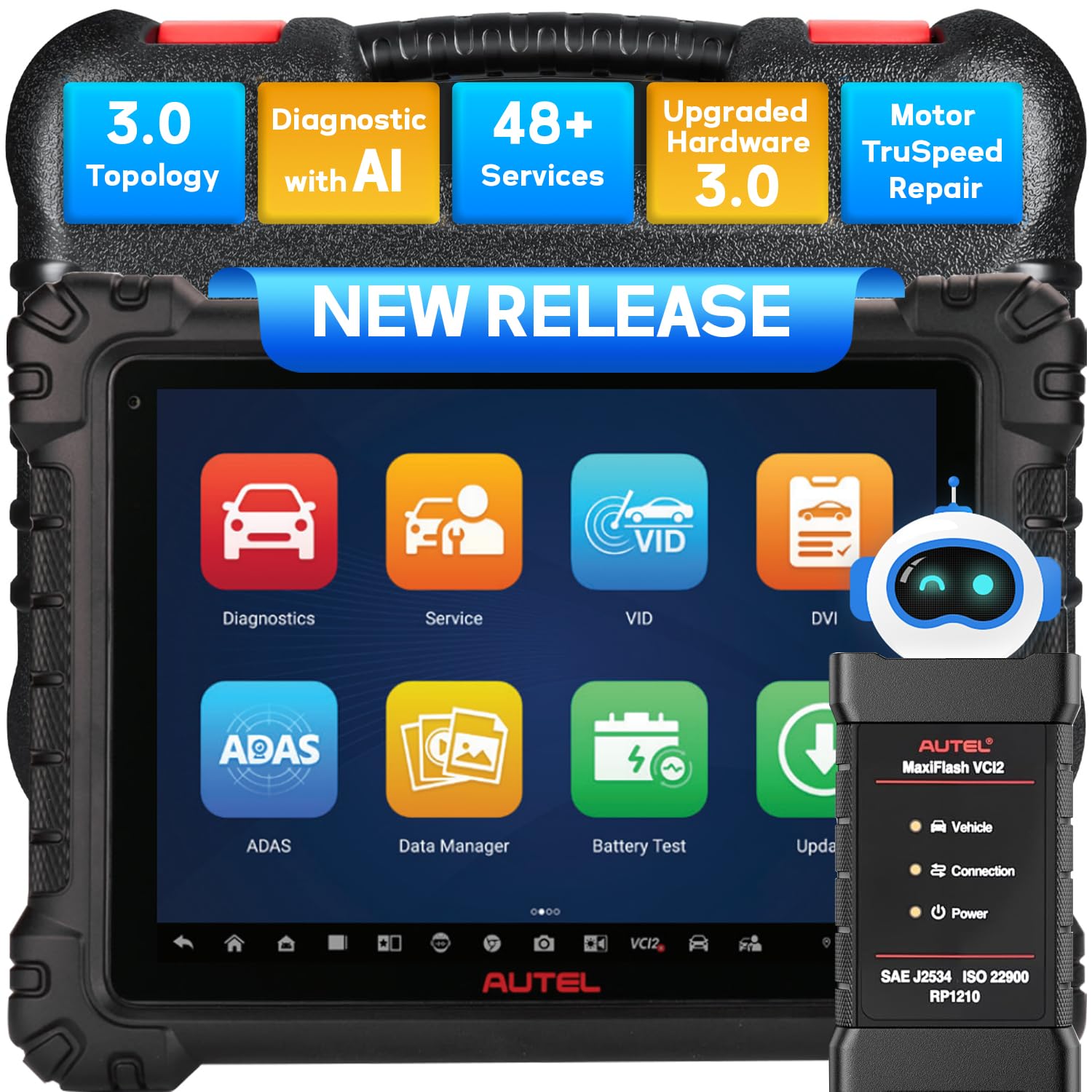
Image 2.1: The Autel MaxiSys MS909S2 tablet and its VCI 2 module, illustrating the connection to a vehicle.
3. Operating Instructions
The Autel MaxiSys MS909S2 offers a wide range of diagnostic and service functions. This section details the primary operational aspects.
3.1 System Navigation
The MS909S2 runs on Android 13.0 with an intuitive touchscreen interface. Navigate through menus by tapping icons and swiping. The main screen provides access to key functions like Diagnostics, Service, VCI Manager, and Updates.
3.2 Vehicle Diagnostics
This function allows for comprehensive scanning of vehicle systems to identify and resolve issues.
- Read/Clear DTCs: Retrieve Diagnostic Trouble Codes (DTCs) from all available modules and clear them after repairs.
- View Live Data: Monitor real-time data streams from various sensors and components.
- Freeze Frame Data: View a snapshot of sensor values at the moment a DTC was set.
- Active Test (Bi-directional Control): Perform specific tests on vehicle components to verify their functionality.
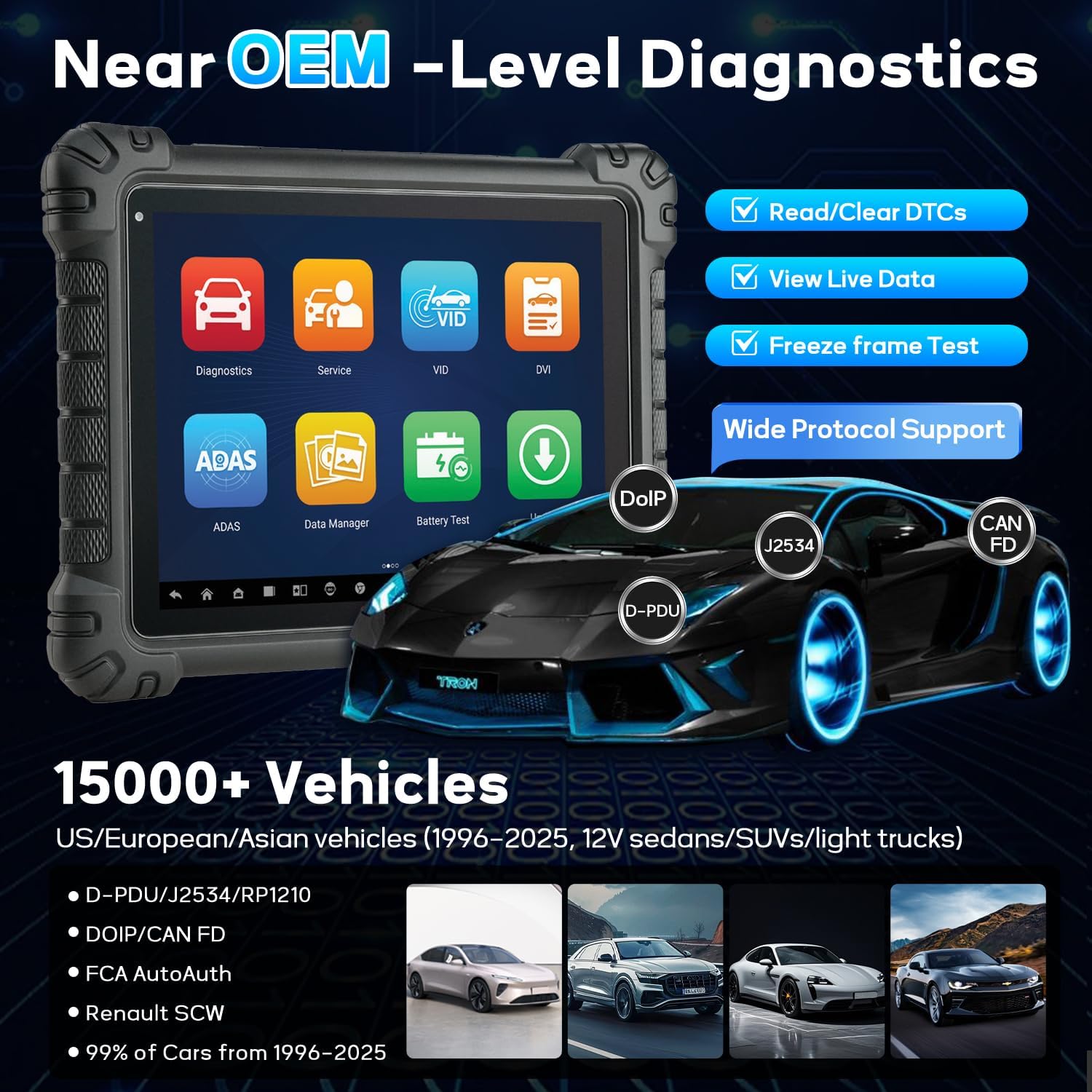
Image 3.1: The MS909S2 interface showing core diagnostic capabilities and supported communication protocols.
3.3 Topology Mapping 3.0
Topology Mapping 3.0 provides an OE-style visualization of the vehicle's ECU network. It displays the communication status of each module with color-coding (green for no fault, red for fault, gray for no response). This feature helps quickly identify communication issues and faulty modules.
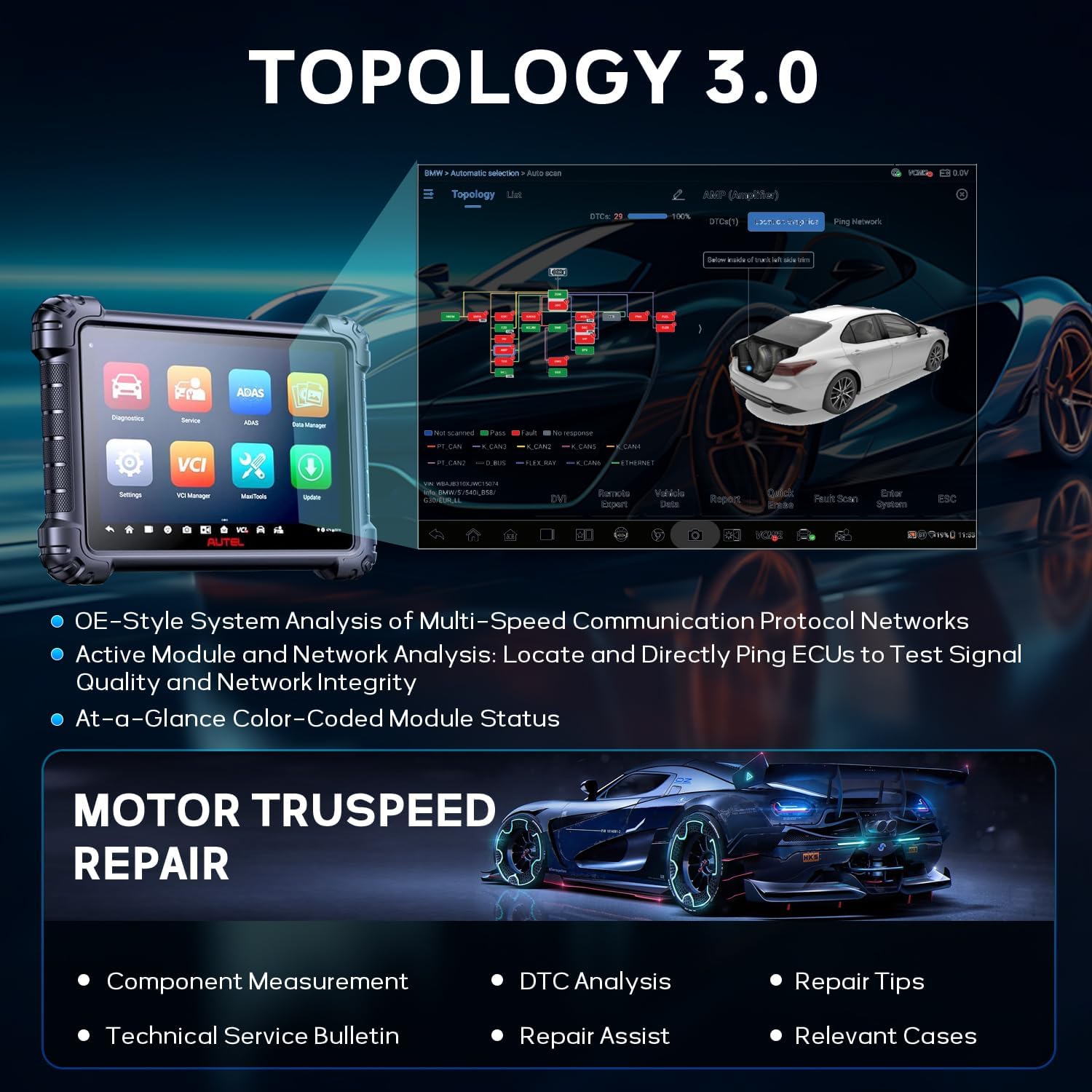
Image 3.2: Topology 3.0 interface showing the vehicle's network structure and module status.
3.4 Data-Driven Diagnostics with Enhanced PID Analysis
This function enhances data stream analysis for more accurate fault tracing.
- Data Visualization: Graph multiple parameters simultaneously to observe relationships and anomalies.
- Live Data Fusion: Record and compare value changes across different systems.
- Multi-PID Grouping: Analyze related parameters together for specific troubleshooting, such as engine performance or emissions.
- Reference Sampling: Record and compare selected PIDs for pre- and post-repair analysis.

Image 3.3: Data-Driven Diagnostics interface with enhanced PID analysis and split-screen view.
3.5 Hands-Free Virtual Assistant "MAX"
The integrated virtual assistant, MAX, allows for voice-controlled navigation and execution of tasks. Simply say "Hey MAX" to initiate commands such as opening service menus, starting system scans, or running active tests.

Image 3.4: The MAX virtual assistant feature on the MS909S2.
3.6 Enhanced Split-Screen Diagnostics
This feature allows running two applications simultaneously for efficient cross-referencing. Examples include viewing Topology alongside Component Location, or performing a Fault Scan while pinging the network.
3.7 Advanced Digital Vehicle Inspection (DVI)
The DVI function provides a multi-point visual inspection of the vehicle. It includes AI-powered image analysis to detect dents and scratches. It can be paired with optional tools like Autel TBE200 (tire tread) and ITS600 (TPMS) for detailed reports.
3.8 J2534 ECU Programming & Coding
The MS909S2 supports J2534 ECU programming and coding, allowing for flashing new software to ECUs, adapting components, and customizing vehicle settings. This requires a stable internet connection and adherence to manufacturer-specific procedures.
3.9 Service Functions (48+)
The device includes over 48 common maintenance and service functions, such as:
- Oil Reset
- SAS (Steering Angle Sensor) Reset
- EPB (Electronic Parking Brake) Reset
- TPMS (Tire Pressure Monitoring System) Reset
- BMS (Battery Management System) Reset
- Throttle Adaptation
- Injector Coding
- Brake Bleed
- Gear Learning
- Suspension Reset
- And many more.

Image 3.5: A selection of the 48+ service functions available on the MS909S2.
3.10 Motor TruSpeed Repair
This feature assists in vehicle repair by providing:
- Component Measurement
- DTC Analysis
- Repair Tips
- Technical Service Bulletins (TSB)
- Repair Assist
- Relevant Cases
3.11 Other Advanced Functions
- Cloud Report: Generate and store diagnostic reports in the cloud for easy access and sharing.
- Wi-Fi Printing: Print diagnostic reports directly from the device to a Wi-Fi enabled printer.
- Pre & Post Scan: Perform scans before and after repairs to document vehicle status.
- Battery Test (with BT506): Integrate with the Autel BT506 battery tester for comprehensive battery health analysis.
- Endoscope (with MV108/MV105): Connect an Autel endoscope for visual inspection of hard-to-reach areas.
- Remote Expert: Access remote technical support and assistance.
- AutoAuth for FCA: Provides secure gateway access for 2018 and newer FCA vehicles.
- VAG Guide: Guided functions for Volkswagen Audi Group vehicles.

Image 3.6: Icons representing additional advanced functions of the MS909S2.
4. Maintenance
4.1 Software Updates
Regularly update the MS909S2 software to ensure access to the latest vehicle coverage, bug fixes, and new features. Connect the tablet to a stable internet connection and navigate to the 'Update' section on the main menu. Follow the on-screen instructions to download and install updates.
4.2 Cleaning and Storage
- Clean the tablet screen with a soft, lint-free cloth. Avoid abrasive cleaners.
- Keep the device and VCI 2 free from dust, dirt, and moisture.
- Store the MS909S2 in its protective case in a dry, cool environment when not in use.
- Avoid exposing the device to extreme temperatures or direct sunlight for extended periods.
4.3 Battery Care
To prolong battery life, avoid fully discharging the device frequently. If storing for an extended period, ensure the battery is charged to approximately 50-70%.
5. Troubleshooting
5.1 Device Not Powering On
- Ensure the battery is charged. Connect the power adapter and try again.
- Press and hold the power button for 10-15 seconds to perform a hard reset.
5.2 VCI 2 Connection Issues
- Verify the VCI 2 is securely plugged into the vehicle's OBDII port and receiving power (indicated by LED lights).
- Check the connection status in the VCI Manager on the tablet. Try reconnecting via Bluetooth, Wi-Fi, or USB.
- Ensure the vehicle's ignition is on (Key On, Engine Off).
- Confirm that the VCI 2 firmware is up to date.
5.3 Software Freezing or Slow Performance
- Close unnecessary applications running in the background.
- Clear cache data from the device settings.
- Perform a software update to ensure the latest optimizations.
- If issues persist, consider a factory reset (back up important data first).
5.4 Diagnostic Communication Errors
- Verify the vehicle's ignition is on.
- Ensure the correct vehicle make, model, and year are selected in the software.
- Check for any physical damage to the OBDII cable or VCI 2.
- Try connecting to a different vehicle to rule out vehicle-specific issues.
6. Specifications
| Feature | Specification |
|---|---|
| Model | MS909 S2 |
| Operating System | Android 13.0 |
| Processor | 2.7G Octa-Core Processor |
| Memory | 12GB RAM + 256GB Storage |
| Display | 11-inch Anti-Glare Touchscreen (2176 x 1600 resolution) |
| Battery | 15000mAh Lithium Polymer |
| Connectivity | Dual Wi-Fi 6, Bluetooth, USB |
| VCI | VCI 2 (Supports DoIP, CAN FD, J2534) |
| Item Weight | 14.87 pounds |
| Package Dimensions | 21 x 16 x 5.12 inches |

Image 6.1: Detailed comparison of MS909S2 specifications against the previous MS909 model.
7. Warranty and Support
7.1 Warranty Information
The Autel MaxiSys MS909S2 typically comes with a manufacturer's warranty covering defects in materials and workmanship. Please refer to the warranty card included with your product or visit the official Autel website for specific warranty terms and duration. Keep your proof of purchase for warranty claims.
7.2 Technical Support
For technical assistance, software issues, or operational questions, please contact Autel customer support. Support contact information can usually be found on the official Autel website or within the device's 'About' section. Online resources, FAQs, and forums may also be available.


