
1. Introduction
This manual provides instructions for the installation, operation, and maintenance of your LongPlus 5MP 3K Window Camera. Please read this manual thoroughly before using the product to ensure correct usage and to prevent damage.
2. Safety Information
Observe the following safety precautions to prevent injury or damage to the device:
- Do not expose the camera to extreme temperatures, humidity, or direct sunlight.
- Use only the provided power adapter and charging cable.
- Keep the camera away from water and other liquids.
- Do not attempt to disassemble or repair the camera yourself. Contact customer support for assistance.
- Ensure the camera is securely mounted to prevent it from falling.
3. Package Contents
Verify that all items are present in the package:
- Window Security Camera (2 units)
- Quick-mount Bracket
- Charging Cable
- User Manual (this document)
4. Product Overview
The LongPlus 5MP 3K Window Camera is designed for indoor security, offering high-resolution video and advanced detection features. Its compact design allows for discreet placement on windows.
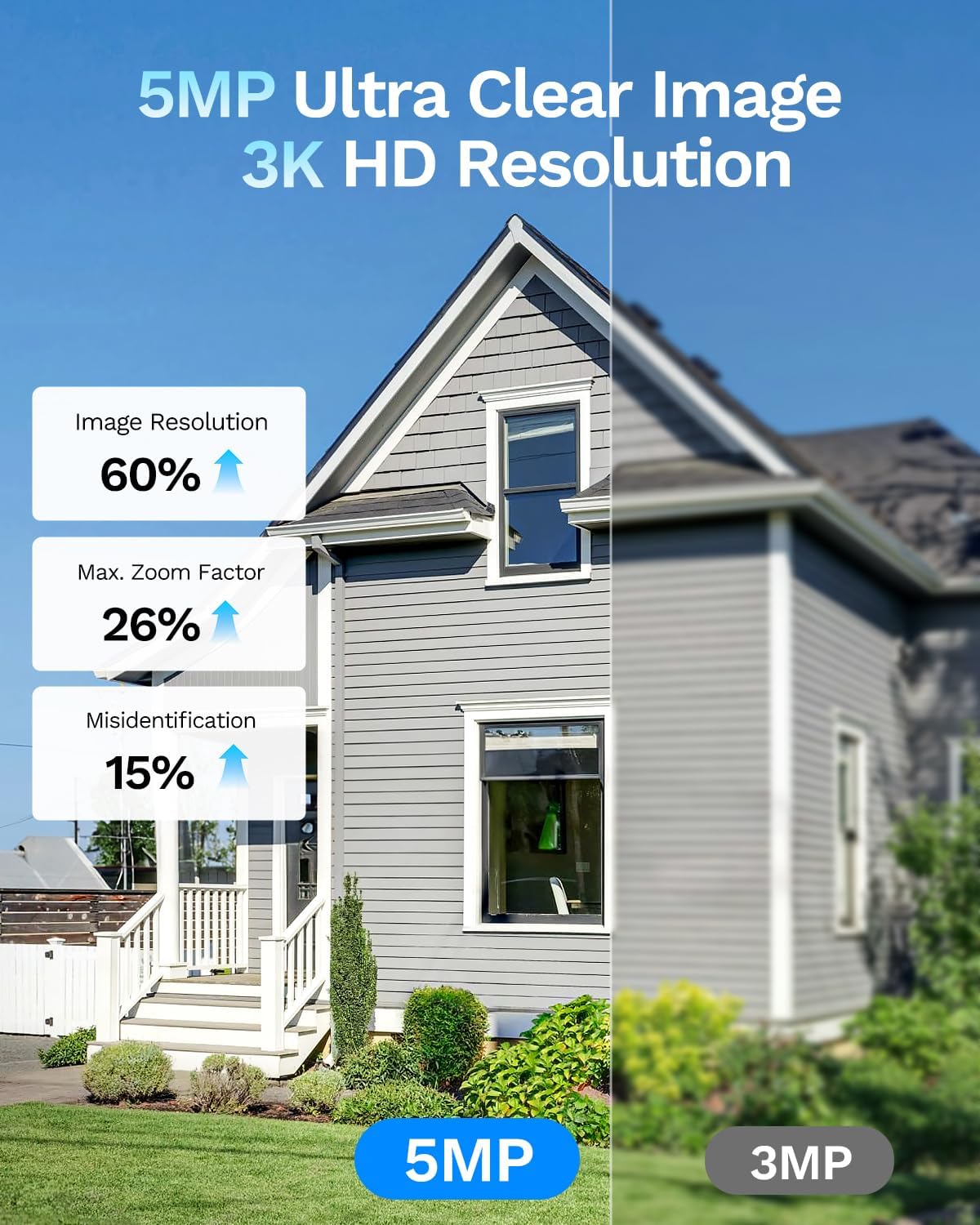
Figure 4.1: Front view of the LongPlus 5MP 3K Window Camera, showing the lens and compact design.

Figure 4.2: Side view of the camera, highlighting the USB power port and the reset button.
5. Setup
5.1. App Download and Registration
To begin, download the SV360 app and register an account. This app is essential for controlling and monitoring your camera.
Video 5.1: This video demonstrates the process of downloading the SV360 app, registering an account using email or phone number, and logging in. It also shows how to enable location permissions for the app.
5.2. Power On and Reset
Connect the camera to a power source using the provided USB cable. The camera will announce, "Please use the mobile app to configure the Wi-Fi network." If no announcement is heard, reset the camera by pressing and holding the reset button for 3 seconds until the announcement is made.
5.3. Wi-Fi and Bluetooth Connection
Ensure your smartphone's Wi-Fi and Bluetooth are enabled. Open the SV360 app, click the '+' button in the upper right corner, and select 'Add Device'. The app will automatically detect nearby devices via Bluetooth. Add your camera and follow the prompts to connect it to your 2.4GHz or 5GHz Wi-Fi network. Enter your Wi-Fi name and password, then name your camera.

Figure 5.3: Visual guide for connecting the camera to the SV360 app, including enabling Bluetooth and entering Wi-Fi credentials.
5.4. Mounting the Camera
The camera features a peel-and-stick mount for easy installation on smooth surfaces like glass. No drilling is required.
- Clean the desired window surface thoroughly.
- Peel off the protective film from the quick-mount bracket.
- Firmly press the bracket onto the window.
- Attach the camera to the magnetic quick-mount bracket. Ensure the camera is oriented correctly (e.g., 'UP' indicator facing upwards).
Figure 5.4: The camera attaching magnetically to its quick-mount bracket on a window.

Figure 5.5: Various installation scenarios for the window camera, including windows, cupboards, fish tanks, and office glass walls.
6. Operating Instructions
6.1. Live View
Open the SV360 app and select your camera from the device list to view the live feed. The 5MP 3K resolution provides clear and detailed images.

Figure 6.1: A visual comparison demonstrating the superior detail captured by the 5MP 3K resolution compared to 3MP.
6.2. Two-Way Audio
The camera supports two-way audio, allowing you to communicate with individuals on the other side of the window through the app.

Figure 6.2: Illustration of the two-way audio feature, enabling communication with visitors.
6.3. AI Person and Motion Detection
The camera utilizes an AI detection system to identify people and vehicles. When motion is detected, the camera sends instant alerts to your phone. You can also configure the camera to sound an alarm via the app.
Video 6.3: This video demonstrates the 5MP 3K window camera's features, including easy installation, anti-glare capabilities, AI human shape detection, and night vision. It shows how the camera detects motion and sends notifications.

Figure 6.4: An example of the phone push sound alarm feature, triggered by detected motion.
6.4. Blacklight Full Color Night Vision
The camera supports Blacklight full-color night vision, providing clear, color images even in low-light conditions, offering better visual evidence than traditional infrared black-and-white night vision.

Figure 6.5: Comparison illustrating the clarity and color retention of Blacklight Full Color night vision versus other night vision technologies.

Figure 6.6: Benefits of indoor installation for the window camera, including protection from damage, theft, and extreme weather.
6.5. Recording and Storage
The camera supports 24/7 recording. Recordings can be stored locally on a Micro SD card (up to 512GB, not included) or via optional U.S. cloud storage (subscription sold separately).

Figure 6.7: Overview of the camera's flexible storage options, including cloud and local SD card storage.
6.6. Remote Access and Sharing
Access your camera's live feed and recordings remotely via your smartphone. You can also share camera access with up to 5 users simultaneously through the app.
7. Maintenance
7.1. Cleaning the Camera
To maintain optimal performance, regularly clean the camera lens and body with a soft, dry cloth. Avoid using harsh chemicals or abrasive materials.
7.2. Firmware Updates
Periodically check the SV360 app for available firmware updates. Keeping your camera's firmware updated ensures access to the latest features and security enhancements.
8. Troubleshooting
| Issue | Possible Cause | Solution |
|---|---|---|
| Camera not connecting to Wi-Fi | Incorrect Wi-Fi password, weak signal, 5GHz network not supported (if applicable) | Verify Wi-Fi password. Move camera closer to router. Ensure router supports 2.4GHz or 5GHz as required. Reset camera and try setup again. |
| No live view in app | Internet connection issue, camera offline | Check your home internet connection. Verify camera is powered on and connected to Wi-Fi. Restart the app. |
| Motion detection not working | Detection settings incorrect, camera placement | Check motion detection sensitivity and zones in the app. Ensure camera view is clear and unobstructed. |
| Poor image quality | Dirty lens, poor lighting, glare/reflection | Clean the camera lens. Ensure adequate lighting. Adjust camera angle to minimize glare. |
9. Specifications
| Feature | Detail |
|---|---|
| Model Name | CDK1-W1X5-B-2 |
| Effective Still Resolution | 5 MP |
| Video Capture Resolution | 3K, 5MP |
| Connectivity Technology | Wired (Power), Wireless (Wi-Fi, Bluetooth) |
| Wireless Technology | Bluetooth, Wi-Fi (2.4GHz & 5GHz) |
| Special Feature | 2-Way Audio, AI Person & Motion Detection, Siren |
| Indoor Outdoor Usage | Indoor |
| Mount Type | Window Mount |
| Night Vision | Night Color (Blacklight Full Color) |
| Night Vision Range | 33 Feet |
| Flash Memory Type | Micro SD |
| Flash Memory Supported Size Maximum | 512 GB |
| Power Source | Corded Electric (5 Volts) |
| Viewing Angle | 118 Degrees |
| Item Dimensions | 2.1 x 2.5 x 1.2 inches |
| Enclosure Material | Acrylonitrile Butadiene Styrene (ABS) |
10. Warranty and Support
Your LongPlus 5MP 3K Window Camera comes with a standard manufacturer's warranty. For specific warranty terms and conditions, please refer to the product packaging or contact LongPlus customer support.
For technical assistance, troubleshooting, or any product-related inquiries, please visit the official LongPlus website or contact their customer service team through the SV360 app.