
Introduction
This manual provides instructions for the proper use and maintenance of your VolenGo D210s Label Maker. Please read this manual thoroughly before operating the device to ensure optimal performance and longevity.
Package Contents
Upon unboxing your VolenGo D210s Label Maker, verify that all items are present:
- 1x D210s Label Maker
- 1x Sample White Label Tape (12mm x 4m)
- 5x Spring Color Label Tapes (12mm x 8m)
- 1x Type-C Cable
- Instruction Manual
Video: Unboxing and overview of the D210s Label Maker and its contents.
Setup
1. Device Overview
Familiarize yourself with the key components of the D210s Label Maker.

Image: Front view of the D210s Label Maker with dimensions (164mm/6.5" width, 148mm/5.8" height, 64mm/2.5" depth).
Video: Back view of the D210s Label Maker, highlighting the cut button, printing paper outlet, and USB Type-C charging port.
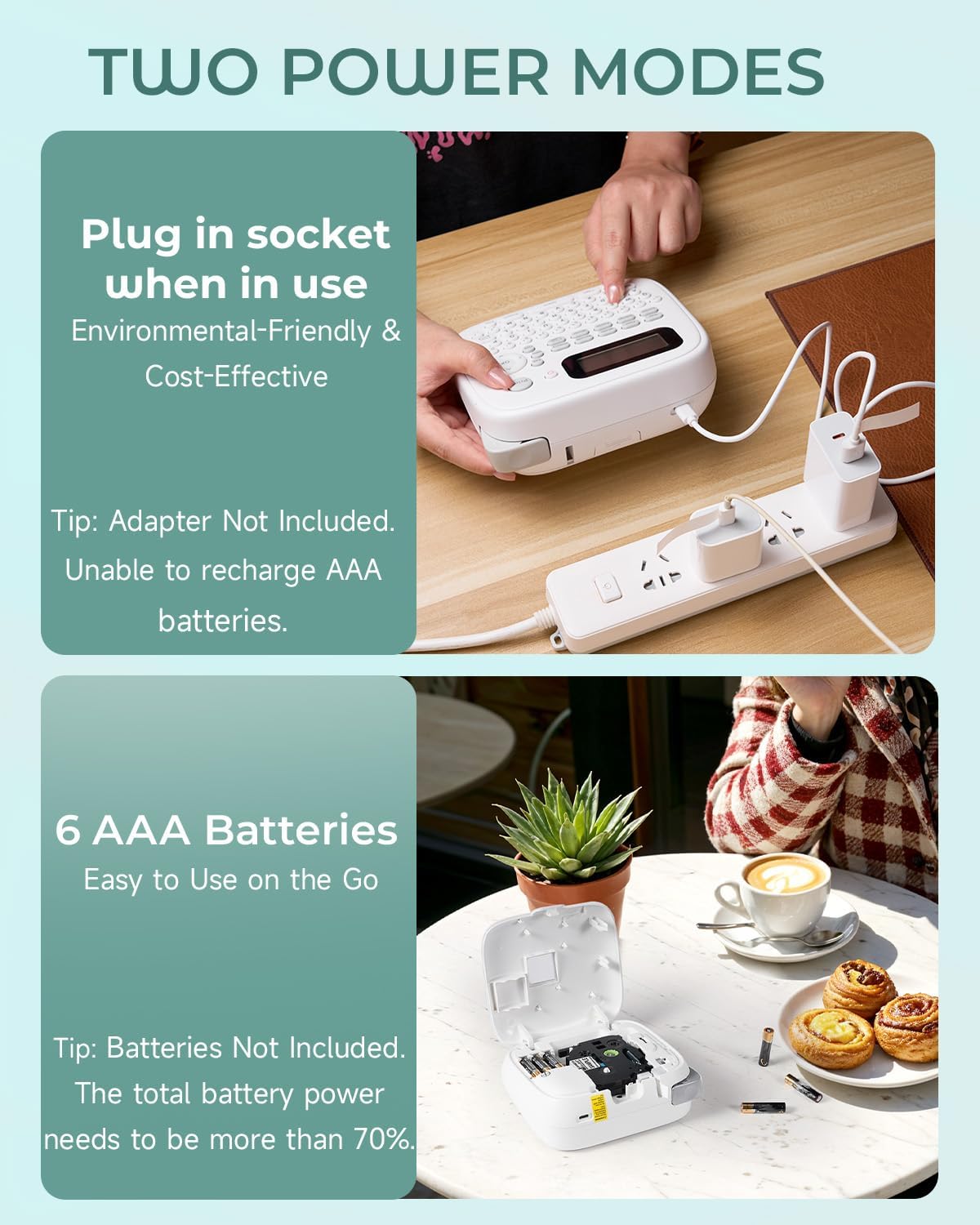
Image: Bottom view of the D210s Label Maker, indicating the label visual window.
2. Power Modes and Charging
The D210s Label Maker supports two power modes:
- Type-C Cable: Connect the included Type-C cable to the charging port on the back of the device and to a power adapter (not included). This method is recommended for environmental friendliness and cost-effectiveness.
- 6 AAA Batteries: For portable use, insert 6 AAA batteries (not included) into the battery compartment. Ensure the total battery power is above 70% for optimal performance. Note: The device does not recharge AAA batteries.
Video: Demonstrates connecting the Type-C charging cable and installing AAA batteries.

Image: Illustration of the two power modes: Type-C cable connection and AAA battery installation.
3. Loading Label Tape
To load a label tape cassette:
- Open the tape compartment cover on the back of the label maker.
- Insert the label tape cassette firmly into the compartment, ensuring it clicks into place.
- Close the tape compartment cover.
Video: Demonstrates the correct procedure for loading a label tape cassette into the D210s Label Maker.
Video: Shows various soft color laminated tapes compatible with the D210s, H1100, and E1000 label makers, highlighting their clear printing and ease of use.
Operation
1. Creating Personalized Labels
The D210s Label Maker offers extensive customization options:
- Text Input: Use the QWERTY keyboard to type your desired text.
- Fonts: Select from 16 available fonts to match your style.
- Symbols & Icons: Access over 800 symbols and icons to enhance your labels.
- Borders: Choose from over 100 borders to frame your text.
- One-Touch Editing/Printing: Streamline your label creation process with intuitive controls.
Video: Demonstrates how to input text, select fonts, symbols, and frames for personalized labels.

Image: Visual representation of the D210s customization capabilities, including symbols, frames, fonts, and language options.

Image: Examples of personalized labels created with the D210s, showcasing diverse fonts, emojis, and borders.
2. Saving Labels
To save a label for future use:
- After creating your label, press the "History" button.
- Select "Save" and follow the on-screen prompts to store your label design.
Video: Instructions on how to save created labels using the "History" function.
3. Printing Multiple Copies
To print multiple copies of the same label:
- Enter your desired text.
- Press the "Shift" button, then the "Print" button.
- Use the arrow keys to select the number of copies (1-9).
- Press "OK" and then "Print" to initiate printing.
The D210s also supports continuous printing and dual-line labeling for efficient workflows.
Video: Guide on how to print multiple copies of a label using the D210s Label Maker.

Image: Visual guide for printing multiple copies of labels, useful for organizing documents.
Key Features
1. Durable Laminated Labels
The D210s uses heat transfer technology to create long-lasting, laminated labels that are:
- Waterproof: Resistant to moisture, suitable for kitchen and freezer environments.
- Scratch-Resistant: Maintains legibility even with daily handling.
- Temperature Resistant: Withstands temperatures from -40°F to 212°F, ideal for freezer food labels.
- Fade-Resistant: Ensures labels remain clear for over 10 years.
- Oil-Resistant: Suitable for use in kitchen settings.
- No Residue: Labels can be removed without leaving sticky residue.
- Ink-Free: Utilizes thermal printing, eliminating the need for ink cartridges.

Image: Labels demonstrating waterproof and temperature resistance for various applications, including microwave and freezer storage.

Image: Diagram illustrating the multi-layered structure of the labels and their properties: no residue, water resistance, scratch resistance, fade resistance, and oil resistance.

Image: Emphasizes the use of inkless, food-safe labels for a healthier kitchen, showing labeled food containers.
2. Advanced Labeling Modes
- Barcode Modes: Supports 9 different barcode modes including CODE39, CODE128, EAN-13, EAN-8, CSI-128, UPC-A, UPC-E, I-2/5(ITF), and CODABAR.
- Cable Modes: Simplify cable identification with Cable Flag, Cable Wrap, and Faceplate modes.

Image: Displays the 9 supported barcode modes and an application example on a package.

Image: Illustrates the three cable labeling modes: Cable Flag, Cable Wrap, and Faceplate.
3. Tape Waste Reduction
- Narrow-Margin Printing: Reduces tape waste by saving 8m of label tape per 200 labels printed.
- Multi-Edit Function: Saves 8m of label tape per 300 labels printed by allowing multiple edits before printing.

Image: Demonstrates narrow-margin printing to minimize tape waste, comparing full and narrow margins.

Image: Explains the multi-edit function for reducing tape waste by allowing multiple labels to be edited and printed together.
Maintenance
Replacing the Cutter Holder
To replace the cutter holder:
- Open the back cover of the label maker.
- Remove the tape cassette.
- Carefully take out the old cutter holder.
- Insert a new cutter holder into its designated slot.
- Close the back cover.
Video: Step-by-step guide on how to replace the cutter holder in the D210s Label Maker.
Troubleshooting
If you encounter issues with your VolenGo D210s Label Maker, consider the following common solutions:
- No Power: Ensure the device is properly connected to a power source via the Type-C cable or that fresh AAA batteries are correctly installed.
- Printing Issues: Check if the label tape cassette is correctly inserted and that there is sufficient tape remaining. Clean the print head if print quality is poor.
- Cutter Not Working: Verify that the cutter holder is properly installed. If the issue persists, the cutter holder may need replacement (refer to the Maintenance section).
- Blank Screen: If the screen is blank, check power supply. If using batteries, ensure they have sufficient charge.
For further assistance, please refer to the Warranty & Support section.
Specifications
| Feature | Detail |
|---|---|
| Brand | VolenGo |
| Model | D210s |
| Power Supply | Type-C Cable (adapter not included) or 6 AAA Batteries (not included) |
| Label Tape Width | 12mm (0.47 inches) |
| Printing Technology | Heat Transfer (Ink-Free) |
| Label Durability | Waterproof, Scratch-Resistant, Temperature Resistant (-40°F to 212°F), Fade-Resistant (10+ years), Oil-Resistant, No Residue |
| Customization | 16 Fonts, 800+ Icons, 100+ Borders |
| Barcode Modes | CODE39, CODE128, EAN-13, EAN-8, CSI-128, UPC-A, UPC-E, I-2/5(ITF), CODABAR |
| Cable Labeling Modes | Cable Flag, Cable Wrap, Faceplate |
Warranty & Support
Your VolenGo D210s Label Maker comes with a standard manufacturer's warranty. For specific warranty details, claims, or technical support, please contact VolenGo customer service through the retailer where the product was purchased or visit the official VolenGo website.
We are committed to providing high-quality products and excellent customer service. Your satisfaction is our priority.