
1. Introduction
This manual provides detailed instructions for setting up, operating, maintaining, and troubleshooting your MINISFORUM MS-S1 MAX Mini AI Workstation PC. Please read this manual thoroughly before using the device to ensure optimal performance and longevity.
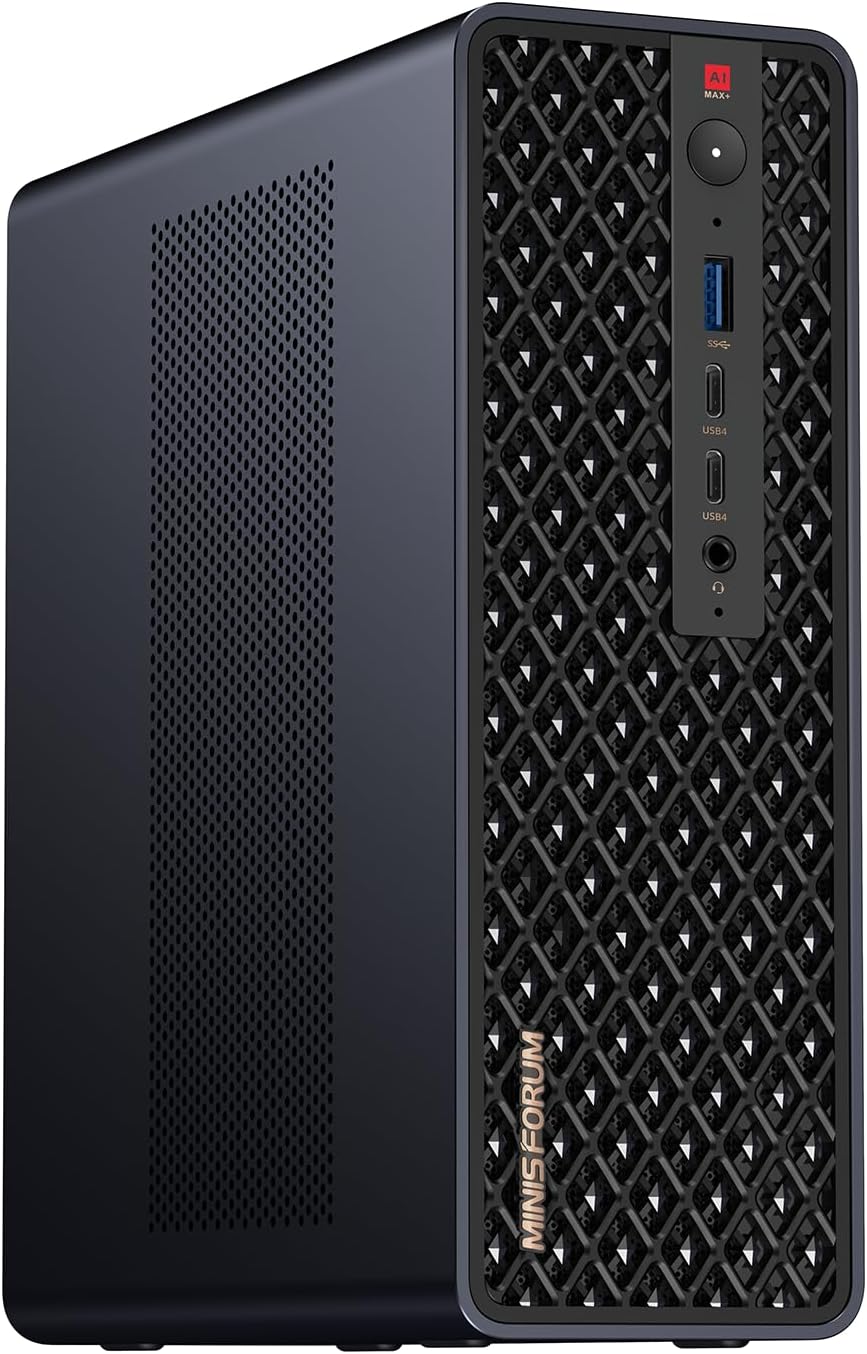
Image: Front view of the MINISFORUM MS-S1 MAX Mini AI Workstation PC. The compact device features a textured front panel with various ports and a power button.
2. Package Contents
Please check the package for the following items:
- MINISFORUM MS-S1 MAX Mini AI Workstation PC
- Power Adapter (Built-in 320W PSU)
- Keyboard
- Mouse
- User Manual (this document)
3. Setup Guide
3.1 Unpacking
- Carefully remove the MS-S1 MAX from its packaging.
- Place the unit on a stable, flat surface with adequate ventilation.
- Remove any protective films or covers.
3.2 Connecting Peripherals
Refer to the "Rich Interfaces" section for port identification.
- Display: Connect your monitor to the HDMI 2.1 port or use a USB4 port with a compatible DisplayPort adapter. The system supports up to 8K@60Hz.
- Keyboard & Mouse: Connect the included keyboard and mouse to the available USB ports (USB 3.2 Gen2, USB 2.0).
- Network: For wired internet, connect an Ethernet cable to one of the dual 10GbE LAN ports. For wireless, ensure Wi-Fi 7 is enabled in the operating system.
- Power: Connect the power cable to the AC input on the rear of the device and then to a power outlet.

Image: Diagram illustrating the rich interfaces of the MINISFORUM MS-S1 MAX. It shows the front panel with DMIC, USB 3.2 Gen2, 3.5mm Audio Jack, USB4, and Power Button, and the rear panel with HDMI 2.1, USB4 V2, 10GbE LAN, USB 2.0, USB 3.2 Gen2, Reset Hole, Security Lock Hole, and AC Input.
3.3 Initial Power On
- Ensure all connections are secure.
- Press the power button located on the front panel.
- Follow the on-screen instructions to complete the operating system setup (e.g., Windows 11 Pro is pre-installed).
4. Operating Your MS-S1 MAX
4.1 Performance Modes
The MS-S1 MAX offers four switchable modes to adapt to various application scenarios:
- Performance Mode: Maximizes CPU/GPU power for demanding tasks (e.g., AI workloads, 3D rendering).
- Balanced Mode: Offers a good balance between performance and power efficiency for everyday use.
- Silent Mode: Reduces fan noise for quiet environments, suitable for light tasks.
- Rack Mode: Optimized for deployment in server racks, potentially adjusting fan curves for continuous operation in a data center environment.
Refer to the system's pre-installed utility software or BIOS settings to switch between these modes.

Image: Table detailing the specifications of the four performance modes: Performance Mode, Balanced Mode, Quiet Mode, and Rack Mode, showing Fast PPT, Slow PPT, TDP, Fan Speed, and Noise levels.
4.2 AI Capabilities
Equipped with an AMD Ryzen AI Max+ 395 APU, the MS-S1 MAX is designed for AI workloads. It integrates a Zen 5 CPU, RDNA 3.5 GPU, and a dedicated NPU (50 TOPS), delivering a total system output of 126 TOPS. This allows for efficient execution of local LLMs, multimodal models, and other computationally intensive AI tasks.

Image: Promotional graphic highlighting the superior AI performance of the MINISFORUM MS-S1 MAX, featuring the AMD Ryzen AI MAX+ 395 processor with Zen 5 architecture, RDNA 3.5 GPU, and 16 Cores.
4.3 Expansion and Upgrades
The MS-S1 MAX features a slide-out design for easy access to internal components, facilitating upgrades and maintenance.
- Storage: Dual M.2 slots support up to 16TB RAID 0/1 (PCIe 4.0 x4 and PCIe 4.0 x1).
- PCIe Slot: A full-length PCIe x16 expansion slot (operates at PCIe 4.0 x4) allows for the addition of various expansion cards.

Image: Diagram showing the easy upgrade feature of the MINISFORUM MS-S1 MAX, highlighting the dual M.2 slots for SSD expansion.

Image: Internal view of the MINISFORUM MS-S1 MAX showing the full-length PCIe x16 expansion slot.
5. Maintenance
5.1 Cleaning
- Ensure the device is powered off and unplugged before cleaning.
- Use a soft, dry cloth to wipe the exterior.
- For dust accumulation in vents, use compressed air carefully. Do not insert objects into the vents.
5.2 Software Updates
- Regularly update your operating system (e.g., Windows Update) to ensure security and performance.
- Check the MINISFORUM official website for the latest BIOS, driver, and firmware updates for your MS-S1 MAX model.
6. Troubleshooting
6.1 No Power
- Check if the power cable is securely connected to the device and the power outlet.
- Ensure the power outlet is functional.
- Try a different power cable if available.
6.2 No Display
- Verify that the monitor is powered on and the display cable is securely connected to both the MS-S1 MAX and the monitor.
- Try a different display cable or monitor if possible.
- Ensure the correct input source is selected on your monitor.
6.3 System Instability or Freezing
- Ensure the device has adequate ventilation and is not overheating.
- Update drivers and the operating system.
- Run system diagnostics to check for hardware issues.
6.4 Network Connectivity Issues
- For wired connections, check the Ethernet cable and router.
- For Wi-Fi, ensure the Wi-Fi adapter is enabled and connected to the correct network. Restart your router.
- Update network drivers.
7. Specifications
| Feature | Detail |
|---|---|
| Brand | MINISFORUM |
| Model Name | MS-S1 Max |
| CPU Model | AMD Ryzen AI Max+ 395 (16C/32T) |
| CPU Speed | Up to 5.1 GHz |
| GPU | AMD Radeon (RDNA 3.5) |
| NPU | 50 TOPS (Total System Output: 126 TOPS) |
| RAM | Up to 128GB LPDDR5x-8000MT/s Unified Memory |
| Storage | Dual M.2 PCIe 4.0 slots (up to 16TB RAID 0/1) |
| PCIe Expansion | Full-length PCIe x16 slot (PCIe 4.0 x4) |
| USB Ports | USB4 V2 (80Gbps) x2, USB4 (40Gbps) x2, USB 3.2 Gen2 x3, USB 2.0 x2 |
| Video Output | HDMI 2.1 (up to 8K@60Hz), USB4 (DisplayPort Alternate Mode) |
| Networking | Dual 10GbE LAN, Wi-Fi 7 |
| Power Supply | Built-in 320W PSU |
| Cooling System | Aerospace-grade aluminum chassis, copper base plate, 6 heat pipes, dual turbine fans |
| Operating System | Windows 11 Pro (pre-installed) |
| Dimensions | 0.79 x 0.79 x 0.79 inches (Note: This dimension appears to be a placeholder. Actual dimensions are typically larger for a mini PC.) |
Note: Specifications are subject to change without notice. For the most up-to-date information, please visit the official MINISFORUM website.
8. Warranty Information
MINISFORUM products typically come with a limited warranty. The duration and terms of the warranty may vary by region and product. Please refer to the warranty card included with your product or visit the official MINISFORUM website for detailed warranty information and registration procedures.
Keep your proof of purchase (receipt or invoice) as it will be required for any warranty claims.
9. Customer Support
If you encounter any issues that cannot be resolved using this manual, or if you require further assistance, please contact MINISFORUM customer support:
- Official Website: Visit the MINISFORUM official website for FAQs, driver downloads, and support contact information.
- Email Support: Refer to the support section on the website for the appropriate email address.
- Online Community: MINISFORUM may have forums or social media channels where you can find community support.


