
Introduction
The ZAQE P30 is a high-fidelity portable digital audio player (DAP) designed for an exceptional music listening experience. Running on the Android 12 operating system, it combines advanced audio technology with smart features like Bluetooth and Wi-Fi connectivity. This manual provides detailed instructions to help you get the most out of your device, from initial setup to advanced operation and troubleshooting.
1. Setup
1.1 Package Contents
Verify that all items are present in the package:
- ZAQE P30 HiFi MP3 Player
- MP3 protective case
- 64GB SD card
- USB cable
- User Manual (this document)
- Retail Box
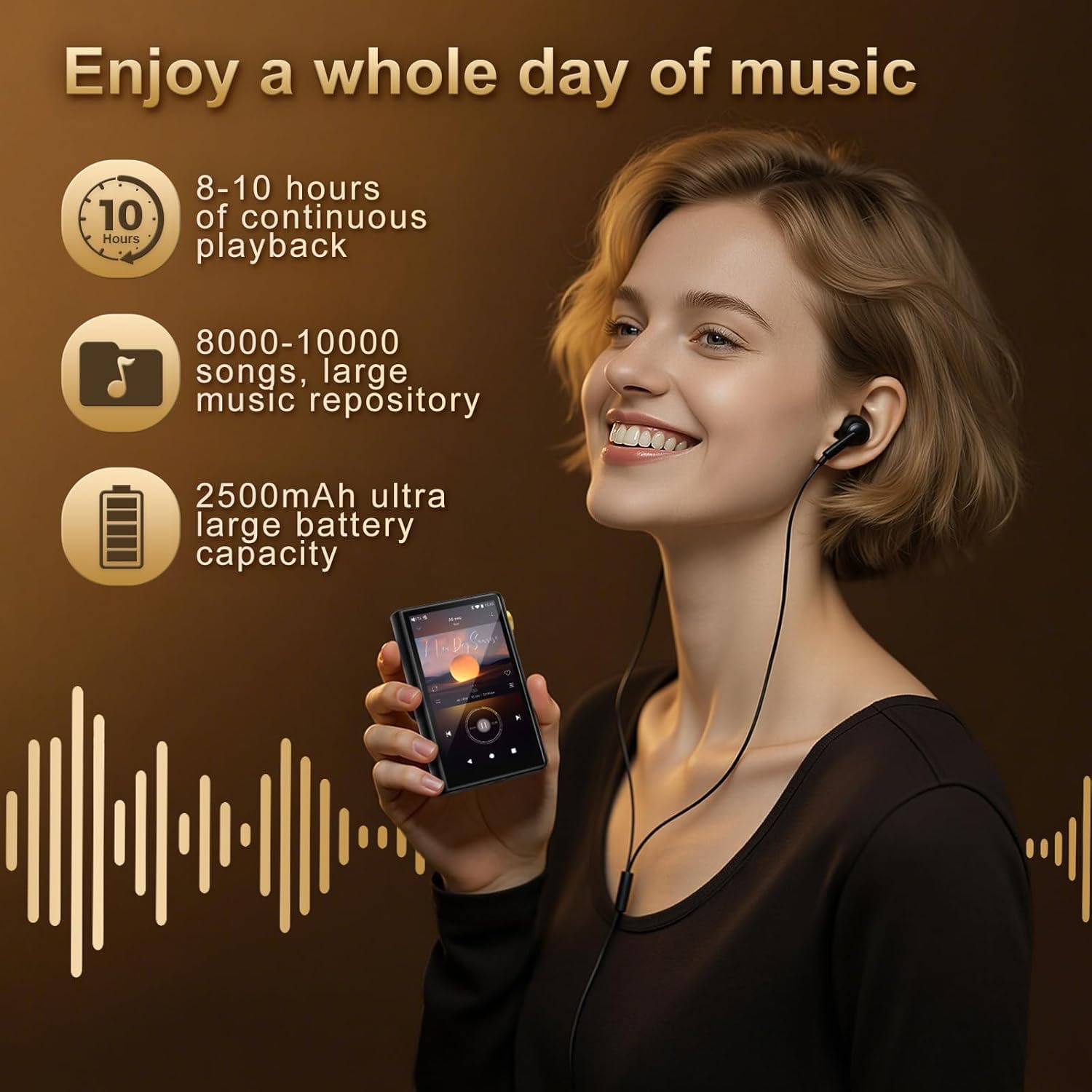
Image: Contents of the ZAQE P30 retail package, showing the player, protective case, 64GB SD card, USB cable, and user manual.
1.2 Initial Charging
Before first use, fully charge the ZAQE P30 using the provided USB cable and a compatible USB power adapter (not included). The device features a 2500mAh battery. A full charge ensures optimal performance and battery life.
1.3 Inserting the MicroSD Card
The ZAQE P30 comes with 32GB of built-in memory and supports expandable storage up to 512GB via a MicroSD card. Locate the MicroSD card slot on the side of the device. Gently insert the provided 64GB MicroSD card or your own compatible card until it clicks into place. Ensure the card is inserted correctly to avoid damage.
1.4 Power On/Off
- To Power On: Press and hold the Power button (usually on the side) until the screen illuminates.
- To Power Off: Press and hold the Power button, then select "Power off" from the on-screen options.
- To Restart: Press and hold the Power button, then select "Restart" from the on-screen options.
1.5 Initial Android 12 Setup
Upon first power-on, you will be guided through the initial Android 12 setup process. This typically includes:
- Language Selection: Choose your preferred language.
- Wi-Fi Connection: Connect to a Wi-Fi network to enable internet access for app downloads and online streaming.
- Date and Time: Ensure the date and time are set correctly, preferably using automatic network time. Incorrect time settings can affect app functionality.
- Google Account: Sign in with your Google account to access the Google Play Store and other Google services.

Image: The ZAQE P30 device showcasing its Android 12 operating system interface with various app icons.
2. Operating Instructions
2.1 Device Navigation
The ZAQE P30 features a 3.4-inch full touch screen for intuitive navigation. You can also use the physical buttons located on the side of the device:
- Power Button: For power on/off and screen lock/unlock.
- Volume Knob: A side scrolling design allows for precise volume control.
- Playback Control Buttons: Dedicated buttons for Play/Pause, Next Track, and Previous Track. Note: Some users have reported that the Next and Previous track buttons may function in reverse of their physical labeling.

Image: Close-up view of the ZAQE P30's side, highlighting the physical control buttons and the gold-colored volume knob.
2.2 Music Playback
The ZAQE P30 supports a wide range of high-resolution and lossless audio formats, ensuring a premium listening experience.
- Supported Audio Formats: MP3, WAV, APE, FLAC, DSF, DFF, ISO, AAC, ALAC, DTS.
- Sampling Rate: 44.1kHz, 48kHz, 88.2kHz, 96kHz, 176.4kHz, 192kHz (16-24bit).
- Headphone Outputs: The device features dual headphone outputs for versatile connectivity:
- φ3.5mm Standard Output: Provides max 125mW/32Ω power.
- φ4.4mm Balanced Output: Provides max 500mW/32Ω power for enhanced audio performance.
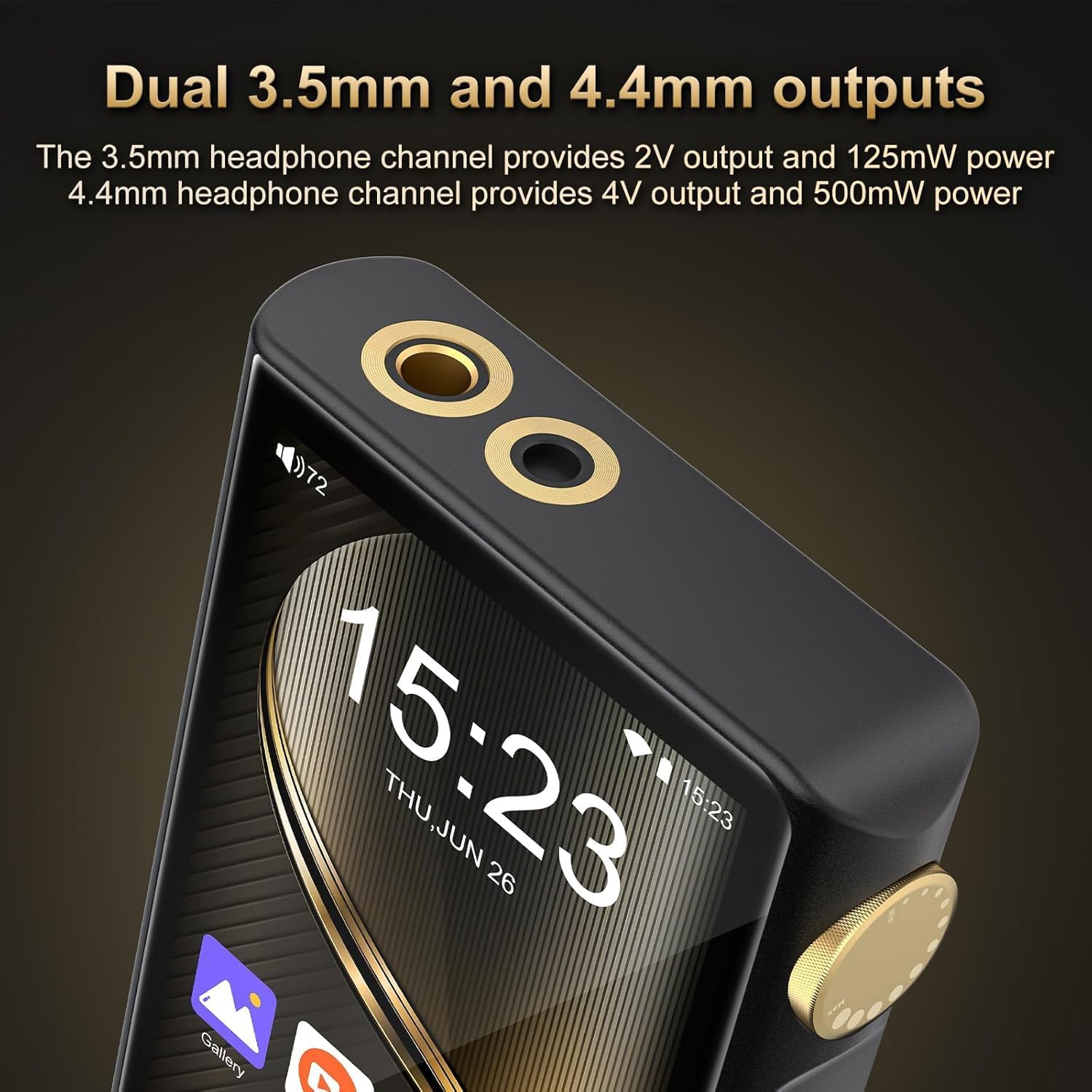
Image: Top view of the ZAQE P30, clearly showing the two headphone output ports: a 3.5mm standard jack and a 4.4mm balanced jack.
2.3 Wireless Connectivity
- Bluetooth 5.0: Connect wirelessly to Bluetooth headphones, speakers, or car audio systems. Supports LDAC, SBC, and AAC lossless transmission for high-quality audio streaming. The player can act as both a Bluetooth transmitter and receiver.
- Dual-Band Wi-Fi: Connect to 2.4GHz and 5GHz Wi-Fi networks for online music streaming, app downloads, and firmware updates.
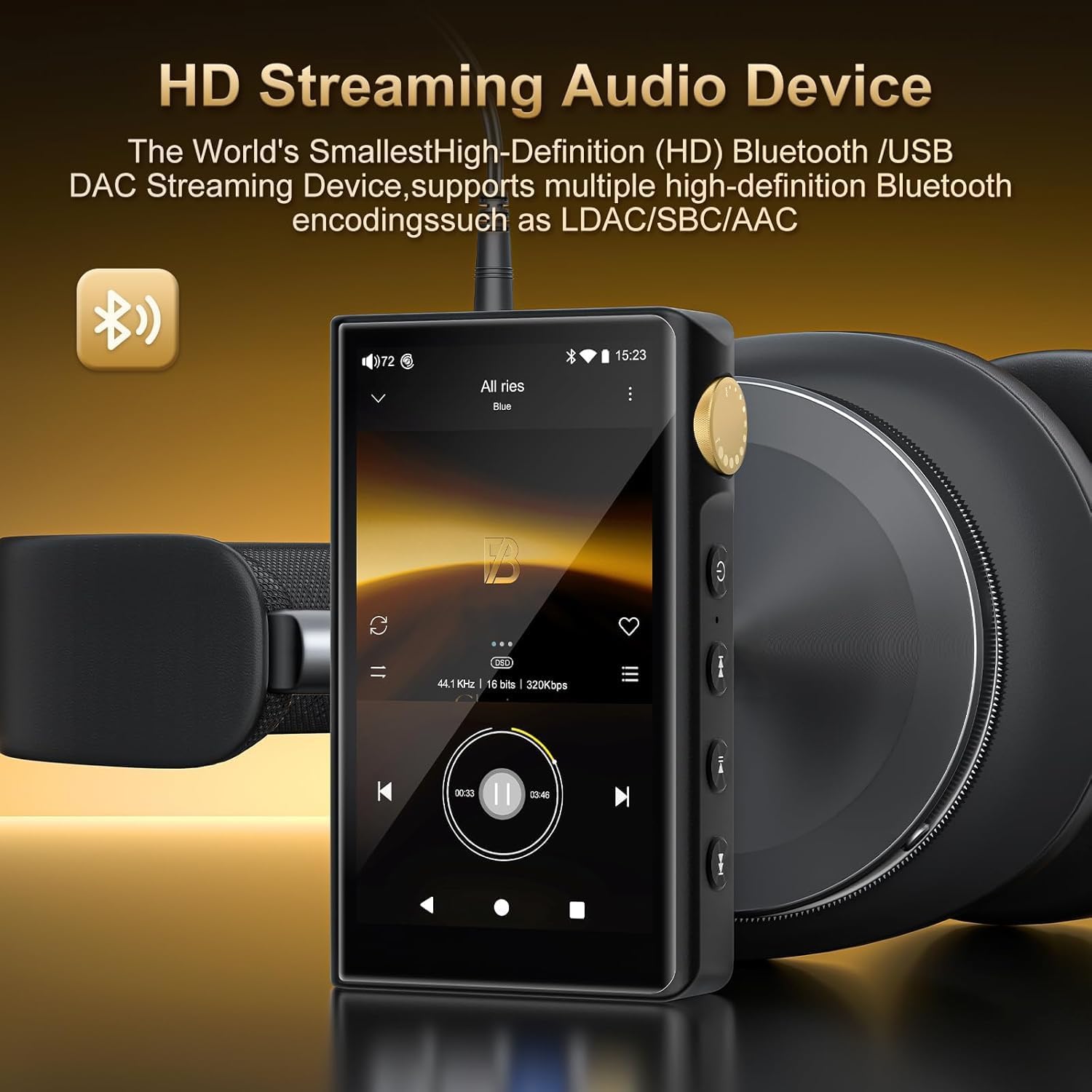
Image: The ZAQE P30 player connected wirelessly to over-ear headphones, illustrating its Bluetooth streaming functionality.
2.4 App Installation and Management
As an Android 12 device, the ZAQE P30 allows you to download and install various applications from the Google Play Store or by sideloading APK files. This enables access to popular streaming services and other utilities.
- Google Play Store: Access the pre-installed Google Play Store to download music streaming apps (e.g., Spotify, Tidal, Qobuz) and other Android applications.
- Sideloading: You can also install applications by downloading their APK files and installing them directly. Ensure you download APKs from trusted sources.
- Note: Due to the device's rooted Android 12 installation, some applications (e.g., Apple Music) may refuse to install or function correctly. Older versions of such apps might be compatible via sideloading.

Image: The ZAQE P30 screen showing icons for various music streaming applications, indicating its Wi-Fi streaming capabilities.
2.5 File Transfer
Connect the ZAQE P30 to your computer using the provided USB cable to transfer music, videos, and other files. The device is compatible with Windows 7 and newer operating systems. For macOS users, additional software may be required for file transfer, as the device may not be recognized directly.
3. Key Features
- Operating System: Android 12 with Octa-core 2G main frequency processor.
- Memory: 4GB RAM + 32GB internal storage, expandable up to 512GB via MicroSD card.
- High-Resolution Audio: ESS9018Q2M2 + OPA16122 + RT6863D*2 DAC+AMP combination for native playback of high-resolution audio.
- Display: 3.4-inch screen with 480*854 resolution.
- Battery: 2500mAh high-capacity battery, providing approximately 8-10 hours of continuous playback.
- Connectivity: Bluetooth 5.0 (LDAC, SBC, AAC) and Dual-band Wi-Fi (2.4GHz, 5GHz).
- Outputs: φ3.5mm standard headphone output (125mW/32Ω) and φ4.4mm balanced headphone output (500mW/32Ω).
- Media Support: Supports a wide range of audio formats (MP3, WAV, APE, FLAC, DSF, DFF, ISO, etc.), video formats (AVI, MKV, MP4, RMVB, FLV), and image formats (JPEG, BMP, GIF, PNG).

Image: An internal diagram of the ZAQE P30, showcasing the DAC (ESS9018Q2M) and AMP (MAX97720) chips, emphasizing its audio technology.

Image: A woman listening to music with the ZAQE P30, accompanied by icons indicating 8-10 hours of playback, large music repository, and a 2500mAh battery.
4. Maintenance
- Cleaning: Use a soft, dry, lint-free cloth to clean the device. Avoid using harsh chemicals or abrasive materials.
- Screen Care: The device comes with a pre-installed screen protector. Handle with care. If replacing, ensure the new protector is of good quality and applied correctly.
- Battery Care: To prolong battery life, avoid fully discharging the device frequently. Store the device in a cool, dry place when not in use for extended periods.
- Software Updates: Periodically check for system updates via Wi-Fi to ensure optimal performance and access to the latest features and security patches.
- Storage: Keep the device away from extreme temperatures, direct sunlight, and high humidity.
5. Troubleshooting
Common Issues and Solutions:
- No Sound Output:
- Check headphone connection and ensure they are fully inserted into the correct jack (3.5mm or 4.4mm).
- Verify volume level is not muted or too low.
- Restart the device. If the issue persists, a factory reset may be necessary (note: this will erase all data).
- Next/Previous Track Buttons Function Incorrectly:
- Some units may have the physical Next and Previous track buttons reversed in function. Adapt to this behavior or check for potential software updates that might address it.
- Music Pauses When Screen is Off:
- This can be due to Android's battery optimization. Go to Settings > Apps, select your music playback app, then navigate to Battery and set it to "Unrestricted" or disable battery optimization for that app.
- Apps Crashing or Slow Performance:
- Ensure the device's date and time are set correctly (preferably automatic). Incorrect time can cause app download and stability issues.
- Clear the cache of the problematic app (Settings > Apps > [App Name] > Storage & cache > Clear cache).
- Restart the device.
- If a specific app (e.g., Spotify) performs slowly, consider if it's optimized for the device's hardware.
- Device Not Recognized by macOS:
- The device may require specific Android File Transfer software for macOS to enable file management. Download and install the official Android File Transfer application for Mac.
- Gesture Navigation Stops Working:
- Restart the device. If the issue persists, check for system updates.
If you encounter persistent issues not covered here, consider performing a factory reset (backup your data first) or contacting ZAQE customer support.
6. Specifications
| Feature | Detail |
|---|---|
| Model Name | P30 |
| Operating System | Android 12 |
| Processor | Octa-core 2G main frequency |
| Memory (RAM) | 4GB |
| Internal Storage (ROM) | 32GB |
| Expandable Storage | Up to 512GB (MicroSD card) |
| DAC Chip | ESS9018Q2M2 |
| AMP Chips | OPA16122 + RT6863D*2 |
| Display | 3.4 Inches, 480*854 Resolution |
| Battery Capacity | 2500mAh |
| Bluetooth Version | 5.0 (Supports LDAC, SBC, AAC) |
| Wi-Fi | Dual-band (2.4GHz, 5GHz) |
| 3.5mm Headphone Output | Max 125mW/32Ω |
| 4.4mm Headphone Output | Max 500mW/32Ω |
| Supported Audio Formats | MP3, WAV, APE, FLAC, DSF, DFF, ISO, AAC, ALAC, DTS |
| Supported Video Formats | AVI, MKV, MP4, RMVB, FLV |
| Supported Image Formats | JPEG, BMP, GIF, PNG |
| Item Weight | 11.3 ounces |
| Package Dimensions | 6.18 x 4.76 x 0.87 inches |

