
1. Introduction
The SYNCO Xview M4 AI Selfie Monitor is designed to enhance your mobile photography and videography experience by providing a real-time display of your phone's rear camera. This allows for high-quality selfies, vlogs, and livestreams utilizing the superior capabilities of your device's main camera. Key features include touchscreen control, Mag-Safe compatibility for easy attachment, real-time screen sharing with low latency, efficient power management for extended use, stable P2P wireless connectivity, and a vivid display with accurate colors.

Figure 1: Overview of SYNCO Xview M4 AI Selfie Monitor features.
2. What's in the Box
- 1 x SYNCO Xview M4 AI Phone Monitor
- 1 x USB-C Charging Cable
- 1 x Mag-Safe Compatible Metal Ring (for non-Mag-Safe phones/cases)
- 1 x Detachable LED Fill Light
- 1 x Wrist Lanyard
3. Setup
3.1 Powering On/Off
To power on the monitor, press and hold the power button located on the side until the SYNCO logo appears on the screen. To power off, press and hold the power button again until the screen shuts down.
3.2 Attaching the Monitor to Your Phone
The Xview M4 AI features a powerful N56 neodymium magnet for secure attachment. If your phone or phone case is Mag-Safe compatible, simply align the monitor with the back of your phone until it snaps into place. For non-Mag-Safe devices, use the provided metal ring. Adhere the metal ring to the back of your phone or case, then attach the monitor to the ring.

Figure 2: Attaching the monitor via Mag-Safe.
3.3 Connecting to Your Phone (Screen Projection)
- On your smartphone, swipe down from the top right (iOS) or top (Android) of the screen to open the Control Center.
- Enable the screen projection function. For Android, this is typically 'Wireless Projection' or 'Cast'. For iOS, it is 'Screen Mirroring'.
- Select the device named 'SYNCO-XXXX' (where XXXX is a unique identifier) from the list of available devices to connect.

Figure 3: Establishing a WiFi-free P2P connection.
3.4 Attaching the LED Fill Light
The detachable LED fill light can be magnetically attached to the side of the Xview M4 AI monitor. Ensure it is securely fastened. Press the button on the light to cycle through brightness levels or turn it on/off.
4. Operating Instructions
4.1 Touchscreen Control
The Xview M4 AI features a built-in touchscreen. You can control various camera functions directly from the monitor, including focus, exposure, zoom, and recording initiation, similar to operating a cinema camera.
4.2 AI Gesture Control
Utilize AI gesture control for hands-free operation. Specific hand gestures can initiate photo capture (with or without a 3-second delay), start/stop video recording, zoom in, or zoom out. Refer to the on-screen guide or product documentation for specific gesture recognition patterns.

Figure 4: AI Gesture Control in action.
4.3 Real-time Screen Sharing & P2P Connectivity
The monitor provides smooth, real-time monitoring with ultra-low 40ms latency and flawless visuals. The wireless P2P technology ensures uninterrupted, lag-free transmission up to 50m, even when your phone is connected to Wi-Fi.
4.4 4K Wired Mirroring
For critical shooting scenarios requiring maximum detail and zero frame drops, connect the Xview M4 AI via a wired connection. This supports seamless 4K video preview, ensuring professional-grade clarity for livestreams, tutorials, and cinematic vlogs.

Figure 5: 4K Wired Mirroring setup.
4.5 Bluetooth Remote Control
Use the integrated Bluetooth shutter for remote selfies and vlogs, eliminating shaky hands. This allows for control from a distance of up to 10 meters.
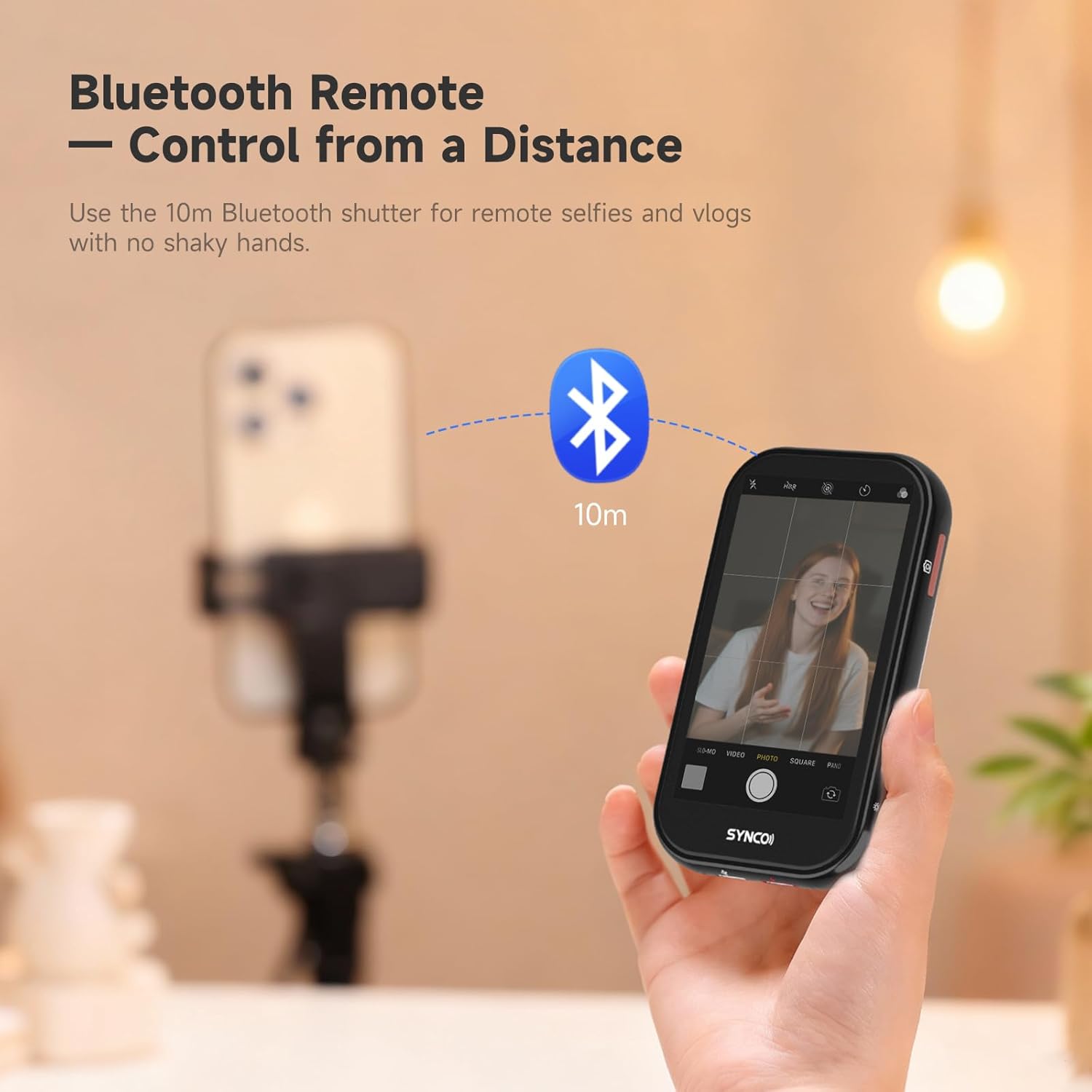
Figure 6: Bluetooth remote control functionality.
4.6 Flexible Display Options
The monitor offers a flexible, flippable, and fully adjustable display. You can mirror the screen, rotate the view, and adjust for high/low angles to ensure perfect framing in any shooting situation.

Figure 7: Flexible display adjustments.
4.7 Using the Beauty Light
The external LED fill light provides natural brightness and soft tones, ideal for various lighting conditions, including bright sunlight and low-light environments. Cycle through different brightness settings by pressing the button on the light.

Figure 8: Using the built-in beauty light.
5. Maintenance
To ensure the longevity and optimal performance of your SYNCO Xview M4 AI Selfie Monitor, follow these maintenance guidelines:
- Cleaning: Use a soft, dry, lint-free cloth to clean the screen and body of the monitor. Avoid using harsh chemicals or abrasive materials.
- Storage: Store the monitor in a cool, dry place away from direct sunlight and extreme temperatures. When not in use for extended periods, ensure it is fully charged before storage.
- Battery Care: To maintain battery health, avoid fully discharging the battery frequently. Charge the device regularly, even if not in constant use.
6. Troubleshooting
If you encounter issues with your SYNCO Xview M4 AI Selfie Monitor, refer to the following common troubleshooting steps:
- Monitor Not Powering On: Ensure the battery is charged. Connect the monitor to a power source using the provided USB-C cable and try again.
- Unable to Connect to Phone:
- Verify that both the monitor and your phone have their respective wireless projection/screen mirroring functions enabled.
- Ensure the monitor is within the effective range (up to 50m).
- Restart both the monitor and your phone, then attempt to reconnect.
- Check for any software updates for your phone's operating system or the monitor's firmware (if applicable).
- Screen Lag or Delay:
- Ensure there are no obstructions between the phone and the monitor.
- Minimize other wireless interference by moving away from other Wi-Fi devices.
- If persistent, consider using the 4K wired mirroring option for a more stable connection.
- AI Gesture Control Not Responding:
- Ensure adequate lighting conditions for the monitor's AI camera to detect gestures.
- Perform gestures clearly and within the recommended distance from the monitor.
- Check the monitor's settings to ensure gesture control is enabled.
- LED Fill Light Not Working: Ensure the light is securely attached and charged. Press the power button on the light to activate it.
7. Specifications
| Brand | SYNCO |
| Model Number | M4 AI |
| Screen Size | 4 Inches |
| Video Capture Resolution | 480p |
| Connectivity Technology | Wi-Fi (P2P) |
| Battery Average Life | 3 Hours |
| Power Consumption | 1.75W |
| Display Brightness | 400cd/m² |
| Wireless Transmission Range | Up to 50m |
| Features | Touchscreen Control, Mag-Safe Design, Real-time Screen Sharing, Long Battery Life, Stable P2P Connectivity, Vivid Display, AI Gesture Control |
| Compatible Devices | Smartphone (iPhone 7-17 Series, Android) |
8. Warranty and Support
The SYNCO Xview M4 AI Selfie Monitor comes with a 1-year limited warranty from the date of purchase, covering manufacturing defects. For warranty claims or technical support, please contact SYNCO customer service through their official website or the retailer where the product was purchased. Please retain your proof of purchase for warranty validation.
Additionally, a 30-day return/replacement policy is typically offered by retailers for products purchased in new condition. Refer to your specific retailer's return policy for details.


