1. Introduction
Thank you for purchasing the Wielio Smart Projector. This device is designed to provide a versatile and immersive viewing experience with its native 1080P resolution, 4K support, WiFi 6, and Bluetooth connectivity. It features a smart Android ecosystem for direct app access, auto keystone correction, and flexible zoom, making it suitable for various home theater and portable applications.
Please read this manual thoroughly before operating the projector to ensure proper use and to maximize its performance and longevity. Keep this manual for future reference.
What's in the Box:
- Wielio Smart Projector
- Power Adapter
- Remote Control (batteries not included)
- User Manual
2. Setup
2.1 Physical Placement
Place the projector on a stable, flat surface. Ensure there is adequate ventilation around the device. The projector features a 120° adjustable stand, allowing for flexible projection angles, including ceiling projection. Adjust the stand to achieve the desired projection height and angle.

Image: The projector's 120° adjustable stand allows for versatile placement and projection angles, including projecting onto a ceiling.
2.2 Power Connection
- Connect the power adapter to the projector's power input port.
- Plug the power adapter into a suitable electrical outlet.
- Press the power button on the projector or remote control to turn on the device.
2.3 Initial Setup and Network Connection
Upon first power-on, follow the on-screen instructions to complete the initial setup, including language selection and Wi-Fi network connection. The projector supports WiFi 6 for fast and stable wireless connectivity.
2.4 Auto Keystone and Zoom
The projector features automatic keystone correction to adjust the image for a perfectly rectangular display, even if the projector is not perfectly aligned with the screen. It also supports a flexible zoom function (50%-100%) to adjust the image size without moving the projector.

Image: The projector automatically corrects image distortion (Auto Keystone) and allows for digital image size adjustment (Zoom 50%-100%).
3. Operating Instructions
3.1 Navigating the Smart Android Ecosystem
The projector runs on a smart Android ecosystem, providing direct access to popular streaming applications such as Netflix, Prime Video, and YouTube. Use the remote control to navigate the user interface:
- Use the directional buttons to move between apps and settings.
- Press the OK button to select an item.
- Press the Back button to return to the previous screen.
- Access the app store to download additional applications.
3.2 Wireless Screen Mirroring
The projector supports 5G WiFi wireless screen mirroring, allowing you to cast content from your Android, iOS, or Windows devices directly to the projector screen. Ensure both your device and the projector are connected to the same Wi-Fi network.
- On the projector's home screen, select the 'Screen Mirroring' or 'Cast' application.
- Follow the on-screen instructions specific to your device (e.g., for iOS, use AirPlay; for Android, use Cast; for Windows, use Project to a wireless display).

Image: The projector supports 5G WiFi for ultra-fast wireless screen mirroring from Android, iOS, and Windows devices.
3.3 Bluetooth Audio Connectivity
The projector features Bluetooth 5.2 for connecting external audio devices such as headphones or speakers, providing an immersive Hi-Fi stereo audio experience. The projector also has built-in speakers.
- Go to the projector's settings menu and select 'Bluetooth'.
- Enable Bluetooth and search for available devices.
- Select your desired Bluetooth audio device from the list to pair.
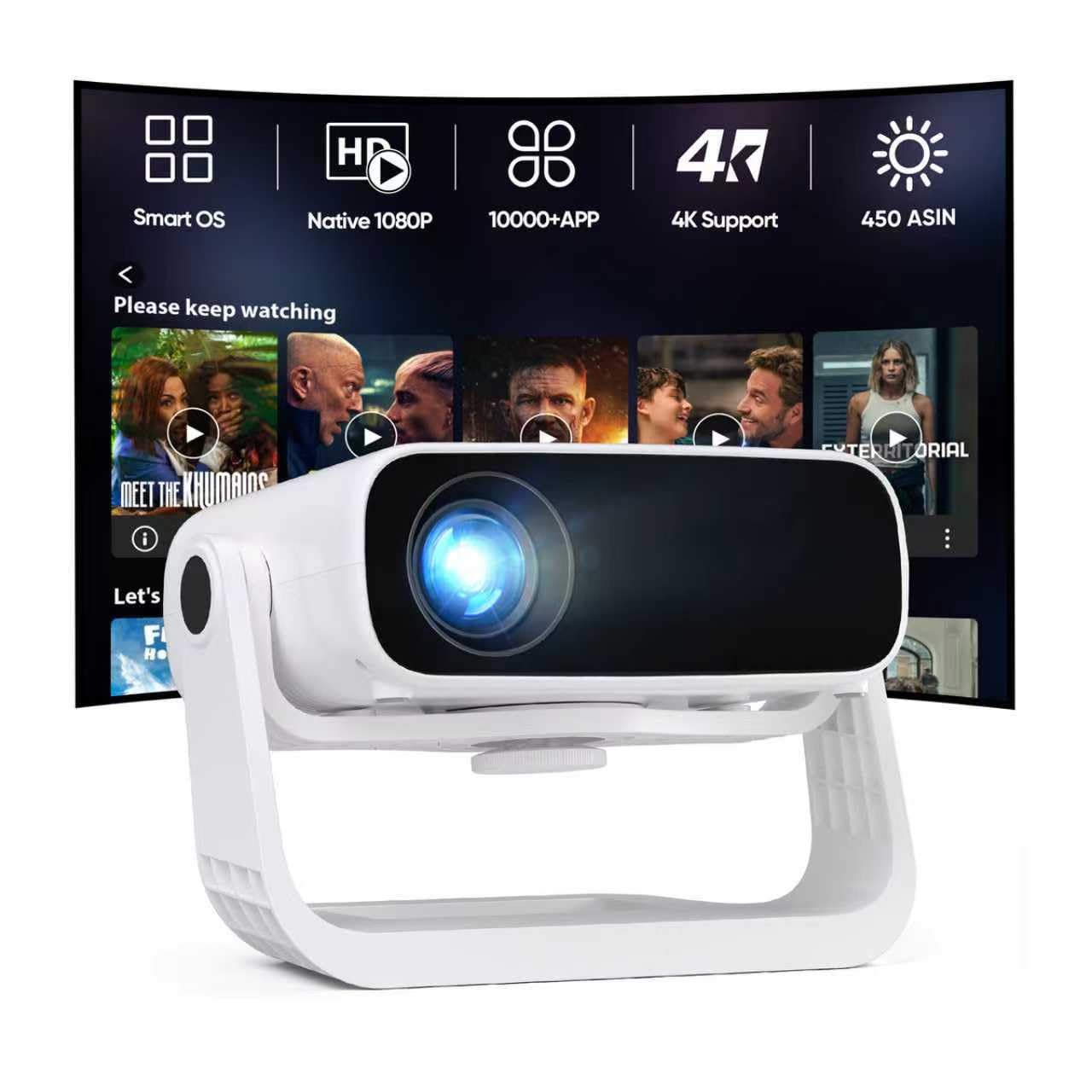
Image: The projector's Bluetooth 5.2 allows connection to external audio devices like headphones and earbuds for an enhanced sound experience.
3.4 Connecting External Devices via USB
The projector includes a USB port for connecting external storage devices (e.g., USB flash drives) to play media files directly.
- Insert your USB device into the projector's USB port.
- The projector should automatically detect the device or prompt you to open a file browser.
- Navigate through your files and select the media you wish to play.
4. Maintenance
4.1 Cleaning the Lens
To maintain optimal image clarity, regularly clean the projector lens. Use a soft, lint-free cloth specifically designed for optical lenses. Avoid using abrasive cleaners or excessive pressure.
4.2 Ventilation
Ensure that the projector's ventilation ports are clear and unobstructed. Proper airflow is crucial to prevent overheating and ensure stable operation. Do not place the projector on soft surfaces that may block the vents.
4.3 Storage
When not in use for extended periods, store the projector in a cool, dry place, away from direct sunlight and extreme temperatures. It is recommended to cover the lens to protect it from dust.
5. Troubleshooting
5.1 No Power
- Check if the power adapter is securely connected to both the projector and the power outlet.
- Ensure the power outlet is functional by testing it with another device.
- Press the power button firmly on the projector or remote control.
5.2 No Image or Blurry Image
- Ensure the lens cap is removed.
- Adjust the projector's position and use the auto keystone correction feature.
- Check the focus by manually adjusting if an option is available, or ensure auto-focus is functioning.
- Verify the input source is correctly selected if using an external device.
5.3 No Sound
- Increase the volume on the projector and the connected source device.
- Check if external Bluetooth speakers or headphones are connected and functioning correctly.
- Ensure the audio output settings on the projector are configured to the desired output (built-in speakers or Bluetooth).
5.4 Connectivity Issues (Wi-Fi/Bluetooth)
- Restart the projector and your router/Bluetooth device.
- Ensure the projector is within range of your Wi-Fi router or Bluetooth device.
- Verify Wi-Fi password or Bluetooth pairing process.
6. Specifications
| Brand | Wielio |
| Model | B0G2S5RB96 |
| Display Resolution | 1920 x 1080 (Native 1080P, 4K Support) |
| Connectivity Technology | USB, WiFi 6, Bluetooth 5.2 |
| Special Features | Built-In Speaker, Smart Android Ecosystem, Auto Keystone, Zoom 50%-100%, 120° Adjustable Stand |
| Recommended Uses | Home Cinema, Portable Use |
| First Available | November 18, 2025 |
7. Warranty and Support
This product comes with a standard manufacturer's warranty. Please refer to the warranty card included in your product packaging for specific terms and conditions, including duration and coverage details.
For technical support, troubleshooting assistance beyond this manual, or warranty claims, please contact Wielio customer service through the retailer's platform or the official Wielio website. Have your product model number (B0G2S5RB96) and purchase date ready when contacting support.
