
1. Introduction
Thank you for choosing the Philips SPK7818 Dual Mode Wireless Ergonomic Silent Mouse. This manual provides essential information for setting up, operating, and maintaining your new mouse. Please read it carefully to ensure optimal performance and longevity of your device.
The Philips SPK7818 mouse offers versatile connectivity with both 2.4GHz wireless and Bluetooth (3.0 and 5.0) modes, allowing connection to up to three devices simultaneously. Its ergonomic design and silent clicks provide a comfortable and quiet user experience, while adjustable DPI settings up to 3200 ensure precise control.
2. Package Contents
Please check the package for the following items:
- 1x Philips SPK7818 Wireless Mouse
- 1x USB-C Charging Cable (1.5m)
- 1x USB 2.4GHz Wireless Receiver (stored inside the mouse)
- 1x User Manual and Warranty Card
- 1x Internal Rechargeable Lithium Battery (pre-installed)

Image: Retail packaging of the Philips SPK7818 wireless mouse, showing the mouse and its features on the box.
3. Product Overview
The Philips SPK7818 mouse is designed for comfort and efficiency, featuring 8 functional buttons, silent click technology, and an ergonomic shape that fits comfortably in the hand.
Key Features:
- Dual Mode Connectivity: Seamlessly switch between 2.4GHz wireless and Bluetooth 3.0/5.0.
- Multi-Device Pairing: Connect to up to three devices simultaneously and switch with a single button.
- Adjustable DPI: Five DPI levels (800, 1200, 1600, 2400, 3200) for precise cursor control.
- Ergonomic Design: Contoured shape for comfortable right-hand use, reducing strain during long periods.
- Silent Clicks: Reduced click noise for a quiet working environment.
- Rechargeable Battery: Built-in 450 mAh lithium battery provides extended use on a single charge.
- Wide Compatibility: Supports Windows, Linux, and Mac OS.

Image: Top-down view of the Philips SPK7818 mouse, showing the scroll wheel, DPI button, and left/right click buttons.

Image: Side view of the Philips SPK7818 mouse, highlighting its ergonomic contour and the two programmable side buttons.

Image: Diagram illustrating key features of the Philips SPK7818 mouse, including silent clicks, ergonomic design, rechargeable battery, 15m range, optical sensor, and USB dongle storage.
4. Setup
4.1. Charging the Mouse
Before first use, it is recommended to fully charge the mouse. The Philips SPK7818 features a built-in 450 mAh rechargeable lithium battery.
- Connect the provided USB-C charging cable to the charging port on the front of the mouse.
- Connect the other end of the USB-C cable to a USB power source (e.g., computer USB port, USB wall adapter).
- The LED indicator on the mouse will show charging status. It will typically turn off or change color when fully charged.
4.2. 2.4GHz Wireless Connection
For a stable and fast wireless connection, use the 2.4GHz USB receiver.
- Locate the USB 2.4GHz wireless receiver. It is typically stored in a compartment on the underside of the mouse.
- Insert the USB receiver into an available USB port on your computer.
- Slide the power switch on the underside of the mouse to the '2.4G' position.
- The mouse should automatically connect to your computer. No additional drivers are usually required for Windows, Linux, or Mac OS.

Image: The Philips SPK7818 mouse demonstrating plug-and-play wireless connection with its USB dongle.
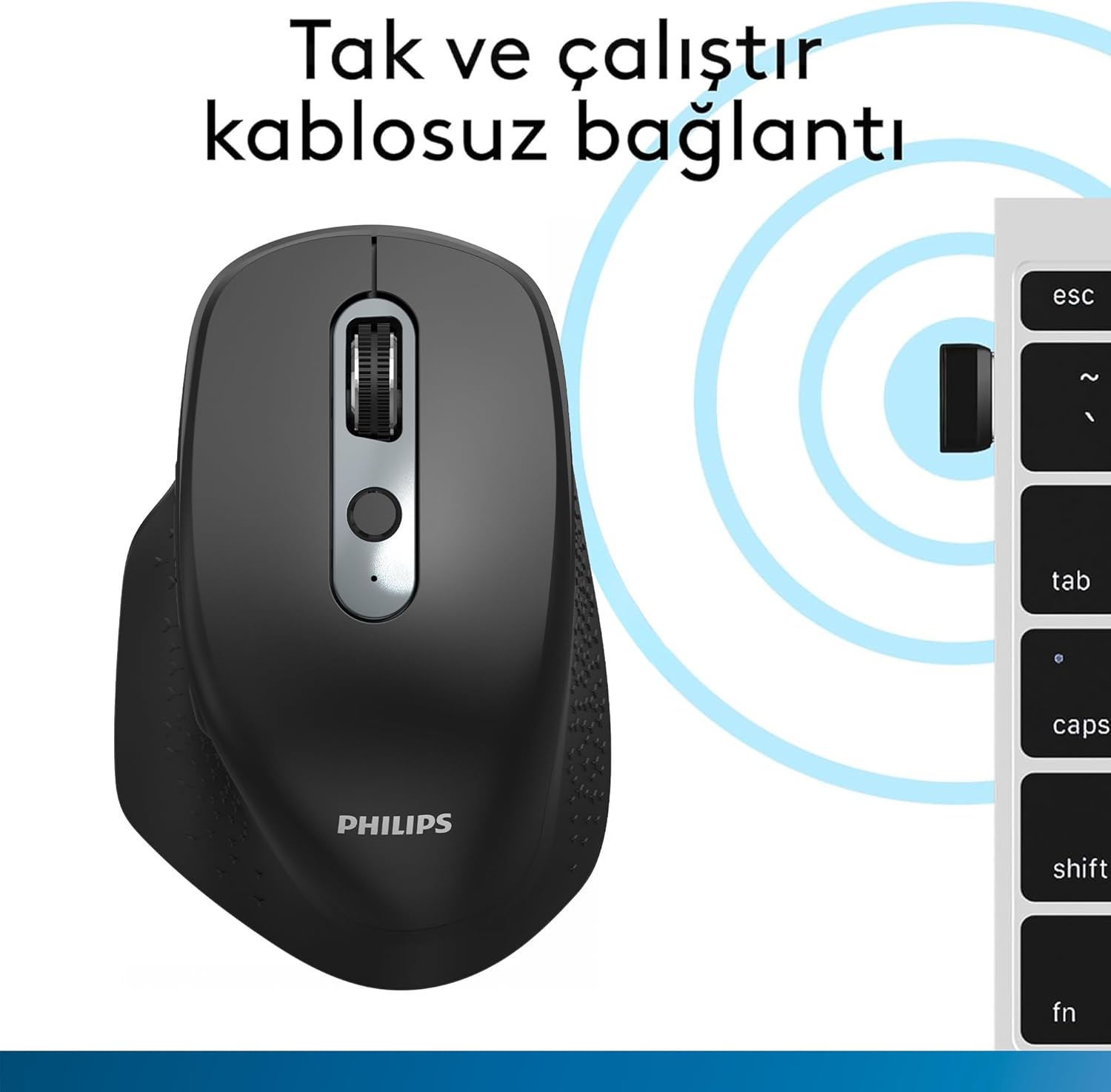
Image: Underside of the Philips SPK7818 mouse, showing the dedicated storage slot for the USB 2.4GHz wireless receiver.
4.3. Bluetooth Connection (BT3.0 / BT5.0)
The mouse supports two Bluetooth channels for connecting to different devices.
- Slide the power switch on the underside of the mouse to either the 'BT1' or 'BT2' position.
- Press and hold the Bluetooth pairing button (usually located near the power switch or channel switch) for 3-5 seconds until the LED indicator starts flashing, indicating pairing mode.
- On your computer or device, go to Bluetooth settings and search for new devices.
- Select "Philips SPK7818" from the list of available devices to pair.
- Once paired, the LED indicator will stop flashing and remain solid for a few seconds before turning off.
- Repeat these steps for the second Bluetooth channel ('BT2') if you wish to connect to another device.

Image: The Philips SPK7818 mouse demonstrating universal compatibility with various operating systems including Windows, macOS, Chrome OS, Linux, and Android.
5. Operating Instructions
5.1. DPI Adjustment
The mouse features a dedicated DPI button to cycle through five sensitivity levels, allowing you to adjust cursor speed to your preference.
- Locate the DPI button, usually positioned below the scroll wheel.
- Press the DPI button to cycle through the available sensitivity settings: 800, 1200, 1600, 2400, and 3200 DPI.
- Each press will change the DPI level, and you can observe the change in cursor speed on your screen.

Image: Diagram showing the Philips SPK7818 mouse and its five adjustable DPI settings: 800, 1200, 1600, 2400, and 3200.
5.2. Multi-Device Switching
To switch between connected devices (2.4GHz, BT1, BT2):
- Locate the channel switch button on the underside of the mouse.
- Press the button to cycle through the connected channels: 2.4G, BT1, and BT2.
- The corresponding LED indicator will light up briefly to confirm the selected channel.
6. Maintenance
6.1. Cleaning
To keep your mouse clean and functioning properly:
- Use a soft, dry cloth to wipe the surface of the mouse.
- For stubborn dirt, slightly dampen the cloth with water or a mild cleaning solution. Avoid harsh chemicals.
- Do not allow liquids to enter the mouse's internal components.
- Clean the optical sensor on the underside periodically with a cotton swab to ensure accurate tracking.
6.2. Battery Care
To maximize the lifespan of the built-in rechargeable battery:
- Avoid fully discharging the battery frequently.
- Charge the mouse when the low battery indicator appears.
- If storing the mouse for an extended period, charge it to about 50% and store it in a cool, dry place.
7. Troubleshooting
If you encounter issues with your Philips SPK7818 mouse, please refer to the following common solutions:
| Problem | Possible Cause | Solution |
|---|---|---|
| Mouse not responding (2.4GHz) | Low battery, receiver not connected, incorrect mode selected. | Charge the mouse. Ensure the USB receiver is securely plugged in. Switch the mouse to 2.4G mode. Try a different USB port. |
| Mouse not responding (Bluetooth) | Low battery, not paired, incorrect mode selected, Bluetooth off on device. | Charge the mouse. Ensure Bluetooth is enabled on your device. Switch the mouse to the correct BT channel (BT1/BT2). Re-pair the mouse if necessary. |
| Cursor movement is erratic or jumpy | Dirty optical sensor, unsuitable surface, low battery. | Clean the optical sensor. Use the mouse on a clean, non-reflective surface or a mouse pad. Charge the mouse. |
| Mouse disconnects frequently | Interference, distance from receiver/device, low battery. | Reduce distance between mouse and receiver/device. Remove obstacles. Charge the mouse. Avoid using near other wireless devices that may cause interference. |
| Cannot switch between devices | Incorrect button press, device not properly paired. | Ensure you are pressing the correct channel switch button. Verify that all devices are properly paired to their respective channels (2.4G, BT1, BT2). |
8. Specifications
Detailed technical specifications for the Philips SPK7818 mouse:
- Brand: PHILIPS
- Model: SPK7818
- Color: Black
- Connectivity Technology: 2.4GHz Wireless, Bluetooth 3.0, Bluetooth 5.0
- Motion Detection Technology: Optical
- Number of Buttons: 8
- DPI Levels: 800, 1200, 1600, 2400, 3200 (adjustable)
- Hand Orientation: Right-handed ergonomic design
- Compatible Devices: Laptop, Desktop PC
- Operating System Compatibility: Microsoft Windows 7, Windows 8, Windows 10 or higher; Linux V1.24 or higher; Mac OS 10.5 or higher
- Power Source: Built-in 450 mAh Rechargeable Lithium Battery
- Wireless Range: Up to 15 meters (2.4GHz mode), Up to 10 meters (Bluetooth mode)
- Product Weight: 122 grams (including battery)
- Product Dimensions (L x W x H): 11.8 cm x 7.7 cm x 4.6 cm
- Country of Origin: China

Image: Diagram illustrating the physical dimensions (length, width, height) and weight of the Philips SPK7818 mouse.
9. Warranty and Support
9.1. Warranty Information
This Philips SPK7818 mouse is covered by a Philips Turkey Guarantee. Please refer to the warranty card included in your package for specific terms and conditions, including the warranty period and coverage details.
9.2. Customer Support
For technical assistance, troubleshooting beyond this manual, or warranty claims, please contact Philips customer support in your region. Contact details can typically be found on the Philips official website or on your warranty card.


