
Techkey USB 3.0 3-in-1 Flash Drive
Techkey USB 3.0 3-in-1 Flash Drive User Manual
Model: USB 3.0 3-in-1 Flash Drive
1. Introduction
This manual provides detailed instructions for the proper use and maintenance of your Techkey USB 3.0 3-in-1 Flash Drive. This device is designed to offer versatile external storage and data transfer capabilities across various platforms, including iOS, Android, PC, and Mac devices. Please read this manual thoroughly before using the product to ensure optimal performance and data security.
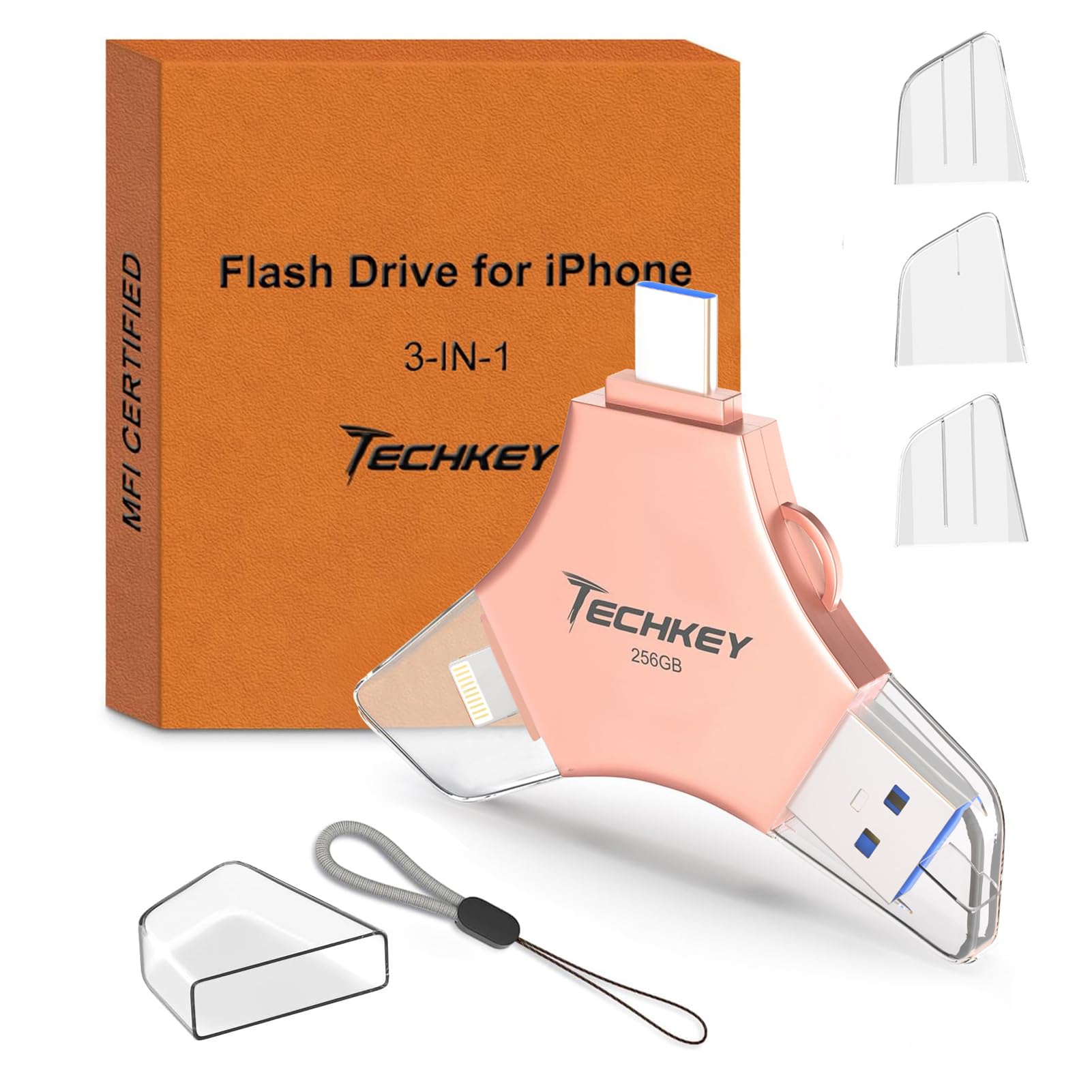
Image: Techkey USB 3.0 3-in-1 Flash Drive connected to various devices.
2. Product Overview
The Techkey USB 3.0 3-in-1 Flash Drive is a compact and lightweight external memory solution featuring three primary interfaces: USB, Lightning, and Type-C. This design allows for seamless data transfer and storage across a wide range of devices without the need for multiple adapters.
Key Features:
- 3-in-1 Interface: USB, Lightning, and Type-C connectors for broad compatibility.
- MFi Certified: Ensures reliable and secure operation with Apple iOS devices.
- High-Speed Transfer: USB 3.0 technology for fast data read and write speeds.
- Data Security: Supports Touch ID/Passcode encryption for protecting sensitive files.
- Compact Design: Portable and includes a keychain for easy carrying.
3. Setup and Initial Use
3.1. For iOS Devices (iPhone, iPad)
- Download the App: Before connecting the flash drive, download and install the "U-Disk" app from the Apple App Store. This app is required for the flash drive to function with iOS devices (iOS 12.1 and above).
- Connect the Drive: Insert the Lightning connector of the flash drive into your iPhone or iPad.
- Launch the App: Open the "U-Disk" app. The app should automatically detect the connected flash drive.
- Grant Permissions: Follow any on-screen prompts to grant necessary permissions for the app to access your device's photos, videos, and contacts.

Image: Flash drive connected to an iOS device, showing the app interface.
3.2. For Android Devices
- OTG Compatibility: Ensure your Android phone supports USB On-The-Go (OTG) functionality.
- Connect the Drive: Insert the Type-C or USB connector of the flash drive into your Android device.
- Access Files: Most Android devices will automatically recognize the flash drive as external storage. You can access its contents through your device's native file manager app. No dedicated app download is typically required.
3.3. For PC/Mac Devices
- Connect the Drive: Insert the USB connector of the flash drive into an available USB port on your PC (Windows 7 and above) or Mac (Mac OS 10.6 and above).
- Access Files: The flash drive will appear as a removable disk in your computer's file explorer (Windows) or Finder (Mac). You can drag and drop files to and from the drive as with any standard USB drive.
4. Operating Instructions
4.1. Data Transfer and Backup
- One-Click Backup (iOS App): Within the "U-Disk" app, locate the one-click backup function to quickly save photos, videos, and phone contacts from your iOS device to the flash drive. This frees up space on your device.
- Manual Transfer: For all devices, you can manually select and transfer files to and from the flash drive using the respective file management interfaces (U-Disk app, Android file manager, PC/Mac file explorer).

Image: One-Click Backup feature in action.
4.2. Automatic Storage and On-the-Go Playback
- In-App Camera (iOS App): Photos and videos captured using the camera function within the "U-Disk" app are automatically saved directly to the flash drive, organizing them into dedicated folders.
- Media Playback: You can store movies, music, and other media files on the flash drive and play them directly from the drive on your compatible device without transferring them to the device's internal storage.
4.3. File Sharing
The flash drive facilitates easy sharing of photos, videos, and documents. From the "U-Disk" app (iOS) or your device's file manager, you can share files stored on the drive directly to social media platforms or other applications.

Image: Various usage scenarios for the flash drive.
4.4. Supported File Formats
The flash drive supports a wide range of file formats for storage and playback:
| Category | Supported Formats |
|---|---|
| Videos | MP4, MOV, RM, RMVB, M4V, FLV, WMV, AVI |
| Music | MP3, AIF, WAV, AIFF, M4A, WMA, AAC, OGG, FLAC |
| Picture | BMP, JPG, GIF, ICO, TIFF, PNG, RAW, XBM |
| Office documents | PDF, WORD, EXCEL, RFT, PPT, HTM, HTML, TXT, NUM, BERS, CWR, PAGES |

Image: Supported file formats table.
5. Data Security
5.1. Encryption
The "U-Disk" app for iOS devices offers robust data encryption options to protect your privacy. You can choose to:
- Encrypt the entire flash drive: Secure all contents with a Touch ID (fingerprint) or a passcode.
- Encrypt specific files: Apply encryption to individual files or folders for selective protection.
This feature ensures that your sensitive data remains secure even if the drive is lost or accessed by unauthorized individuals.

Image: Touch ID unlocking mode for data security.
5.2. MFi Certification
The Techkey USB 3.0 3-in-1 Flash Drive is MFi certified, meaning it meets Apple's performance standards for accessories. This certification guarantees compatibility, reliability, and safety when used with your iPhone or iPad.
6. Performance
High-Speed Transmission
The flash drive utilizes USB 3.0 technology to deliver efficient data transfer speeds across its various interfaces:
| Interface | Read Speed | Write Speed |
|---|---|---|
| USB | 20MB/s - 40MB/s | 15MB/s - 20MB/s |
| Lightning | 20MB/s - 30MB/s | 20MB/s - 25MB/s |
| Type C | 20MB/s - 30MB/s | 20MB/s - 25MB/s |
Note: Actual speeds may vary based on device, file type, and operating conditions.

Image: High-Speed Transmission details.
7. Maintenance
- Proper Ejection: Always safely eject the flash drive from your computer (PC/Mac) or through the app (iOS) before physically removing it. Abrupt removal can lead to data corruption or loss.
- Physical Care: Keep the flash drive clean and dry. Avoid exposing it to extreme temperatures, direct sunlight, or strong magnetic fields.
- Connector Protection: Use the provided caps or covers to protect the connectors from dust and damage when not in use.
- Regular Backups: While the flash drive is a storage solution, it is always recommended to maintain backups of critical data on multiple devices or cloud services.
8. Troubleshooting
8.1. Flash Drive Not Recognized
- Check Connection: Ensure the flash drive is fully and securely inserted into the device's port.
- Restart Device: Try restarting your phone, tablet, or computer.
- iOS App: For iOS devices, confirm that the "U-Disk" app is installed and open.
- Android OTG: For Android devices, verify that your device supports OTG and that OTG functionality is enabled in settings if required.
- Try Another Port/Device: Test the flash drive on a different USB port or another compatible device to rule out a port issue.
8.2. Data Corruption or Disappearing Files
- Safe Ejection: Always ensure the drive is safely ejected before removal.
- Reformat (Last Resort): If data corruption persists, you may need to reformat the drive. Warning: This will erase all data on the drive. Back up any salvageable data before proceeding.
8.3. Slow Transfer Speeds
- USB 3.0 Port: Ensure you are connecting the flash drive to a USB 3.0 port on your computer for optimal speeds. USB 2.0 ports will result in slower transfers.
- File Size/Type: Transferring many small files can be slower than transferring a single large file of the same total size.
- Device Performance: The speed of your host device (phone, tablet, computer) can also affect transfer rates.
9. Specifications
| Feature | Detail |
|---|---|
| Brand | Techkey |
| Memory Storage Capacity | 256 GB |
| Hardware Interface | Lightning, USB, Type C |
| Special Feature | Wear Resistant |
| Read Speed (USB) | 20-40 MB/s |
| Write Speed (USB) | 15-20 MB/s |
| Read Speed (Lightning/Type C) | 20-30 MB/s |
| Write Speed (Lightning/Type C) | 20-25 MB/s |
| Compatible Devices | Android, PC, Smartphone, iPad, iPhone |
| Colour | Pink |
| Item Dimensions (D x W x H) | 0.2D x 10W x 0.2H Centimeters |
| UPC | 641837950597 |
| Country of Origin | China |
10. Warranty and Support
For warranty information, technical support, or any product-related inquiries, please refer to the contact details provided with your purchase or visit the official Techkey website. Keep your purchase receipt as proof of purchase for warranty claims.
Ask a question about this manual
Ask about setup, troubleshooting, compatibility, parts, safety, or missing instructions. Manuals+ will review the question and use this page’s manual context to help answer it.