
1. Product Overview
The EDUP EP-AX600 is a compact 2-in-1 USB adapter designed to provide both WiFi 6 (AX600M) and Bluetooth 5.4 connectivity for your PC. This adapter offers enhanced wireless performance and multi-device support, seamlessly integrating with Windows 10 and 11 operating systems.

Image: The EDUP EP-AX600 adapter highlighting its High-Speed Dual-Band WiFi 6 and Bluetooth 5.4 capabilities.

Image: The compact EDUP EP-AX600 adapter shown plugged into the USB port of a laptop.
Key Features:
- Bluetooth 5.4 Connectivity: Supports simultaneous connection for up to 7 devices, offering faster pairing, wider range, and reduced interference. Important: Disable your PC’s built-in Bluetooth before installation to avoid conflicts.
- WiFi 6 AX600 Performance: Upgrade your PC with next-generation WiFi 6, providing dual-band speeds up to 286Mbps on 5.8GHz and 286Mbps on 2.4GHz. Ideal for 4K streaming, online gaming, and cloud meetings.
- Ultra-Compact Design: Features a built-in antenna within a sleek, space-saving body. Perfect for laptops, mini PCs, and desktops, requiring no external antenna.
- True Plug & Play for Windows 11/10: No driver installation is needed for Windows 11 or 10. Simply plug into a USB 2.0 port for instant wireless connectivity.
- WPA3 Security: Ensures secure connections with advanced encryption standards, including WEP, WPA-PSK, WPA2-PSK, and WPA3-PSK.
2. Setup Guide
Follow these steps to install and configure your EDUP EP-AX600 adapter.

Image: Visual representation of the three easy setup steps for the adapter.

Image: The adapter's compatibility with Windows operating systems and a driver installation prompt.
Step 1: Initial Preparation
- Before installation, verify if your computer has built-in Bluetooth functionality. If it does, disable it through your operating system's settings to prevent potential conflicts with the EDUP adapter.
- Insert the EDUP EP-AX600 adapter into an available USB 2.0 port on your desktop or laptop.
Step 2: Driver Installation
- For Windows 10/11, the adapter is designed for plug-and-play operation. Your system should automatically recognize the device and install the necessary drivers.
- If automatic installation does not occur, a virtual CD-ROM drive (often labeled 'Local Disk' or similar) may appear. Double-click this drive to run the installer.
Step 3: Network Connection
- Once drivers are installed, open your computer's network settings.
- For WiFi: Scan for available wireless networks and select your desired network. Enter the password to establish a connection.
- For Bluetooth: Navigate to Bluetooth settings, enable Bluetooth, and pair with your desired devices (e.g., headphones, mouse, keyboard).
3. Operating Instructions
Learn how to utilize the WiFi and Bluetooth functionalities of your adapter.

Image: The adapter's dual functionality for Wi-Fi Receive Mode and Wi-Fi Hotspot Mode.
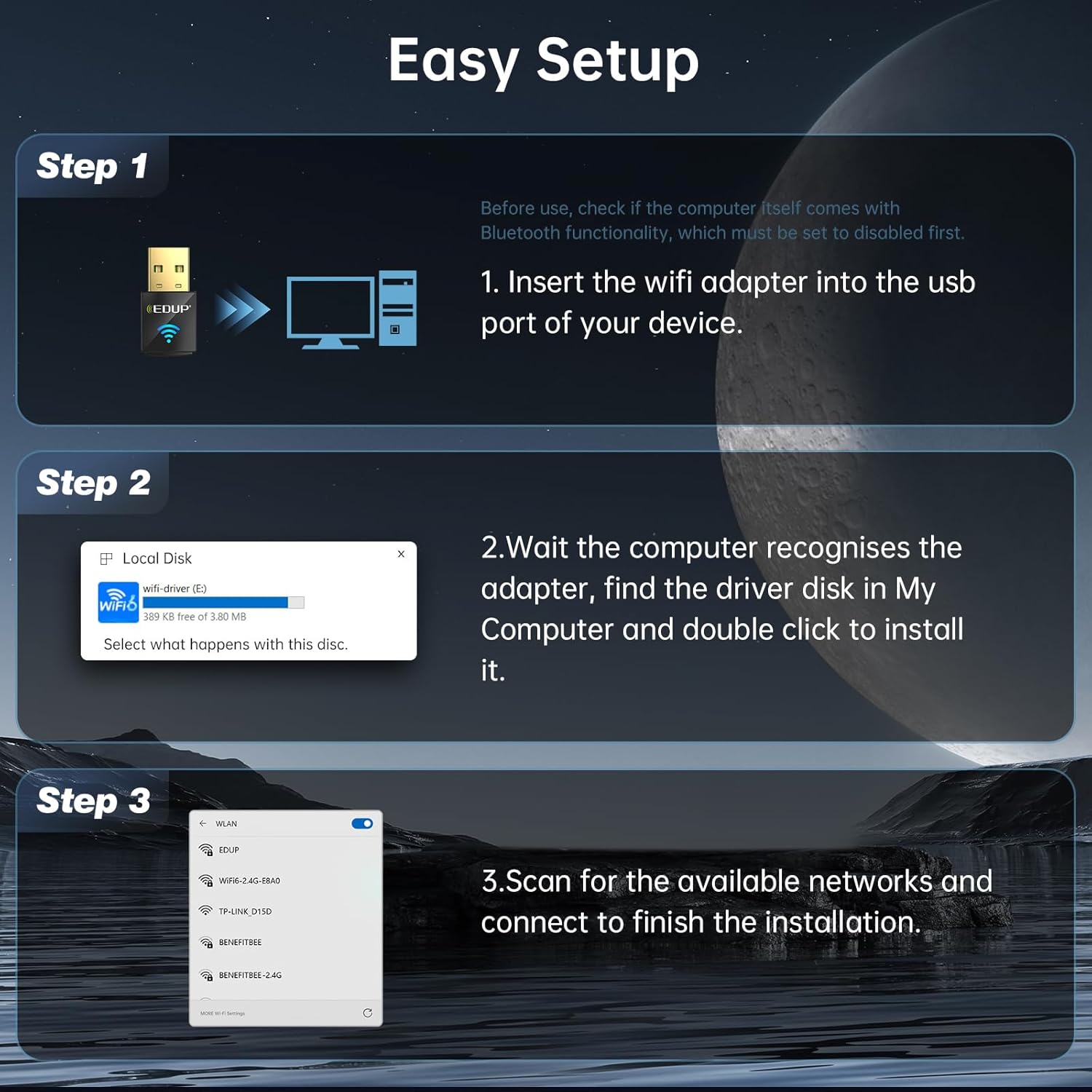
Image: Illustration of the adapter connecting various Bluetooth devices simultaneously.

Image: The adapter's dual-band capabilities for 5GHz high speed and 2.4GHz wide signal coverage.
Using WiFi
- After successful setup, the adapter will provide WiFi connectivity. You can manage your WiFi connection through the standard Windows network settings.
- The adapter supports dual-band operation (2.4GHz and 5.8GHz) for optimal speed and range. For best performance, ensure your router is WiFi 6 compatible.
- The adapter can also function in Wi-Fi Hotspot Mode, allowing your PC to share its internet connection with other devices.
Using Bluetooth
- The adapter enables Bluetooth 5.4 connectivity. Access Bluetooth settings in Windows to add and manage devices.
- The adapter supports connecting up to 7 Bluetooth devices simultaneously, including headsets, speakers, keyboards, mice, and game controllers.
- Note: This adapter is not designed for direct use with gaming consoles, but it works with PC-compatible game controllers.
4. Maintenance
Proper care ensures the longevity and optimal performance of your adapter.
- Keep the adapter clean and free from dust. Use a soft, dry cloth for cleaning.
- Avoid exposing the adapter to extreme temperatures, direct sunlight, or moisture.
- Ensure the USB port on your computer is clean and free of debris for optimal connection.
- While the device is plug-and-play for Windows 10/11, periodically check the EDUP official website for any potential driver updates that might enhance performance or address specific issues.
5. Troubleshooting
Refer to this section for solutions to common issues.
| Issue | Solution |
|---|---|
| Adapter not recognized / Bluetooth not working. |
|
| Slow WiFi speeds. |
|
| Bluetooth devices frequently disconnect. |
|
| No internet connection after WiFi setup. |
|
6. Product Specifications
Detailed technical specifications for the EDUP EP-AX600 adapter.

Image: The mini size of the EDUP EP-AX600 adapter compared to a US quarter coin.
| Feature | Detail |
|---|---|
| Brand | EDUP |
| Model Number | EP-AX600 |
| Hardware Interface | USB 2.0 |
| Color | Black |
| Compatible Devices | Desktop, Laptop |
| Product Dimensions (L x W x H) | 0.64" x 0.3" x 1.22" |
| Data Link Protocol | USB |
| Data Transfer Rate | 600 Megabits Per Second (AX600M) |
| Item Weight | 20 Grams |
| Compatible Operating System | Windows 10, Windows 11 (WiFi 6 support for Windows 7/10/11, Bluetooth support for Windows 10/11) |
| Security Protocols | WEP, WPA-PSK, WPA2-PSK, WPA3-PSK |
| Included in Box | 1* EDUP Mini Bluetooth 5.4 WiFi 6 Adapter |
7. Warranty Information
The EDUP EP-AX600 Mini USB Bluetooth 5.4 WiFi 6 Adapter comes with a 3-year warranty from the date of purchase. Please retain your proof of purchase (receipt or order confirmation) as it will be required for any warranty claims. This warranty covers manufacturing defects and malfunctions under normal use.
For detailed terms and conditions of the warranty, please refer to the official EDUP website or contact customer support.
8. Technical Support
Should you encounter any issues or require further assistance with your EDUP EP-AX600 adapter, please utilize the following support resources:
- Official EDUP Website: Visit the EDUP official website for FAQs, driver downloads, and additional product information.
- Customer Support: Refer to your product packaging or the EDUP website for the most current customer support contact information (email, phone, or online chat).
- Online Resources: Many common questions can be answered by consulting online forums or community support pages related to EDUP products.
When contacting support, please have your product model number (EP-AX600) and a detailed description of your issue ready to facilitate a quicker resolution.


