
1. Introduction
The SOLAKAKA SM802 is a versatile tri-mode wireless gaming mouse designed for various computing needs. It offers 2.4GHz wireless, Bluetooth 5.0, and wired USB-C connectivity, along with customizable features such as replaceable shells, microswitches, and programmable buttons. This manual provides detailed instructions for setup, operation, maintenance, and troubleshooting to ensure optimal performance.
2. Package Contents
Verify that all items are present in your package:
- SOLAKAKA SM802 Tri-Mode Wireless Gaming Mouse
- USB-C Charging Cable
- 2.4GHz USB Receiver (stored inside the mouse)
- Additional Set of Micro Switches (Gaming Switch and Office Mute Switch)
- Additional Set of Shells (Hollowed-out Shell and Classic Shell)
- Instruction Manual

Video: This video demonstrates the unboxing and contents of the SOLAKAKA SM802 gaming mouse package, including the mouse, cables, and interchangeable parts.
3. Product Overview
Mouse Components
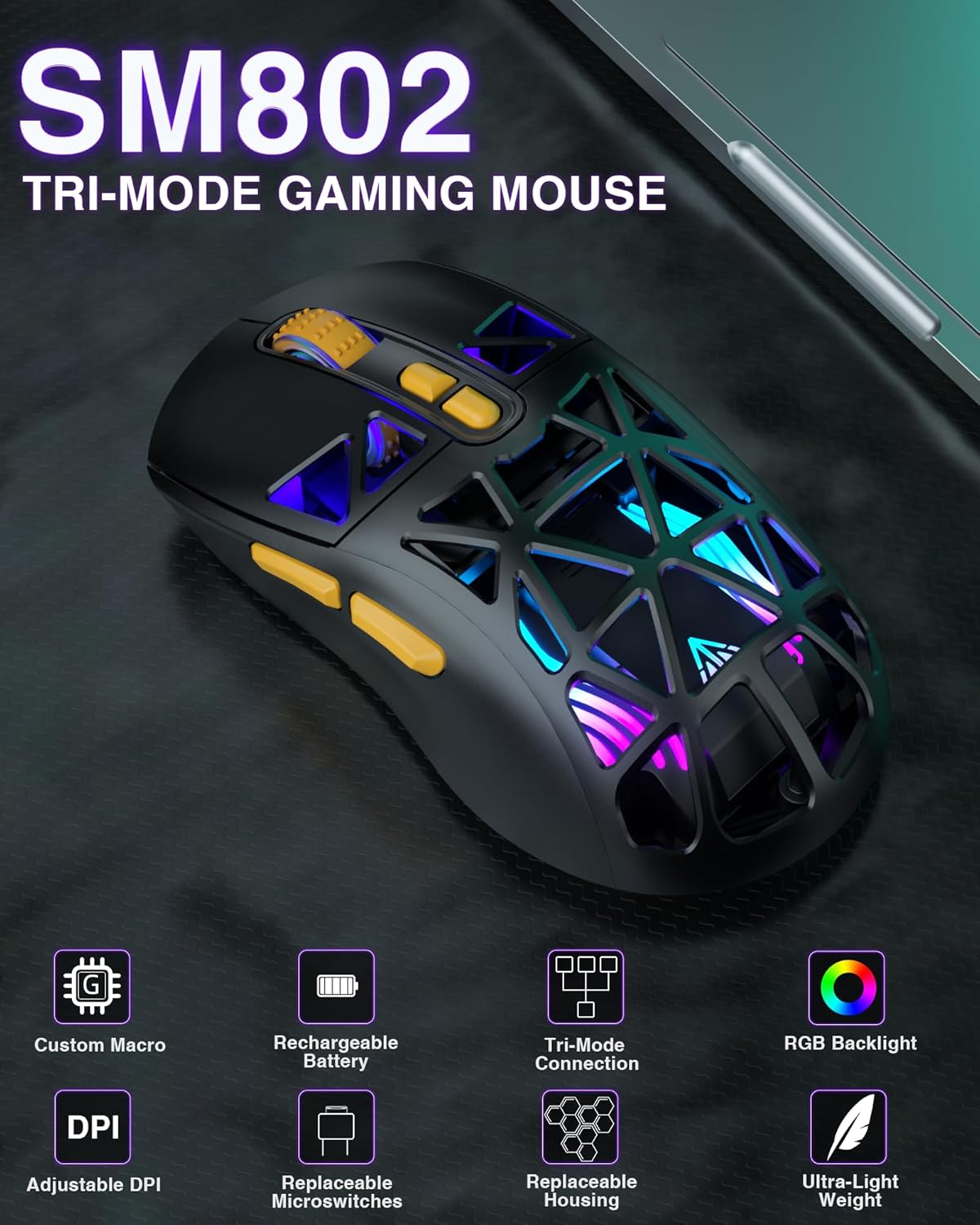
Image: A top-down view of the SM802 mouse, showcasing its overall design and accessible buttons.
Key Features
- Tri-Mode Connectivity: Supports 2.4GHz wireless, Bluetooth 5.0, and wired USB-C connections. Can save up to 4 devices simultaneously.
- DIY Personalized Hotswap: Comes with two sets of micro switches (gaming and office mute) that users can easily change. Compatible with most branded microswitches.
- Customizable Shells: Includes two sets of shells (hollowed-out and classic) allowing for four different aesthetic styles.
- 7 Programmable Buttons: Buttons can be customized via software (Windows system only) to reset functions, adjust DPI, and configure macros.
- Adjustable DPI: Six DPI levels available (1000, 1200, 1600, 2400, 4800, 10000).
- Rechargeable Battery: Built-in 450mAh lithium battery with USB-C charging. Supports use while charging. Low battery indicator flashes red.
- Power Saving Design: RGB lighting automatically turns off when the mouse is in motion in wireless mode. A toggle switch on the bottom can turn off partial RGB lights (keeping wheel and logo lights on).
4. Setup and Connectivity
Charging the Mouse
Connect the mouse to your computer using the provided USB-C cable. The mouse can be used while charging. A red flashing light indicates a low battery.
2.4GHz Wireless Connection
- Locate the 2.4GHz USB receiver stored in the compartment on the bottom of the mouse.
- Plug the USB receiver into an available USB port on your computer.
- Toggle the mode switch on the bottom of the mouse to the '2.4G' position. The mouse will automatically connect.
Bluetooth 5.0 Connection
- Toggle the mode switch on the bottom of the mouse to either 'BT1' or 'BT2' position.
- On your device (laptop, tablet, etc.), enable Bluetooth and search for new devices.
- Select 'SM802' from the list of available devices to pair.
Wired Connection
Connect the mouse to your computer using the provided USB-C cable. The mouse will automatically switch to wired mode.
Switching Connection Modes
Use the mode switch located on the bottom of the mouse to select between 2.4GHz wireless, Bluetooth 1 (BT1), Bluetooth 2 (BT2), or wired mode. Ensure the mouse's signal source matches the selected device for proper connection.

Image: The SM802 mouse demonstrating its tri-mode connectivity options, connecting to a laptop via 2.4GHz, a tablet via Bluetooth, and a PC via wired USB-C.
5. Operation
DPI Adjustment
The mouse supports 6 adjustable DPI levels: 1000, 1200, 1600, 2400, 4800, and 10000. Use the DPI button, typically located behind the scroll wheel, to cycle through these settings. The current DPI level may be indicated by an LED color change or through the customization software.
RGB Lighting Control
The SM802 features RGB backlighting. You can adjust lighting effects using a dedicated light button on the mouse or through the customization software. In wireless mode, RGB lighting automatically turns off when the mouse is moved to conserve power. A toggle switch on the bottom allows for partial RGB light deactivation (wheel and logo lights remain on).
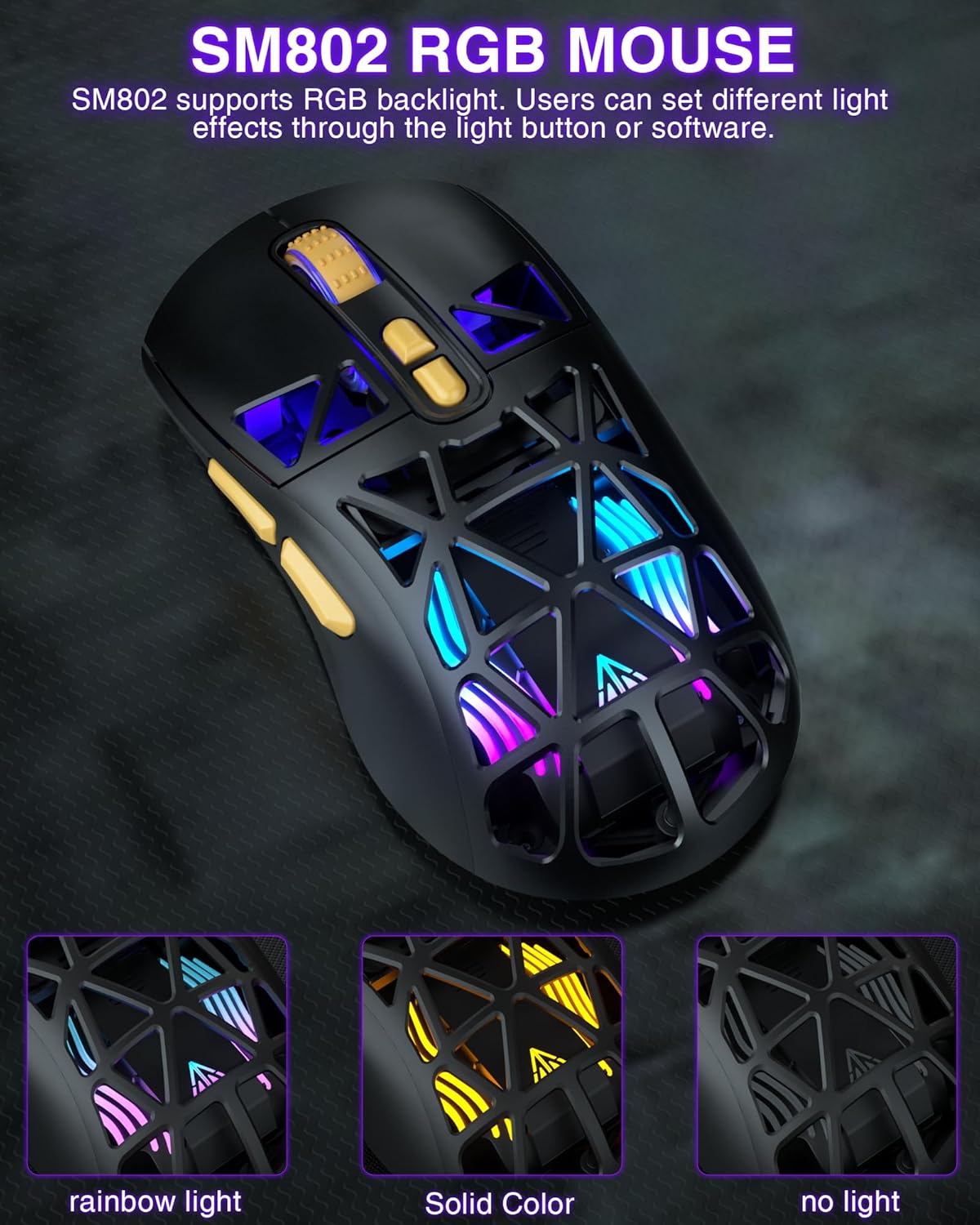
Image: The SM802 mouse displaying its vibrant RGB lighting, alongside information on its 6-level adjustable DPI up to 10000 and its rechargeable battery.
Customizable Shells
The SM802 mouse comes with two sets of shells: a hollowed-out shell and a classic shell. These can be interchanged to customize the mouse's appearance and feel. The hollowed-out shell enhances the RGB lighting and provides a breathable, sweat-proof design, while the classic shell offers a more traditional and versatile look.
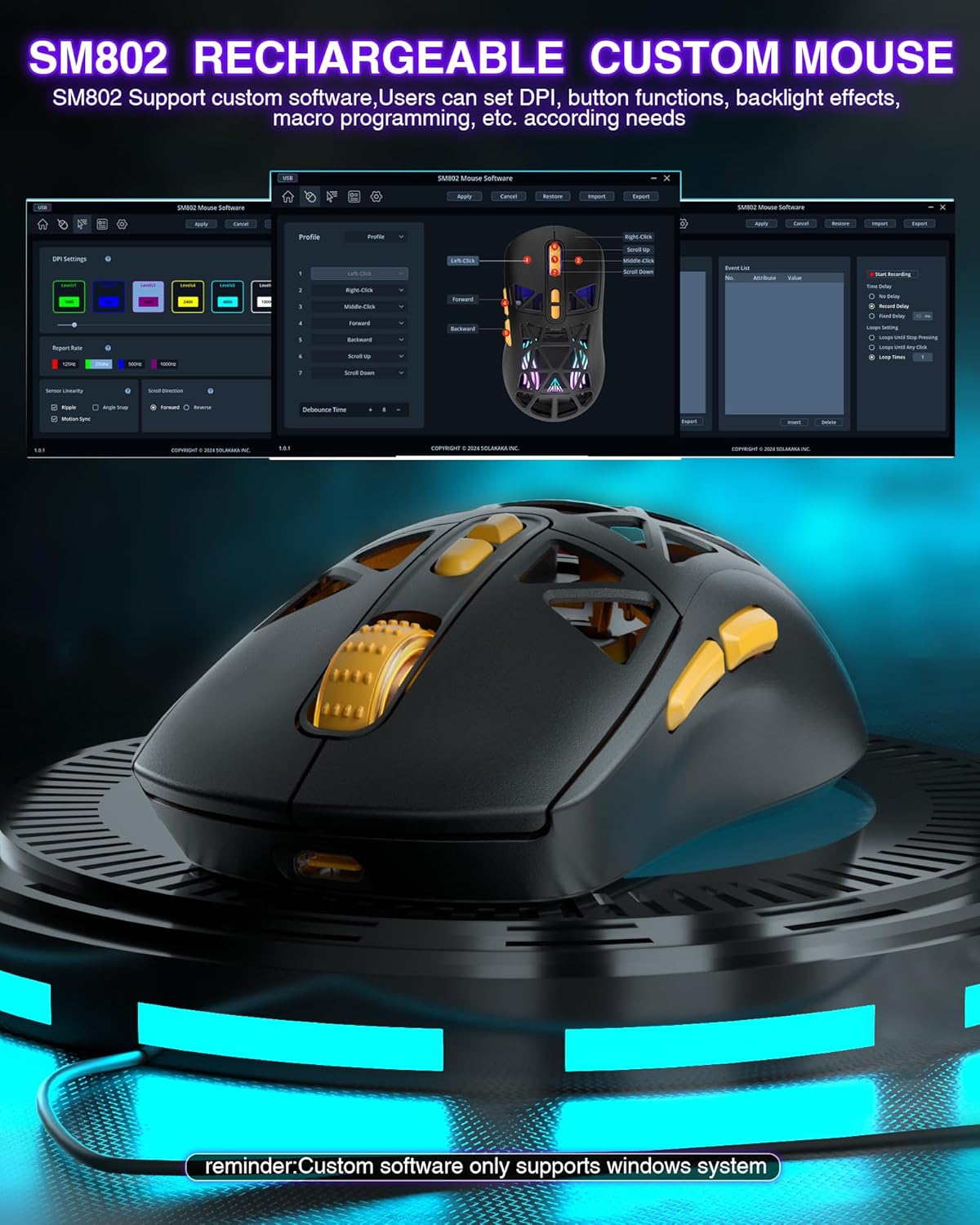
Image: The SM802 mouse with its two interchangeable shell options, showing how users can switch between a hollowed-out design and a solid classic design.
Replaceable Microswitches
The mouse includes two types of microswitches: a gaming switch and an office mute switch. Users can replace these switches according to their preference for click feel and sound. The hotswap design allows for easy replacement and compatibility with most standard microswitches.
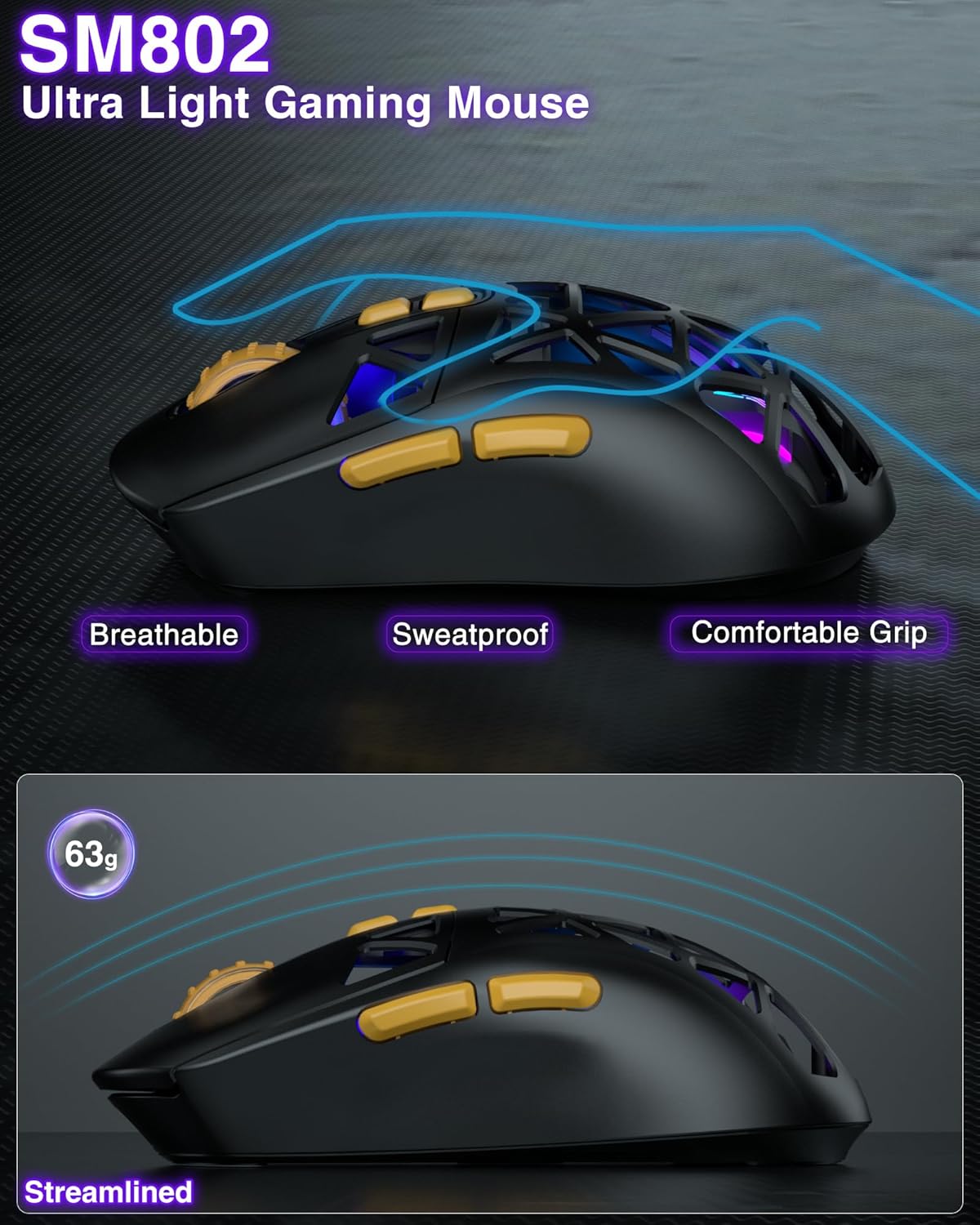
Image: A close-up view of the SM802 mouse's internal structure, illustrating how to replace the microswitches with either a click switch or a silent switch.
Programmable Buttons and Software
The SM802 mouse features 7 programmable buttons. Customization is available through dedicated software, which allows users to reset button functions, adjust DPI settings, and configure macro files. Note: The customization software is only compatible with Windows operating systems and functions in wired mode.
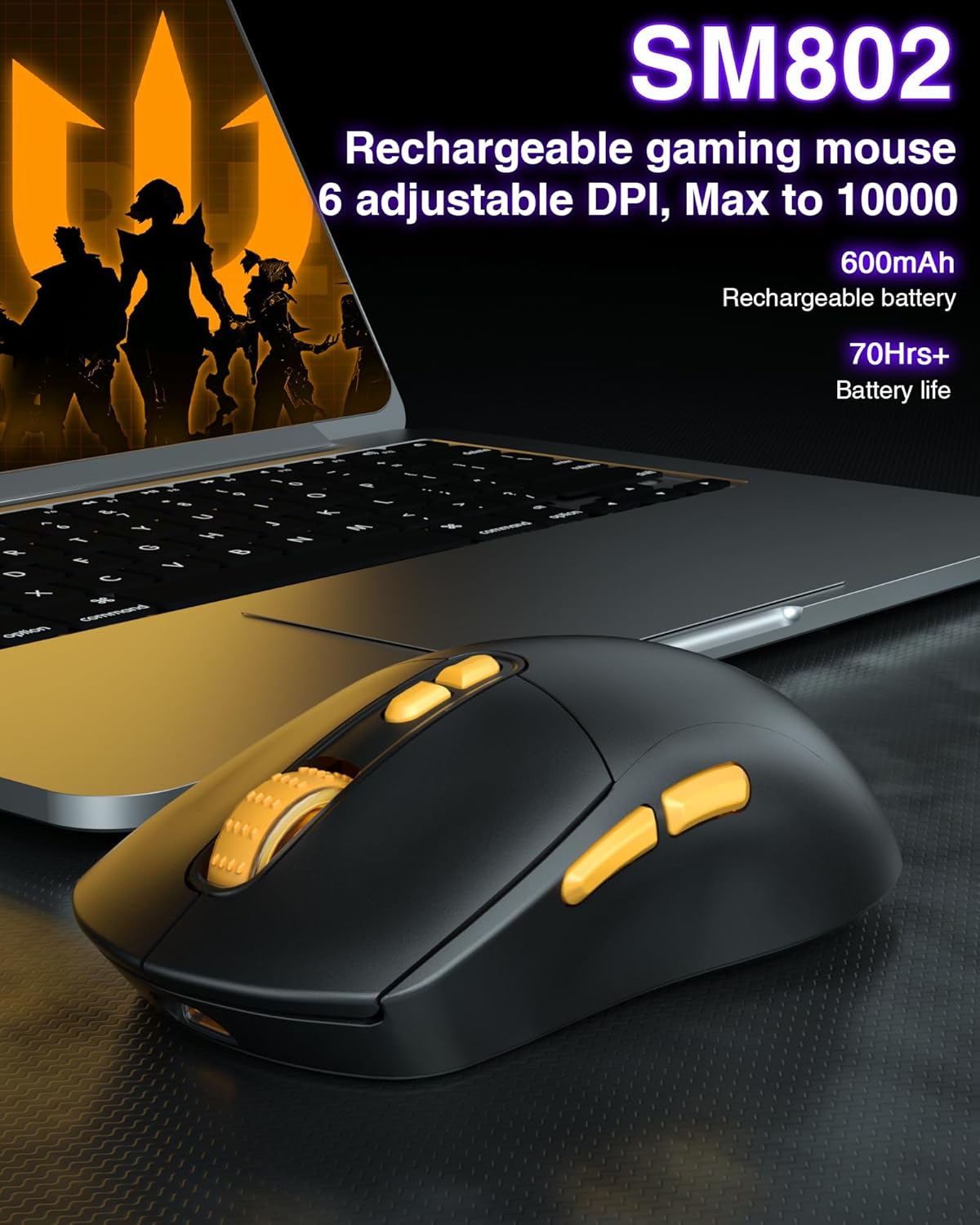
Image: A visual representation of the SM802 mouse customization software, demonstrating its interface for adjusting button assignments, DPI, and macro settings.
6. Maintenance
To ensure the longevity and optimal performance of your SOLAKAKA SM802 mouse, follow these maintenance guidelines:
- Cleaning: Use a soft, dry cloth to wipe the mouse surface. For stubborn dirt, a slightly damp cloth can be used, but ensure no moisture enters the internal components. Avoid harsh chemicals or abrasive cleaners.
- Sensor Care: Keep the optical sensor on the bottom of the mouse clean and free from dust or debris to maintain tracking accuracy.
- Storage: Store the mouse in a cool, dry place away from direct sunlight and extreme temperatures.
- Battery: Avoid fully discharging the battery frequently. Charge the mouse when the low battery indicator appears.
7. Troubleshooting
If you encounter issues with your SM802 mouse, refer to the following common solutions:
- Mouse not responding:
- Ensure the mouse is charged.
- Check the connection mode switch on the bottom of the mouse. Make sure it matches your intended connection (2.4G, BT1, BT2, or wired).
- For 2.4GHz, ensure the USB receiver is securely plugged into a working USB port.
- For Bluetooth, ensure Bluetooth is enabled on your device and the mouse is paired correctly. Try re-pairing if necessary.
- For wired mode, ensure the USB-C cable is properly connected to both the mouse and the computer.
- Lag or intermittent connection:
- Reduce the distance between the mouse and the receiver/device.
- Remove any potential sources of interference (e.g., other wireless devices, large metal objects).
- Ensure the mouse battery is not critically low.
- DPI not changing:
- Press the DPI button firmly.
- If using customization software, ensure settings are applied and saved to the mouse.
- RGB lights not working or behaving unexpectedly:
- Check the RGB light button on the mouse.
- Verify settings in the customization software.
- Ensure the power-saving feature is not active if you expect constant lighting during movement.
- Customization software not detecting mouse:
- Ensure the mouse is connected in wired mode.
- Confirm your operating system is Windows.
- Reinstall the software if necessary.
8. Specifications
| Feature | Detail |
|---|---|
| Brand | SOLAKAKA |
| Model Number | SM802 |
| Connectivity Technology | 2.4GHz Wireless, BT5.0, USB-C Wired |
| Movement Detection Technology | Optical |
| Maximum Sensitivity (DPI) | 10000 |
| Adjustable DPI Levels | 1000, 1200, 1600, 2400, 4800, 10000 |
| Button Quantity | 7 (Programmable) |
| Hand Orientation | Right |
| Power Source | Battery Powered (Built-in 450mAh Lithium Battery) |
| Compatible Devices | Laptop, Personal Computer, Tablet |
| Operating System Compatibility | Android, Windows (Windows 10 minimum), iOS |
| Enclosure Material | Plastic |
| Item Weight | 0.43 Pounds |
9. Warranty and Support
The SOLAKAKA SM802 Wireless Gaming Mouse comes with a manufacturer's warranty. For specific warranty details, please refer to the documentation included with your purchase or contact SOLAKAKA customer support.
For technical support, troubleshooting assistance, or further inquiries, please visit the official SOLAKAKA website or contact their customer service department. Contact information can typically be found on the product packaging or the brand's online store.


