1. Product Overview
The Thunderobot Radiant 16 is a high-performance gaming laptop designed for demanding applications and immersive gaming experiences. It features an Intel Core i9-13900HX processor, NVIDIA GeForce RTX 5080 graphics, a 16-inch QHD+ 300Hz display, 16GB DDR5 RAM, and a 1TB PCIe M.2 SSD. This manual provides essential information for setup, operation, maintenance, and troubleshooting.

Figure 1: Thunderobot Radiant 16 Gaming Laptop
2. Initial Setup
2.1 Unboxing and Contents
Carefully remove all components from the packaging. The box should contain:
- Thunderobot Radiant 16 Gaming Laptop
- Power Adapter and Cable
- User Manual (this document)
2.2 Connecting Power
Connect the power adapter to the laptop's AC power input port and then plug the power cable into a wall outlet. It is recommended to fully charge the laptop before initial use.
2.3 First Power On
Press the power button located on the laptop. The system will guide you through the initial Windows 11 Home setup process. Follow the on-screen instructions to configure your operating system, network, and user account.
2.4 Connecting Peripherals and Network
Utilize the available ports to connect external devices such as a mouse, keyboard, or external display. The laptop supports Wi-Fi 6 for wireless network connectivity and also includes an RJ45 port for wired Ethernet connections.
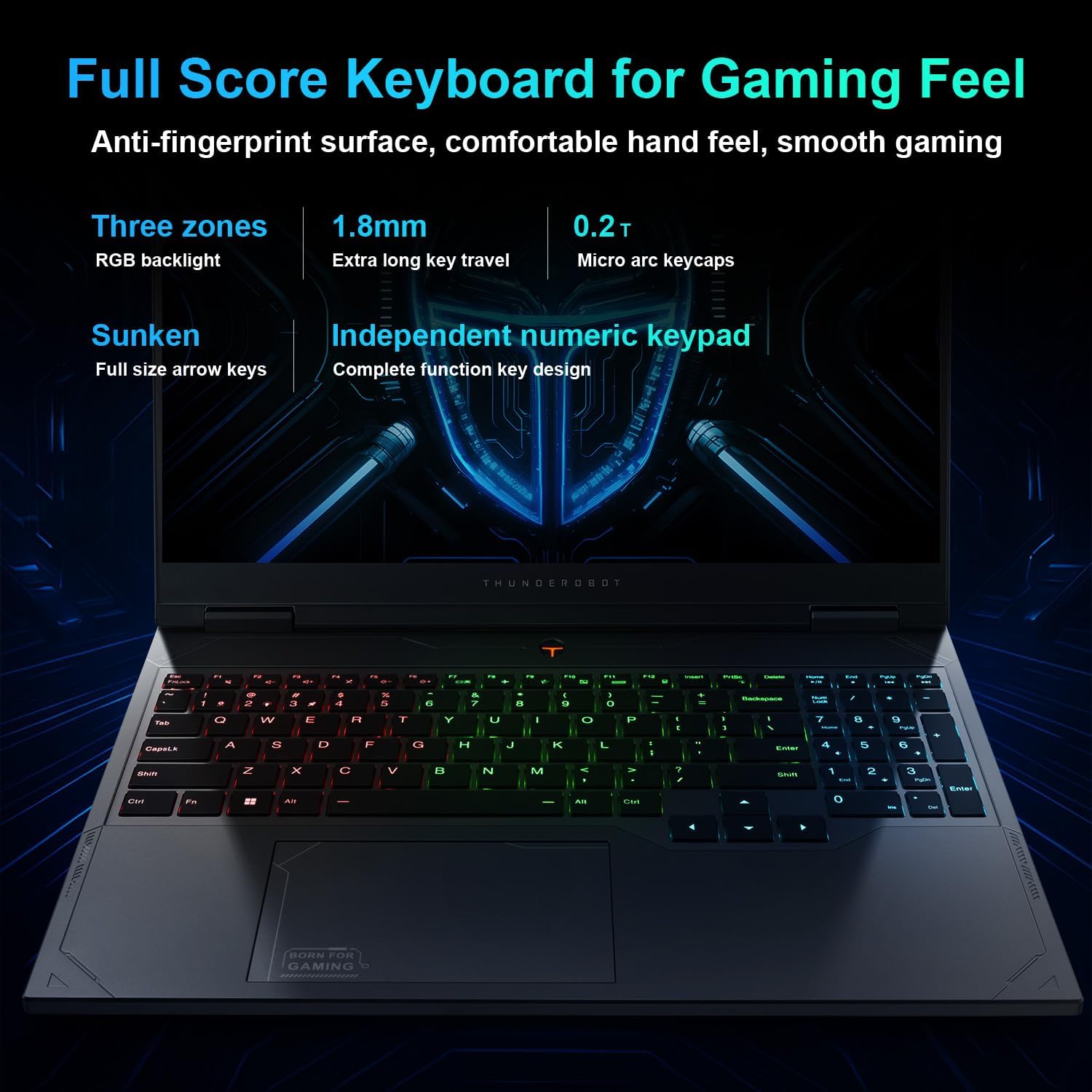
Figure 2: Laptop Ports and Slots
The laptop features multiple connectivity options:
- USB 3.1 Gen1 Type-A: Three ports for standard USB devices.
- USB 3.1 Gen2 Type-C: One port for high-speed data transfer and display output.
- HDMI 2.1: For connecting to external monitors or TVs.
- RJ45: Ethernet port for wired network connection.
- Audio Jack: For headphones or external speakers.
- AC Power Supply: For connecting the power adapter.
3. Operating Instructions
3.1 Power Management
To power on the laptop, press the power button. To shut down, click the Start button in Windows, then select Power > Shut down. You can also use sleep or hibernate modes for quick resume.
3.2 Keyboard and Touchpad
The laptop is equipped with an RGB backlit keyboard and an independent numeric keypad. The keys feature 1.8mm extra long key travel for comfortable typing. The touchpad supports multi-touch gestures for navigation.
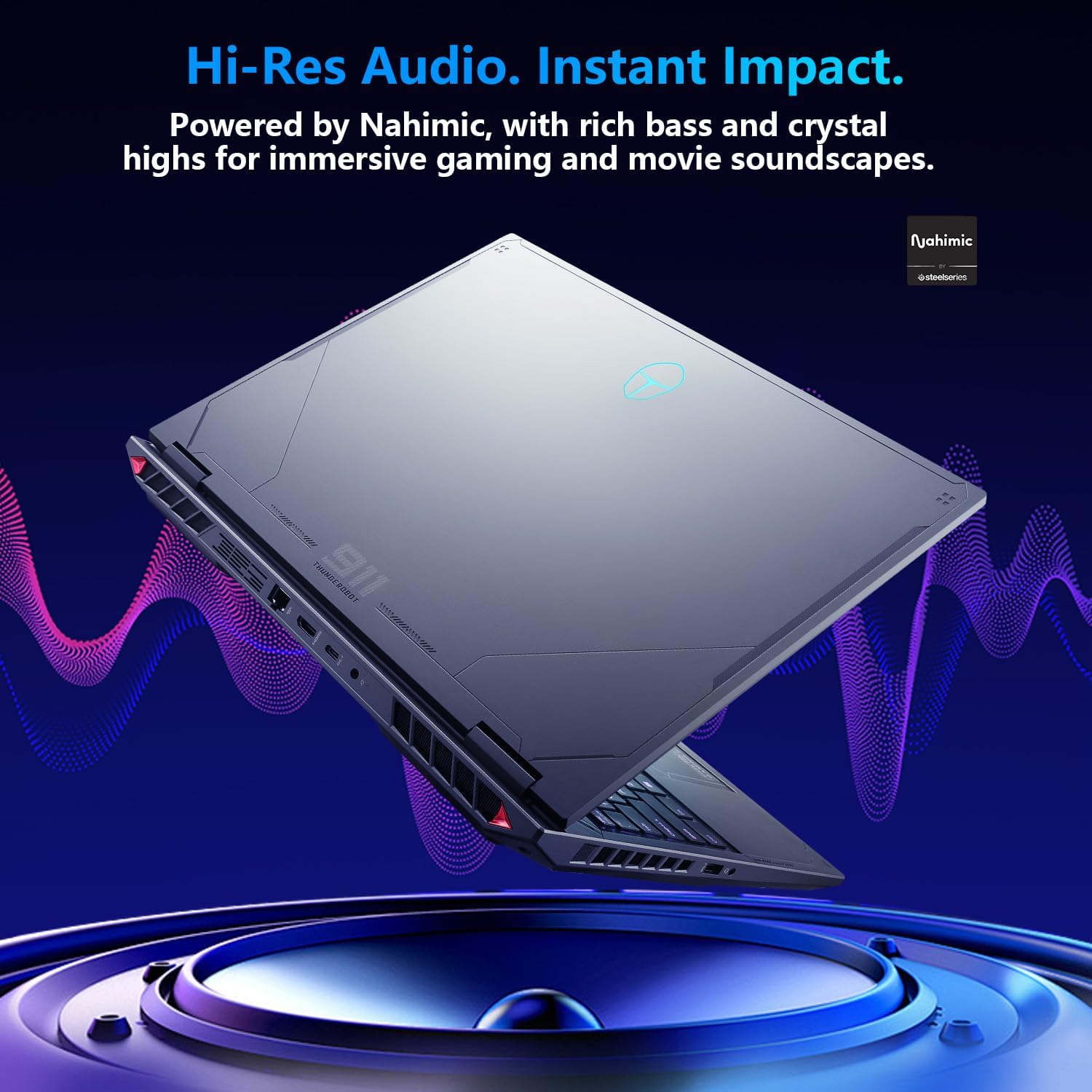
Figure 3: RGB Backlit Keyboard
3.3 Display Settings
The 16-inch QHD+ (2560x1600) display offers a 300Hz refresh rate for smooth visuals. To achieve the highest refresh rate, ensure the dedicated graphics direct connection mode is enabled in the Control Center. Adjust display settings via Windows Display Settings.

Figure 4: High Refresh Rate Display
3.4 Control Center
The Thunderobot Control Center software allows you to manage performance modes, fan speeds, and RGB lighting. It offers three primary performance modes:
- Berserk Mode: Full performance release for maximum power.
- Game Mode: Optimized for smooth gaming performance.
- Audio and Video Office Mode: Balances performance with battery life for productivity.
Note: System mode switching in Control Center requires the device to be connected to a power source.

Figure 5: Control Center Interface
3.5 Audio System
The laptop features Nahimic Audio for enhanced sound quality, providing 3D surround sound, treble stabilization, and noise reduction for an immersive audio experience.

Figure 6: Nahimic Audio System
4. Maintenance
4.1 Cleaning
Regularly clean the laptop's screen with a soft, lint-free cloth and a screen-safe cleaning solution. Use compressed air to clear dust from keyboard keys and ventilation grilles. Ensure the laptop is powered off and unplugged before cleaning.
4.2 Software Updates
Keep your operating system, drivers, and applications updated to ensure optimal performance and security. Check for Windows updates regularly and visit the Thunderobot support website for the latest driver versions.
4.3 Battery Care
To prolong battery life, avoid extreme temperatures and do not leave the laptop fully charged or fully discharged for extended periods. For long-term storage, charge the battery to approximately 50-60%.
4.4 Cooling System
The Radiant 16 features an advanced cooling system with dual 12V fans, Glacier Six copper tubes, and 3D heat pipes. Ensure ventilation grilles are unobstructed to maintain efficient cooling. The Control Center allows for one-click turbo cooling activation for maximum performance.

Figure 7: Wind-Driven Thermal Mastery Cooling System
5. Troubleshooting
This section addresses common issues you might encounter. For more complex problems, refer to the Thunderobot support website or contact customer service.
5.1 No Power
- Ensure the power adapter is securely connected to both the laptop and a working power outlet.
- Verify the power outlet is functional by plugging in another device.
- If the battery is completely drained, allow it to charge for a few minutes before attempting to power on.
5.2 Display Issues
- If the screen is blank, try connecting an external monitor to check if the issue is with the laptop's display or the graphics output.
- Ensure display drivers are up to date.
- Check display settings in Windows to confirm resolution and refresh rate.
5.3 Performance Problems
- Check the Control Center to ensure the laptop is in the appropriate performance mode (e.g., Berserk or Game Mode for demanding tasks).
- Monitor CPU and GPU temperatures. Excessive heat can lead to performance throttling. Ensure cooling vents are clear.
- Close unnecessary background applications.
- Ensure graphics drivers are updated to the latest version.
6. Specifications
Detailed technical specifications for the Thunderobot Radiant 16 Gaming Laptop:
| Feature | Specification |
|---|---|
| Model Name | Radiant 16 |
| Processor | Intel Core i9-13900HX (5.4 GHz Max Turbo, 24 Cores, 32 Threads, 36 MB Cache) |
| Graphics | NVIDIA GeForce RTX 5080 Laptop GPU (16GB GDDR7) |
| Display | 16-inch QHD+ (2560x1600) IPS, 300Hz Refresh Rate, 100% sRGB, 500 Nits |
| RAM | 16GB DDR5 4800 MHz |
| Storage | 1TB PCIe M.2 SSD |
| Operating System | Windows 11 Home |
| Wireless Connectivity | Wi-Fi 6, Bluetooth |
| Ports | 3x USB 3.1 Gen1 Type-A, 1x USB 3.1 Gen2 Type-C, 1x HDMI 2.1, 1x RJ45, 1x Audio Jack |
| Keyboard | RGB Backlit, Numeric Keypad, 1.8mm Key Travel |
| Audio | Nahimic Audio |
| Dimensions (LxWxH) | 14.09 x 10 x 0.82 inches |
| Weight | Approximately 12 pounds |

Figure 8: Core Component Specifications
7. Warranty and Support
Every Thunderobot laptop includes a 12-month warranty, offering expert support, thorough diagnostics, and genuine parts if a repair is needed. Additionally, a 90-day warranty is provided on all warranty replacement parts, ensuring hassle-free repairs.
For technical assistance, driver downloads, or warranty claims, please visit the official Thunderobot support website or contact their customer service department. Refer to your product packaging or the Thunderobot website for specific contact details.


