
Introduction
This manual provides detailed instructions for the Philips SPK7858 Wireless 4000DPI 7-Button Optical Mouse. Please read this manual carefully before using the product to ensure proper operation and to maximize its lifespan. Keep this manual for future reference.
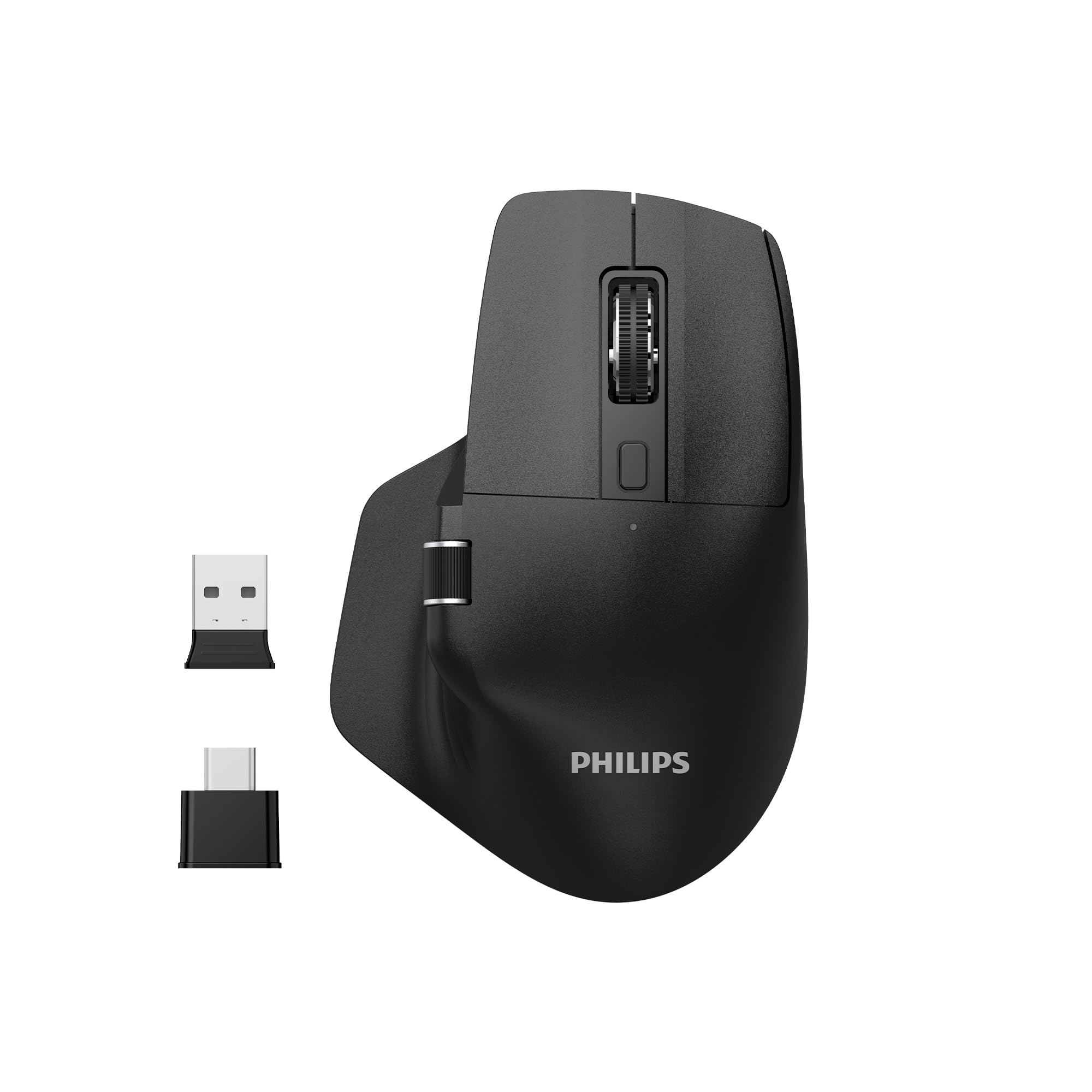
Figure 1: Philips SPK7858 Wireless Mouse
Product Overview
The Philips SPK7858 is a versatile wireless optical mouse designed for comfort and efficiency. It features a silent click mechanism, adjustable DPI settings up to 4000, and multiple connectivity options including USB-A, USB-C dual dongles, and Bluetooth. The mouse is equipped with 7 buttons, including dedicated forward and back buttons for enhanced navigation, and is powered by a built-in rechargeable lithium battery.
Key Features:
- Silent Click: Provides a quiet user experience.
- Dual Dongle Connectivity: Includes both USB-A and USB-C dongles for broad compatibility.
- Bluetooth Support: Connects to up to three devices simultaneously with quick switching.
- Adjustable DPI: Sensitivity settings from 800 to 4000 DPI for precise control.
- Navigation Buttons: Thumb-level forward and back buttons for efficient browsing.
- Rechargeable Battery: Built-in 500 mAh lithium battery for extended use.
- Ergonomic Design: Shaped for comfortable right-hand use.
Setup
1. Charging the Mouse
Before initial use, ensure the mouse is fully charged. Connect the mouse to a USB power source using a compatible USB-C cable. The charging indicator light will show the charging status.

Figure 2: Mouse with 500 mAh rechargeable battery
2. Connecting via USB Dongle (2.4GHz Wireless)
- Locate the USB-A or USB-C dongle stored in the mouse's bottom compartment.
- Plug the desired dongle into an available USB port on your computer.
- Turn on the mouse using the ON/OFF switch located on the bottom of the mouse.
- The mouse should automatically connect to your computer.

Figure 3: Mouse with USB-A and USB-C dongles
3. Connecting via Bluetooth
- Turn on the mouse using the ON/OFF switch on the bottom.
- Press the connection mode button (usually located near the ON/OFF switch or on top) to switch to Bluetooth mode. The indicator light will flash, indicating pairing mode.
- On your computer or device, go to Bluetooth settings and search for new devices.
- Select "Philips SPK7858" from the list of available devices to pair.
- To connect to multiple Bluetooth devices, repeat steps 2-4 for each device, using different Bluetooth channels if available (refer to mouse's specific channel switching instructions).

Figure 4: Bottom of the mouse with power and connection switches
Operating Instructions
1. Power On/Off
Use the ON/OFF switch on the bottom of the mouse to turn it on or off. Turning off the mouse when not in use helps conserve battery life.
2. Adjusting DPI Sensitivity
The mouse features a DPI adjustment button, typically located behind the scroll wheel. Press this button to cycle through different DPI settings (e.g., 800, 1200, 1600, 2400, 4000 DPI). The cursor speed will change with each press, allowing you to select your preferred sensitivity.
3. Using Forward and Back Buttons
The two buttons located on the side of the mouse, accessible by your thumb, function as 'Forward' and 'Back' for web browsing and file navigation. These buttons enhance efficiency during daily computer use.
4. Switching Between Connected Devices (Bluetooth)
If you have connected the mouse to multiple devices via Bluetooth, use the dedicated connection mode button (often on the bottom or top of the mouse) to quickly switch between paired devices. The indicator light will confirm the active connection channel.

Figure 5: Ergonomic use of the mouse
Maintenance
Cleaning
To clean the mouse, use a soft, dry cloth. For stubborn dirt, slightly dampen the cloth with water or a mild cleaning solution. Avoid using harsh chemicals, abrasive cleaners, or excessive moisture, as these can damage the mouse's surface or internal components.
Battery Care
The mouse contains a built-in rechargeable lithium battery. To prolong battery life:
- Avoid fully discharging the battery frequently.
- Charge the mouse regularly, even if not completely depleted.
- Do not expose the mouse to extreme temperatures.
- If storing the mouse for an extended period, charge it to about 50% before storage.
Troubleshooting
| Problem | Possible Cause | Solution |
|---|---|---|
| Mouse not responding | Low battery; Mouse is off; Incorrect connection mode; Dongle not properly inserted; Bluetooth not paired. | Charge the mouse; Turn on the mouse; Switch to the correct connection mode (2.4GHz or Bluetooth); Re-insert the USB dongle; Re-pair via Bluetooth. |
| Cursor erratic or not moving smoothly | Dirty optical sensor; Mouse used on an unsuitable surface; Low battery. | Clean the optical sensor; Use on a mouse pad or a smooth, non-reflective surface; Charge the mouse. |
| Cannot switch between devices | Incorrect button press; Devices not properly paired. | Ensure you are pressing the correct connection mode button; Verify all devices are paired correctly. |
| DPI setting not changing | DPI button not functioning; Mouse software interference (rare). | Ensure the DPI button is pressed firmly; Restart the mouse and computer. |
Specifications
| Brand | PHILIPS |
| Model Name | SPK7858 |
| Color | Black |
| Connectivity Technology | Bluetooth, USB (2.4GHz Wireless with USB-A & USB-C dongles) |
| Motion Detection Technology | Optical |
| Number of Buttons | 7 |
| Hand Orientation | Right |
| Maximum Mouse Sensitivity | 4000 DPI (Adjustable from 800 DPI) |
| Power Source | Battery Powered (Built-in 500 mAh Lithium Battery) |
| Compatible Devices | Desktop Computer |
| Operating System Compatibility | Microsoft Windows 7, Windows 8, Windows 10 or higher; Linux V1.24 or higher; Mac OS 10.5 or higher |
| Hardware Platform | Linux, Mac, PC |
| Product Dimensions (L x W) | 12.3L x 8.3W centimeters |
| Product Weight | 0.17 Kilogram |
| Included Components | 1x Philips SPK7858 Wireless Mouse, 1x Built-in Lithium Battery, 1x User Manual |
| Country of Origin | China |
Warranty and Support
Warranty Information
The Philips SPK7858 Wireless Mouse comes with a 2-Year Philips Turkey Warranty. Please retain your proof of purchase for warranty claims. The warranty covers manufacturing defects and malfunctions under normal use conditions.
Customer Support
For technical assistance, troubleshooting beyond this manual, or warranty inquiries, please contact Philips Customer Support. You can typically find contact information on the official Philips website for your region or on the product packaging.
Please visit the official Philips website for the most up-to-date support information and contact details.


