
Introduction
This manual provides detailed instructions for the Philips SPK7858 Wireless Optical Mouse. Designed for ergonomic comfort and versatile performance, this mouse features multi-connection options, adjustable DPI settings, and a rechargeable battery, making it suitable for everyday use, office tasks, and gaming. Please read this manual thoroughly to ensure proper setup and operation.
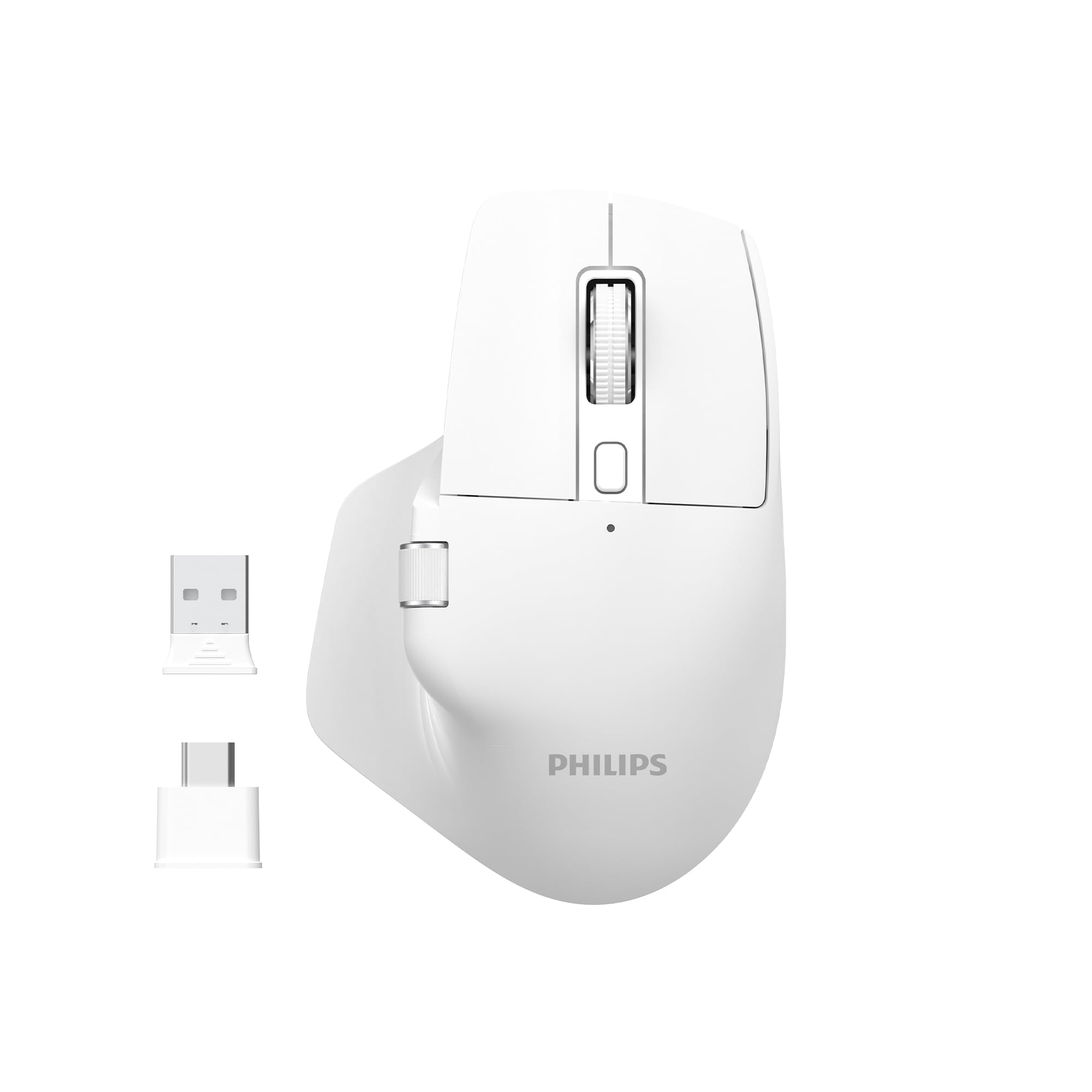
Image: The Philips SPK7858 Wireless Optical Mouse in white, shown with its USB receiver and Type-C adapter.
Setup
1. Package Contents
Before you begin, ensure all items are present in the package:
- Philips SPK7858 Wireless Optical Mouse
- USB Receiver
- USB Type-C Adapter
- Charging Cable (Type-C)
- User Manual (this document)
2. Charging the Mouse
The mouse comes with a built-in rechargeable battery. For first-time use, it is recommended to fully charge the mouse.
- Locate the Type-C charging port on the front of the mouse.
- Connect the provided charging cable to the mouse and a USB power source (e.g., computer USB port, USB wall adapter).
- The charging indicator light will illuminate. Once fully charged, the light may change color or turn off.

Image: Side view of the Philips SPK7858 mouse, highlighting the Type-C charging port.
3. Connecting the Mouse
The mouse connects wirelessly via a 2.4GHz USB receiver.
- Remove the USB receiver from its storage compartment on the underside of the mouse.
- Plug the USB receiver directly into an available USB-A port on your computer. If your computer only has Type-C ports, use the provided Type-C adapter.
- Turn on the mouse using the power switch located on the underside.
- Your computer should automatically detect and install the necessary drivers. The mouse is ready for use.

Image: Underside of the Philips SPK7858 mouse, illustrating the USB dongle storage area and the optical sensor.
Operating the Mouse
Button Functions
The Philips SPK7858 mouse features 7 programmable buttons for enhanced control and efficiency.
- Left Click Button: Standard primary click function.
- Right Click Button: Standard secondary click function.
- Scroll Wheel: Scrolls vertically. Can also be pressed for middle-click functionality.
- DPI Adjustment Button: Cycles through DPI sensitivity settings.
- Forward Button: Navigates forward in web browsers or file explorers.
- Backward Button: Navigates backward in web browsers or file explorers.
- Side Scroll Wheel: Provides horizontal scrolling functionality.

Image: Front view of the Philips SPK7858 mouse, detailing the main scroll wheel, DPI button, and side buttons.
DPI Adjustment
Adjust the mouse sensitivity (DPI) to match your preference or task requirements. The SPK7858 offers 5 adjustable DPI levels.
- Press the DPI adjustment button (located behind the main scroll wheel) to cycle through the available DPI settings.
- Each press will switch to the next DPI level: 800, 1600, 2400, 3200, and 4000 DPI.
- Select the DPI setting that provides the most comfortable and precise cursor movement for your current activity.

Image: A visual representation of the five adjustable DPI levels (800, 1600, 2400, 3200, 4000) available on the Philips SPK7858 mouse.
Universal Compatibility
The Philips SPK7858 mouse is designed for broad compatibility across various operating systems, ensuring seamless integration with your devices.

Image: Icons representing universal compatibility with Windows, Apple (macOS), Chrome OS, Linux, and Android operating systems.
Maintenance
Cleaning
To maintain optimal performance and appearance, clean your mouse regularly.
- Use a soft, dry, lint-free cloth to wipe the surface of the mouse.
- For stubborn dirt, slightly dampen the cloth with water or a mild cleaning solution. Avoid harsh chemicals.
- Do not allow liquids to enter the mouse body.
- Clean the optical sensor on the underside periodically with a cotton swab to ensure accurate tracking.
Battery Care
The mouse features a rechargeable battery designed for long service life.
- Charge the mouse when the battery indicator shows low power.
- Avoid fully discharging the battery frequently to prolong its lifespan.
- If storing the mouse for an extended period, charge it to about 50% before storage and recharge every few months.
Troubleshooting
Mouse Not Responding
- Check Power: Ensure the mouse is turned on and has sufficient battery charge. Recharge if necessary.
- Check Connection: Verify that the USB receiver is securely plugged into a working USB port on your computer. Try a different USB port.
- Re-pair: Turn off the mouse, unplug the receiver, then plug the receiver back in and turn on the mouse.
- Interference: Move the mouse closer to the receiver or away from other wireless devices that might cause interference.
Inaccurate Tracking or Cursor Jumps
- Clean Sensor: Clean the optical sensor on the underside of the mouse.
- Surface: Ensure you are using the mouse on a suitable surface. Highly reflective, transparent, or uneven surfaces may affect tracking performance. A mouse pad is recommended.
- DPI Setting: Adjust the DPI setting to a lower value if the cursor is too sensitive.
Buttons Not Working
- Check Battery: Low battery can sometimes affect button responsiveness.
- Software Conflict: If using custom button assignments, check your operating system's mouse settings or any third-party software for conflicts.
Specifications
| Feature | Detail |
|---|---|
| Brand | Philips |
| Model Name | SPK7858 |
| Connectivity Technology | Wireless (USB Receiver) |
| Movement Detection Technology | Optical |
| DPI Levels | 800, 1600, 2400, 3200, 4000 |
| Number of Buttons | 7 |
| Special Feature | Ergonomic Design, Rechargeable Battery |
| Color | White |
| Item Weight | Approx. 99g (including battery) |
| Batteries | 1 Nonstandard Battery (included, rechargeable) |
| Box Contents | Mouse |

Image: Diagram illustrating the dimensions of the Philips SPK7858 mouse: Height 12.3cm, Width 8.27cm, Depth 4.48cm, and approximate weight of 99g (including battery).
Warranty Information
Philips products are manufactured to the highest standards and undergo rigorous quality checks. For detailed warranty information, including terms, conditions, and duration, please refer to the warranty card included with your product or visit the official Philips website. Keep your purchase receipt as proof of purchase.
Customer Support
If you encounter any issues or have questions not covered in this manual, please contact Philips customer support. You can find contact details, FAQs, and additional resources on the official Philips support website.
Online Support: Visit www.philips.com/support
