
1. Introduction
The TKSTAR TK816 OBD GPS Tracker is a compact and efficient device designed for real-time vehicle tracking. It connects directly to your vehicle's On-Board Diagnostics (OBD) port, providing continuous power and easy installation. This manual provides comprehensive instructions for setting up, operating, and maintaining your TK816 GPS tracker.
2. Product Overview
The TKSTAR TK816 offers reliable GPS tracking without the need for a monthly subscription fee, requiring only a micro SIM card with data. It supports both 12V and 24V vehicle systems, making it suitable for cars and trucks. Key features include real-time positioning, geo-fencing capabilities, and tracking via a dedicated mobile application or SMS commands.
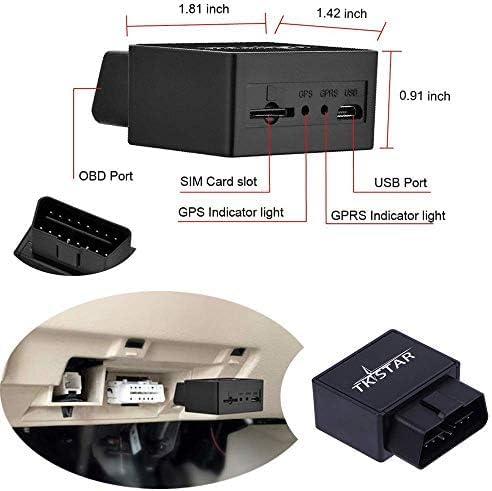
Image: TKSTAR TK816 OBD GPS Tracker showing its various ports and indicators. This includes the OBD connector, SIM card slot, USB port, GPS indicator light, and GPRS indicator light.
3. Specifications
- Brand: TKSTAR
- Model Number: TK816-2G
- Connectivity Technology: OBD, Wireless
- Special Features: Motion Activated, Location History, Geo-fencing, Magnetic (Note: Magnetic feature may vary by specific variant)
- Supported Application: Text Messages, Mobile App (iOS/Android)
- Compatible Devices: PC, Smartphone, iPhone
- Voltage Compatibility: 9-40V (12V cars, 24V trucks)
- Internal Battery: 200 mAh (up to 30 minutes backup after vehicle shutdown)
- Positioning Accuracy: Up to 5 meters
- Dimensions: Approximately 50 x 45 x 27 mm (1.97 x 1.77 x 1.06 inches)
- Weight: Approximately 270 Grams
- Housing Material: Plastic

Image: Diagram illustrating the dimensions of the TKSTAR TK816 OBD GPS Tracker, showing a length of 4.5 cm, width of 3.5 cm, and height of 2 cm.
4. Setup Instructions
4.1 SIM Card Preparation
- Acquire a Micro SIM Card: The TK816 requires a micro SIM card. It is recommended to use a SIM card with a data plan for continuous real-time tracking. A prepaid SIM card is suitable for occasional SMS/call-based location queries.
- Disable SIM PIN: Insert the new SIM card into a smartphone. Access the phone's settings to disable the PIN request for the SIM card. This is crucial for the tracker to function correctly.
- Test SIM Card: Make a brief call or send an SMS from the smartphone using the SIM card to ensure it is active and working.
- Insert SIM Card into Tracker: Carefully insert the prepared micro SIM card into the SIM card slot on the TK816 tracker. Ensure it is inserted in the correct orientation.
4.2 Device Installation
- Locate OBD Port: Identify the OBD-II port in your vehicle. This is typically located under the dashboard on the driver's side.
- Connect Tracker: Plug the TKSTAR TK816 directly into the vehicle's OBD-II port. No tools are required for this step.
- Initial Activation: Ensure the vehicle is in an open-sky area to allow the GPS signal to be acquired. Wait 1-2 minutes for the device to initialize and acquire a GPS signal. The indicator lights on the device will confirm its status.

Image: The TKSTAR TK816 OBD GPS Tracker being plugged into a vehicle's OBD port, demonstrating the simple 'Plug & Play' installation process.
4.3 App Download and Setup
The WINNES GPS App is available for free on both the iOS App Store and Google Play Store. Search for "WINNES GPS" or scan the QR code on the device/packaging to download.
- Download and install the app on your smartphone.
- Register an account if required, or log in using the device ID (found on the tracker) and default password (usually 123456).
- Follow the in-app instructions to add your TK816 tracker to your account.

Image: The TKSTAR TK816 OBD GPS Tracker positioned next to a smartphone, which displays the live tracking application interface with a map and location details. The QR code for the app is visible on the tracker.
For app download and further information, you can also visit the official website: http://tkstargps.net/app/tkstar/
5. Operating Instructions
5.1 Real-time Tracking
- Via Mobile App/Web Platform: Open the WINNES GPS App or access the web platform. Your vehicle's current location will be displayed on the map. The app provides live tracking, location history, and various alerts.
- Via SMS: Send the SMS command "G123456#" to the phone number of the SIM card inserted in the GPS tracker. The tracker will reply with an SMS containing a Google Maps link showing the exact location.
5.2 Geo-fencing
Geo-fencing allows you to set a virtual boundary for your vehicle. If the tracker enters or exits this predefined area, it will send an alert message to the authorized phone number.
- Setting up Geo-fence: Use the WINNES GPS App or web platform to define a geo-fence area on the map.
- Receiving Alerts: When the vehicle crosses the geo-fence boundary, an alert will be sent to the designated contact number.
5.3 Power and Battery
The TK816 draws power directly from the vehicle's OBD port, ensuring continuous operation. It features a built-in 200 mAh battery that provides up to 30 minutes of backup power if the vehicle's engine is turned off or the tracker is disconnected from the OBD port.
6. Maintenance
- Keep Dry: Protect the device from water and moisture.
- Avoid Extreme Temperatures: Do not expose the device to very high or low temperatures.
- Clean Gently: Use a soft, dry cloth to clean the device. Avoid harsh chemicals.
- Secure Connection: Ensure the tracker remains securely plugged into the OBD port to prevent accidental disconnection.
7. Troubleshooting
- No Signal/Offline:
- Ensure the SIM card is correctly inserted and has an active data plan.
- Verify that the SIM card's PIN request has been disabled.
- Move the vehicle to an open-sky area to improve GPS signal reception.
- Check if the device is securely connected to the OBD port.
- Inaccurate Location:
- Ensure the device has a clear view of the sky for optimal GPS accuracy.
- In areas with weak GPS signals, the device may use LBS (Location Based Service) which is less precise.
- No SMS Reply:
- Confirm the SMS command format is correct (e.g., "G123456#").
- Check if the SIM card in the tracker has sufficient credit for sending SMS.
- Verify the phone number of the SIM card in the tracker.
8. Warranty and Support
For technical support or warranty inquiries, please refer to the contact information provided with your purchase or visit the official TKSTAR website. The product includes a user manual and free app access. Instructions for programming the tracker via SMS codes are also provided.


