
1. Introduction
Thank you for choosing the RAINPOINT Wi-Fi Irrigation Computer. This device is designed to provide intelligent and automated watering for your garden, lawn, or plants, offering convenience through app and voice control. Featuring durable brass inlet and outlet connections, it ensures reliable performance. This manual provides detailed instructions for setup, operation, maintenance, and troubleshooting to help you get the most out of your irrigation system.
2. Important Safety Information
- Read all instructions carefully before installation and operation.
- Do not immerse the device in water. It is designed for outdoor use but should be protected from extreme weather conditions.
- Use only specified batteries (e.g., 4 x AA alkaline batteries). Do not mix old and new batteries or different types of batteries.
- Keep the device out of reach of children.
- Ensure all connections are secure to prevent leaks.
- Disconnect the device from the faucet and store indoors during freezing temperatures to prevent damage.
3. Package Contents
Please check the package to ensure all items are present:
- RAINPOINT Wi-Fi Irrigation Computer (1)
- Antenna Gateway (1)
- User Manual (1)
- Quick Start Guide (1)
4. Product Overview
Familiarize yourself with the main components of your RAINPOINT Wi-Fi Irrigation Computer:
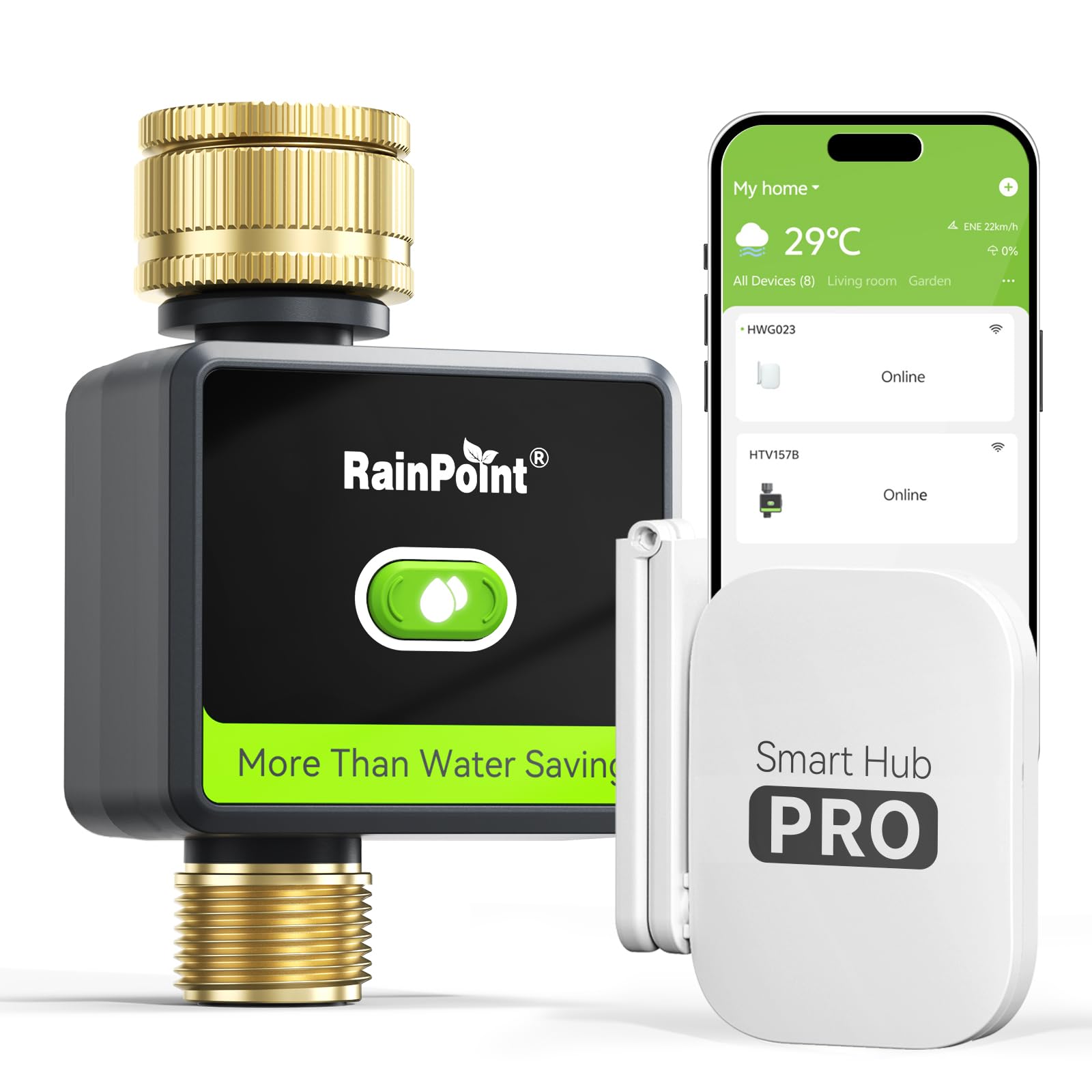
Figure 1: RAINPOINT Wi-Fi Irrigation Computer and Antenna Gateway. The image shows the main irrigation timer unit with its display and control buttons, connected to a faucet, alongside the compact antenna gateway.
- Irrigation Computer Unit: Main device that controls water flow. Features a display, control buttons, and battery compartment.
- Brass Inlet: Connects to your outdoor faucet.
- Brass Outlet: Connects to your garden hose or irrigation system.
- Antenna Gateway: Connects to your home Wi-Fi network and communicates wirelessly with the irrigation computer.
- Battery Compartment: Located on the back of the irrigation computer.
5. Setup Guide
5.1. Physical Installation
- Install Batteries: Open the battery compartment on the back of the irrigation computer. Insert 4 new AA alkaline batteries, ensuring correct polarity. Close the compartment securely.
Image placeholder: Illustration of battery installation into the irrigation computer.
- Connect to Faucet: Screw the brass inlet of the irrigation computer onto your outdoor faucet. Hand-tighten only to prevent damage. Ensure a washer is properly seated to prevent leaks.
Image placeholder: Diagram showing the irrigation computer connected to a garden faucet.
- Connect Hose/Irrigation System: Attach your garden hose or irrigation system to the brass outlet of the irrigation computer.
5.2. App Installation and Gateway Pairing
- Download the App: Search for the "RAINPOINT" app in your smartphone's app store (iOS or Android) and download it.
Image placeholder: Screenshot of the RAINPOINT app icon on a smartphone.
- Create an Account: Open the RAINPOINT app and follow the on-screen instructions to create a new user account or log in if you already have one.
- Plug in the Gateway: Plug the Antenna Gateway into a power outlet indoors, within Wi-Fi range and within 50 feet (15 meters) of the irrigation computer. The indicator light on the gateway will flash, indicating it's ready for pairing.
- Pair the Gateway: In the RAINPOINT app, select "Add Device" or the '+' icon. Choose the "Gateway" option and follow the app's instructions to connect the gateway to your 2.4GHz Wi-Fi network.
- Pair the Irrigation Computer: Once the gateway is successfully connected, select "Add Device" again in the app. Choose the "Irrigation Computer" option. The app will guide you through the process of pairing the irrigation computer with the gateway. Ensure the irrigation computer is powered on and within range of the gateway.
6. Operating Your Irrigation Computer
6.1. Manual Watering
To manually water your plants without a schedule:
- Open the RAINPOINT app.
- Select your irrigation computer from the device list.
- Tap the "Manual" or "Instant Watering" option.
- Set the desired watering duration (e.g., 10 minutes).
- Confirm to start manual watering. The water will flow for the set duration and then automatically stop.
- To stop manual watering prematurely, tap the "Stop" button in the app.
6.2. Scheduling with the App
The primary function of your irrigation computer is automated scheduling:
- Open the RAINPOINT app and select your irrigation computer.
- Navigate to the "Schedule" or "Program" section.
- Tap "Add Schedule" or the '+' icon to create a new watering program.
- Set the start time, watering duration, and frequency (e.g., daily, specific days of the week).
- You can create multiple schedules for different zones or watering needs.
- Save your schedule. The irrigation computer will now follow this program automatically.
Image placeholder: Screenshot of the RAINPOINT app's scheduling interface.
6.3. Voice Control Integration
The RAINPOINT Wi-Fi Irrigation Computer supports voice control via popular smart home platforms:
- Ensure your gateway and irrigation computer are connected to the RAINPOINT app.
- Open your smart home app (e.g., Amazon Alexa, Google Home).
- Enable the RAINPOINT skill or link your RAINPOINT account.
- Discover devices. Your irrigation computer should appear.
Example voice commands:
- "Alexa, turn on the garden sprinkler for 15 minutes."
- "Hey Google, start watering the backyard."
- "Alexa, stop the irrigation computer."
6.4. Rain Delay Function
To temporarily pause your watering schedule due to rain or other reasons:
- In the RAINPOINT app, select your irrigation computer.
- Look for the "Rain Delay" or "Delay Watering" option.
- Choose the desired delay duration (e.g., 24 hours, 48 hours, 72 hours).
- Confirm the rain delay. The scheduled watering will resume automatically after the delay period.
7. Maintenance
7.1. Battery Replacement
When the battery indicator on the device or in the app shows low power, replace the batteries:
- Turn off the water supply to the faucet.
- Remove the irrigation computer from the faucet.
- Open the battery compartment.
- Replace the old batteries with 4 new AA alkaline batteries, ensuring correct polarity.
- Close the battery compartment securely and reattach the device to the faucet.
7.2. Cleaning
Periodically inspect and clean the filter washer located at the inlet of the irrigation computer to prevent debris from clogging the system. Rinse with clean water.
7.3. Winterization
Before the first frost, it is crucial to prepare your irrigation computer for winter:
- Turn off the water supply to the faucet.
- Disconnect the irrigation computer from the faucet and hose.
- Remove the batteries.
- Drain any remaining water from the device.
- Store the irrigation computer and gateway indoors in a dry, frost-free location.
8. Troubleshooting
If you encounter issues, refer to the table below for common problems and solutions:
| Problem | Possible Cause | Solution |
|---|---|---|
| No water flow | Faucet off, low battery, clogged filter, incorrect schedule. | Check faucet, replace batteries, clean filter, verify app schedule. |
| Device not connecting to app | Gateway offline, device out of range, incorrect Wi-Fi password. | Check gateway power/Wi-Fi, move device closer to gateway, re-enter Wi-Fi password. |
| Leaks from connections | Loose connection, missing/damaged washer. | Tighten connections, replace washer. |
| Voice control not working | Skill not enabled, device not discovered. | Enable RAINPOINT skill in smart home app, rediscover devices. |
9. Technical Specifications
- Model: IOB157023-EU
- Brand: RAINPOINT
- Dimensions (L x W x H): 7 x 15 x 18 cm
- Weight: 450 grams
- Power Source: 4 x AA Alkaline Batteries (for Irrigation Computer)
- Connectivity: Wi-Fi (2.4GHz only) via Antenna Gateway
- Inlet/Outlet: Brass
- Operating Pressure: [Information not available in provided data, typical range is 0.5-8 bar]
- Operating Temperature: [Information not available in provided data, typical range is 1-45°C]
10. Warranty and Customer Support
RAINPOINT products are designed for durability and performance. For specific warranty information, please refer to the warranty card included with your product or visit the official RAINPOINT website. If you require technical assistance or have questions not covered in this manual, please contact RAINPOINT customer support through the app or the official website. Please have your model number (IOB157023-EU) and purchase details ready when contacting support.
11. Video Tutorials
No specific video URLs were provided in the product data. For visual guides on setup, operation, and troubleshooting, please check the official RAINPOINT YouTube channel or the support section of their website. Look for videos related to the RAINPOINT Wi-Fi Irrigation Computer, Model IOB157023-EU.