
1. Introduction and Overview
The Relndoo P60 is a versatile 10-inch Android 15 tablet designed for a wide range of uses, from productivity to entertainment. Featuring an Octa-Core processor and Gemini AI integration, it offers enhanced performance and intelligent functionalities. This manual provides detailed instructions to help you set up, operate, and maintain your device effectively.

Figure 1: Relndoo P60 Android 15 Tablet with AI features and key specifications.
2. What's in the Box
Verify that all items are present in your product package:
- 1 x Relndoo P60 10.1-inch Android Tablet
- 1 x Bluetooth Keyboard
- 1 x Wireless Mouse
- 1 x Stylus Pen
- 1 x Black Foldable Protective Case
- 1 x Screen Protector
- 1 x Charging Adapter
- 1 x USB-C Charging Cable
- 1 x User Manual (this document)

Figure 2: Contents of the Relndoo P60 tablet package.
3. Setup
3.1 Initial Charging
Before first use, fully charge your tablet using the provided USB-C charging cable and adapter. The battery indicator on the screen will show charging status.
3.2 Power On/Off
To power on, press and hold the Power button located on the side of the tablet until the screen lights up. To power off, press and hold the Power button, then select 'Power off' from the options.
3.3 Connecting Accessories
- Keyboard & Mouse: Turn on the Bluetooth keyboard and mouse. On your tablet, go to Settings > Connected devices > Pair new device and select the keyboard/mouse from the list to connect.
- Stylus Pen: The stylus pen is generally passive and does not require pairing. Simply use it to interact with the touchscreen.
3.4 Initial Android Setup
Follow the on-screen prompts to complete the initial setup, including selecting your language, connecting to a Wi-Fi network, and signing in with your Google account. This will enable access to the Google Play Store and other services.
4. Operating Instructions
4.1 Display and Navigation
The 10.1-inch IPS display offers vivid images with a resolution of 1280x800 pixels. Navigate the tablet using touch gestures or the connected mouse.
Split-Screen Multitasking
The tablet supports split-screen multitasking, allowing you to run two applications side-by-side for enhanced productivity.
Video 1: Steps to Use App Split-Screen on Your Device. This video demonstrates how to activate and use the split-screen feature on your tablet.
4.2 Performance and Storage
Powered by the Unisoc T606 Octa-Core processor, the tablet ensures smooth operation. It comes with 4GB physical RAM and 22GB virtual RAM (total 26GB) and 256GB internal storage, expandable up to 2TB via a TF card (not included).

Figure 3: RAM and ROM expansion capabilities.

Figure 4: Unisoc T606 Octa-Core processor details.
4.3 Connectivity
The tablet supports 5G WiFi for fast internet speeds and Bluetooth 5.0 for connecting wireless peripherals. It also features a USB Type-C port for charging and data transfer, and a 3.5mm headphone jack.
Wireless Projection
You can wirelessly project your tablet's screen to a compatible TV or display for a larger viewing experience. Refer to your TV's manual for specific instructions on screen mirroring.

Figure 5: Wireless projection feature.
4.4 Camera Features
The tablet is equipped with a 5MP front camera and a 13MP rear camera. The intelligent lens supports text recognition, translation, and object recognition.
Video 2: Go to System Settings to Enable Camera Permissions. This video guides you through enabling camera permissions in system settings.

Figure 6: Dual cameras and Smart Lens functionality.
4.5 Security and Privacy
The tablet features Face Unlock technology for convenient and secure access. Android 15 provides enhanced privacy and security controls, giving you full management over your data.
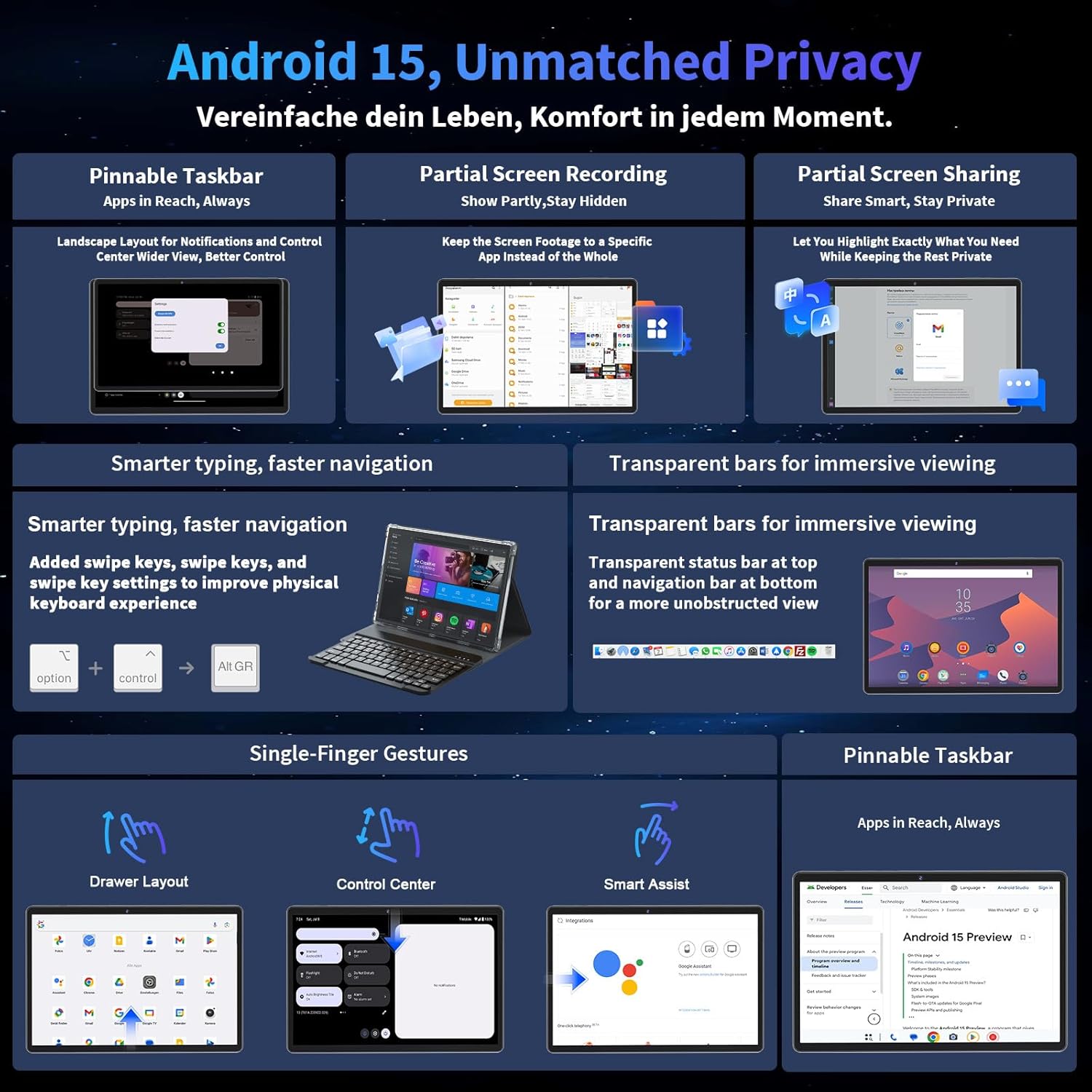
Figure 7: Android 15 privacy features.
4.6 Battery Management
The 8000mAh battery provides up to 12 hours of average use. For optimal battery life, avoid extreme temperatures and use the provided charging accessories.

Figure 8: 8000mAh battery capacity and estimated usage times.
4.7 System Updates
Regularly check for system updates to ensure your tablet has the latest features, security patches, and performance improvements.
Video 3: Steps to Upgrade Your System Version. This video demonstrates how to check for and install system updates.
4.8 Language Settings
You can change the system language of your tablet to your preferred language.
Video 4: Steps to Changing the System Language. This video shows how to navigate to language settings and change the system language.
5. Maintenance
5.1 Cleaning the Tablet
Use a soft, lint-free cloth to clean the screen and body of the tablet. Avoid using harsh chemicals or abrasive materials that could damage the surface.
5.2 Battery Care
To prolong battery life, avoid fully discharging the battery frequently. Charge the tablet when the battery level is low, and disconnect the charger once fully charged.
5.3 Software Updates
Ensure your tablet's software is always up to date. Go to Settings > System > System updates to check for and install available updates.
6. Troubleshooting
6.1 Device Not Powering On
- Ensure the battery is charged. Connect the tablet to the charger for at least 30 minutes before attempting to power on.
- Press and hold the Power button for 10-15 seconds to perform a forced restart.
6.2 Wi-Fi Connection Issues
- Restart your Wi-Fi router and the tablet.
- Go to Settings > Network & internet > Wi-Fi, forget the network, and reconnect.
- Ensure you are within range of the Wi-Fi signal.
6.3 Apps Crashing or Freezing
- Close and reopen the app.
- Clear the app's cache: Settings > Apps > [App Name] > Storage & cache > Clear cache.
- If the issue persists, uninstall and reinstall the app.
6.4 Factory Reset (Last Resort)
If you encounter persistent software issues, a factory reset can resolve them. Warning: This will erase all data on your tablet. Back up important data before proceeding.
- Go to Settings > System > Reset options > Erase all data (factory reset).
- Follow the on-screen instructions to confirm the reset.
7. Specifications
| Brand | Relndoo |
| Model Name | P60 |
| Operating System | Android 15 |
| Processor | Unisoc T606 Octa-Core (up to 2 GHz) |
| RAM | 26GB (4GB physical + 22GB virtual) |
| Internal Storage | 256GB ROM |
| Expandable Storage | Up to 2TB via TF card (not included) |
| Screen Size | 10.1 Inches |
| Display Resolution | 1280*800 Pixels (HD IPS) |
| Front Camera | 5 MP |
| Rear Camera | 13 MP |
| Battery Capacity | 8000mAh |
| Connectivity | 5G WiFi, Bluetooth 5.0, USB Type-C |
| Audio Jack | 3.5mm |
| Special Features | Gemini AI, GMS, GPS, Widevine L1, Face Unlock, Split-Screen Multitasking |
8. Warranty and Support
Your Relndoo P60 tablet comes with a standard manufacturer's warranty. Please refer to the warranty card included in your package for specific terms and conditions. For technical support, troubleshooting assistance, or warranty claims, please contact Relndoo customer service through the retailer where you purchased the product or visit the official Relndoo website for contact information.