
1. Introduction and Overview
The Bmax Mini PC B4 Ultra is a compact and powerful desktop computer designed for versatility in home, office, and educational environments. Powered by the 12th Gen Intel Processor N150, it offers efficient performance for multitasking, web browsing, 4K streaming, and light gaming. Its ultra-compact design and quiet operation make it suitable for various setups, including HTPC and digital signage applications.
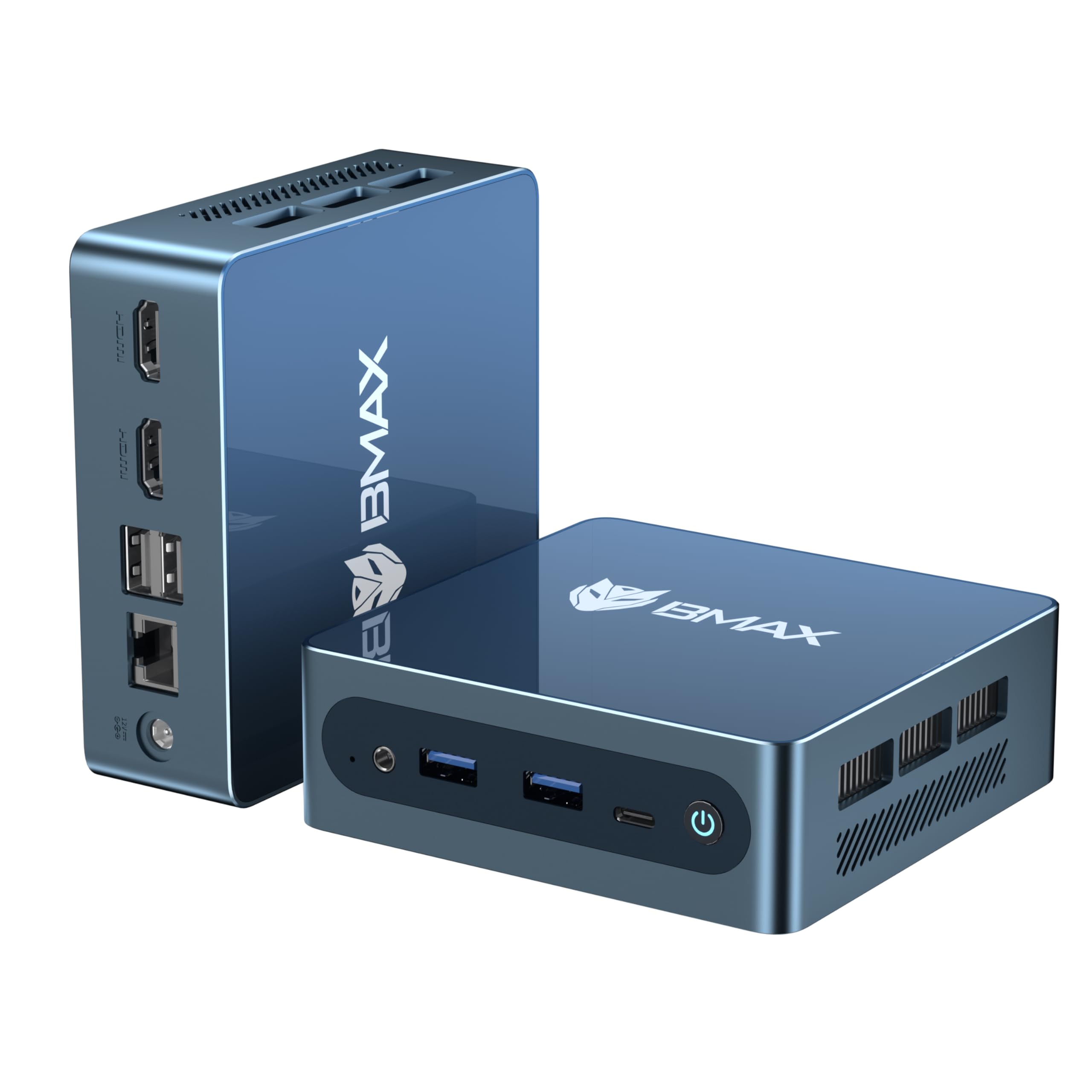
Image 1.1: The Bmax Mini PC B4 Ultra, a compact and powerful desktop computer.
2. What's in the Box
Upon unboxing your Bmax Mini PC B4 Ultra, please ensure all the following items are present:
- 1 x Bmax B4 Ultra Intel Processor N150 MINI PC
- 1 x User Guide
- 1 x HDMI Cable (1.5m)
- 1 x VESA Mount with Screws
- 1 x DC 12V/2A Power Adapter

Video 2.1: An unboxing video demonstrating the contents of the Bmax B4 Ultra package. This video shows the mini PC, power adapter, HDMI cable, and VESA mount being removed from the box.
3. Product Features
3.1 High-Performance Processor
The B4 Ultra is equipped with the latest 12th Gen Intel Processor N150 (4C/4T, up to 3.6GHz), offering 15% better efficiency than previous generation entry-level models. This ensures a fast and responsive user experience for multitasking, web browsing, and 4K streaming.

Image 3.1: Diagram illustrating the Intel N150 processor with 4 cores, 4 threads, and up to 3.60GHz turbo frequency.
3.2 Memory and Storage
Featuring 12GB LPDDR5 4400MHz RAM for faster data access and a pre-installed 512GB M.2 SATA SSD. An additional M.2 NVMe slot allows for storage expansion up to 4TB, providing ample space for large files and applications.

Image 3.2: Visual representation of the 12GB LPDDR5 RAM and 512GB M.2 SATA SSD, highlighting the expandable storage options.
3.3 Dual 4K Display Support
Boost productivity with dual 4K@60Hz display support via two HDMI 2.1 ports. This feature is ideal for multi-monitor setups, content creation, and high-definition entertainment.

Image 3.3: Illustration of the Bmax Mini PC connected to two 4K monitors, demonstrating its dual display capability.
3.4 Comprehensive Connectivity
The mini PC offers a range of ports including a high-speed USB-C data port, 2x USB 3.0, 2x USB 2.0, a Gigabit Ethernet port, Dual-Band WiFi 5, and Bluetooth 5.0 for stable and versatile connections.

Image 3.4: Close-up view of the various ports available on the Bmax Mini PC, including USB, HDMI, Ethernet, and power jack.
3.5 Efficient Cooling and Compact Design
Designed for quiet operation, the B4 Ultra features a smart cooling fan and pure copper heat pipe to maintain stable performance. Its ultra-compact size (243g) and included VESA bracket allow for discreet mounting behind monitors, saving desk space.

Image 3.5: Diagram illustrating the efficient cooling system with an advanced axial fan and internal cooling technology for quiet operation.
4. Setup Guide
4.1 Initial Connection
- Connect your monitor(s) to the HDMI 2.1 ports on the back of the mini PC using the provided HDMI cable.
- Connect your keyboard and mouse to the available USB ports.
- Plug the DC 12V/2A power adapter into the mini PC's power jack and then into a power outlet.
- Press the power button on the front of the mini PC to turn it on.
4.2 Operating System Setup
The Bmax Mini PC B4 Ultra comes with Windows 11 Pro pre-installed. Upon the first boot, you will be guided through the initial Windows setup process, including language selection, network connection, and user account creation. Follow the on-screen instructions to complete the setup.
The device also supports other operating systems like Linux (Ubuntu), allowing for flexible use based on your preferences.
5. Hardware Installation and Upgrade
The Bmax Mini PC B4 Ultra supports storage expansion up to 4TB via an additional M.2 NVMe slot. You can also upgrade or replace the existing M.2 SATA SSD and RAM modules.

Video 5.1: This video demonstrates the process of replacing an SSD in a mini PC. The steps include removing the bottom cover, unscrewing the heat sink, detaching the old SSD, and installing a new one. This process is similar for the Bmax B4 Ultra for storage upgrades.
6. Technical Specifications
| Feature | Specification |
|---|---|
| Processor | Intel N150 (4C/4T, up to 3.6GHz) |
| RAM | 12GB LPDDR5 4400MHz |
| Storage | 512GB M.2 2280 SATA SSD (Expandable up to 4TB via M.2 NVMe slot) |
| Graphics | Intel UHD Graphics (24EUs 1000MHz) 4K@60Hz Display |
| Video Output | 2 x HDMI 2.1 (Dual 4K@60Hz) |
| USB Ports | 1 x USB-C (Data), 2 x USB 3.0, 2 x USB 2.0 |
| Networking | Gigabit Ethernet, Dual-Band WiFi 5, Bluetooth 5.0 |
| Operating System | Windows 11 Pro (pre-installed), Linux compatible |
| Dimensions | 9.17 x 5.71 x 2.72 inches |
| Weight | 1.28 pounds |
7. Troubleshooting
7.1 No Display
- Ensure the HDMI cable is securely connected to both the mini PC and the monitor.
- Verify the monitor is powered on and set to the correct input source (HDMI 1, HDMI 2, etc.).
- Try a different HDMI cable or monitor if possible.
7.2 No Power
- Check that the power adapter is firmly plugged into the mini PC and a working power outlet.
- Ensure the power outlet is functional by testing it with another device.
- Press the power button firmly.
7.3 Network Connectivity Issues
- For wired connection, ensure the Ethernet cable is securely connected to the mini PC and your router/modem.
- For Wi-Fi, check that Wi-Fi is enabled in Windows settings and that you are connected to the correct network with the right password.
- Restart your router/modem and the mini PC.
8. Warranty and Support
Bmax provides a 1-year limited warranty and lifetime professional technical support for the B4 Ultra mini PC. Our dedicated service team is available 24/7 to assist with system updates, setup, and troubleshooting.
8.1 Contact Support
- For Amazon purchases, navigate to 'Your Orders' on Amazon, find your Bmax product, and select 'Get product support'.
- For direct technical inquiries, email our support team at minipcfae@bmaxit.com.