
1. Introduction
The SOOMFON BT32 is a versatile 3-in-1 Bluetooth 5.3 audio adapter designed to enhance your audio experience. It functions as a Bluetooth transmitter (TX mode), a Bluetooth receiver (RX mode), and supports a direct audio bypass mode. Featuring a dual-antenna design for stable signal transmission and an LCD display for clear operation, the BT32 allows you to wirelessly stream audio from non-Bluetooth devices like TVs to Bluetooth headphones, or stream audio from your phone to wired speakers. It also supports simultaneous connection to two devices.
2. Package Contents
Please verify that all items are present in the package:
- Bluetooth Audio Adapter (BT32) x 1
- 3.5mm Aux to RCA Cable x 1
- 3.5mm Audio Cable x 1
- Optical Cable x 1
- USB-C Power Cable x 1
- User Manual x 1

Image: The SOOMFON BT32 Bluetooth adapter and its included accessories: 3.5mm Aux to RCA cable, 3.5mm audio cable, optical cable, USB-C power cable, and user manual.
3. Product Overview
The BT32 features a clear LCD display, intuitive control buttons, and a multi-function volume knob. It is equipped with dual antennas for enhanced signal stability. Various audio input and output ports are located on the rear panel for flexible connectivity.

Image: Close-up view of the SOOMFON BT32 showing its LCD display, control buttons, volume knob, and rear panel with Type-C Power Input, Optical Input, 3.5mm Input, 3.5mm Output, and Optical Output ports.
4. Setup and Connection
4.1 Powering On
- Connect the provided USB-C Power Cable to the "DC IN" port on the BT32 and plug the other end into a 5V USB power adapter (not included) or a USB port on your TV/PC.
- Long press the power button (rightmost button) on the BT32 to turn it on. The LCD screen will illuminate.
4.2 Transmitter Mode (TX) Setup
Use TX mode to transmit audio from your TV, PC, or other non-Bluetooth audio source to Bluetooth headphones or speakers.
- Ensure the BT32 is powered on.
- Press the middle button to switch the device to TX mode (indicated on the LCD screen).
- Connect the BT32 to your audio source (e.g., TV) using one of the following cables:
- Optical Cable: Connect from your TV's Optical Out to the BT32's "SPDIF IN" port.
- 3.5mm Audio Cable: Connect from your TV's 3.5mm Audio Out (headphone jack) to the BT32's "AUX IN" port.
- 3.5mm Aux to RCA Cable: Connect the 3.5mm end to the BT32's "AUX IN" port and the RCA ends to your TV's RCA Audio Out ports (red and white).
- Set your Bluetooth headphones or speakers to pairing mode.
- The BT32 will automatically search for nearby Bluetooth devices. Once your device appears on the LCD, click the volume knob to confirm and wait for the connection.
- To connect a second pair of headphones/speakers, click the left button to search for the second device, then click the volume knob to confirm.
Video: Demonstrates connecting the BT32 in Transmitter (TX) mode to a TV and pairing with two sets of Bluetooth headphones for shared listening.
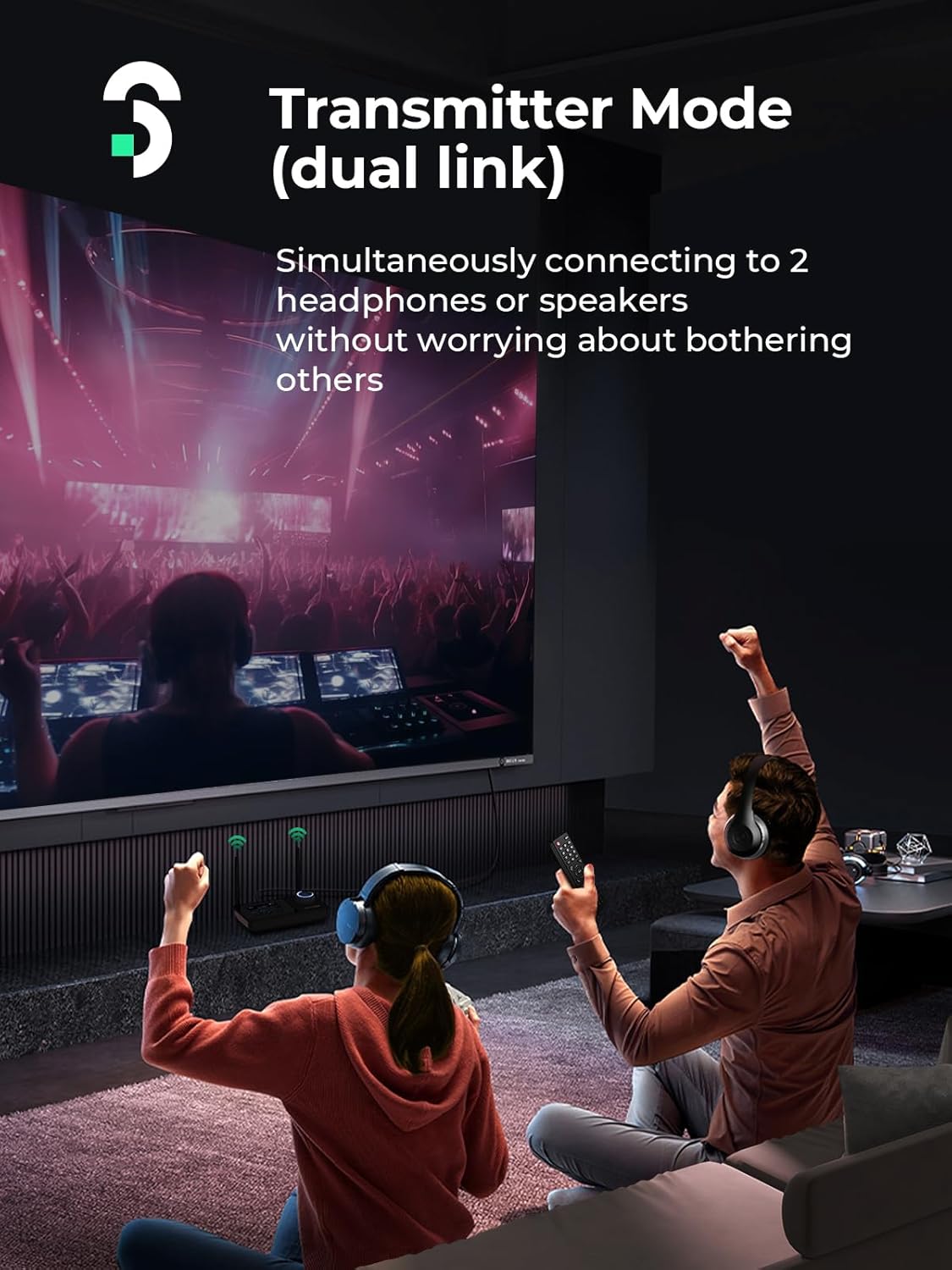
Image: Two individuals wearing Bluetooth headphones, connected to the SOOMFON BT32, enjoying audio from a TV in Transmitter Mode.
4.3 Receiver Mode (RX) Setup
Use RX mode to receive audio from your Bluetooth-enabled phone, tablet, or laptop and play it through wired speakers or a home stereo system.
- Ensure the BT32 is powered on.
- Press the middle button to switch the device to RX mode (indicated on the LCD screen).
- Connect the BT32 to your wired speaker or stereo system using one of the following cables:
- Optical Cable: Connect from the BT32's "SPDIF OUT" port to your speaker/stereo's Optical In.
- 3.5mm Audio Cable: Connect from the BT32's "AUX OUT" port to your speaker/stereo's 3.5mm Audio In.
- 3.5mm Aux to RCA Cable: Connect the 3.5mm end to the BT32's "AUX OUT" port and the RCA ends to your speaker/stereo's RCA Audio In ports.
- On your phone, tablet, or laptop, enable Bluetooth and search for "BT32" in the list of available devices.
- Select "BT32" to pair. Confirm any pairing requests.
- To connect a second mobile device, ensure the first device is connected, then search for "BT32" on the second device and pair. You can switch between the two connected devices for audio playback.
Video: Illustrates connecting the BT32 in Receiver (RX) mode to a wired speaker and pairing with two smartphones to stream music.

Image: The SOOMFON BT32 in Receiver Mode, connected to a stereo system with two speakers, while two smartphones are actively streaming music to it.
4.4 Bypass Mode Setup
Bypass mode allows for a direct wired connection, passing audio through the BT32 without Bluetooth functionality. This is useful for systems where you want to switch between wired and wireless audio without re-cabling.
- Ensure the BT32 is powered on.
- Press the middle button to switch the device to Bypass mode (indicated on the LCD screen).
- Connect your audio source (e.g., TV) to the BT32's input ports (e.g., "SPDIF IN" or "AUX IN").
- Connect the BT32's output ports (e.g., "SPDIF OUT" or "AUX OUT") to your wired speaker or stereo system.
- Audio will now pass directly from your source to your speakers through the BT32.
Video: Demonstrates connecting a TV to a stereo system via the BT32 in Bypass mode, allowing direct audio passthrough.

Image: A diagram illustrating the Bypass Mode setup, where the BT32 connects a TV to an AV receiver, allowing audio to be output to wired speakers or headphones without Bluetooth.
5. Operating Instructions
5.1 Mode Switching
Press the middle button on the BT32 to cycle through the three modes: Transmitter (TX), Receiver (RX), and Bypass. The current mode is displayed on the LCD screen.
5.2 Pairing and Reconnection
- Initial Pairing: In TX or RX mode, the BT32 will automatically enter pairing mode and search for devices. Follow the steps in Section 4 to connect your desired Bluetooth devices.
- Automatic Reconnection: Once paired, the BT32 will automatically reconnect to previously paired devices when they are within range and in pairing mode.
- Dual Connection: The BT32 supports connecting to two Bluetooth headphones/speakers in TX mode, or two mobile devices in RX mode. In RX mode, only one device can play audio at a time; switch between them as needed.
5.3 Volume Control
The large rotary knob on the right side of the BT32 controls the audio volume. Rotate it clockwise to increase volume and counter-clockwise to decrease volume. Press the knob to pause or play audio.

Image: A close-up of the SOOMFON BT32's LCD display showing connection status and the prominent volume control knob.
6. Troubleshooting
- No Sound:
- Ensure all cables are securely connected to the correct input/output ports on both the BT32 and your audio devices.
- Verify the BT32 is in the correct mode (TX for transmitting, RX for receiving, Bypass for direct connection).
- Check the volume levels on both the BT32 and your connected audio devices.
- Confirm that your TV/audio source is outputting audio through the selected port (e.g., Optical Out, Aux Out). Some TVs require manual selection in their audio settings.
- If using optical, ensure your TV's audio output format is set to PCM/Stereo, not Dolby/DTS.
- Pairing Issues:
- Ensure your Bluetooth headphones/speakers or mobile device is in pairing mode.
- Move the BT32 closer to the device you are trying to pair.
- Clear the Bluetooth pairing list on your device and the BT32 (refer to the full manual for specific steps if available).
- Restart both the BT32 and your Bluetooth device.
- Intermittent Connection/Poor Range:
- Ensure the dual antennas on the BT32 are upright and unobstructed.
- Reduce the distance between the BT32 and your connected Bluetooth device.
- Minimize physical obstructions (walls, large furniture) and electronic interference from other wireless devices.
7. Specifications
| Model Number | BT32 |
| Bluetooth Version | 5.3 |
| Connectivity Technology | Bluetooth |
| Special Features | Dual Antenna, LCD Display, 3-in-1 (TX/RX/Bypass) |
| Product Dimensions | 2.95 x 4.53 x 1.38 inches |
| Item Weight | 3.14 ounces |
| Power Source | Battery Powered (Lithium Ion batteries required) |
| Material | Acrylonitrile Butadiene Styrene (ABS) |
8. Maintenance
- Keep the device clean by wiping it with a soft, dry cloth.
- Avoid exposing the device to extreme temperatures, direct sunlight, or high humidity.
- Do not attempt to disassemble or repair the device yourself. Contact support for assistance.
- Handle batteries according to local regulations and dispose of them properly.
9. Warranty and Support
The SOOMFON BT32 comes with a generous 24-month product warranty. We also provide lifetime technical support to ensure your satisfaction. Our dedicated support team is available 7 days a week, 24 hours a day. If you encounter any issues or require assistance, please do not hesitate to reach out to us.
For prompt support, please contact us at: support@soomfon.com


