
1. Introduction
Thank you for choosing the GEEKOM GT1 Mega Mini PC. This manual provides essential information for setting up, operating, maintaining, and troubleshooting your device. Please read it carefully before use and keep it for future reference.
The GEEKOM GT1 Mega is a high-performance mini PC equipped with the Intel Core Ultra 9 185H processor, Intel AI Boost (dedicated NPU), and integrated Intel Arc graphics. It is designed for demanding tasks such as AI applications, advanced multitasking, 4K video editing, photo retouching, virtualization, and professional software.
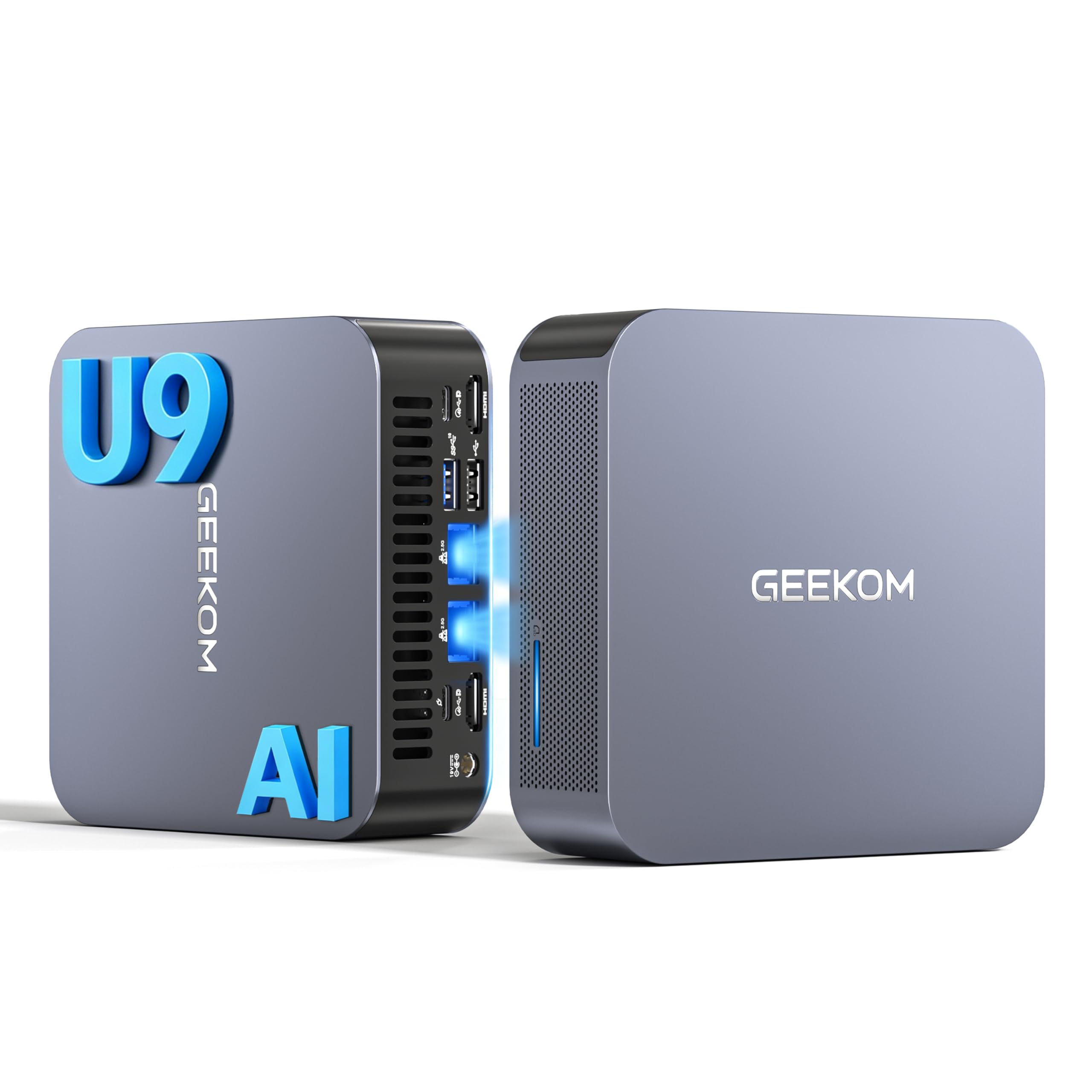
Image 1.1: Front view of the GEEKOM GT1 Mega Mini PC.
2. Safety Information
Please observe the following safety guidelines to prevent damage to your device or injury to yourself:
- Use only the power adapter provided with the device.
- Do not expose the device to water, moisture, or extreme temperatures.
- Avoid placing the device in direct sunlight or near heat sources.
- Ensure proper ventilation; do not block any ventilation openings.
- Do not attempt to open or repair the device yourself. Contact qualified personnel for service.
- Keep the device away from strong magnetic fields.
3. Package Contents
Verify that all items are present in your package:
- 1 x GEEKOM GT1 Mega Mini PC
- 1 x VESA Mount with Screws
- 1 x Power Adapter
- 1 x HDMI Cable
- 1 x User Manual
- 1 x Thank You Card

Image 3.1: Contents included in the GEEKOM GT1 Mega Mini PC package.
4. Product Overview
4.1. Front and Rear Ports
The GEEKOM GT1 Mega Mini PC offers a comprehensive set of ports for versatile connectivity:

Image 4.1: Diagram illustrating the front and rear ports of the GEEKOM GT1 Mega Mini PC.
- Front Ports:
- 4 x USB 3.2 Gen2 Type-A (one with Always On power)
- 1 x 3.5mm Headphone Jack
- 1 x Power Button
- Rear Ports:
- 2 x USB4 (40 Gbps, eGPU compatible, one with power delivery)
- 2 x HDMI 2.0
- 2 x RJ45 2.5Gbps Ethernet Ports
- 1 x USB 3.2 Gen2 Type-A
- 1 x USB 2.0 Type-A
- 1 x DC Input
- 1 x SD Card Reader
- 1 x Kensington Lock Slot
4.2. Key Features
- Processor: Intel Core Ultra 9 185H (16 Cores, 22 Threads, up to 5.1 GHz) with Intel AI Boost (NPU).
- Graphics: Integrated Intel Arc Graphics.
- Memory: 16GB DDR5 5600MHz dual-channel RAM (upgradable up to 128GB).
- Storage: 1TB NVMe PCIe Gen4 SSD (expandable up to 4TB).
- Network: Dual 2.5G Ethernet, WiFi 7, Bluetooth 5.4.
- Display Support: Up to four 4K displays or one 8K display via USB4 and HDMI.
- Cooling: IceBlast 2.0 advanced cooling system with dual copper heat pipes and high-efficiency fan.
- Chassis: Premium metallic chassis, 0.78 L volume, withstands pressure up to 200 kg.
5. Setup
5.1. Initial Connection
- Connect Display: Connect your monitor(s) to the Mini PC using the HDMI or USB4 ports. The GT1 Mega supports up to four 4K displays or one 8K display.
- Connect Peripherals: Plug in your keyboard, mouse, and any other USB devices into the available USB ports.
- Connect Network: For wired internet, connect an Ethernet cable to one of the 2.5G RJ45 ports. For wireless, ensure your WiFi network is available during initial setup.
- Connect Power: Connect the power adapter to the DC input port on the Mini PC, then plug the adapter into a power outlet.
5.2. First Boot
- Press the power button on the front of the Mini PC.
- The device will boot into Windows 11 Pro. Follow the on-screen instructions to complete the initial Windows setup, including language, region, network connection, and user account creation.
- Once Windows is set up, it is recommended to check for and install any available system updates.

Image 5.1: Example of a multi-monitor setup with the GEEKOM GT1 Mega Mini PC.
6. Operating Instructions
6.1. Power On/Off
- Power On: Press the power button once.
- Shut Down: Click the Start button in Windows, then select Power > Shut down.
- Restart: Click the Start button in Windows, then select Power > Restart.
- Sleep: Click the Start button in Windows, then select Power > Sleep.
6.2. Network Connectivity
- Wired (Ethernet): Connect an Ethernet cable to one of the two 2.5G RJ45 ports. The system will automatically detect the connection.
- Wireless (Wi-Fi 7): In Windows, click the network icon in the taskbar, select your Wi-Fi network, enter the password, and connect.
- Bluetooth 5.4: To pair Bluetooth devices, go to Windows Settings > Bluetooth & devices, turn on Bluetooth, and select 'Add device'.
6.3. Display Configuration
The Mini PC supports multiple displays. To configure them:
- Right-click on the desktop and select 'Display settings'.
- Windows will detect connected displays. You can arrange them, change resolution, and set display modes (Extend, Duplicate, Second screen only).
7. Maintenance
7.1. Cleaning
- Regularly clean the exterior of the Mini PC with a soft, dry cloth.
- Use compressed air to gently clear dust from the ventilation openings to maintain optimal cooling performance.
- Do not use liquid cleaners or abrasive materials.
7.2. System Updates
Keep your Windows operating system and drivers updated to ensure optimal performance and security:
- Go to Windows Settings > Windows Update to check for and install system updates.
- Visit the GEEKOM official website for the latest driver updates for your GT1 Mega.
7.3. Hardware Upgrades
The GEEKOM GT1 Mega allows for memory and storage upgrades:
- RAM: The device supports up to 128GB of DDR5 SODIMM memory.
- SSD: The 1TB NVMe PCIe Gen4 SSD can be expanded up to 4TB. An additional M.2 2242 SATA SSD slot is available for up to 2TB.
For detailed instructions on how to perform hardware upgrades, please refer to the comprehensive guide on the GEEKOM support website or consult a professional technician.

Image 7.1: Illustration of the GEEKOM GT1 Mega's upgradable DDR5 memory and SSD storage.

Image 7.2: Exploded view of the GEEKOM GT1 Mega, highlighting the IceBlast 2.0 cooling system components.
8. Troubleshooting
If you encounter issues with your GEEKOM GT1 Mega, refer to the following common solutions:
| Problem | Possible Cause | Solution |
|---|---|---|
| No power | Power adapter not connected, faulty outlet | Ensure power adapter is securely connected to both the PC and a working power outlet. Try a different outlet. |
| No display | Monitor not connected, incorrect input source, faulty cable | Check HDMI/USB4 cable connections. Ensure monitor is on and set to the correct input source. Try a different cable or monitor. |
| No internet (Wi-Fi) | Wi-Fi disabled, incorrect password, router issue | Check Wi-Fi settings in Windows. Verify Wi-Fi password. Restart your router. |
| No internet (Ethernet) | Ethernet cable disconnected, network driver issue | Ensure Ethernet cable is securely connected. Check network adapter status in Device Manager. Update network drivers. |
| System slow/unresponsive | Too many applications running, overheating, outdated drivers | Close unnecessary applications. Ensure proper ventilation. Update drivers and Windows. |
If the problem persists, please contact GEEKOM customer support for further assistance.
9. Specifications
Detailed technical specifications for the GEEKOM GT1 Mega Mini PC:
| Feature | Specification |
|---|---|
| Brand | GEEKOM |
| Model Name | GT1 Mega |
| Operating System | Windows 11 Pro |
| CPU Model | Intel Core Ultra 9-185H |
| CPU Speed | 5.1 GHz (Max Turbo Frequency) |
| Graphics | Integrated Intel Arc Graphics |
| RAM | 16 GB DDR5 (5600MHz, expandable to 128 GB) |
| Storage | 1 TB NVMe PCIe Gen4 SSD (expandable to 4 TB) |
| Hard Drive Technology | SSD |
| Connectivity | 2x 2.5G Ethernet, Wi-Fi 7, Bluetooth 5.4 |
| USB Ports | 2x USB4 (40Gbps), 5x USB 3.2 Gen2 Type-A, 1x USB 2.0 Type-A |
| Video Output | 2x HDMI 2.0, 2x USB4 (DisplayPort 1.4) |
| Max Display Resolution | 8K (via USB4), 4K (via HDMI) |
| Audio Output | 3.5mm Audio Jack |
| Card Reader | SD Card Reader |
| Power Supply | Type C/EF – 2 pins (European/Hybrid FR-DE plug) |
| Certifications | CE, FCC, RoHS |

Image 9.1: GEEKOM GT1 Mega Mini PC certifications including CB, ROHS, FCC ID, EPR, CEC, UKCA, UL4200A.
10. Warranty and Support
The GEEKOM GT1 Mega Mini PC comes with a 3-year manufacturer's warranty and professional technical support.
10.1. Warranty Information
Your device is covered by a 3-year warranty from the date of purchase, ensuring peace of mind against manufacturing defects. Please retain your proof of purchase for warranty claims.
10.2. Technical Support
For any technical issues or support inquiries, please use one of the following methods:
- Contact Seller on Amazon: Log in to your Amazon account, navigate to 'Your Orders', and click 'Get Help' for assistance.
- Email Support: Send an email to the GEEKOM support team at pan.he@geekom.tw. Our team will respond as soon as possible.


