1. Introduction
Thank you for choosing the Wielio Smart Portable Projector GC06C. This manual provides essential information for setting up, operating, and maintaining your projector. Please read it thoroughly before use to ensure optimal performance and safety.
2. What's in the Box
- Wielio Smart Projector
- Remote Control (2*AAA Batteries Not Included)
- HDMI Cable
- Power Adapter
- User Manual
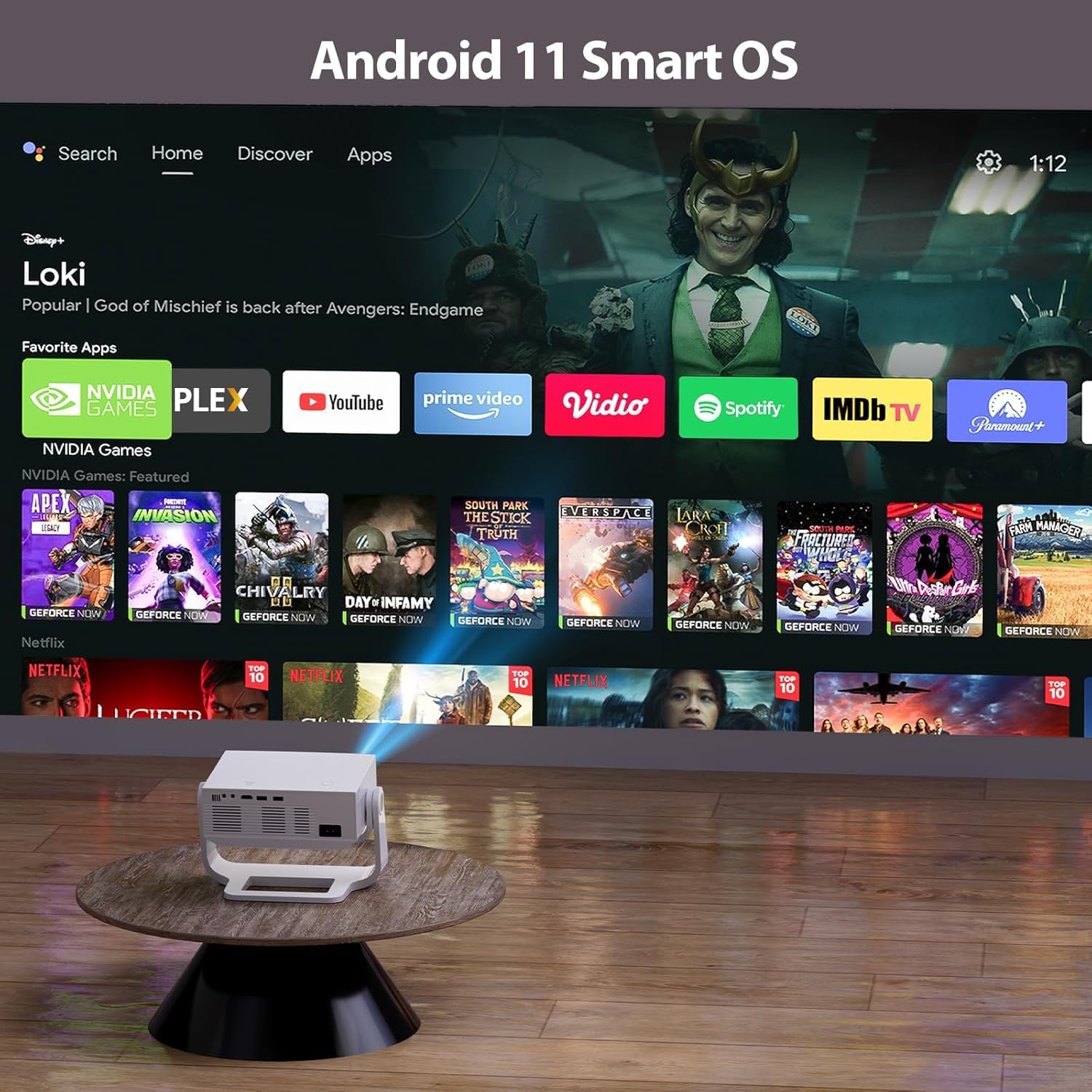
Image: The Wielio Smart Portable Projector with its remote control, HDMI cable, power adapter, and user manual.
Video: An overview of the Wielio Smart Projector, demonstrating its features and components.
3. Product Features
- Smart Android OS with Built-in Apps: Access streaming services like YouTube and Prime Video directly without external devices.
- Native 1080P & 650 ANSI 20000 Lumens Brightness: Delivers sharp, detailed visuals with enhanced contrast and color accuracy.
- Auto Keystone & Electronic Auto Focus: Effortless setup with automatic four-point keystone correction and instant sharp images.
- 120° Rotatable Stand: Flexible projection to various surfaces, including ceilings, for versatile viewing angles.
- 5G/2.4G Dual-Band WiFi & Two-way Bluetooth 5.1: Ensures convenient, stable, and fast transmission for connectivity with multiple devices.
- Dustproof Design & Low Fan Noise (<29.8dB): Multi-layer dustproof mesh and advanced cooling technology for durability and quiet operation.
- Wide Compatibility: Supports HDMI, USB, and 3.5mm headphone jack for connection to TV sticks, laptops, phones, gaming consoles, and more.

Image: The projector's interface showing the Android 11 Smart OS with pre-installed applications like YouTube and Prime Video.
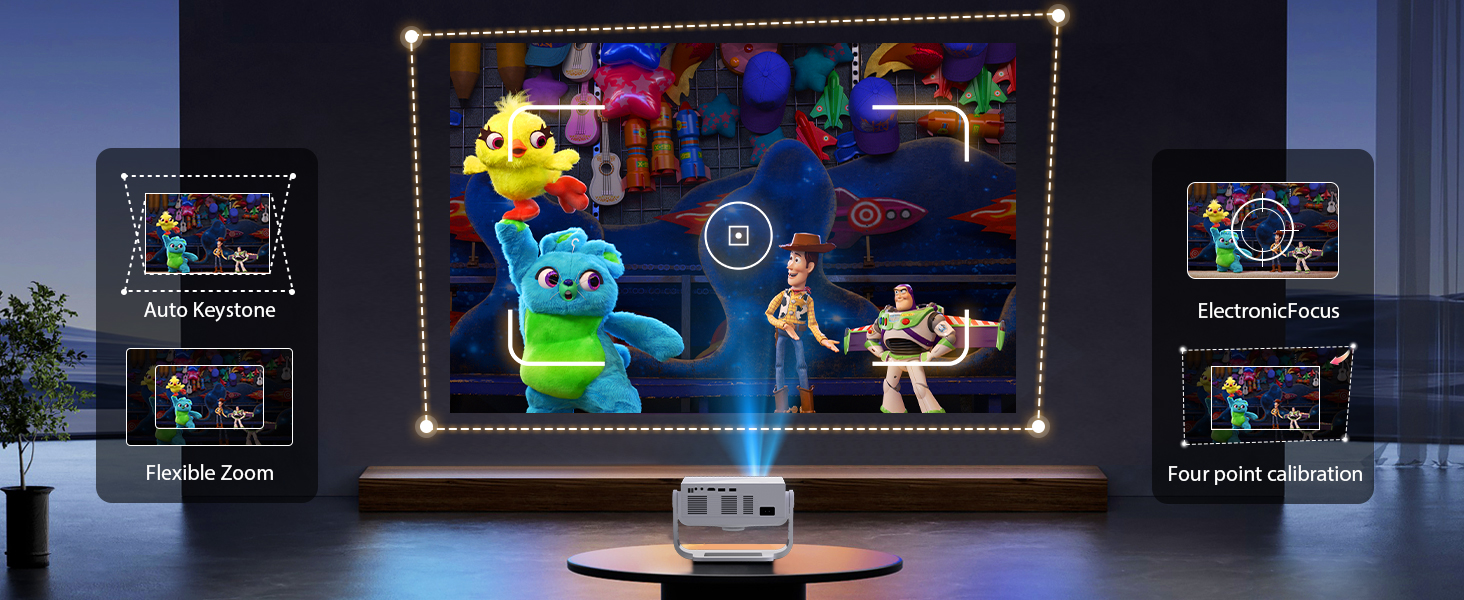
Image: Illustration of the projector's 120° flexible rotating stand, allowing projection onto walls or ceilings from different positions.
4. Setup Guide
4.1 Power Connection
- Connect the power adapter to the projector's power input port.
- Plug the power adapter into a wall outlet. The projector will power on automatically or can be turned on using the power button on the unit or remote.
4.2 Initial Focus and Keystone Correction
The projector features automatic keystone correction and electronic auto-focus for a clear image. If manual adjustment is needed:
- Point the projector towards your desired projection surface.
- Use the 'Focus' button on the remote control to adjust the image clarity. Press the left/right keys to fine-tune the focus.
- The projector will automatically correct the image shape (keystone). If further adjustment is required, navigate to 'Projection Settings' in the menu for manual trapezoidal correction.
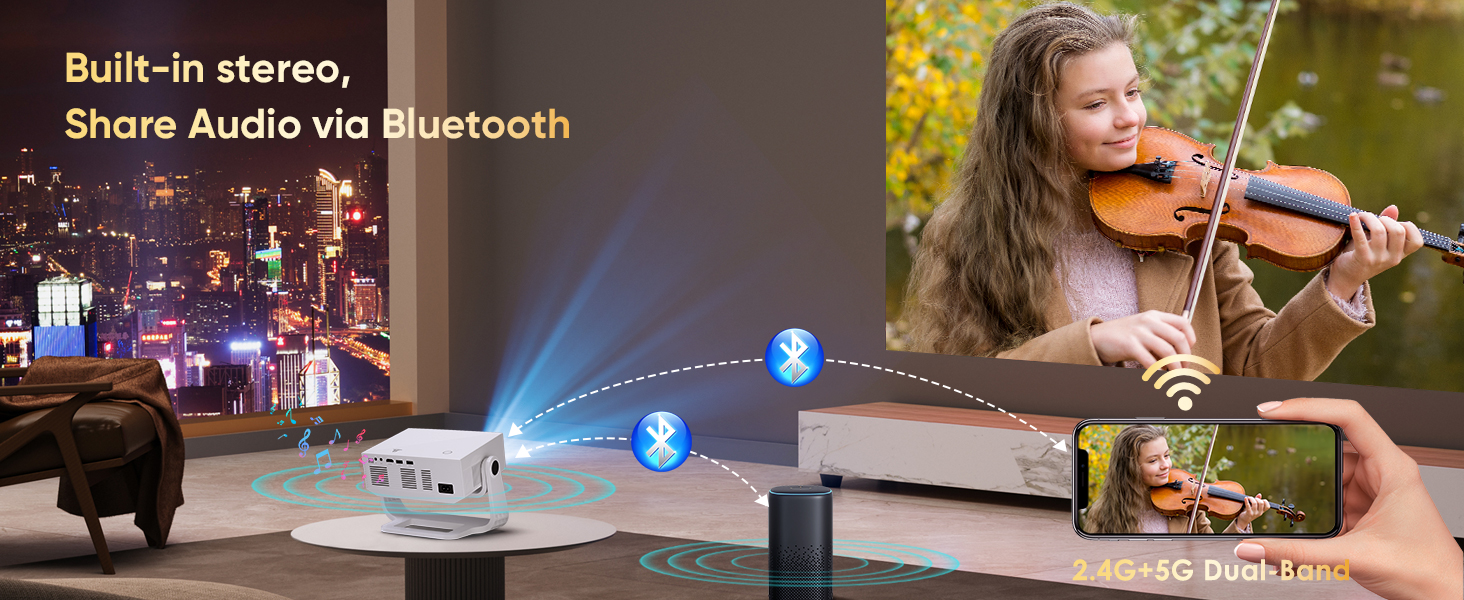
Image: Visual representation of the projector's auto keystone, flexible zoom, electronic focus, and four-point calibration features.
4.3 Network Connection (Wi-Fi)
- From the home screen, navigate to 'Settings'.
- Select 'Network Settings' or 'Wi-Fi'.
- Choose your desired Wi-Fi network from the list and enter the password if prompted.
- Once connected, the Wi-Fi icon will appear stable.
4.4 Language Settings
- Go to 'Settings' from the home screen.
- Select 'Language & Input Method'.
- Choose your preferred language for the system interface.
5. Operating Instructions
5.1 Using Built-in Apps
The projector comes with a smart Android OS, allowing direct access to various applications:
- From the home screen, select the desired application (e.g., Netflix, YouTube, Prime Video).
- Log in with your account credentials if required.
- Enjoy streaming content directly from the projector.

Image: The projector's connectivity ports and a display showing the built-in Android TV apps.
5.2 Connecting External Devices (HDMI, USB)
To connect external devices:
- HDMI: Connect an HDMI cable from your device (e.g., laptop, gaming console) to the projector's HDMI port. Select the HDMI input source from the projector's menu.
- USB: Insert a USB flash drive into one of the USB ports to play media files directly.
5.3 Bluetooth Speaker Connection
To enhance audio, connect a Bluetooth speaker:
- Ensure your Bluetooth speaker is in pairing mode.
- On the projector, go to 'Settings' and select 'Bluetooth Settings'.
- Scan for available devices and select your speaker to pair.

Image: The projector wirelessly connected to an external Bluetooth speaker, demonstrating audio sharing capabilities.
5.4 Screen Mirroring (Wireless/Wired)
Share content from your mobile devices:
- Wireless: Use the built-in screen mirroring function (e.g., Miracast for Android, AirPlay for iOS) to cast your device's screen wirelessly.
- Wired: Connect your smartphone or tablet directly to the projector's USB port using a data cable for wired casting.
5.5 Mouse Operation
The projector can be operated with a mouse for easier navigation:
- Connect a wired USB mouse to a USB port.
- Connect a wireless mouse receiver to a USB port.
6. Maintenance
- Cleaning: The projector features a multi-layer dustproof mesh and a removable side panel for easy cleaning. Regularly clean the lens with a soft, lint-free cloth.
- Ventilation: Ensure proper ventilation around the projector to prevent overheating. Do not block the air vents.
- Storage: When not in use, store the projector in a cool, dry place away from direct sunlight and extreme temperatures.
7. Troubleshooting
- Blurry Image: Adjust the electronic focus using the remote control. Ensure the projection surface is flat and the projector is positioned correctly for auto keystone correction.
- No Sound: Check the volume settings on the projector and any connected external audio devices. Ensure Bluetooth speakers are properly paired.
- No Picture from External Device: Verify the HDMI cable is securely connected to both the projector and the source device. Ensure the correct input source is selected on the projector.
- Wi-Fi Connectivity Issues: Check if your Wi-Fi network is active and the password is correct. Try restarting your router and the projector.
- Remote Control Not Responding: Replace the AAA batteries in the remote control. Ensure there are no obstructions between the remote and the projector's IR receiver.
8. Specifications
| Feature | Specification |
|---|---|
| Brand | Wielio |
| Model Number | GC06C |
| Item Weight | 3.83 pounds |
| Product Dimensions | 3 x 4 x 5 inches |
| Color | White-Black |
| Special Feature | Short Throw |
| Recommended Uses | Business, Education, Gaming, Home Cinema |
| Connectivity Technology | 3.5mm Jack, Bluetooth, HDMI, USB, Wi-Fi |
| Display Resolution | 1920 x 1200 (Native 1080P) |
9. Warranty and Support
For warranty information or technical support, please refer to the documentation included with your purchase or contact Wielio customer service through their official website or the retailer where the product was purchased.
