
Introduction
The DIYables LCD 1602 Keypad Shield is a versatile, stackable module designed to enhance your Arduino projects. It integrates a 16x2 character LCD display with a blue backlight and six interactive push buttons (Right, Up, Down, Left, Select, Reset). This shield is compatible with various Arduino boards, including Uno R3, R4, Mega, Mega 2560, Due, and Giga, providing a compact and efficient solution for creating interactive interfaces and control panels.
Setup
1. Physical Connection
To connect the LCD 1602 Keypad Shield, align its pins with the corresponding headers on your compatible Arduino board. Gently press the shield down until it is securely seated. Ensure all pins are correctly aligned to prevent damage.
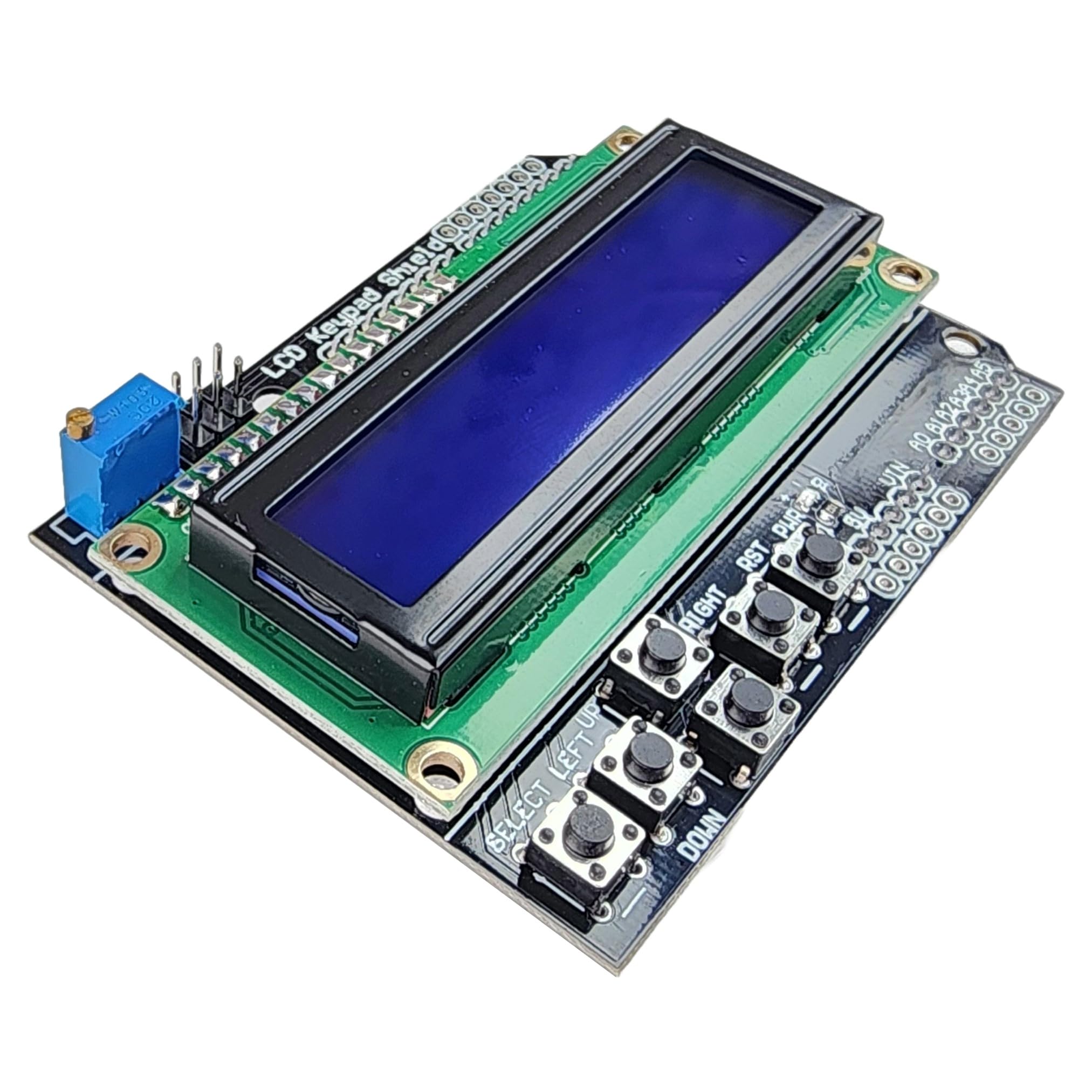
Image: The LCD 1602 Keypad Shield shown stacked on top of an Arduino development board, illustrating the physical connection.
2. Software Setup (Arduino IDE)
For proper functionality, you need to include the correct library in your Arduino sketch. The shield uses the standard LiquidCrystal library.
- Correct Library: Use
#include <LiquidCrystal.h> - Incorrect Library: Do not use
#include <LiquidCrystal_I2C.h>as this shield does not utilize I2C communication.
For detailed tutorials, code examples, and further guidance, visit the official DIYables support page:
https://diyables.io/lcd-keypad-shield

Image: A guide indicating the correct library to include for the LCD Keypad Shield and a list of compatible Arduino boards.
3. Tested Hardware Compatibility
The following Arduino boards have been tested and confirmed to be fully supported with this LCD Keypad Shield:
| Board | Tested | Notes |
|---|---|---|
| Arduino Uno R3 | ✔ | Fully supported |
| Arduino Uno R4 Wifi | ✔ | Fully supported |
| Arduino Uno R4 Minima | ✔ | Fully supported |
| Arduino Mega | ✔ | Fully supported |
| DIYables STEM V3 Board | ✔ | Fully supported |
| DIYables STEM V4 IoT Board | ✔ | Fully supported |
Operating Instructions
The LCD 1602 Keypad Shield provides both visual output and user input capabilities for your Arduino projects.
1. LCD Display
The 16x2 LCD can display two lines of 16 characters each. It features a blue backlight with white text, ensuring clear readability in various lighting conditions. You can program the display to show sensor readings, status messages, menu options, and more using the LiquidCrystal library functions.
2. Keypad Buttons
The shield includes six push buttons: Right, Up, Down, Left, Select, and Reset. These buttons are connected to a single analog input pin on the Arduino, where each button press results in a unique analog voltage reading. Your Arduino sketch will read this analog value to determine which button is being pressed, enabling interactive control of your project.

Image: The LCD Keypad Shield displaying "Press key!" on its blue backlight screen, connected via a USB cable to an external device.
For specific code examples on how to initialize the LCD, display text, and read button states, please refer to the online tutorials provided by DIYables.
Maintenance
The LCD 1602 Keypad Shield requires minimal maintenance. To ensure its longevity and optimal performance:
- Keep the shield clean and free from dust and debris. Use a soft, dry cloth for cleaning.
- Avoid exposing the shield to moisture or extreme temperatures.
- Handle the board by its edges to prevent damage to components or static discharge.
- Ensure all connections are secure and free from corrosion.
Troubleshooting
If you encounter issues with your LCD 1602 Keypad Shield, consider the following troubleshooting steps:
- Display Not Lighting Up:
- Verify that the shield is correctly seated on the Arduino board and receiving power.
- Check the contrast potentiometer (a small blue square component with a screw) on the shield. Adjust it gently with a small screwdriver to change the display contrast.
- Text Not Appearing or Garbled:
- Ensure you have included the correct library:
#include <LiquidCrystal.h>. - Double-check your Arduino sketch for correct LCD initialization parameters (pin assignments).
- Re-upload your sketch to the Arduino board.
- Ensure you have included the correct library:
- Buttons Not Responding:
- Confirm that the shield is properly connected to the Arduino's analog input pin (typically A0).
- Review your code for correct analogRead() implementation and logic to differentiate button presses.
- Test individual buttons for physical functionality.
- Compatibility with Arduino R4 WiFi:
- Some users have reported compatibility issues with Arduino R4 WiFi boards due to library conflicts with the
renesas_unoarchitecture. The standardLiquidCrystal.hlibrary might not function as expected. - Consult the DIYables website or Arduino community forums for potential workarounds or alternative libraries specifically designed for the R4 WiFi.
- Some users have reported compatibility issues with Arduino R4 WiFi boards due to library conflicts with the
If problems persist, refer to the online tutorials or contact DIYables customer support for further assistance.
Specifications
- Model Number: DIY-LCD-1602-KEYPAD-SHIELD-1PCS
- Display Type: 16x2 Character LCD
- Backlight: Blue with White Text
- Input Buttons: 6 (Right, Up, Down, Left, Select, Reset)
- Compatibility: Arduino Uno R3, R4, Mega, Mega 2560, Due, Giga, DIYables STEM V3/V4 IoT Boards
- Package Dimensions: 4.84 x 3.23 x 1.26 inches
- Item Weight: 2.39 ounces
Warranty and Support
For product support, technical assistance, or warranty inquiries, please visit the official DIYables website or contact their customer service directly. Detailed online tutorials and resources are available to help you with your projects.
Online Tutorials: Search for "DIYables LCD 16x2 Keypad Shield" or visit diyables.io/lcd-keypad-shield
Manufacturer: DIYables