Introduction
This manual provides essential information for the safe and efficient operation of your Blaupunkt 32HCE4000S LED TV. Please read these instructions thoroughly before use and retain them for future reference.
Safety Information
Important Safety Instructions:
- Do not expose the TV to rain or moisture.
- Do not block ventilation openings.
- Ensure proper grounding.
- Unplug during lightning storms or when unused for long periods.
- Refer all servicing to qualified service personnel.
Setup
1. Unpacking the TV
Carefully remove the TV from its packaging. Ensure all components are present: TV unit, remote control, power cable, and stand components.
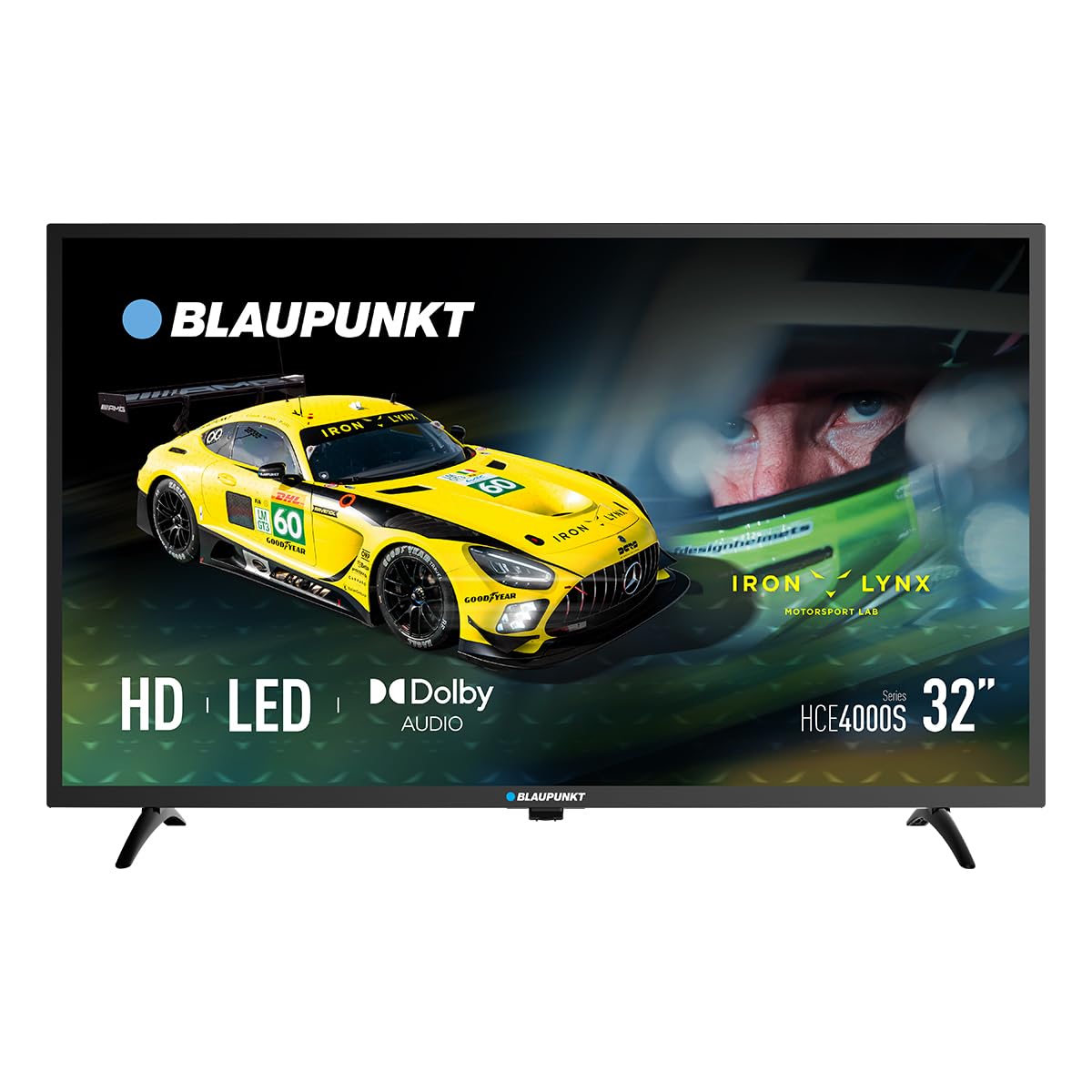
Image: Front view of the Blaupunkt 32HCE4000S LED TV with its stand.
2. Attaching the Stand
Place the TV screen-down on a soft, flat surface. Align the stand components with the mounting holes on the bottom of the TV. Secure with the provided screws. Ensure the stand is firmly attached before placing the TV upright.
Image: Rear view of the Blaupunkt 32HCE4000S LED TV, highlighting the VESA mounting points and various input/output ports.
Alternatively, for wall mounting, use a VESA-compatible wall mount (not included) and follow the mount's instructions. The TV supports VESA mounting.
3. Connecting External Devices
The TV features multiple connectivity options:
- HDMI Ports: Connect Blu-ray players, game consoles, or other HDMI-enabled devices.
- USB Port: For media playback from USB storage devices.
- DVB-T2 / DVB-S2 Tuners: For terrestrial and satellite digital television reception.
- YPbPr Input: For older analog video devices.
- SPDIF Optical Output: For digital audio output to soundbars or home theater systems.
- CI Slot: For conditional access modules (CAM) for encrypted channels.

Image: Side view of the Blaupunkt 32HCE4000S LED TV, illustrating the accessible side ports.

Image: Another side view of the Blaupunkt 32HCE4000S LED TV, showing additional side ports for connectivity.
4. Power Connection
Connect the power cable to the TV and then to a suitable power outlet (220 Volts). The TV consumes 33 watts during operation.
Operating Instructions
1. Remote Control Overview
The remote control allows full functionality of your TV. Insert two AAA batteries (not included) into the remote control, observing polarity.

Image: Blaupunkt TV remote control, displaying buttons for power, navigation, volume, channel selection, and media playback functions.
Key functions include power on/off, channel selection, volume control, source input selection, and menu navigation.
2. Initial Setup and Channel Scan
Upon first power-on, the TV will guide you through an initial setup process. This includes language selection, country, and channel scanning for DVB-T2 (terrestrial) and DVB-S2 (satellite) signals. Follow the on-screen prompts.
3. Media Playback via USB
Insert a USB storage device into the USB port. The TV's media player will typically launch automatically or can be accessed via the 'Source' menu. Navigate to your desired media files (photos, music, videos) and select to play.
4. Electronic Program Guide (EPG)
Press the 'EPG' button on your remote control to access the Electronic Program Guide. This displays program schedules for digital channels, allowing you to view upcoming shows and set reminders.
5. Audio Features
The TV supports Dolby Audio, providing clear and sufficient sound for various content. Adjust volume using the 'VOL +/-' buttons on the remote.

Image: The TV screen shows the Dolby Audio logo, indicating enhanced sound quality, while a family enjoys watching content.
Maintenance
Cleaning the TV:
- Always unplug the TV before cleaning.
- Use a soft, dry cloth to wipe the screen and cabinet.
- Do not use liquid cleaners or aerosol sprays directly on the TV.
Storage:
- If storing the TV for an extended period, ensure it is in a cool, dry place, protected from dust and extreme temperatures.
Troubleshooting
| Problem | Possible Cause | Solution |
|---|---|---|
| No power | Power cable disconnected; power outlet faulty | Check power cable connection; try a different outlet. |
| No picture, but sound is present | Incorrect input source selected; external device issue | Press 'Source' button on remote to select correct input; check external device connections. |
| No sound, but picture is present | Volume muted or too low; external audio system issue | Unmute or increase volume; check external audio connections if applicable. |
| Remote control not working | Batteries depleted or incorrectly inserted; obstruction between remote and TV | Replace batteries; ensure clear line of sight to TV's IR sensor. |
Specifications
- Brand: Blaupunkt
- Model: 32HCE4000S
- Screen Size: 32 Inches
- Display Technology: LED
- Resolution: HD/Full HD (1366x768 / 1920x1080 pixels) - Note: Product data contains conflicting resolution information (1080p, 800x480, and 1366x768 on energy label). We refer to the product title's 'HD/Full HD' claim.
- Aspect Ratio: 16:9
- Refresh Rate: 60 Hz
- Audio: Dolby Audio, 2.0 Channel Surround Sound
- Connectivity: HDMI, USB, YPbPr, SPDIF Optical, CI Slot
- Tuners: DVB-T2 / DVB-S2
- Power Consumption: 33 Watts (Operating) / 26 kWh/1000h (Energy Label)
- Voltage: 220 Volts
- Mounting Compatibility: Wall mount, Table stand (VESA compatible)
- Product Dimensions: 1 x 1 x 1 cm (approximate, as per product data)
- Product Weight: 88.2 kg (Note: This weight appears unusually high for a 32-inch TV and may be an error in the source data.)
- Model Year: 2024

Image: Energy efficiency label for the Blaupunkt 32HCE4000S TV, indicating an energy class F rating and 26 kWh/1000h energy consumption. A QR code is also visible for more information.
For more detailed energy information, scan the QR code or visit: https://eprel.ec.europa.eu/qr/238597900
Warranty & Support
Your Blaupunkt 32HCE4000S TV comes with a standard manufacturer's warranty. Please refer to the warranty card included in your packaging for specific terms and conditions.
For technical support, service, or inquiries, please contact Blaupunkt customer service. Contact details can typically be found on the manufacturer's official website or in the warranty documentation.
The product includes a user manual. Software updates are guaranteed until an unknown date, as per product information.


