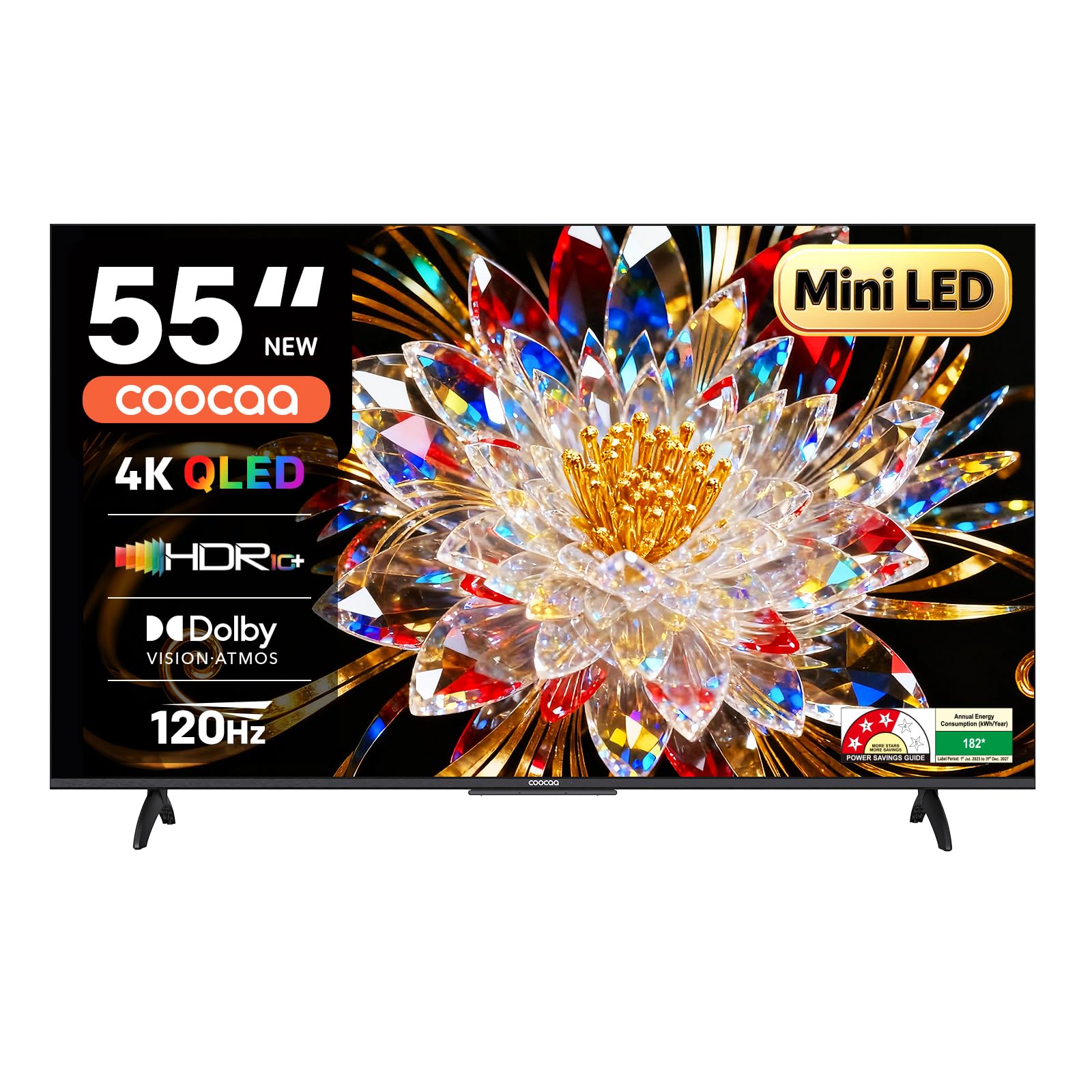
1. Important Safety Information
Read all instructions before operating the television. Keep these instructions for future reference. Always follow basic safety precautions to reduce the risk of fire, electric shock, and injury.
- Do not expose the TV to rain or moisture.
- Do not block ventilation openings.
- Ensure proper grounding for the power cord.
- Protect the power cord from being walked on or pinched.
- Unplug the TV during lightning storms or when unused for long periods.
- Refer all servicing to qualified service personnel.
2. What's in the Box
Verify that all components are present in the packaging before proceeding with installation.

Illustration of the items included in the TV packaging: TV unit, stand bases, power cable, remote control, AAA batteries, screws, quick start guide, warranty card, and AV converting cable.
- TV Unit (1N)
- Stand Bases (2N)
- Quick Start Guide (1N)
- Warranty Card (1N)
- Remote Control (1N)
- AAA Batteries (2N)
- Power Cord (1N)
- Screws (4N)
- AV Converting Cable (1N)
3. Setup
3.1 Installing the TV Stand
- Carefully place the TV face-down on a soft, flat surface to prevent screen damage.
- Align the stand bases with the corresponding slots on the bottom of the TV.
- Secure each stand base with the provided screws. Ensure they are tightened firmly.
3.2 Wall Mounting (Optional)
This TV supports VESA-compliant wall mounts. Wall mount hardware is not included. Consult a professional for wall mounting installation to ensure safety and proper setup.
3.3 Connecting External Devices
The coocaa 55MINI75Q TV offers various connectivity options for your external devices.

Diagram showing the various input and output ports available on the side and back of the coocaa 55MINI75Q TV, including HDMI, USB, LAN, Satellite, AV-IN, and Earphone ports.
- HDMI Ports (3x): Connect set-top boxes, Blu-ray players, gaming consoles, or other HDMI-enabled devices. This model includes HDMI 2.1 (eARC) for enhanced audio return channel functionality.
- USB Ports (2x): Connect USB storage devices for media playback or software updates.
- Satellite Input: Connect a satellite dish for satellite TV reception.
- Antenna/Cable Input: Connect an antenna or cable TV feed.
- AV-IN: Use the provided AV converting cable to connect older devices with composite video and stereo audio outputs.
- Digital Audio Output: Connect to an external audio receiver or soundbar for digital audio.
- LAN Port: Connect an Ethernet cable for a wired internet connection.
- Earphone Port: Connect headphones for private listening.
3.4 Power Connection
After connecting all desired external devices, plug the power cord into the TV's power input and then into a wall outlet. The TV will enter standby mode.
4. Operating the TV
4.1 Remote Control
The included remote control allows you to navigate the TV's features. Insert the two AAA batteries into the remote control, ensuring correct polarity.

Image of the coocaa TV remote control, featuring dedicated buttons for popular streaming services like Netflix and Prime Video, navigation keys, and a voice assistant button.
- Power Button: Turns the TV on or off (standby mode).
- Navigation Keys: Use the directional pad and OK button to navigate menus.
- Volume +/-: Adjusts the volume level.
- Channel +/-: Changes TV channels.
- Input Source: Selects the input source (HDMI, AV, etc.).
- Voice Assistant Button: Activates Google Voice Assistant for voice commands.
- Dedicated App Buttons: Quick access to Netflix, Prime Video, YouTube, and other pre-loaded applications.
4.2 Initial Setup (Google TV)
Upon first power-on, the TV will guide you through the initial setup process:
- Select your preferred language.
- Connect to a Wi-Fi network or use a wired Ethernet connection. The TV supports dual-band Wi-Fi (5G+2.4G).
- Sign in with your Google account to access Google TV features, download apps, and personalize your experience.
- Follow on-screen prompts to complete channel scanning and other settings.
4.3 Smart TV Features
The coocaa 55MINI75Q runs on Google TV, providing access to a wide range of applications and smart functionalities.

Screenshot showing the Google TV interface with various streaming applications available, such as Netflix, YouTube, Zee5, and more.
- Google Play Store: Download millions of apps, games, and content.
- Pre-loaded Apps: Includes Netflix, YouTube, Zee5, Prime Video, Sony LIV, and more.
- Google Voice Assistant: Use voice commands via the remote to search for content, control smart home devices, and get information.
- Chromecast Built-in: Cast content from your compatible smartphone or tablet directly to the TV.
- Display Mirroring: Mirror the screen of compatible devices to the TV.
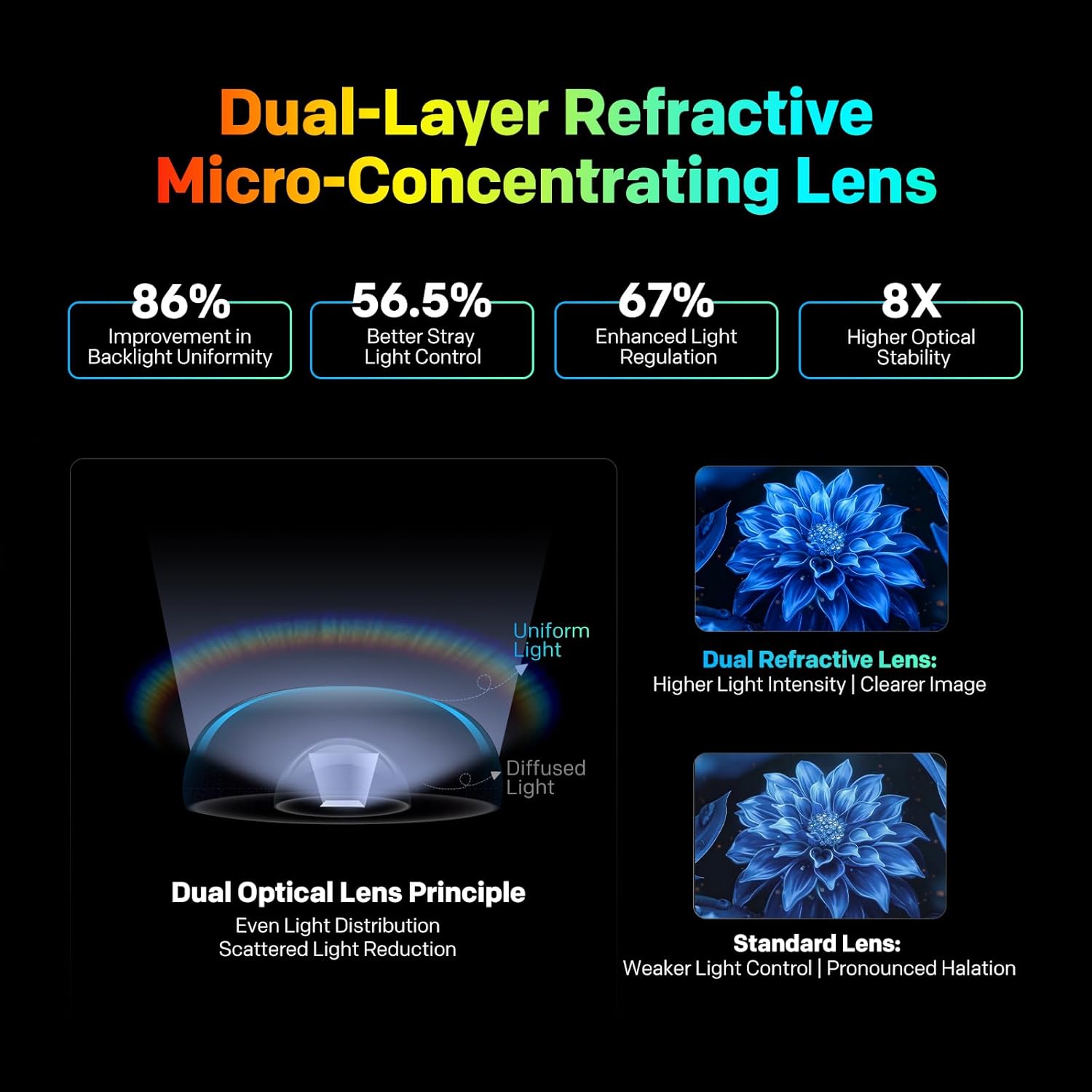
An image demonstrating the use of Google Voice Assistant with the TV, showing a user speaking a command into the remote control.
4.4 Picture and Display Settings
The coocaa 55MINI75Q features advanced display technologies for an enhanced viewing experience.

A vibrant image showcasing the 4K ultra-clear resolution of the TV, with a colorful chameleon on screen.
- 4K Ultra HD Resolution (3840x2160): Provides sharp and detailed images.
- Mini LED & QLED Technology: Combines Mini LED backlighting with Quantum Dot technology for superior brightness, contrast, and color accuracy.
- HSR 120Hz Refresh Rate: Offers smoother motion, especially beneficial for fast-paced content and gaming.
- Dolby Vision & HDR10+: Supports high dynamic range formats for enhanced contrast and color in compatible content.
- Filmmaker Mode: Preserves the original aspect ratio, color, and frame rate of movies as intended by the director.

An image illustrating the Filmmaker Mode feature, showing a cinematic scene with a large wave and police cars, emphasizing the preservation of original film aesthetics.
4.5 Audio Settings
The TV features powerful speakers and advanced audio processing.

An image depicting a cinematic audio experience, with sound waves emanating from the TV towards a viewer in a theater-like setting, highlighting Dolby Atmos and 36W speakers.
- 30 Watts Output: Delivers clear and powerful sound.
- Dolby Atmos: Provides immersive, multi-dimensional audio.
- Adaptive Sound Modes: Choose from various sound modes (User, Standard, Cricket, News, Music, Movie, Game) to optimize audio for different content types.

An image showcasing the adaptive sound modes feature, displaying different scene icons (User, Standard, Cricket, News, Music, Movie, Game) with corresponding visual examples.
4.6 Gaming Features
Designed for an enhanced gaming experience.
- HSR 120Hz Refresh Rate: Reduces motion blur for smoother gameplay.
- VRR (Variable Refresh Rate): Synchronizes the TV's refresh rate with the game console's frame rate to eliminate screen tearing and stuttering.
- ALLM (Auto Low Latency Mode): Automatically switches the TV to a low-latency mode when a game is detected, reducing input lag.
- Game Bar: Provides quick access to gaming-related settings and information.

An image illustrating the HSR 120Hz High Refresh Rate feature, showing a fast-moving race car to convey smooth game experience, alongside icons for MEHO, ALLM, VRR, HDMI2.1 eARC, and Game Bar.
5. Maintenance
5.1 Cleaning the TV
- Screen: Gently wipe the screen with a soft, lint-free cloth. For stubborn marks, lightly dampen the cloth with water or a specialized screen cleaner. Do not spray cleaner directly onto the screen.
- Body: Wipe the TV frame and stand with a soft, dry cloth. Avoid using abrasive cleaners or solvents.
- Always unplug the TV from the power outlet before cleaning.
5.2 Software Updates
The TV may receive periodic software updates to improve performance and add new features. Ensure your TV is connected to the internet to receive these updates. You can usually check for updates in the TV's settings menu.
6. Troubleshooting
If you encounter issues with your TV, refer to the following common solutions. If the problem persists, contact customer support.
| Problem | Possible Solution |
|---|---|
| No power | Ensure the power cord is securely plugged into both the TV and a working wall outlet. Check if the outlet has power. |
| No picture, but sound is present | Check the input source. Ensure the connected device is powered on and functioning correctly. Try a different HDMI cable. |
| No sound, but picture is present | Check the volume level and ensure the TV is not muted. Verify audio output settings if using external speakers. |
| Remote control not working | Replace the batteries. Ensure there are no obstructions between the remote and the TV. Re-pair the Bluetooth remote if necessary (refer to TV settings). |
| Cannot connect to Wi-Fi | Ensure the Wi-Fi router is on and within range. Re-enter the Wi-Fi password. Try restarting the router and the TV. |
| Picture quality issues (e.g., blurry, distorted) | Check the resolution settings of the input source. Adjust picture settings (brightness, contrast, sharpness) in the TV menu. Ensure the content source is high quality. |
7. Specifications
Detailed technical specifications for the coocaa 55MINI75Q TV.

Diagram illustrating the dimensions of the 55-inch coocaa 55MINI75Q TV, showing width (1226 mm), height (720 mm), and depth (79 mm).
| Feature | Detail |
|---|---|
| Brand | coocaa |
| Model | 55MINI75Q |
| Screen Size | 55 Inches (138 cm) |
| Display Technology | UHD, QLED Mini LED |
| Resolution | 3840x2160 Pixels (4K Ultra HD) |
| Refresh Rate | 120 Hz (HSR) |
| Operating System | Google TV |
| RAM Memory | 2 GB |
| Storage Capacity | 32 GB |
| Graphics Coprocessor | Mali G52 MC1 |
| Connectivity | Wi-Fi (Dual-band), Bluetooth, Ethernet, 3x HDMI (including HDMI 2.1 eARC), 2x USB |
| Audio Output | 30 Watts, Dolby Atmos |
| Product Dimensions (LxWxH) | 122.6 x 7.9 x 72 cm |
| Item Weight | 9.4 kg |
| Power Source | AC (100 Volts, 130 Watts) |
| Included Batteries | 2 AAA batteries (for remote) |
| Viewing Angle | 178 Degrees |
| Response Time | 2 Milliseconds |
8. Warranty and Support
8.1 Warranty Information
This product comes with a 1-year warranty provided by the brand from the date of purchase. To avail warranty services, retain your purchase invoice.
8.2 Customer Support
For further assistance, technical support, or warranty claims, please refer to the official coocaa brand website for contact information and detailed support resources. The user manual can also be accessed from the brand website.