
1. Safety Information
Please read all safety instructions carefully before using the television. Keep this manual for future reference. Always ensure the television is placed on a stable surface to prevent tipping. Do not expose the television to rain or moisture. Avoid blocking ventilation openings. Disconnect the power cord during lightning storms or when unused for long periods.
2. Product Overview
The coocaa 65MINI75Q is a 65-inch 4K Ultra HD Smart Mini LED Google TV, featuring QLED technology, a 120Hz refresh rate (HSR), VRR (Variable Refresh Rate), Dolby Vision, and Dolby Atmos for an immersive viewing and audio experience. It operates on Google TV, providing access to a wide range of applications.
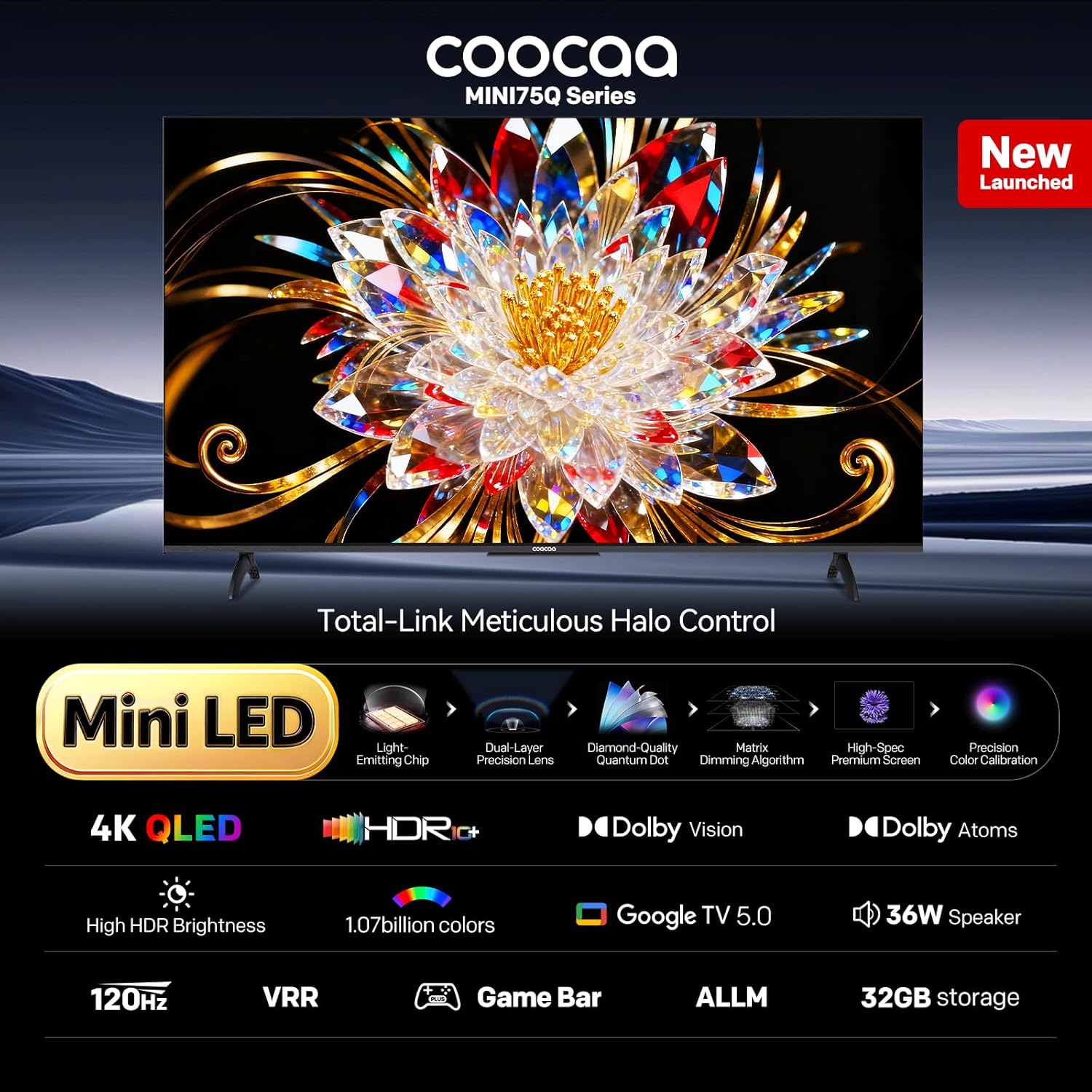
Figure 2.1: Front view of the coocaa 65MINI75Q TV, showcasing its slim bezel design.

Figure 2.2: Side view of the coocaa 65MINI75Q TV, highlighting its thin profile.

Figure 2.3: Back view of the coocaa 65MINI75Q TV, showing the rear panel layout.
3. Setup
3.1 Unboxing and Package Contents
Carefully remove the television and all components from the packaging. Verify that all items listed below are present:

Figure 3.1: Contents included in the TV package.
- TV Unit (1N)
- Stand Bases (2N)
- Quick Start Guide (1N)
- Warranty Card (1N)
- Remote Control (1N)
- AAA Batteries (2N)
- Power Cord (1N)
- Screws (4N)
- AV Converting Cable (1N)
3.2 Physical Installation
You can install your coocaa 65MINI75Q TV using the included stand bases for table mounting or by using a compatible wall mount (sold separately).
3.2.1 Table Mounting
- Place the TV screen face down on a soft, flat surface to prevent damage.
- Attach the two stand bases to the designated slots on the bottom of the TV.
- Secure each stand base with the provided screws.
- Carefully lift the TV to an upright position and place it on a stable, level surface.
3.2.2 Wall Mounting
If you choose to wall mount your TV, please consult a professional installer and use a VESA-compatible wall mount kit appropriate for a 65-inch television. Follow the instructions provided with your wall mount kit.
3.3 Connecting Peripherals
Connect your external devices to the appropriate ports on the TV. Refer to the diagram below for port locations.

Figure 3.2: Mainstream interface ports for multi-device connection.
- Power: Connect the power cord to the TV's power input and then to a wall outlet.
- HDMI: Use HDMI ports (3 available, including 1 HDMI 2.1 with eARC) to connect set-top boxes, Blu-ray players, or gaming consoles.
- USB: Two USB 2.0 ports are available for connecting USB storage devices.
- Antenna/Cable Input: Connect your antenna or cable TV signal.
- Satellite Input: Connect your satellite dish cable.
- AV-IN: Use the AV converting cable to connect older devices with composite video and stereo audio outputs.
- Digital Audio Output: For connecting to external audio systems via optical cable.
- Earphone: For connecting headphones.
- LAN (Ethernet): For a wired internet connection.
3.4 Initial Power On and Google TV Setup
- Insert the two AAA batteries into the remote control.
- Connect the power cord and press the power button on the remote or TV.
- Follow the on-screen instructions to select your language and region.
- Connect the TV to your Wi-Fi network (supports dual-band Wi-Fi 5G+2.4G) or via Ethernet.
- Sign in with your Google account to access Google TV features, apps, and personalized recommendations.
- Complete the channel scan if connecting an antenna or cable.
4. Operating Instructions
4.1 Remote Control
The included remote control features dedicated buttons for popular streaming services like Netflix and Prime Video, a navigation key, and a built-in voice assistant for convenient control.

Figure 4.1: The coocaa TV remote control with voice assistant and quick access buttons.
- Power Button: Turns the TV on or off.
- Navigation Pad: Use the directional buttons to navigate menus and the OK button to confirm selections.
- Volume +/-: Adjusts the volume level.
- Channel +/-: Changes TV channels.
- Google Assistant Button: Activates the voice assistant for commands and searches.
- Netflix/Prime Video Buttons: Direct access to these streaming applications.
4.2 Google TV Interface
The coocaa 65MINI75Q runs on Google TV, offering a personalized home screen with content recommendations from your subscriptions. You can browse and install millions of apps from the Google Play Store.

Figure 4.2: Google TV interface with a wide selection of applications.
4.2.1 Supported Applications
Pre-loaded applications include Netflix, YouTube, and Zee5. Additional supported apps like Prime Video, Sony LIV, and many more are available for download from the Google Play Store.
4.2.2 Google Voice Assistant
Use the Google Voice Assistant button on your remote to quickly search for content, control smart home devices, or get information using voice commands.

Figure 4.3: Using Google Voice Assistant to search for content.
4.3 Picture Settings
The TV features 4K Ultra HD resolution (3840x2160 pixels) combined with Mini LED and QLED display technologies for superior image quality. It supports HDR, Dolby Vision, and HLG for enhanced contrast and color.
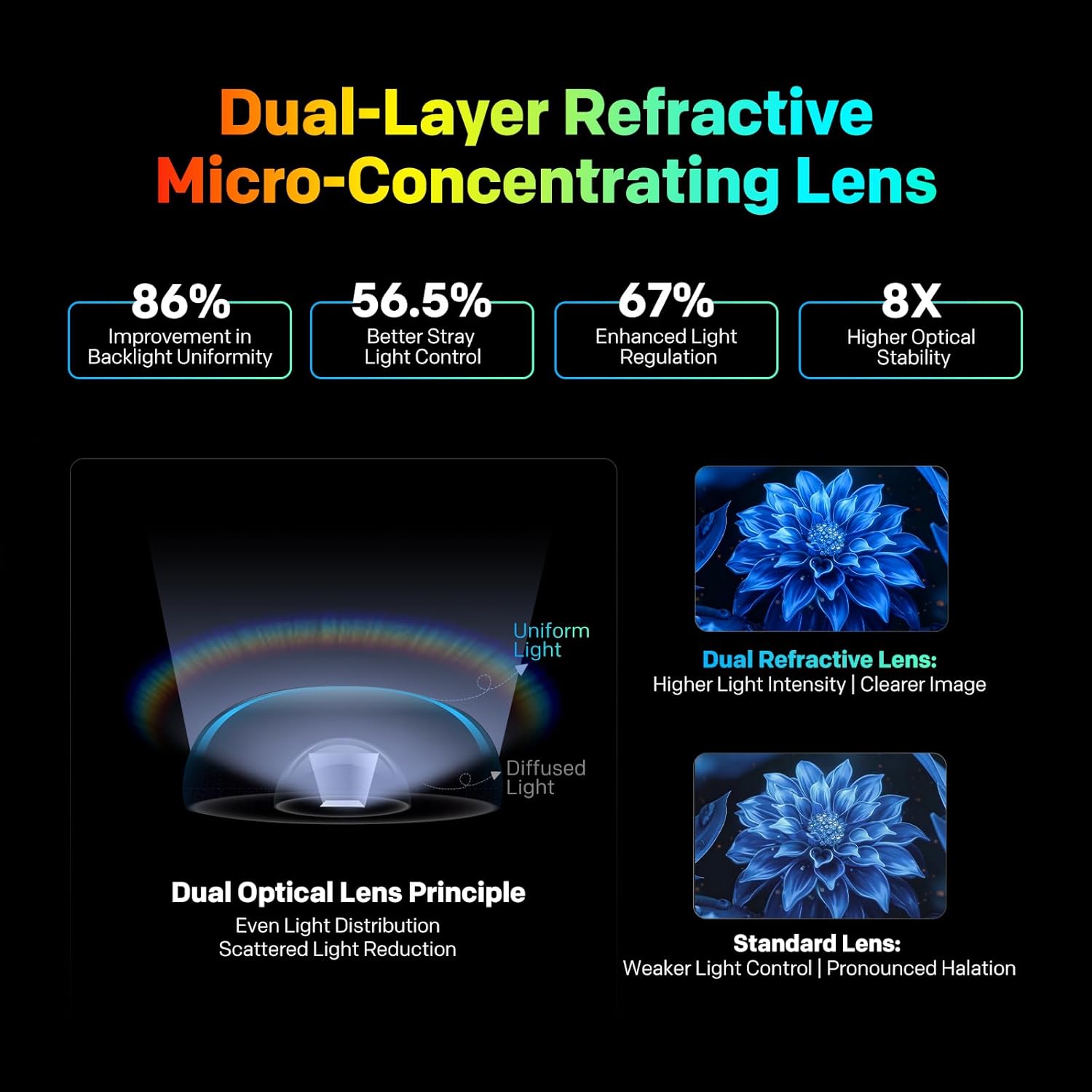
Figure 4.4: Visual representation of 4K ultra-clear display quality.
4.3.1 Filmmaker Mode
Activate Filmmaker Mode to experience movies as directors intended, preserving original color, aspect ratio, and frame rate for an authentic cinematic experience.

Figure 4.5: Filmmaker Mode ensures content is displayed as intended by creators.
4.4 Sound Settings
The TV features 30 Watts output with powerful speakers and Dolby Atmos for remarkable sound quality. You can select from various adaptive sound modes to optimize audio for different content types.

Figure 4.6: Adaptive sound modes for various viewing scenarios.
4.5 Connectivity and Smart Features
- Wi-Fi: Connect to your home network wirelessly using dual-band Wi-Fi (2.4G/5G).
- Bluetooth: Connect compatible Bluetooth devices such as headphones or soundbars.
- Chromecast Built-in: Easily cast content from your compatible devices to the TV.
- Display Mirroring: Mirror the screen of compatible smartphones or tablets onto the TV.
4.6 Gaming Features
The coocaa 65MINI75Q is equipped with features to enhance your gaming experience:
- HSR 120Hz Refresh Rate: Provides smoother motion for fast-paced games.
- VRR (Variable Refresh Rate): Synchronizes the TV's refresh rate with the game console's frame rate to reduce screen tearing and stuttering.
- ALLM (Auto Low Latency Mode): Automatically switches the TV to a low-latency mode when a game console is detected, reducing input lag.
- Game Bar: Access quick settings and information relevant to gaming.
5. Maintenance
5.1 Cleaning the Screen
To clean the screen, gently wipe it with a soft, lint-free cloth. For stubborn marks, lightly dampen the cloth with water or a specialized screen cleaner. Never spray cleaner directly onto the screen.
5.2 Cleaning the TV Body
Wipe the TV's frame and stand with a soft, dry cloth. Avoid using abrasive cleaners or solvents that could damage the finish.
5.3 Software Updates
Ensure your TV's software is up to date for optimal performance and security. The TV will typically notify you of available updates, or you can check manually through the Google TV settings menu.
6. Troubleshooting
If you encounter issues with your TV, refer to the following common troubleshooting steps:
| Problem | Possible Solution |
|---|---|
| No Power | Check if the power cord is securely connected to both the TV and the power outlet. Ensure the outlet is functional. Try pressing the power button on the TV itself. |
| No Picture, but Sound is Present | Verify the correct input source is selected. Check all cable connections (HDMI, AV). Try restarting the TV and the connected device. |
| No Sound, but Picture is Present | Check the volume level and ensure the TV is not muted. Verify audio settings and external speaker connections if applicable. Try a different audio source. |
| Remote Control Not Working | Replace the batteries. Ensure there are no obstructions between the remote and the TV. Re-pair the Bluetooth remote if necessary (refer to TV settings). |
| Network Connection Issues | Check your Wi-Fi router and modem. Restart network equipment. Re-enter Wi-Fi password in TV settings. Try a wired Ethernet connection if possible. |
7. Specifications
Detailed technical specifications for the coocaa 65MINI75Q TV:
| Feature | Detail |
|---|---|
| Brand | coocaa |
| Model | 65MINI75Q |
| Screen Size | 65 Inches (164 cm) |
| Display Technology | UHD, QLED Mini LED |
| Resolution | 3840x2160 Pixels (4K Ultra HD) |
| Refresh Rate | 120 Hz (HSR) |
| Operating System | Google TV |
| Memory Storage Capacity | 32 GB |
| RAM Memory Installed Size | 2 GB |
| Graphics Coprocessor | Mali G52 MC1 |
| Hardware Interface | HDMI, USB |
| Connectivity Technology | Ethernet, HDMI (3 ports), USB (2 ports), Wi-Fi (Dual-band), Bluetooth |
| Special Features | Prime Video, Netflix, Zee5, Sony LIV, Chromecast, Google Voice Assistant, Display Mirroring, VRR, ALLM, Game Bar |
| Audio Output Mode | Surround |
| Audio Encoding | Dolby Atmos |
| Speakers Maximum Output Power | 36 Watts |
| Voltage | 100 Volts |
| Wattage | 170 Watts |
| Power Source | AC |
| Product Dimensions (LxWxH) | 144.5 x 8 x 83.9 cm |
| Item Weight | 13.8 kg |
| Batteries Required | Yes (2 AAA, included) |

Figure 7.1: Dimensions of the 65-inch coocaa 65MINI75Q TV.
8. Warranty and Support
8.1 Warranty Information
This coocaa television comes with a 1-year warranty provided by the brand from the date of purchase. To avail warranty services, please retain your purchase invoice.
8.2 Customer Support
For further assistance, detailed user manuals, or to contact customer support, please visit the official coocaa brand website. The brand website is the primary resource for comprehensive support and service inquiries.