
1. Introduction
This manual provides detailed instructions for the ECHTPower EP05 Wireless PC Gaming Controller. This multi-platform controller features a TFT screen for on-the-fly adjustments, Hall-Effect joysticks for precision, dual Hall triggers, a 1000Hz polling rate, and customizable RGB lighting. It is compatible with Windows PC, Nintendo Switch, Android, and iOS devices.
Video: ECHTPower PC Controller with Intelligent Screen. This official video provides an overview of the controller's features and design.
2. Key Features
- Smart TFT Screen Control: Adjust vibration, RGB lighting, turbo settings, trigger travel, and button mapping directly on the integrated screen without external software.
- Hall-Effect Joysticks: Designed to prevent joystick drift, providing stable and smooth control for various game genres.
- Dual Hall Triggers: Offers adjustable trigger travel (2mm for rapid fire, 6mm for precise control) for an optimized gaming experience.
- 1000Hz Polling Rate: Ensures ultra-fast input and responsiveness in 2.4GHz wireless or wired modes.
- Multi-Platform Support: Connects via Bluetooth, 2.4G wireless, or USB-C wired to Windows PC, Switch, Android, and iOS devices. (Note: Not compatible with Xbox or PlayStation.)
- Conductive Gel Buttons: Provides sharp feedback and durability, rated for 3 million presses.
3. Package Contents
Upon unpacking, please ensure all items are present:
- ECHTPower EP05 Wireless PC Gaming Controller
- USB-C Charging Cable
- 2.4G Wireless Receiver (USB Dongle)
- User Manual
4. Setup and Connectivity
4.1 Charging the Controller
Before first use, fully charge the controller using the provided USB-C cable. Connect the USB-C end to the controller and the USB-A end to a power source (e.g., PC, USB wall adapter).
4.2 Powering On/Off
To power on the controller, press and hold the OFF/ON button located on the front of the controller until the RGB lights illuminate and the TFT screen activates. To power off, press and hold the same button until the lights turn off.
4.3 Connecting to Devices
The controller supports three connection modes: Bluetooth, 2.4G Wireless, and Wired USB-C.
- Bluetooth Connection (for Switch, Android, iOS):
- Ensure the controller is powered off.
- Switch the rear mode selector to the appropriate platform (e.g., "SW" for Switch, "PHONE" for Android/iOS).
- Press and hold the pairing button (often indicated by a Bluetooth icon or a dedicated pairing button) until the RGB lights flash rapidly.
- On your device, go to Bluetooth settings and select "ECHTPower EP05" to pair.
- 2.4G Wireless Connection (for PC):
- Ensure the controller is powered off.
- Switch the rear mode selector to "PC" or "Receiver".
- Insert the 2.4G wireless receiver into an available USB port on your PC.
- Power on the controller. It should automatically connect to the receiver. The TFT screen will indicate connection status.
- Wired USB-C Connection (for PC):
- Connect the USB-C cable to the controller and the USB-A end to your PC.
- The controller will automatically switch to wired mode and be recognized by your PC.
Important: Always switch the rear mode selector to the correct platform before attempting to pair or connect.

Image: The ECHTPower EP05 controller shown with its 2.4G wireless dongle and USB-C cable, highlighting the various connection methods available.
5. Operating the Controller
5.1 Using the TFT Screen
The integrated TFT screen allows for direct customization of controller settings. Navigate the menu using the D-pad and action buttons (A, B, X, Y).

Image: A detailed view of the controller's TFT screen, showing options for adjusting settings such as light brightness, vibration, and volume.
5.2 Adjusting RGB Lighting
Access the RGB lighting settings via the TFT screen. You can adjust brightness, choose from various lighting effects (e.g., marquee, flow, gradient), and select specific colors.

Image: The ECHTPower EP05 controller showcasing its adjustable RGB lights, with the TFT screen displaying lighting options.
5.3 Customizing Vibration
The controller offers four levels of adjustable vibration intensity. Use the TFT screen to select your preferred feedback level (0%, 30%, 60%, 100%).

Image: The controller displaying its four-level adjustable vibration settings on the TFT screen, ranging from 0% to 100%.
5.4 Dual Hall Triggers
The dual Hall triggers can be switched between two modes:
- Short-travel (2mm): Ideal for rapid-fire actions in shooter games.
- Long-travel (6mm): Provides precise control for racing games or other applications requiring nuanced input.

Image: An illustration of the ECHTPower EP05's dual Hall triggers, demonstrating the 2mm short-travel for quick shooting and 6mm long-travel for precise control in racing games.
5.5 Programmable Back Buttons
The controller features mappable back buttons (M1, M2) for enhanced customization. These can be programmed via the TFT screen to replicate other button inputs or execute macros.
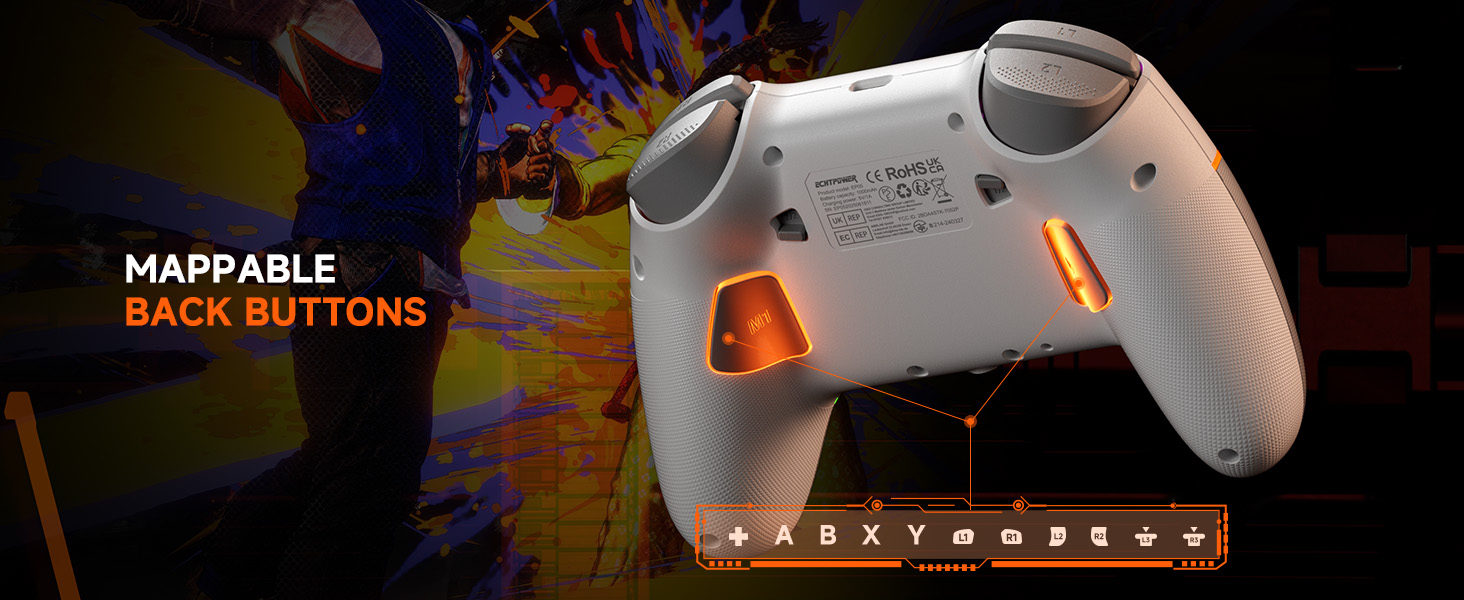
Image: The underside of the ECHTPower EP05 controller, highlighting the mappable back buttons (M1, M2) for custom assignments.
6. Maintenance
- Cleaning: Use a soft, dry cloth to clean the controller. Avoid abrasive cleaners or solvents.
- Storage: Store the controller in a cool, dry place away from direct sunlight and extreme temperatures.
- Battery Care: For optimal battery life, avoid fully discharging the controller frequently. Charge it regularly.
7. Troubleshooting
- Controller not connecting:
- Ensure the controller is charged.
- Verify the rear mode selector is set to the correct platform (PC, SW, PHONE).
- For 2.4G, ensure the receiver is properly inserted and the controller is in 2.4G mode.
- For Bluetooth, ensure your device's Bluetooth is on and the controller is in pairing mode.
- Try restarting both the controller and the device.
- Joystick drift:
- The Hall-Effect joysticks are designed to prevent drift. If you experience issues, ensure the controller's firmware is up to date (check the manufacturer's website).
- Perform a calibration if available through the controller's TFT screen settings.
- RGB lights not working:
- Check the RGB settings on the TFT screen to ensure they are enabled and configured correctly.
- Adjust brightness levels.
- Short battery life:
- Ensure the controller is fully charged before use.
- Reduce RGB lighting brightness or turn off lighting effects to conserve battery.
- Disable vibration if not needed.
8. Specifications
| Feature | Detail |
|---|---|
| Model | EP05 |
| Connectivity | Bluetooth, 2.4G Wireless, USB-C Wired |
| Polling Rate | 1000Hz (2.4G/Wired) |
| Joysticks | Hall-Effect (No Drift) |
| Triggers | Dual Hall-Effect (Adjustable 2mm/6mm) |
| Screen Type | TFT |
| Battery Capacity | 1000mAh |
| Compatible Platforms | Windows PC, Nintendo Switch, Android, iOS |
| Color | White |
9. Warranty and Support
9.1 Warranty Information
This ECHTPower EP05 controller comes with a 2-Year Limited Warranty. Please retain your proof of purchase for warranty claims. The warranty covers manufacturing defects and malfunctions under normal use. It does not cover damage caused by misuse, accidents, unauthorized modifications, or normal wear and tear.
9.2 Customer Support
For technical support, warranty claims, or general inquiries, please contact ECHTPower customer service:
- Email: service@echtpower.com
- Website: www.echtpower.com
Please provide your product model (EP05) and a detailed description of your issue when contacting support.


