
Introduction
This manual provides essential information for setting up, operating, maintaining, and troubleshooting your XIAOMI Redmi Note 15 5G smartphone. Please read it carefully to ensure optimal performance and longevity of your device.
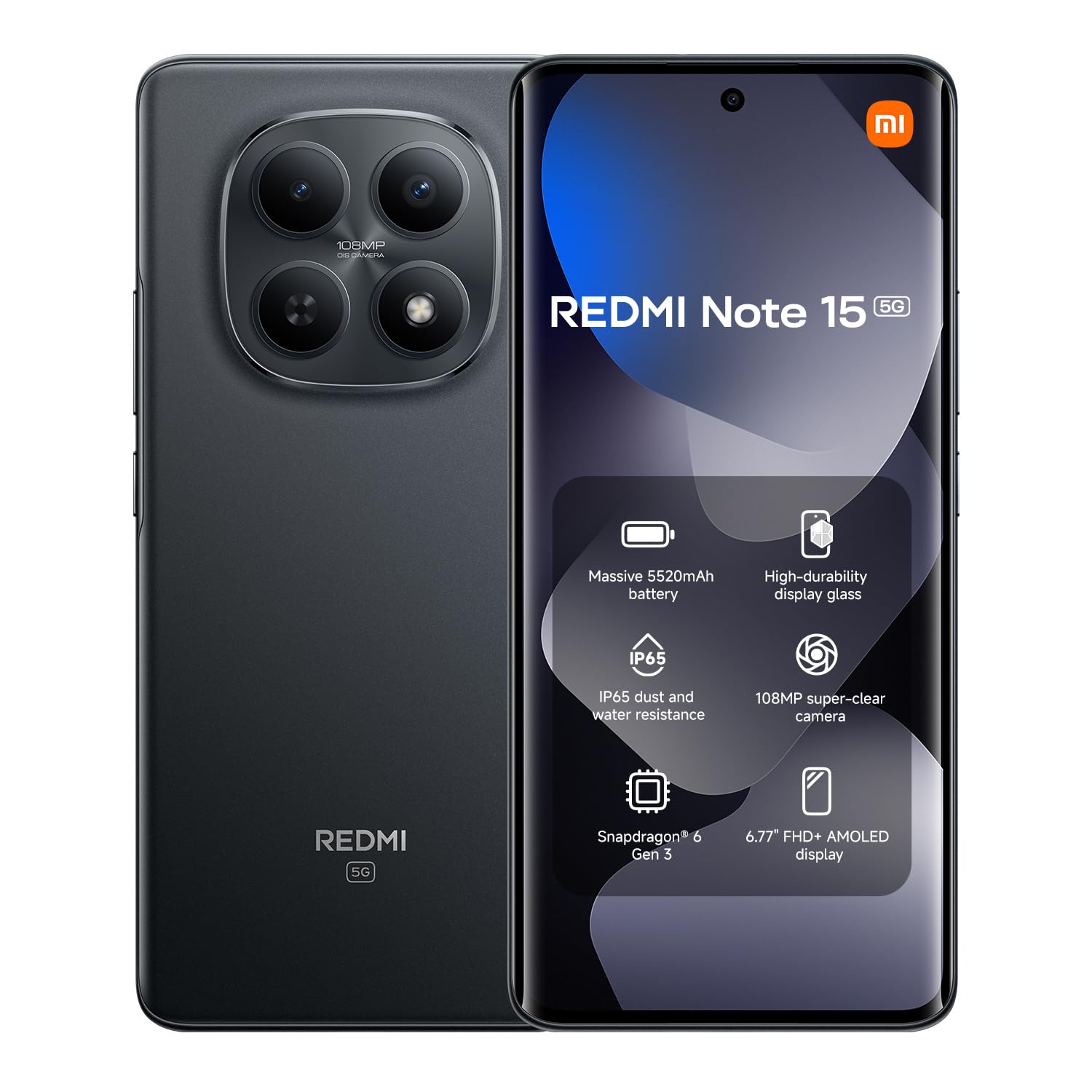
Image: Front view of the XIAOMI Redmi Note 15 5G smartphone in black.
What's in the Box
Upon unboxing your Redmi Note 15 5G, verify that all standard components are present:
- XIAOMI Redmi Note 15 5G Smartphone
- USB Cable (Type-C)
- SIM Ejector Tool
- Quick Start Guide
- Safety Information
Note: A power adapter is not included with this model and must be purchased separately.
Setup
1. Inserting the SIM Card
- Locate the SIM card tray on the side of your device.
- Insert the SIM ejector tool into the small hole next to the tray and press firmly until the tray pops out.
- Place your Nano-SIM card(s) into the tray with the gold contacts facing down. Ensure proper orientation.
- Carefully reinsert the tray into the phone.

Image: Illustration of a Redmi smartphone with its SIM card tray, ejector tool, and a USB-C cable.
2. Initial Power On and Setup
- Press and hold the Power button until the XIAOMI logo appears.
- Follow the on-screen instructions to select your language, region, and connect to a Wi-Fi network.
- Sign in with your Google account or create a new one.
- Set up screen lock (PIN, pattern, password, or fingerprint).
3. Charging the Device
Connect the provided USB Type-C cable to the charging port on your phone and the other end to a compatible USB power adapter (sold separately) or a computer. For optimal charging speed, use a XIAOMI-approved fast charger.
Operating Instructions
1. Basic Navigation
- Touch Gestures: Tap, swipe, pinch-to-zoom are standard.
- Home Screen: Swipe left/right to navigate between pages.
- Notification Panel: Swipe down from the top of the screen to access notifications and quick settings.
- Recent Apps: Swipe up from the bottom of the screen and hold (if using gestures) or tap the recent apps button (if using navigation buttons) to view and switch between open applications.
2. Making Calls and Sending Messages
- Calls: Open the Phone app, enter the number, or select a contact, then tap the call icon.
- Messages: Open the Messages app, tap the new message icon, enter the recipient and your message.
3. Using the Camera
The Redmi Note 15 5G features a 108 MP rear camera and a 20 MP front camera.
- Open the Camera app.
- Select your desired mode (Photo, Portrait, Video, Pro, etc.).
- Tap the shutter button to capture a photo or start/stop video recording.
- Tap the switch icon to toggle between front and rear cameras.

Image: Rear view of a Redmi smartphone highlighting its camera system and a glimpse of the device's interface.
4. Connectivity
- Wi-Fi: Go to Settings > Wi-Fi, turn it on, and select your network.
- Bluetooth: Go to Settings > Bluetooth, turn it on, and pair with devices.
- NFC: For contactless payments and quick pairing, enable NFC in Settings > Connection & sharing > NFC.
5. Fingerprint Recognition
Your device supports fingerprint unlock. To set it up:
- Go to Settings > Passwords & security > Fingerprint unlock.
- Follow the on-screen prompts to register your fingerprint.
Maintenance
1. Software Updates
Regularly check for system updates to ensure your device has the latest features and security patches. Go to Settings > About phone > MIUI version (or Hyper OS version) and tap to check for updates.
2. Cleaning Your Device
- Use a soft, lint-free cloth to wipe the screen and back panel.
- Avoid using harsh chemicals or abrasive materials.
- Keep ports free of dust and debris.
3. Battery Care
- Avoid extreme temperatures.
- Do not let the battery drain completely often.
- Use original or certified chargers.
4. Storage Management
To optimize performance, regularly manage your device's storage. Delete unnecessary files, uninstall unused apps, and clear cache. Go to Settings > About phone > Storage to view and manage storage usage.
Troubleshooting
1. Device Not Turning On
- Ensure the battery is charged. Connect to a charger for at least 15 minutes.
- Perform a force restart: Press and hold the Power button for about 10-15 seconds.
2. Apps Crashing or Freezing
- Close and reopen the app.
- Clear the app's cache and data in Settings > Apps > Manage apps.
- Update the app from the Google Play Store.
3. Network Connectivity Issues
- Toggle Airplane Mode on and off.
- Restart your device.
- Check your SIM card.
- Reset network settings: Settings > Connection & sharing > Reset Wi-Fi, mobile networks, and Bluetooth.
4. Factory Reset
If issues persist, a factory reset may be necessary. Warning: This will erase all data on your device. Back up important data before proceeding.
- Go to Settings > About phone > Factory reset.
- Tap Erase all data and follow the prompts.
Specifications
| Brand | XIAOMI |
| Model Name | Redmi Note 15 5G |
| Operating System | Hyper OS |
| RAM | 8 GB |
| Storage Capacity | 256 GB |
| CPU Model | Mediatek Dimensity 9000 |
| CPU Speed | 2.4 GHz |
| Screen Size | 6.77 Inches |
| Screen Resolution | 1080x2400 (Full HD+) |
| Refresh Rate | 120 Hz |
| Rear Camera Resolution | 108 MP |
| Front Camera Resolution | 20 MP |
| Battery Capacity | 5520 mAh |
| SIM Card Slots | Dual SIM |
| Biometric Identification | Fingerprint Recognition |
| Connectivity | 5G, Bluetooth, NFC, Wi-Fi |
| Water Resistance | Not water resistant |
| Dimensions | 19 x 9 x 4 cm |
Warranty and Support
Warranty Information
Your XIAOMI Redmi Note 15 5G comes with a 2-year manufacturer's warranty. This warranty covers defects in materials and workmanship under normal use. It does not cover damage caused by accidents, misuse, unauthorized modifications, or external causes.
For detailed warranty terms and conditions, please refer to the warranty card included in your product packaging or visit the official XIAOMI website.
Customer Support
If you encounter any issues not covered in this manual or require further assistance, please contact XIAOMI customer support:
- Online Support: Visit the official XIAOMI support website for FAQs, troubleshooting guides, and contact options.
- Service Centers: Locate authorized XIAOMI service centers in your region for in-person assistance.
- Community Forums: Engage with other XIAOMI users and experts on official community forums for peer support.
You can find more information and support resources on the Official XIAOMI Store on Amazon.
Important Safety Information
Always follow basic safety precautions when using your device to reduce the risk of injury, electric shock, fire, or damage to the device. Refer to the "Informazioni sulla sicurezza (PDF)" document provided with your product for detailed safety guidelines.
You can access the safety information PDF here.


