
TCL T440W
TCL FLIP 4 5G (T440W) User Manual
Model: T440W | Brand: TCL
Introduction
Welcome to the user manual for your TCL FLIP 4 5G (T440W) flip phone. This guide provides essential information to help you get started, understand your device's features, and troubleshoot common issues. Please read this manual thoroughly to ensure proper use and optimal performance of your phone.
What's in the Box
Your TCL FLIP 4 5G package includes the following items:
- Phone
- Battery
- Charger
Product Overview
The TCL FLIP 4 5G is designed for straightforward communication with modern conveniences. It features a classic flip design with dual displays and large, tactile buttons for ease of use.
Key Features:
- Dual Displays: A 1.77-inch external display for notifications and a 3.2-inch internal display with adjustable text size, colors, and brightness.
- Easy Navigation Keyboard: Large tactile keypad with intuitive shortcut keys for quick access to contacts and messages.
- 5G Connectivity: Reliable 5G network support for fast communication.
- 5MP Camera: Capture photos and videos of important moments.
- HD Voice: Ensures clear call quality.
- Long-lasting Battery: Designed to keep you connected for extended periods.
- Operating System: Powered by KaiOS.
Device Layout:
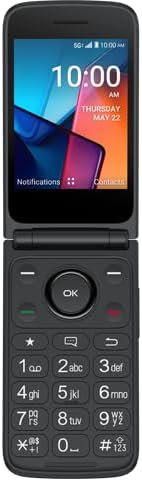
Figure 1: Front view of the TCL FLIP 4 5G phone when open, displaying the internal screen and the physical keypad.
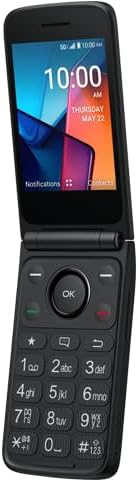
Figure 2: Angled view of the TCL FLIP 4 5G phone in its open position, highlighting the screen and keypad layout.
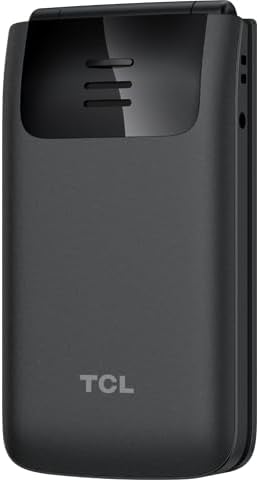
Figure 3: Rear view of the TCL FLIP 4 5G phone when closed, showing the external display, camera, and TCL branding.
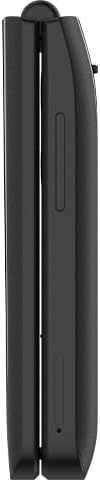
Figure 4: Side view of the closed TCL FLIP 4 5G phone, illustrating the device's slim profile and side buttons.
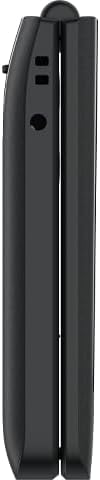
Figure 5: Opposite side view of the closed TCL FLIP 4 5G phone, showing additional ports or buttons.
Setup
1. Installing the Battery and SIM Card:
- Gently remove the back cover of the phone.
- Insert your SIM card(s) into the designated slot(s). Ensure the gold contacts face downwards and the notched corner is correctly aligned.
- Insert the battery into its compartment, aligning the gold contacts on the battery with those in the phone.
- Replace the back cover, pressing firmly until it clicks into place.
2. Charging the Phone:
- Connect the charger to your phone's charging port.
- Plug the charger into a power outlet.
- Allow the phone to charge completely before initial use. The battery indicator on the screen will show charging status.
Operating Your Phone
1. Power On/Off:
- To power on, press and hold the Power/End Call button until the screen lights up.
- To power off, press and hold the Power/End Call button, then select "Power off" from the options.
2. Making Calls:
- Open the phone to access the keypad.
- Dial the desired phone number using the numeric keypad.
- Press the Green Call button to initiate the call.
- To end a call, press the Red End Call button or close the phone.
3. Sending Messages:
- From the main menu, navigate to "Messages".
- Select "New Message" or "Create Message".
- Enter the recipient's phone number or select from your contacts.
- Type your message using the keypad.
- Press the "Send" option to transmit the message.
4. Using the Camera:
- Access the camera application from the main menu.
- Frame your shot using the internal display.
- Press the "OK" button or a designated camera button to capture a photo or start/stop video recording.
- Photos and videos are saved to the phone's gallery.
5. Internet and Applications (KaiOS):
- Your phone runs on KaiOS, providing access to essential applications.
- Navigate through the menu to find apps like Web Browser, Weather, News, and more.
- Use the directional keys and "OK" button to interact with applications.
Maintenance
- Keep your phone dry. Liquids can damage the device.
- Use only approved chargers and accessories.
- Avoid extreme temperatures.
- Clean the screen and keypad with a soft, dry cloth.
- Do not attempt to disassemble or repair the phone yourself. Refer to authorized service centers.
Troubleshooting
| Problem | Solution |
|---|---|
| Phone does not power on. | Ensure the battery is correctly installed and charged. Connect the charger and try again. |
| Cannot make or receive calls. | Check if the SIM card is properly inserted and activated. Verify network signal strength. Contact your service provider if issues persist. |
| Poor call quality. | Move to an area with better network coverage. Ensure the earpiece/microphone is not obstructed. |
| Battery drains quickly. | Reduce screen brightness, close unused applications, and limit background data usage. |
Specifications
| Model Name | TCL Flip 4 5G |
| Item Model Number | T440W |
| Brand | TCL |
| Operating System | KaiOS |
| Screen Size (Internal) | 3.2 Inches |
| External Display Size | 1.77 Inches |
| Resolution | 480 x 320 |
| Memory Storage Capacity | 32 GB |
| Cellular Technology | 5G |
| Wireless Carrier | T-Mobile |
| Battery Capacity | 3000 Milliamp Hours |
| Item Weight | 6.4 ounces |
| Color | Gray |
| Manufacturer | TCL |
Warranty and Support
For warranty information and customer support, please refer to the documentation provided with your purchase or visit the official TCL support website. Keep your proof of purchase for warranty claims.
Related documentsT440W


Ask a question about this manual
Ask about setup, troubleshooting, compatibility, parts, safety, or missing instructions. Manuals+ will review the question and use this page’s manual context to help answer it.