
1. Introduction
Thank you for choosing the Tukio TX02 Apple MFi Certified Air Tracker Tags. These Bluetooth trackers are designed to help you locate your valuable items quickly and efficiently using the Apple Find My network. This manual provides essential information for setup, operation, maintenance, and troubleshooting to ensure optimal performance of your device.

Image: The Tukio Smart Tracker Tag highlighting its core features: Worldwide Tracking, One-Click Search, MFi Certification, and Lost Reminder.
2. Package Contents
Please verify that all items listed below are included in your package:
- 4 x Tukio TX02 Tracker Tags
- 4 x Protective Silicone Cases
- 4 x Key Rings
- 4 x Lanyards
- 1 x User Manual
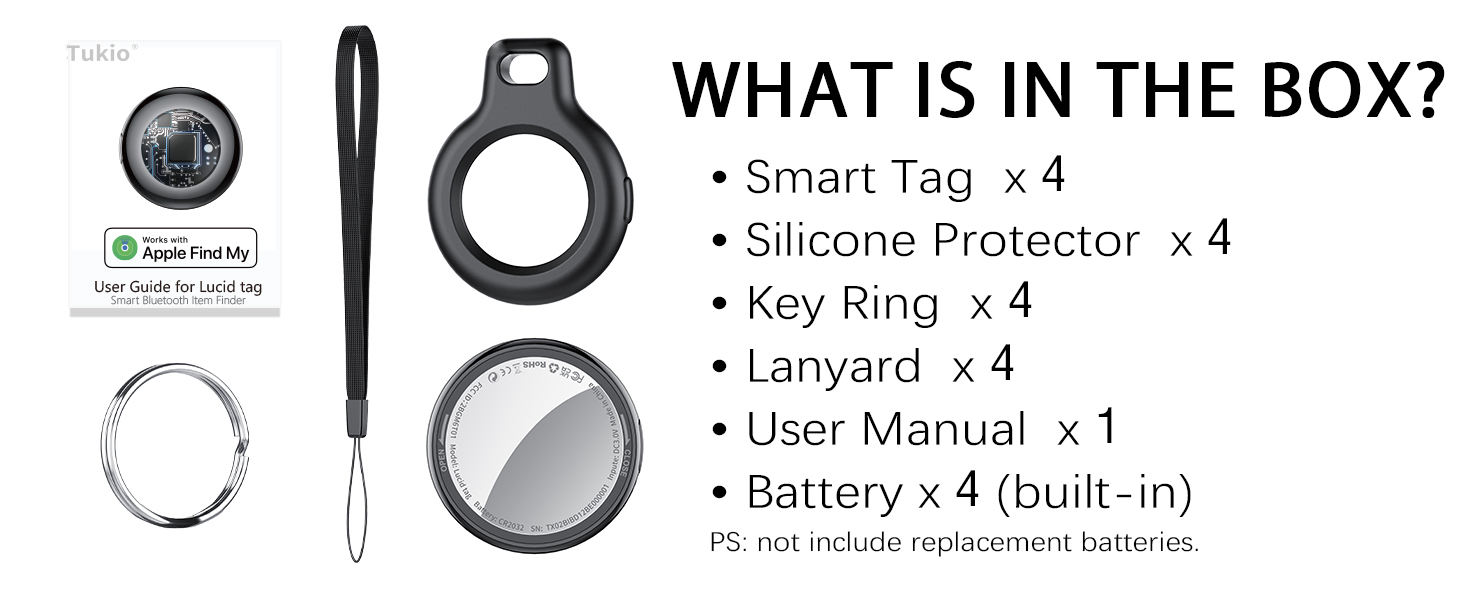
Image: Visual representation of the package contents, including the tracker tags, silicone cases, key rings, lanyards, and user manual.
3. Setup
The Tukio TX02 Tracker Tags are designed for easy integration with your iOS devices. Follow these steps to set up your tags:
3.1 Powering On and Pairing
- Ensure Bluetooth is Active: On your iPhone or iPad, open the Settings app and ensure Bluetooth is turned on.
- Open Find My App: Launch the pre-installed Find My app on your iOS device.
- Add New Item: Navigate to the Items tab within the Find My app. Tap the + (plus) sign and select Add Other Item.
- Activate Tracker: Press and hold the function button on the side of the Tukio TX02 Tracker Tag for 2 seconds until you hear a beep. This activates the tracker for pairing.
- Connect: Place the tracker tag close to your iPhone. The Find My app will detect the "Lucid tag". Tap Connect and follow the on-screen prompts to name your item and assign an emoji. Tap Continue until setup is finished.

Image: Step-by-step visual instructions for connecting your Tukio TX02 tracker tag to your iPhone via the Apple Find My app.
Video: An official video from Tukio-Store demonstrating how to connect the Lucid Tag Bluetooth Tracker with Apple Find My.
3.2 Attaching the Tracker
Use the provided protective silicone cases, key rings, and lanyards to securely attach your Tukio TX02 Tracker Tags to various items:
- Keys: Use a key ring to attach the tracker to your key set.
- Bags/Luggage: Insert the tracker into a silicone case and use the lanyard or key ring to secure it to zippers or handles.
- Wallets: The compact design allows the tracker to fit discreetly into most wallet compartments.

Image: Examples of how to attach the Tukio tracker tags to everyday items like backpacks, luggage, keys, and handbags.
4. Operating Instructions
Once your Tukio TX02 Tracker Tags are set up, you can utilize various features within the Apple Find My app to locate your items.
4.1 Locating Nearby Items (Within 200 feet)
If your item is within Bluetooth range (approximately 200 feet), you can:
- Play Sound: Open the Find My app, select your item, and tap Play Sound. The tracker will emit an 80-100dB beep to help you pinpoint its location.
- Ask Siri: Simply say "Hey Siri, where are my [item name]?" to have Siri help you locate the item.

Image: The Find My app interface showing options to play a sound or get directions to a nearby item.
4.2 Locating Far Away Items (Beyond 200 feet)
When your item is outside Bluetooth range, the Apple Find My network, composed of hundreds of millions of Apple devices worldwide, can help locate it. The app will display the last known location of your item on a map.
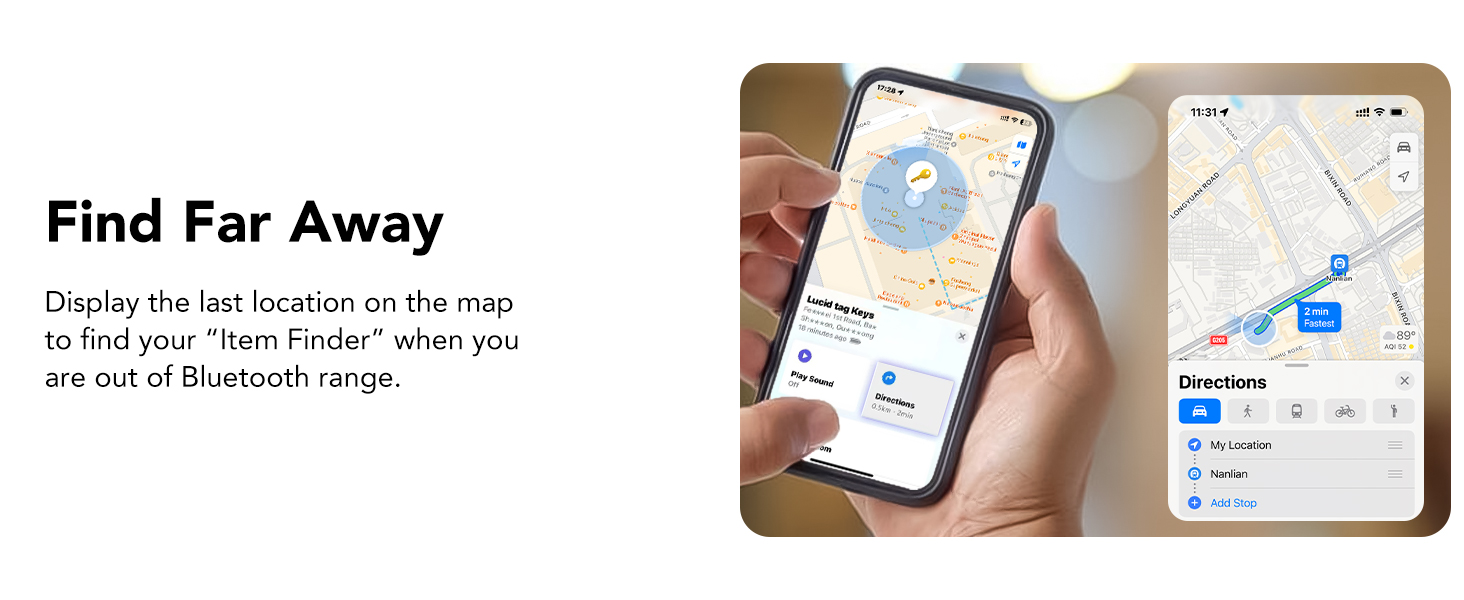
Image: The Find My app displaying the last known location of a tracker tag on a map, useful when the item is far away.
4.3 Left-Behind Remind and Lost Mode
- Left-Behind Remind: Your iOS device will send you a notification if your tracker tag goes out of Bluetooth range, showing its last known location.
- Lost Mode: If an item is truly lost, you can activate Lost Mode in the Find My app. This allows anyone who finds your tag to securely access your contact information (if you've provided it) by tapping their Apple device to the tag, helping them return your item.

Image: A notification on an iPhone indicating that a Tukio tracker tag has been left behind.

Image: The 'Lost Mode' interface in the Find My app, allowing users to enable contact information sharing for a lost tracker tag.
4.4 Sharing Items (iOS 17+)
With iOS 17 or later, you can share the location of your tracker tags with up to 5 other individuals in the Find My app. This is ideal for items used by multiple family members or friends. Both parties must be using iOS 17/iPadOS 17/macOS 14 or above.
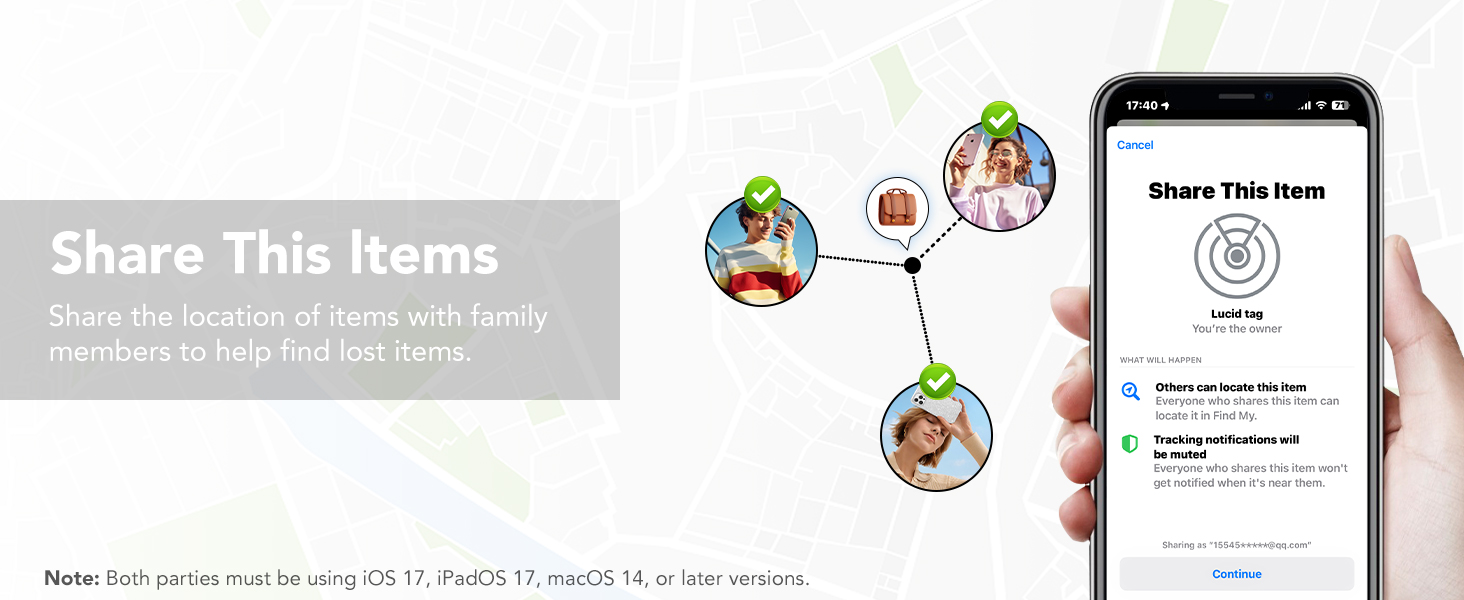
Image: The 'Share This Item' feature in the Find My app, illustrating how to share the location of a tracker tag with others.
5. Maintenance
5.1 Battery Replacement
Each Tukio TX02 Tracker Tag uses one CR2032 3V coin cell battery, which provides up to 1 year of uninterrupted use. The Find My app will notify you when the battery is low. To replace the battery:
- Hold the back cover with both thumbs and turn it counter-clockwise to open.
- Remove the old CR2032 battery.
- Insert a new CR2032 battery with the positive (+) side facing up, ensuring the battery logo is facing up and the '+' sign is aligned with the power port.
- Locate the notch on the back cover, align it with the position on the left, then close the cover and turn it clockwise to secure.

Image: Visual instructions detailing the four steps to easily replace the CR2032 battery in your tracker tag.
Video: An official video from Tukio-Store demonstrating the process of replacing the battery in a Lucid Tag.
5.2 Waterproof and Dustproof
The Tukio TX02 Tracker Tags have an IP67 rating, meaning they can withstand immersion in water up to 3 feet (1 meter) for 30 minutes. This makes them suitable for outdoor activities and provides protection against dust and splashes. However, prolonged submersion or exposure to high-pressure water is not recommended.
6. Troubleshooting
Refer to the table below for common issues and their solutions:
| Functionality | Operation | Alert Tone | Note |
|---|---|---|---|
| Power on | Press and hold button for 2 seconds | Beep | |
| Power Off State | Press and hold button for approximately 6 seconds | Beep-beep-beep | You will hear three consecutive beeps. |
| Pairing Successful Status | After app connection is successful | Beep, Beep, Beep, Beep, Beep, Beep, Beep, Beep, Beep, Beep, Beep, Beep | The device will "beep, beep" twice. It rings twelve times in total, then stops playing the sound. |
| Temporarily Disable the Alarm Sound | Tap "Play Sound" on the app to activate the alarm. Tap "Stop Sound" on the app to pause the alarm. Press and hold the button for 2 seconds to pause the alarm sound. | Beep | The "beep" is rather abrupt and follows immediately after the sound of the alarm being played. It requires careful listening to detect. |
| Remove Item | Removing items will trigger an audible alert. | Beep, Beep, Beep | After removing the device, it will not automatically power off and will remain in pairing mode. If no pairing occurs within 2 minutes, it will automatically power off. |
| Reset | Press and hold the button continuously until you hear "beep, beep, beep, beep, beep, beep". Then continue holding the button for another 5 seconds until you hear a long beep. The total hold time is approximately 15 seconds. | Beep, Beep, Beep, Beep, Beep, Beep----- | Unable to play sounds, etc. (prompt will appear). Requires reconnecting and pairing. Must remove the item and reconnect. |
| Lost Mode | Press and hold for 5 seconds. You will hear two consecutive "beep, beep" sounds. | Beep, Beep | Lost Mode Status: When the locator is nearby, Lost Mode cannot send contact information. This feature is only available for items that are lost and not located near you. |
| Stop sharing location (Power off) | Press and hold for 6 seconds. You will hear three consecutive beeps: "beep, beep, beep, beep, beep". | Beep, Beep, Beep | You will hear three consecutive beeps: "beep, beep, beep, beep, beep". Stop sharing your location. |
7. Specifications
- Model Number: TX02
- Dimensions: 1.26"L x 1.26"W x 0.36"Th (32mm x 32mm x 8.5mm)
- Weight: 0.988 ounces (approx. 7g per tag)
- Connectivity: Bluetooth 5.3
- Battery: 1 x CR2032 3V coin cell battery (included, replaceable)
- Battery Life: Up to 1 year
- Waterproof Rating: IP67 (up to 3 feet for 30 minutes)
- Volume Level: 80-100 dB
- Bluetooth Range: Up to 55-60 meters (180-196 feet) in open areas
- Material: Plastic, Polycarbonate (PC)
- Compatibility: iOS devices only (iPhone, iPad, Mac with Find My app)
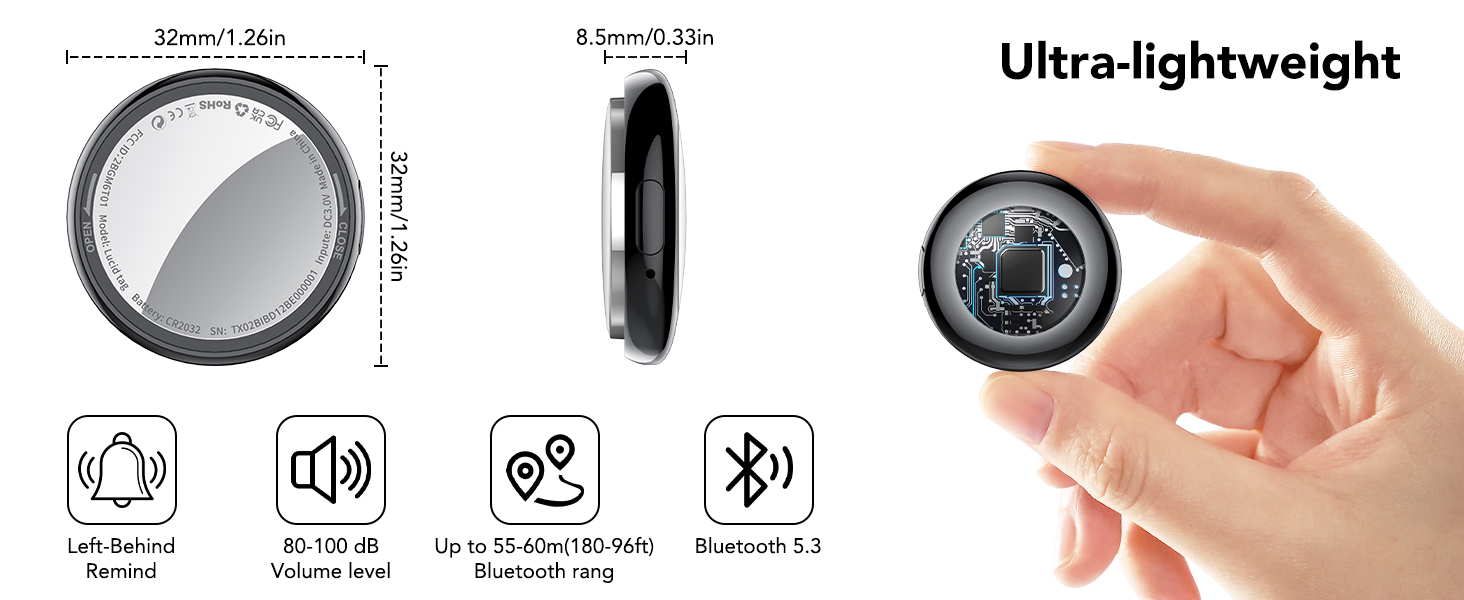
Image: Key specifications and dimensions of the ultra-lightweight Tukio TX02 tracker tag.
8. Warranty & Support
8.1 Warranty Information
Tukio TX02 Air Tracker Tags come with a 2-year warranty from the date of purchase, covering manufacturing defects. Please retain your proof of purchase for warranty claims.
8.2 Customer Support
Our dedicated after-sales team is always available to assist you with any questions or issues you may encounter. For prompt assistance, please follow these steps:
- Go to your order page on Amazon.
- Find the order number for your Tukio TX02 Air Tracker Tags.
- Contact the seller directly through the Amazon platform.
We are committed to providing friendly and efficient customer service.


