
VOPLLS B0G25F9S1V
VOPLLS 1080P Full HD Mini Projector Instruction Manual
Model: B0G25F9S1V
1. Introduction
This manual provides essential information for the safe and efficient operation of your VOPLLS 1080P Full HD Mini Projector. Please read it thoroughly before using the product and retain it for future reference.
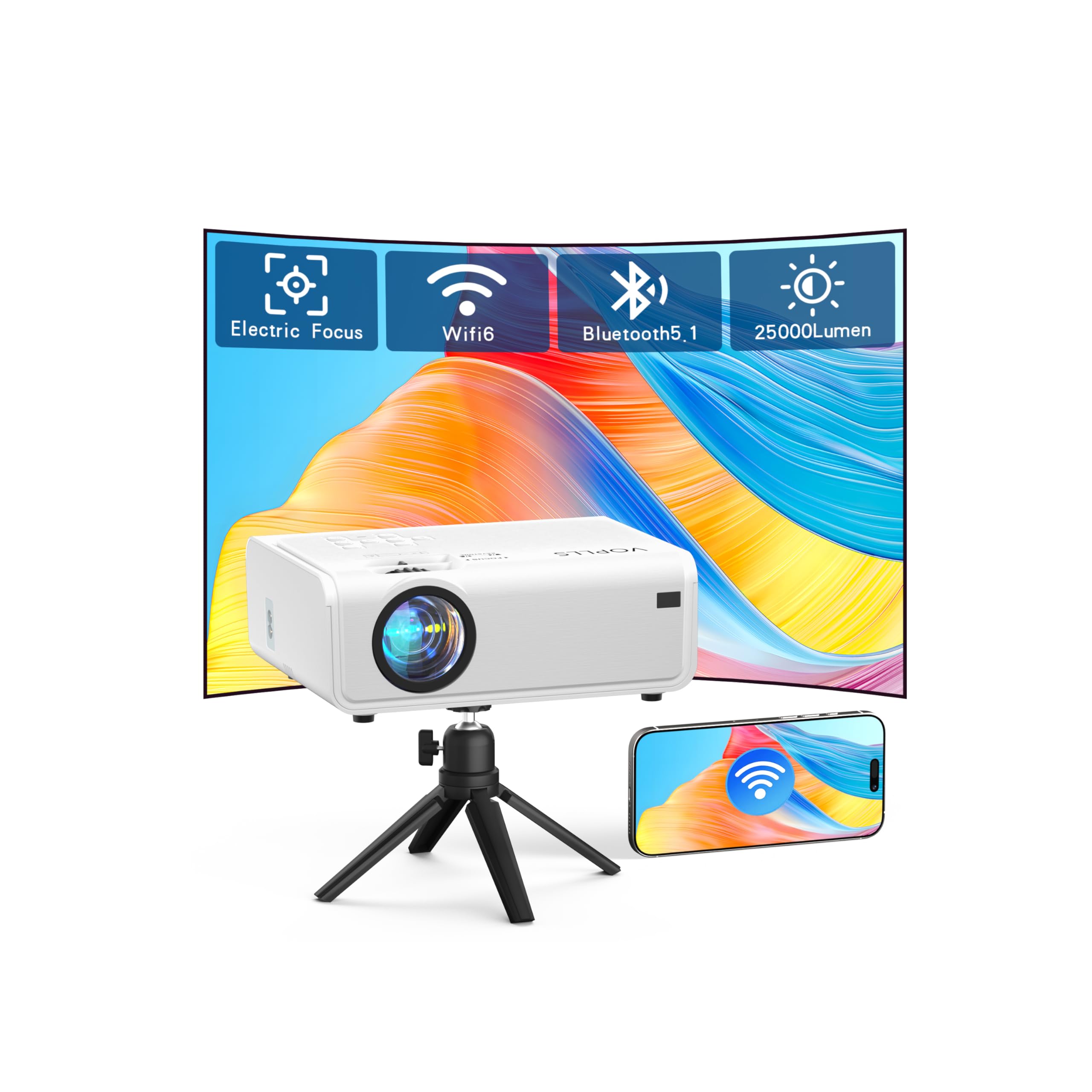
Image: The VOPLLS 1080P Full HD Mini Projector, a compact white device designed for home theater use.
2. Package Contents
Verify that all items listed below are included in your package:
- 1 x 1080P Projector
- 1 x Lens Cap
- 1 x Projector Stand (Tripod)
- 1 x Power Cord
- 1 x HDMI Cord
- 1 x AV Signal Cord
- 1 x Remote Control
- 1 x User Manual (this document)
3. Product Overview
The VOPLLS Mini Projector delivers a native 1080P Full HD resolution with 25000 lumens brightness and a 12000:1 contrast ratio. It features advanced connectivity options and image adjustment capabilities.
Key Features:
- Native 1080P Resolution: Provides sharp and detailed images.
- High Brightness & Contrast: 25000L brightness and 12000:1 contrast for vivid visuals.
- WiFi 6 Connectivity: Supports 2.4GHz and 5GHz networks for fast, smooth wireless mirroring.
- Bluetooth 5.1: Dual-channel Bluetooth for connecting external audio devices.
- 6D/4P Digital Keystone Correction: Adjusts image shape with ±50° vertical/horizontal/rotational correction.
- 50% Zoom Function: Reduces image size without moving the projector.
- Multiple Interfaces: HDMI, USB, AV for broad device compatibility.
- Built-in Hi-Fi Stereo Speaker: Integrated audio for convenience.
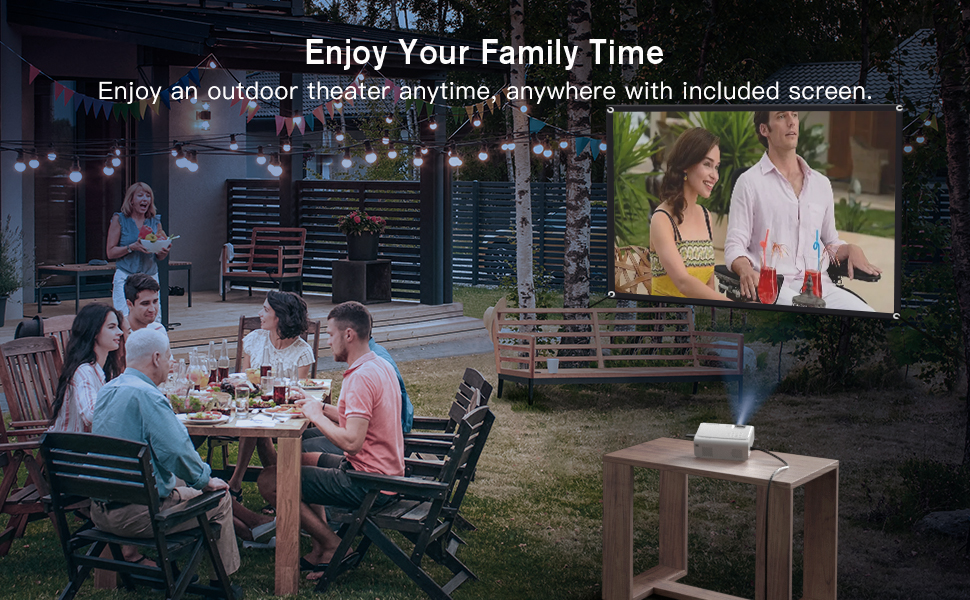
Image: The VOPLLS projector highlighting its features: Native 1080P, Dual-band WiFi, Bluetooth 5.1, HiFi Stereo, 100%-50% Zoom, and Keystone Correction.
4. Setup
4.1 Placement
Position the projector on a stable, flat surface or mount it on the included tripod. Ensure the projection surface (wall or screen) is clean and smooth. The optimal projection distance ranges from 3.9 feet to 16.4 feet, allowing for an image size between 50 inches and 300 inches.
4.2 Power Connection
- Connect the power cord to the projector's power input port.
- Plug the other end of the power cord into a standard electrical outlet (AC 240 Volts).
4.3 Initial Power On
Press the power button on the projector or the remote control to turn on the device. The VOPLLS logo will appear, followed by the main interface.
5. Operating Instructions
5.1 Basic Operation
- Power On/Off: Use the power button on the projector or remote.
- Navigation: Use the arrow keys and OK button on the remote control to navigate menus.
- Source Selection: Press the "Source" button on the remote to select input sources (HDMI, USB, AV).
5.2 Focus Adjustment
The projector features electric focus. Use the focus adjustment buttons on the remote control to sharpen the image until it is clear.

Image: The VOPLLS projector connected to a Bluetooth speaker, projecting a birthday cake image outdoors, demonstrating its two-way Bluetooth 5.2 capability.
6. Connectivity
6.1 Wireless Connectivity (WiFi & Bluetooth)
- WiFi 6: Connect to 2.4GHz or 5GHz networks for screen mirroring from compatible smartphones, tablets, and laptops. Navigate to the WiFi settings in the projector menu to connect.
- Bluetooth 5.1: Pair with Bluetooth headphones or speakers for enhanced audio. Access Bluetooth settings in the projector menu to scan and connect to devices.
Note:
- Due to copyright restrictions, streaming services like Netflix, Prime Video, and Hulu cannot be mirrored directly from smartphones/tablets. Use a TV Stick (e.g., Roku, Amazon Fire Stick) connected via HDMI for these applications.
- Google phones may experience mirroring incompatibility due to their specific mirroring protocol.
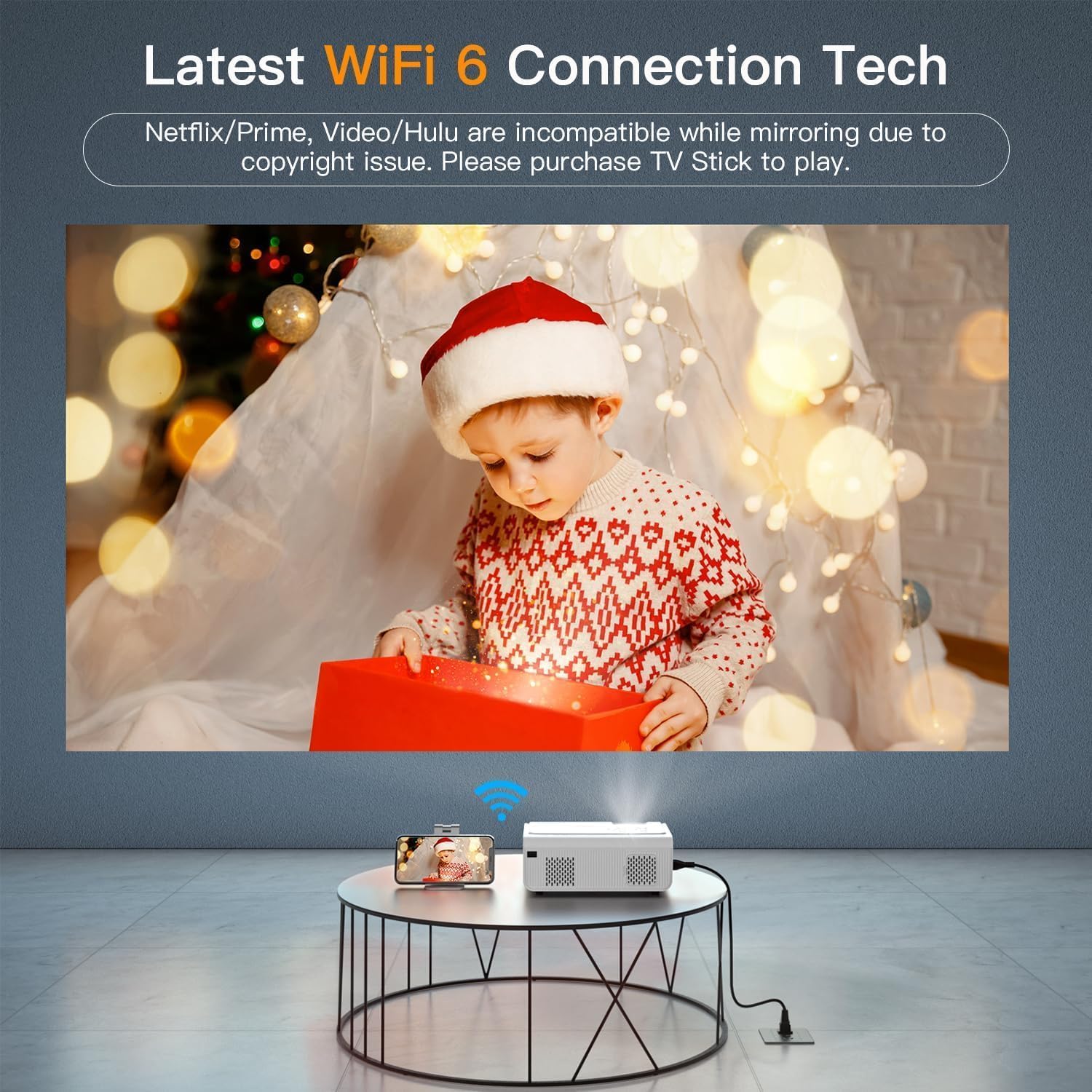
Image: The VOPLLS projector wirelessly connected to a smartphone, projecting content onto a wall, illustrating WiFi 6 connection technology.
6.2 Wired Connectivity (HDMI, USB, AV)
The projector is equipped with HDMI, AV, and dual USB interfaces for connecting various devices:
- HDMI: Connect TV Boxes, Laptops, PS5, Roku, and other HDMI-enabled devices.
- USB: Play media files (PPT, EXCEL, WORD, videos, photos) directly from a USB drive. Also compatible with laptops for presentations.
- AV: Connect older devices using the provided AV signal cord.

Image: An illustration showing the VOPLLS projector's compatibility with various devices including iOS, Android, Laptop/PC, PS5, USB Drive, and DVD players.
7. Keystone Correction & Zoom Function
Adjust the projected image to achieve a perfect rectangular shape and desired size.
7.1 6D/4P Digital Keystone Correction
This function allows you to correct distorted images when the projector is not perfectly aligned with the screen. You can adjust the four corners of the image independently by navigating to the "Keystone" settings in the projection menu. The projector supports ±50° vertical, horizontal, and rotational correction.
7.2 Zoom Function (50% to 100%)
The zoom function enables you to reduce the image size from 100% down to 50% without physically moving the projector. Use the zoom controls on the remote or in the projection menu to adjust the size.

Image: A visual representation of the 4-Point and Digital Keystone Correction, showing adjustments for vertical, horizontal, and rotational distortion, along with the 50% zoom function.
7.3 Video Guide: Adjusting Projection Size and Shape
Video: A demonstration on how to adjust the projection size and shape using the VOPLLS projector's settings.
8. Maintenance
- Lens Cleaning: Use a soft, lint-free cloth to gently wipe the projector lens. Avoid abrasive cleaners.
- Dust Removal: Regularly clean the ventilation openings to prevent dust buildup, which can affect performance and lifespan. Use a soft brush or compressed air.
- Storage: When not in use, cover the lens with the provided lens cap and store the projector in a cool, dry place.
9. Troubleshooting
If you encounter issues, refer to the following common solutions:
| Problem | Solution |
|---|---|
| No Power | Ensure the power cord is securely connected to both the projector and a working power outlet. Try a different outlet. |
| No Image | Check the input source selection. Ensure the connected device is powered on and sending a signal. Verify HDMI/AV cables are connected correctly. |
| Blurred Image | Adjust the focus using the remote control until the image is clear. Ensure the projection distance is within the recommended range. |
| Distorted Image (Trapezoid) | Use the 6D/4P Digital Keystone Correction function in the projector settings to adjust the image shape. |
| No Sound | Check the volume settings on both the projector and the connected device. Ensure external speakers are properly connected via Bluetooth or 3.5mm audio jack. |
| Screen Mirroring Issues | Ensure both devices are connected to the same WiFi network. For streaming apps (Netflix, Hulu), use a TV Stick. Note potential incompatibility with Google phones. |
For further assistance, please contact VOPLLS customer support.
10. Specifications
| Feature | Detail |
|---|---|
| Brand | VOPLLS |
| Model | B0G25F9S1V |
| Native Resolution | 1920 x 1080 (Full HD) |
| Maximum Display Resolution | 3840 x 2160 Pixels (4K Support) |
| Brightness | 25000 Lumen |
| Contrast Ratio | 12000:1 |
| Connectivity Technology | Bluetooth 5.1, HDMI, USB, Wi-Fi 6 (2.4G/5G) |
| Special Features | 6D/4P ±50° Digital Keystone Correction, 50% Zoom, Built-in Hi-Fi Stereo Speaker |
| Display Type | LCD |
| Light Source Operating Life | 65000 Hours |
| Minimum Throw Distance | 3.9 Feet |
| Maximum Throw Distance | 16.4 Feet |
| Minimum Image Size | 50 Inches |
| Maximum Image Size | 300 Inches |
| Power Consumption | 100 Watts |
| Voltage | 240 Volts (AC) |
| Item Dimensions (L x W x H) | 10"L x 8.66"W x 7.48"H |
11. Warranty & Support
Your VOPLLS Mini Projector comes with a 2-year warranty covering defective product replacement and repair service.
For any questions, technical support, or warranty claims, please contact the VOPLLS support team. They provide quick responses within 24 hours and professional after-sales technical support.
Refer to your purchase documentation or the VOPLLS official website for specific contact details.
Ask a question about this manual
Ask about setup, troubleshooting, compatibility, parts, safety, or missing instructions. Manuals+ will review the question and use this page’s manual context to help answer it.