1. Introduction
This manual provides detailed instructions for the installation, operation, and maintenance of your CAMECHO 4+128GB Car Radio Stereo. Please read this manual thoroughly before using the product to ensure proper function and safety.
2. Applicable Car Models
This head unit is designed for specific Subaru models. Ensure your vehicle matches the compatibility requirements before installation.
- 2008-2012 Subaru Forester (Without Canbus)
- 2008-2011 Subaru Impreza (Without Canbus)
- 2008-2014 Subaru Impreza WRX (Without Canbus)
If your vehicle requires a different power cable or Canbus, please contact customer service for assistance.

Image: Overview of compatible Subaru models and the CAMECHO head unit installed in a Subaru dashboard.
3. What's in the Box
Verify that all components are present before beginning installation:
- 1 x Android Head Unit
- 1 x AHD Rear Camera
- 1 x External Microphone
- 1 x GPS Antenna
- 1 x Radio Antenna
- 1 x Installation Tool
- 1 x Instruction Manual
- 2 x Power Cables
- 1 x RCA Cable
- 2 x USB Cables
- 1 x Original Car USB Cable
- 1 x Rear Camera Input Cable

Image: Detailed view of the packing list and included accessories.
4. Setup & Installation
4.1 Tools Required for Disassembly
- Pry bar
- Screwdriver
4.2 Disassembly Steps
- Use a pry bar to carefully remove the original car frame. Then, pry open the original car's air conditioning vent and remove it.
- Use a screwdriver to unscrew the 4 screws securing the radio on both sides. Remove the original radio. Disconnect all cables between the original radio and the car.
4.3 Installation Steps
- Attach the original car air conditioning vents to the new radio frame.
- Connect the new radio's cables to the original car wiring harness. Ensure all connections are secure.
- Securely fix the entire radio frame into the dashboard. Installation is complete.
Note:
- If the wiring harness does not match, contact customer service to request the correct wiring harness.
- For reversing camera wiring, connect the positive pole of the camera to the car's reversing light positive, and the negative pole to the car's reversing light negative. The reversing trigger is controlled by the stereo and does not require a separate connection. If the camera does not work, adjust the backup camera resolution in Settings > Factory Settings (Password: 1234) > Video Source.
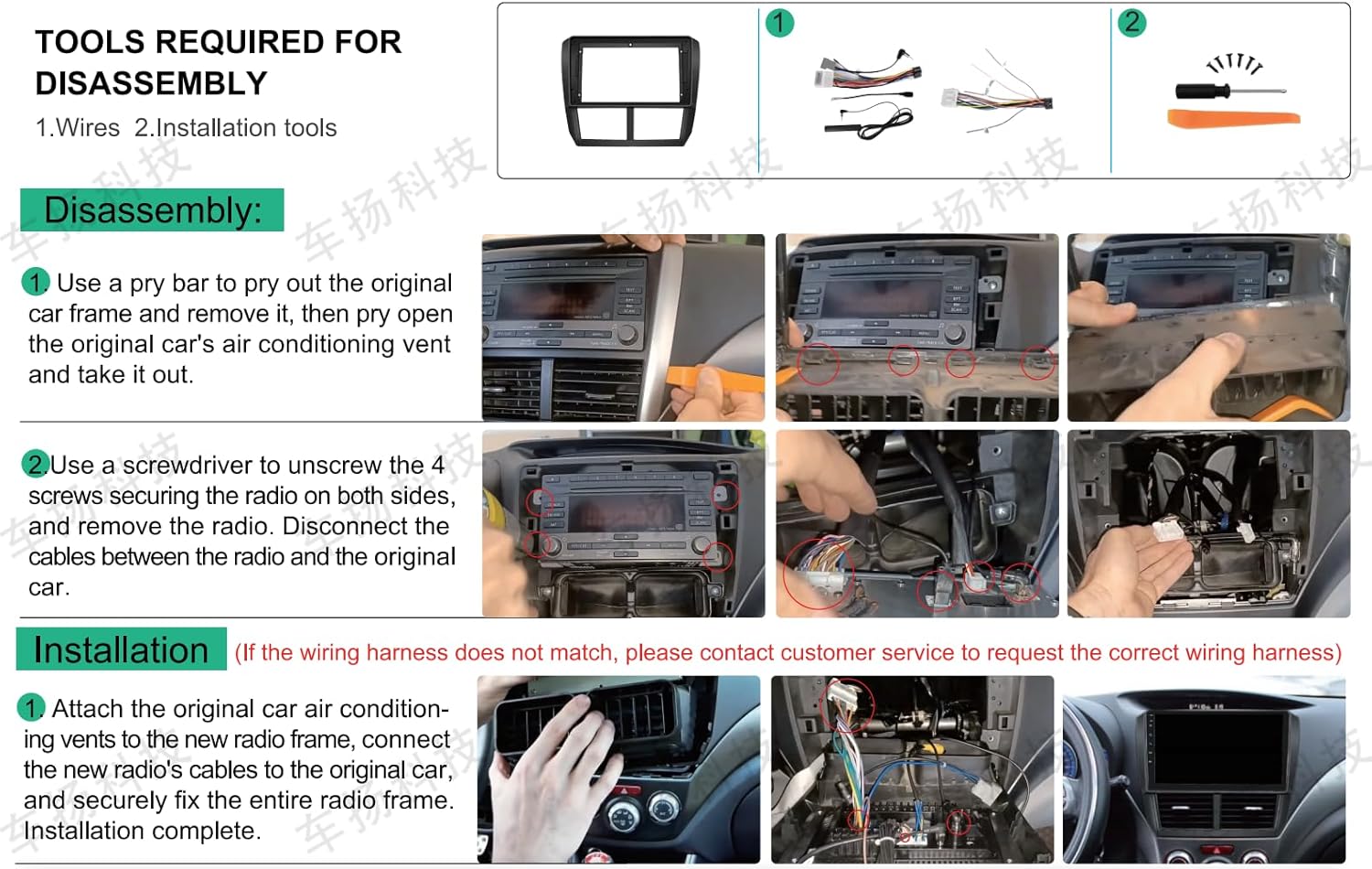
Image: Step-by-step guide for removing the old unit and installing the new CAMECHO stereo.

Image: Reversing camera wiring diagram and troubleshooting tip.
5. Operating Instructions
5.1 Wireless Apple CarPlay & Android Auto
The head unit supports wireless Apple CarPlay and Android Auto for seamless smartphone integration.
Connecting Wireless CarPlay:
- Connect the car radio's Bluetooth (Bluetooth name: "Car BT"). The Bluetooth PIN is 1234. Ensure "phone audio, music audio" is connected.
- Click "SpeedPlay" on the head unit.
- Allow Contacts and Favorites Sync. Allow "Use CarPlay with SpeedPlay".
- Wait for connection. The first connection may take longer.
Connecting Wireless Android Auto:
- Click "SpeedPlay" on the head unit.
- Connect your phone to the rear 4-pin USB port with the original data cable.
- Allow USB debugging on your phone.
- Wait for connection. The first connection may take longer.

Image: Wireless Apple CarPlay and Android Auto interfaces.

Image: Connection instructions for Wireless Apple CarPlay and Android Auto.
5.2 GPS Navigation & WiFi Connection
The unit features a built-in GPS receiver and WiFi connectivity for navigation and online services.
- Online & Offline Maps: Supports both online and offline navigation. You can download maps for offline use.
- WiFi Hotspot: Connect to a WiFi hotspot to download apps (e.g., YouTube, Spotify), browse the internet, and access online maps.

Image: GPS navigation interface and WiFi connectivity options.

Image: Online and offline navigation features.
Image: WiFi hotspot connection for accessing online content.
5.3 Bluetooth & FM RDS Radio
Stay connected and entertained with Bluetooth and FM radio functions.
- Bluetooth 5.0: Supports hands-free calling and wireless music streaming from your Bluetooth-enabled devices.
- FM RDS Radio: Enjoy your favorite radio stations with the high-quality digital stereo (RDS) FM tuner. Supports 18 preset stations.

Image: Bluetooth and FM RDS radio interfaces.

Image: Bluetooth 5.0 for hands-free calls and wireless audio streaming.

Image: FM RDS radio interface.
5.4 Backup Camera & Steering Wheel Control (SWC)
Enhance driving safety with the included AHD backup camera and integrate with your vehicle's steering wheel controls.
- AHD Rear View Camera: Provides a clear image, excellent night vision, and a wide field of view for reversing assistance.
- Steering Wheel Control: The unit supports original steering wheel buttons. After connecting the power cable, navigate to "SteeringWheelKey" in the settings to learn and configure the controls.

Image: Backup camera display and steering wheel control setup screen.

Image: AHD backup camera features: HD, night vision, waterproof, guide lines.

Image: Steering wheel control learning interface.
5.5 Other Features
- Incell Touch Screen: 9-inch Incell 1280*720P touch screen with 68% light transmittance for clear visuals.
- Multiple UI Themes: Customize the home page by selecting applications and desktop themes.
- Split Screen: Operate two functions simultaneously, such as navigation and music playback.
- MirrorLink: Synchronize your phone screen to the head unit. Supports two-way operation for Android and one-way for iOS.
- USB Playback & Charging: Dual USB ports for 1080P video playback and phone charging.
- Subwoofer Output: Supports external subwoofer connection.

Image: Incell screen display and customizable user interfaces.

Image: Details of the 9-inch HD Incell touchscreen.

Image: Split-screen functionality showing two apps running simultaneously.
Image: iOS/Android Mirror Link feature.
6. Maintenance
To ensure the longevity and optimal performance of your CAMECHO Car Radio Stereo, follow these maintenance guidelines:
- Cleaning the Screen: Use a soft, lint-free cloth to gently wipe the touchscreen. For stubborn smudges, slightly dampen the cloth with water or a screen-safe cleaner. Avoid harsh chemicals or abrasive materials.
- Software Updates: Periodically check for available software updates to ensure you have the latest features and bug fixes. Updates can typically be found in the system settings or on the manufacturer's website.
- Environmental Conditions: Avoid exposing the unit to extreme temperatures, direct sunlight for prolonged periods, or excessive moisture.
- Cable Connections: Ensure all cables are securely connected and free from damage. Loose connections can lead to intermittent issues.
7. Troubleshooting
Refer to the following common issues and solutions before contacting support:
| Problem | Possible Cause | Solution |
|---|---|---|
| Unit does not power on | Incorrect wiring; Blown fuse; Power supply issue | Check all power connections. Verify the car's fuse box and the unit's fuse. Ensure the car battery has sufficient charge. |
| No sound | Volume too low; Mute activated; Speaker wiring issue | Increase volume. Check if mute is active. Verify speaker wiring connections. |
| Backup camera not displaying | Incorrect camera wiring; Resolution setting | Ensure camera is correctly wired to the reversing light. Check camera input cable connection. Adjust backup camera resolution in Settings > Factory Settings (Password: 1234) > Video Source. |
| Bluetooth/WiFi not connecting | Antenna not connected; Incorrect pairing; Interference | Ensure the WiFi/Bluetooth antenna is securely connected. Re-pair the device. Check for other devices causing interference. Ensure the white plug is connected to the main device for Bluetooth/WiFi signals. |
| GPS signal weak or inaccurate | GPS antenna placement; Obstruction | Ensure the GPS antenna is placed in an unobstructed location, preferably on the dashboard with a clear view of the sky. |
| Steering wheel controls not working | Not configured; Incorrect wiring | Go to "SteeringWheelKey" in settings and perform the learning function. Verify steering wheel control wiring. |
8. Specifications
| Feature | Detail |
|---|---|
| Operating System | Android 15 |
| Display Size | 9 Inches |
| Display Resolution | 1280 x 720P Incell Touch Screen |
| RAM | 4GB |
| Internal Storage | 128GB |
| Connectivity | Bluetooth 5.0, WiFi, USB |
| Navigation | Built-in GPS, Supports Online & Offline Maps (Worldwide) |
| Special Features | Wireless Apple CarPlay, Wireless Android Auto, MirrorLink, FM RDS Radio, AHD Backup Camera Input, Steering Wheel Control, Split Screen, Subwoofer Output |
| Item Weight | 2.64 pounds |
| Product Dimensions | 10.83 x 2 x 8.27 inches |
9. Warranty & Support
9.1 Warranty Information
This CAMECHO Car Radio Stereo comes with a 1-Year Warranty from the date of purchase. This warranty covers manufacturing defects and malfunctions under normal use. It does not cover damage caused by improper installation, misuse, accidents, or unauthorized modifications.
9.2 Customer Support
For technical assistance, warranty claims, or any questions regarding your product, please contact CAMECHO customer service through the retailer where you purchased the product or visit the official CAMECHO website for support contact information.
When contacting support, please have your product model (4+128GB) and purchase details ready.


