
1. Introduction
The ORICO CB05 Dual USB Flash Drive is a versatile storage solution designed for universal compatibility across various devices. Featuring both USB-C and USB-A connectors, this flash drive allows for seamless data transfer between smartphones, tablets, laptops, and other compatible devices without requiring additional drivers or software. Its robust metal housing and swivel design ensure durability and ease of use.
Key Features:
- Dual Connectivity: Equipped with both USB-C and USB-A 3.0 connectors for broad device compatibility.
- 360° Swivel Design: Allows for easy switching between connectors and protects the unused port.
- High-Speed Data Transfer: Achieves read speeds up to 150MB/s and write speeds up to 70MB/s, significantly faster than USB 2.0.
- Durable Metal Housing: Constructed from zinc alloy with silver electroplating for resistance against scratches, drops, and daily wear.
- Plug-and-Play Functionality: No drivers or software installation required for most operating systems.
- Wide Compatibility: Supports iPhone 15, Android smartphones, iPads, MacBooks, Windows laptops, gaming consoles, and car audio systems.
2. Product Overview
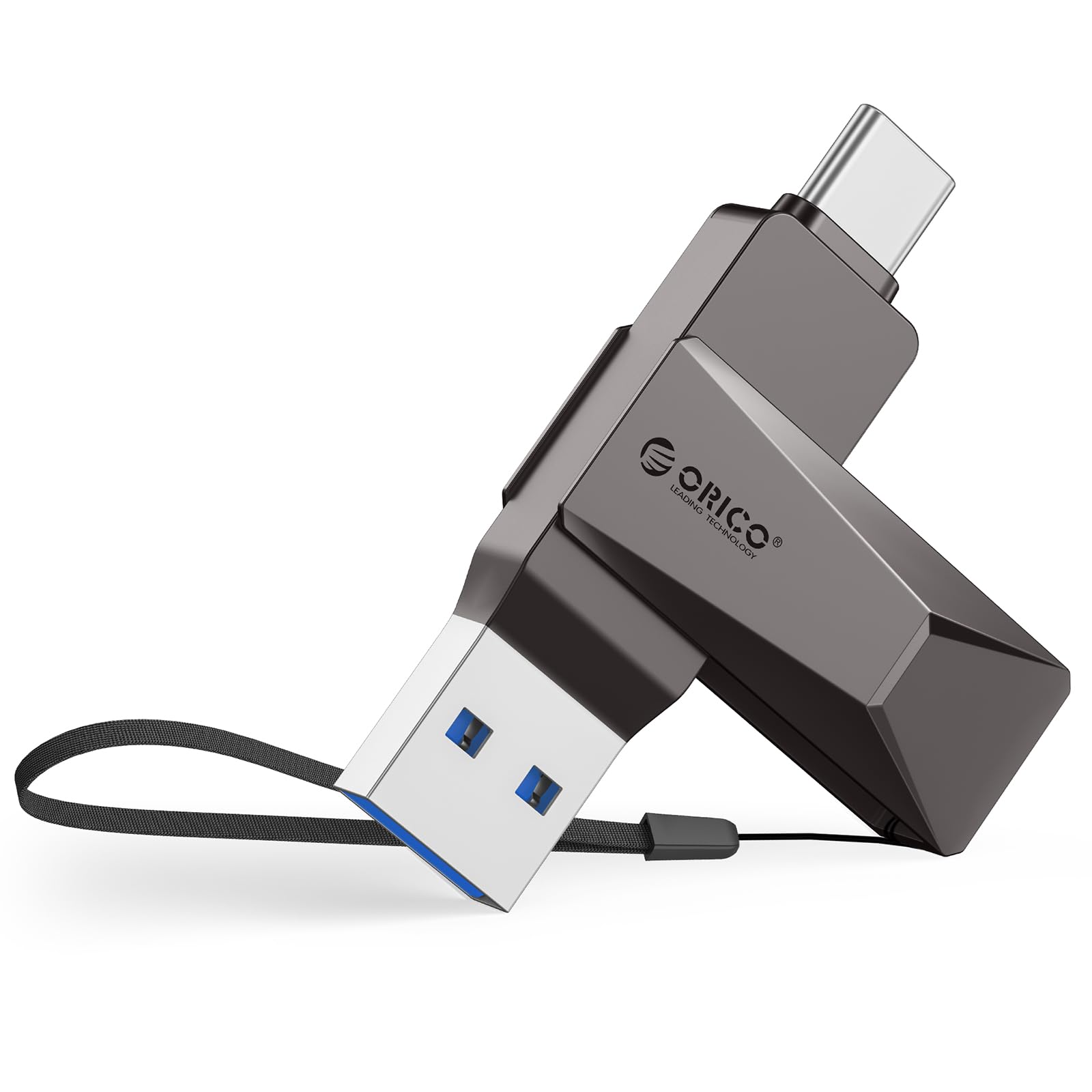
Figure 2.1: The ORICO CB05 128GB Dual USB Flash Drive in Grey, showcasing its compact design.

Figure 2.2: Detail of the dual USB-A and USB-C connectors, highlighting the swivel mechanism.

Figure 2.3: An overview of the ORICO CB05 Dual USB Flash Drive, emphasizing its dual USB-A and USB-C functionality.
3. Setup
Connecting to Devices:
The ORICO CB05 is designed for plug-and-play operation. No special drivers or software are typically required for basic functionality on most compatible devices.
- Identify the correct connector: The flash drive features both a standard USB-A connector and a reversible USB-C connector. Rotate the metal housing to expose the desired connector.
- Insert into device: Plug the appropriate connector firmly into the corresponding port on your smartphone, tablet, laptop, or other compatible device.
- Device Recognition: Your device should automatically detect the flash drive. On computers, it will appear as a removable drive. On smartphones/tablets, you may need to access a file manager application.

Figure 3.1: The ORICO CB05 supports a wide range of devices including PCs, laptops, printers, USB hubs, smartphones, tablets, MacBooks, Nintendo Switch, Smart TVs, and car audio systems.
4. Operating Instructions
File Transfer on Mobile Devices (iOS/Android):
For iOS devices (iPhone 15 series, iPads with USB-C) and Android devices, file management is typically handled through the device's native file manager app.
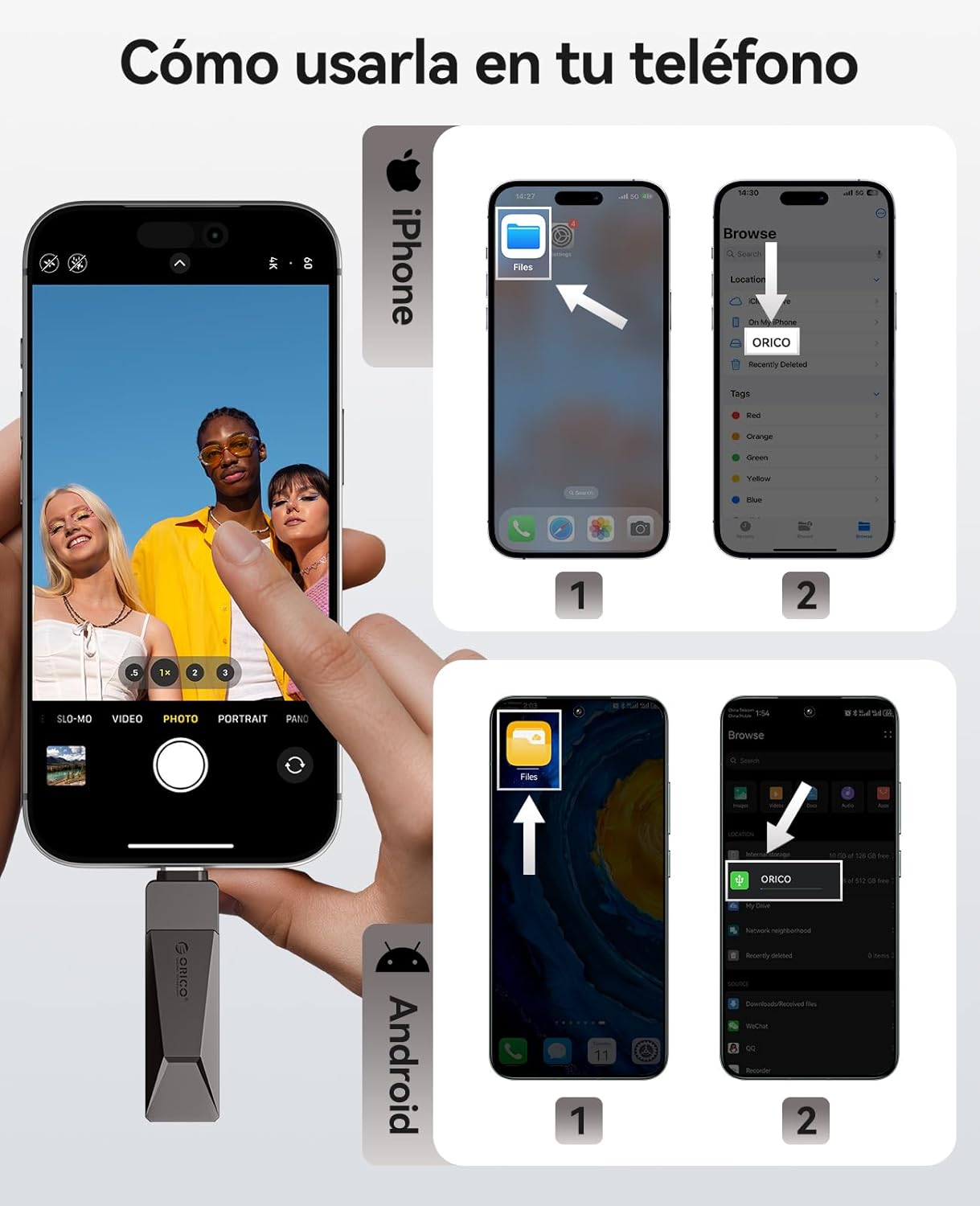
Figure 4.1: Visual guide for connecting and accessing the flash drive on both iPhone and Android devices using their respective file management applications.
iOS Devices (iPhone 15 Series, USB-C iPads):
- Connect the flash drive to your iPhone 15/iPad via the USB-C port.
- Open the 'Files' app on your device.
- Navigate to 'Browse' and select 'ORICO' under Locations.
- You can now view, copy, or move files to and from the flash drive.
Android Devices:
- Connect the flash drive to your Android phone via the USB-C port.
- Open the 'Files' app (or equivalent file manager) on your device.
- The ORICO drive should appear as an external storage device.
- You can now manage files as needed.
File Transfer on Computers (Windows/Mac):
For Windows and Mac computers, the process is straightforward:
- Connect the flash drive to your computer using either the USB-A or USB-C connector.
- The computer will recognize the drive automatically.
- Open 'File Explorer' (Windows) or 'Finder' (Mac) and locate the 'ORICO' drive.
- Drag and drop files to transfer them to or from the flash drive.
Video 4.1: Demonstration of the ORICO CB05's multi-device compatibility and plug-and-play functionality across various platforms without needing app installations.
Video 4.2: A short video illustrating the convenience of using a single ORICO CB05 drive for both USB-A and USB-C storage needs.
5. Performance
The ORICO CB05 utilizes USB 3.0 technology to deliver fast data transfer speeds, optimizing your workflow for large files, 4K videos, and high-resolution photos.

Figure 5.1: The ORICO CB05 offers speeds up to 150MB/s, making it significantly faster than older USB 2.0 drives.

Figure 5.2: Illustrates the high-speed capability, allowing for quick transfer of large files.
Internal Technology:
The drive incorporates TLC NAND Flash technology, which contributes to faster read/write speeds, stable performance, and an extended lifespan compared to traditional QLC flash.

Figure 5.3: The internal TLC NAND Flash ensures superior performance and reliability.
6. Maintenance
The ORICO CB05 is designed for durability with its zinc alloy casing. To ensure longevity and optimal performance:
- Keep Clean: Periodically wipe the exterior with a soft, dry cloth to remove dust and debris. Avoid using harsh chemicals or abrasive materials.
- Protect Connectors: Utilize the 360° swivel design to protect the unused connector from dust and physical damage when not in use.
- Avoid Extreme Conditions: Do not expose the drive to extreme temperatures, humidity, or strong magnetic fields.
- Safe Removal: Always safely eject the flash drive from your device before physically removing it to prevent data corruption.

Figure 6.1: The zinc alloy casing provides shockproof, compression-resistant, X-ray shielding, and dustproof protection.
7. Troubleshooting
If you encounter issues with your ORICO CB05 flash drive, try the following troubleshooting steps:
- Drive Not Recognized:
- Ensure the drive is fully inserted into the USB port.
- Try a different USB port on your device.
- Restart your computer or mobile device.
- For mobile devices, ensure you are using the correct file manager app and that your device supports OTG (On-The-Go) functionality.
- Slow Transfer Speeds:
- Ensure you are connected to a USB 3.0/3.2 Gen 1 port for optimal performance. Connecting to a USB 2.0 port will result in slower speeds.
- Verify that your device's drivers are up to date.
- Large numbers of small files can transfer slower than a single large file of the same total size.
- Performance may vary depending on the host device, file attributes, and other factors.
- Data Corruption:
- Always safely eject the drive before removing it from your device.
- Avoid disconnecting the drive during a file transfer.
- Capacity Discrepancy:
- Labeled capacity uses the decimal system (1GB = 1,000,000,000 bytes). Operating systems like Windows/Mac may show slightly less due to using a binary system (1GB = 1024MB). This is normal and not a defect.
8. Specifications
| Feature | Detail |
|---|---|
| Brand | ORICO |
| Model Name | CB05-128GB |
| Memory Storage Capacity | 128 GB |
| Hardware Interface | USB, USB 3.2 Gen 1 |
| Hardware Connectivity Technology | USB Type A, USB Type C |
| Read Speed | 150 Megabytes Per Second |
| Write Speed | 70 Megabytes Per Second |
| Special Feature | Dual USB Connector, Lightweight |
| Compatible Devices | iPhone 15, Android smartphones, iPads, MacBooks, Windows laptops, gaming consoles, car audio systems |
| Color | Grey |
| Manufacturer | SHENZHEN ORICO TECHNOLOGIES CO.,LTD |
9. Warranty and Support
Warranty Information:
The ORICO CB05 Dual USB Flash Drive is backed by a 36-month manufacturer's warranty. This warranty covers defects in materials and workmanship under normal use. Please retain your proof of purchase for warranty claims.
Customer Support:
For technical assistance, warranty claims, or general inquiries, please contact ORICO customer support through their official website or the retailer where the product was purchased. You can visit the ORICO Store on Amazon for more information and support resources.


