
pericat GC003A
Pericat Smart Projector GC003A User Manual
Model: GC003A
1. Introduction
This manual provides detailed instructions for the setup, operation, maintenance, and troubleshooting of your Pericat Smart Projector GC003A. Please read this manual thoroughly before using the projector to ensure proper function and longevity.
The Pericat Smart Projector GC003A features officially licensed streaming apps, 1800 ANSI lumens brightness, 4K decoding support, native 1080P resolution, Wi-Fi 6, two-way Bluetooth 5.3, electric focus, and auto vertical keystone correction.
2. Package Contents
Verify that all items are present in the package:
- Pericat Smart Projector GC003A
- Remote Control
- Power Adapter
- HDMI Cable
- User Manual
- (Additional accessories may vary)

Image: Pericat Smart Projector GC003A with remote control, power cable, and other accessories.
3. Setup
3.1 Projector Placement
Place the projector on a stable, flat surface or mount it using a tripod. Ensure the lens is facing the projection surface (wall or screen). The optimal projection distance ranges from 2.5 feet to 16.67 feet, allowing for an image size from 30 inches to 200 inches.

Image: The Pericat Smart Projector placed on a table, projecting onto a wall in a living room setting.
3.2 Power Connection
- Connect the power adapter to the projector's power input port.
- Plug the power adapter into a wall outlet.
- Press the power button on the projector or remote control to turn it on. The system should display within 10 seconds.
3.3 Focus and Keystone Correction
The projector features electric focus and auto vertical keystone correction for a clear and properly aligned image.
- Electric Focus: Use the remote control to adjust the focus. Press the designated focus buttons (e.g., F+ / F-) to achieve a sharp image. This process typically takes less than 5 seconds.
- Auto Vertical Keystone Correction: The projector automatically adjusts the vertical image distortion when placed at an angle, ensuring a rectangular projection.

Image: A visual representation of the motorized focus and keystone correction features, showing how the remote control adjusts the image clarity and shape.
Video: Demonstration of the Smart Projector with WiFi and Bluetooth, showcasing its features and ease of use. This video is provided by the seller.
4. Operating Instructions
4.1 Smart Features and Apps
The projector is officially licensed by Netflix and includes pre-installed streaming applications such as Netflix, Prime Video, and YouTube. Users can switch between these platforms directly. A dedicated Netflix button on the remote control provides direct access to the Netflix profile page. The system is designed for quick startup and access to streaming content.
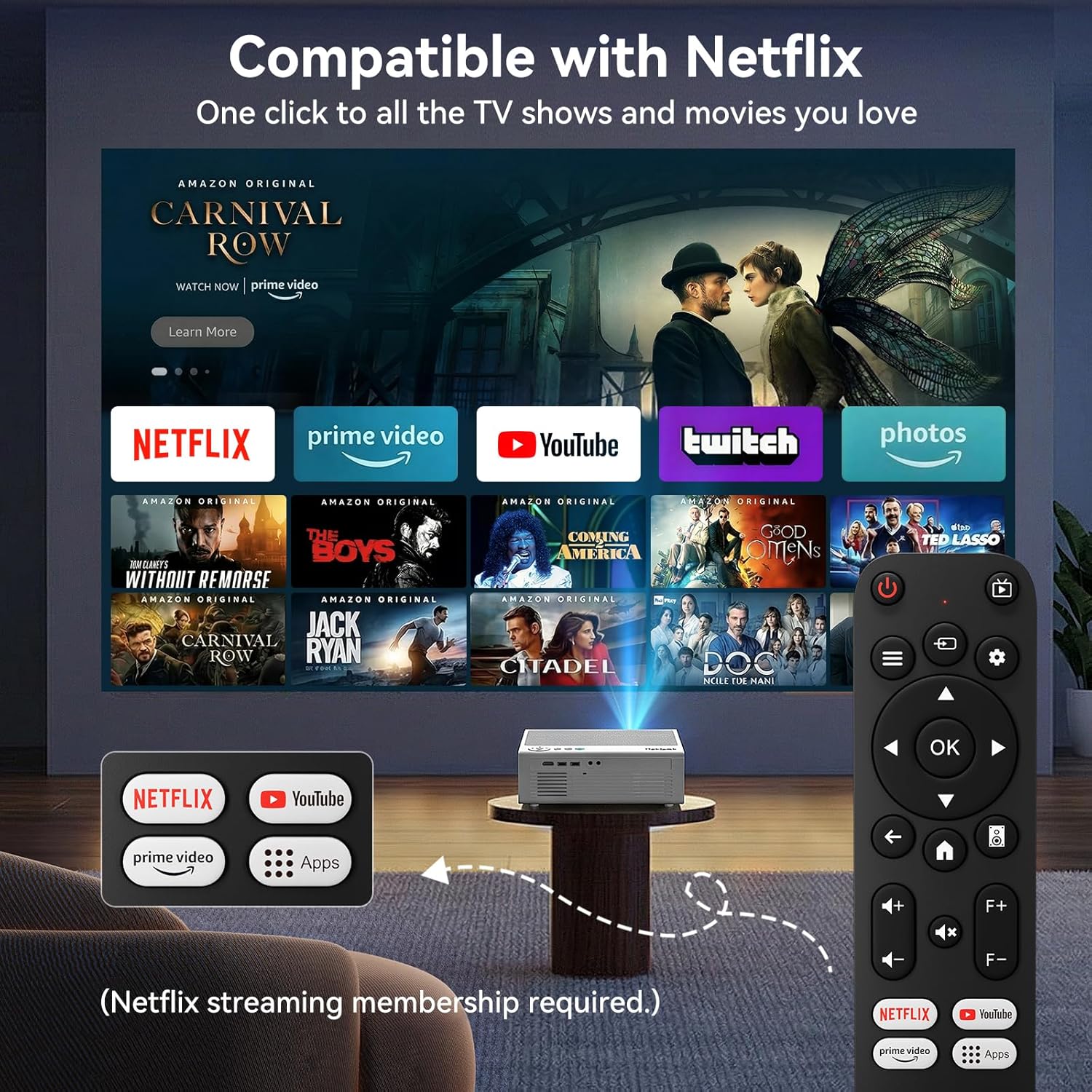
Image: The projector displaying a home screen with various streaming applications like Netflix, Prime Video, and YouTube, controlled by the remote.
4.2 Connectivity (Wi-Fi & Bluetooth)
- Wi-Fi 6: Connect to your home network for high-speed, stable streaming. Navigate to the settings menu to configure Wi-Fi.
- Two-Way Bluetooth 5.3: Pair with external Bluetooth speakers, soundbars, or headphones for enhanced audio. The two-way functionality also allows the projector to receive audio from other Bluetooth devices.

Image: The projector demonstrating Wi-Fi 6 and Bluetooth 5.3 connectivity, showing wireless casting from a smartphone.
4.3 Device Compatibility
The projector supports various input sources:
- HDMI: Connect gaming consoles (PS4/PS5), TV sticks, and laptops.
- USB: Two USB ports for U-disks or other USB devices.
- AV: Connect DVD players or older devices.
- Audio Out: Connect external headsets or speakers via a 3.5mm audio jack.
- Wireless Casting: Supports casting from smartphones (iOS/Android) and tablets.

Image: The projector's rear panel showing various input ports (HDMI, USB, AV) and compatible devices like gaming consoles, TV sticks, tablets, and smartphones.
5. Maintenance
Proper maintenance ensures the longevity and optimal performance of your projector.
- Cleaning the Lens: Use a soft, lint-free cloth specifically designed for optical lenses. Avoid abrasive materials or harsh chemicals.
- Dust Removal: Regularly clean the projector's exterior with a soft, dry cloth. Ensure ventilation ports are clear of dust to maintain efficient heat dissipation.
- Storage: When not in use for extended periods, store the projector in a cool, dry place, away from direct sunlight and extreme temperatures.
- Light Source: The advanced LED light source has a lifespan of up to 100,000 hours, requiring no regular bulb replacement.
- Heat Management: The projector is designed with excellent heat dissipation, allowing for continuous use without overheating.
6. Troubleshooting
If you encounter issues, refer to the following common problems and solutions:
| Problem | Possible Cause / Solution |
|---|---|
| No image or "No Signal" message |
|
| Blurred image |
|
| Distorted image (trapezoid shape) |
|
| No sound or poor audio quality |
|
| Apps not loading or crashing |
|
For further assistance, please contact customer support.
7. Specifications
| Feature | Detail |
|---|---|
| Brand | pericat |
| Model Name | GC003A |
| Native Resolution | 1920 x 1080 (Native 1080P) |
| Display Resolution Maximum | 3840 x 2160 (4K Support) |
| Brightness | 1800 ANSI Lumens |
| Contrast Ratio | 10000:1 Pixels |
| Connectivity Technology | Wi-Fi 6, Bluetooth 5.3, HDMI, USB, AV |
| Display Type | LCD |
| Light Source Operating Life | Up to 100,000 Hours |
| Maximum Image Size | 200 Inches |
| Minimum Image Size | 30 Inches |
| Maximum Throw Distance | 16.67 Feet |
| Minimum Throw Distance | 2.5 Feet |
| Special Features | Built-In Media Player, Built-In Speaker, Built-In Wi-Fi, Digital Keystone Correction, Smart AI Chip, Electric Focus |
| Item Dimensions L x W x H | 9.37"L x 6.97"W x 3.46"H |
8. Warranty and Customer Support
Your Pericat Smart Projector GC003A comes with a 1-year manufacturer's warranty.
For any technical assistance, warranty claims, or product inquiries, please contact our customer support team. We offer 24/7 customer support and lifetime technical support.
Contact information can typically be found on the product packaging or the official Pericat website.

Image: Icons representing 24-hour customer service, 30-day return policy, 1-year replacement warranty, and lifetime support.
Related documentsGC003A


Ask a question about this manual
Ask about setup, troubleshooting, compatibility, parts, safety, or missing instructions. Manuals+ will review the question and use this page’s manual context to help answer it.