
1. Introduction
This manual provides essential information for setting up, operating, and maintaining your HP Envy 6555e Wireless All-in-One Color Inkjet Printer. Please read these instructions carefully to ensure proper use and to maximize the performance and longevity of your device. Keep this manual for future reference.
2. Product Overview
The HP Envy 6555e is a versatile all-in-one printer designed for home and office use, offering print, scan, and copy functionalities. It features wireless connectivity, automatic duplex printing, and an intuitive color touchscreen for ease of use.
Key Features
- All-in-One Functionality: Print, copy, and scan from a single device.
- Wireless Connectivity: Connect via Wi-Fi and Bluetooth for flexible placement and mobile printing.
- Automatic Duplex Printing: Save paper with automatic two-sided printing.
- Color Touchscreen: Easy navigation and control of printer functions.
- Mobile Printing: Effortlessly set up, print, scan, and copy using a dedicated mobile application.
- 35-page Automatic Document Feeder (ADF): For efficient multi-page scanning and copying.
- 100-page Input Tray: Standard paper capacity for daily tasks.
Printer Components
Familiarize yourself with the main components of your HP Envy 6555e printer:

Image: Front view of the HP Envy 6555e printer with key features labeled, including the color touchscreen, automatic 2-sided printing, 100-page input tray, 35-page automatic document feeder, and dual-band Wi-Fi.
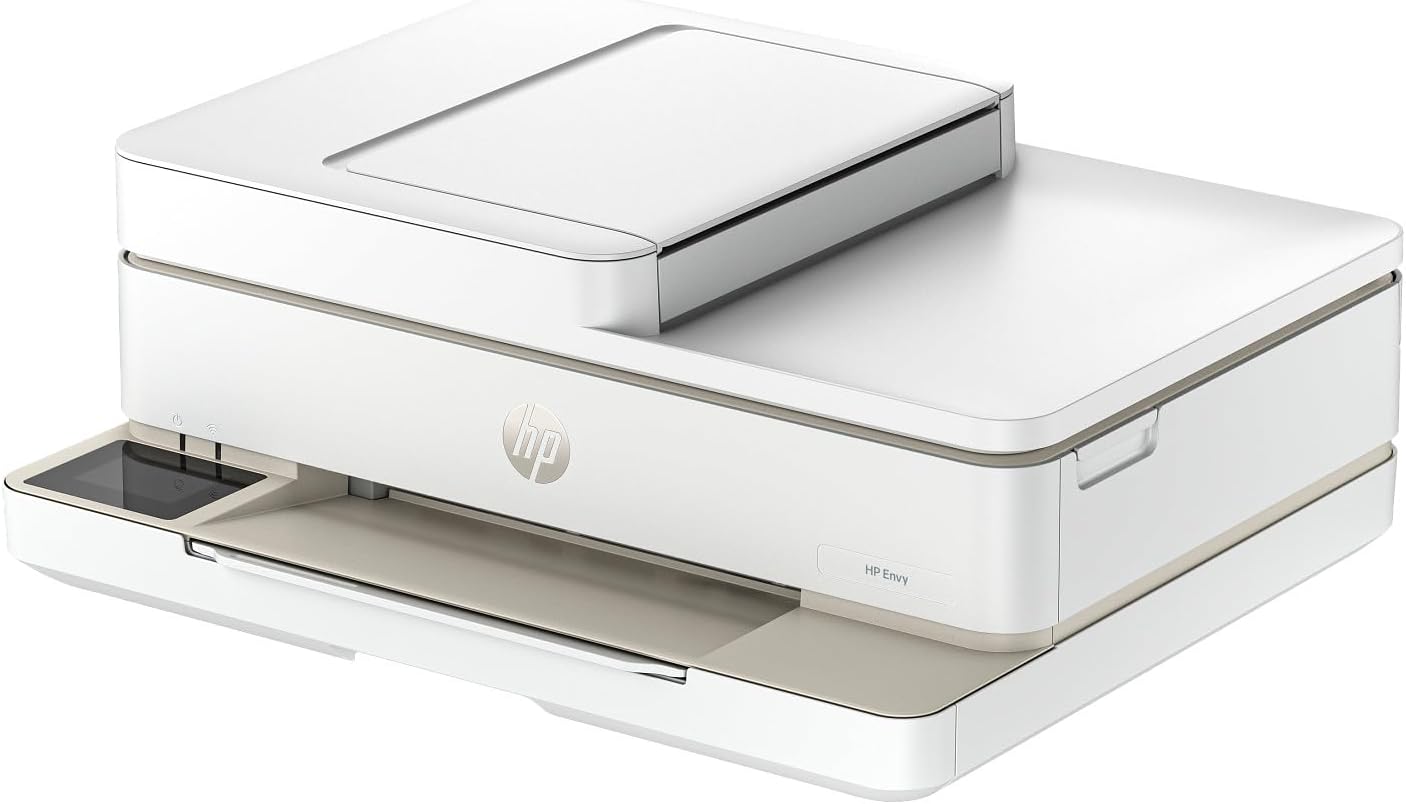
Image: Front view of the HP Envy 6555e Wireless All-in-One Color Inkjet Printer, showing its compact design.

Image: Side view of the HP Envy 6555e Wireless All-in-One Color Inkjet Printer, highlighting its profile.

Image: Back view of the HP Envy 6555e Wireless All-in-One Color Inkjet Printer, showing connectivity ports.
3. Setup
Follow these steps to set up your HP Envy 6555e printer for the first time.
3.1 Unpacking and Initial Placement
- Remove the printer from its packaging.
- Remove all packing materials, tapes, and protective films from the exterior and interior of the printer.
- Place the printer on a stable, flat surface with adequate space for paper loading and output.
3.2 Connecting Power
- Connect the power cord to the back of the printer.
- Plug the other end of the power cord into a grounded electrical outlet.
- Press the Power button to turn on the printer.
3.3 Installing Ink Cartridges
Your printer comes with HP 68 Setup Black Cartridge and HP 68 Setup Tri-Color Cartridge.
- Open the ink cartridge access door.
- Wait for the carriage to move to the center of the printer.
- Unpack the new ink cartridges.
- Insert the black cartridge into the right slot and the tri-color cartridge into the left slot. Push firmly until they click into place.
- Close the ink cartridge access door.
3.4 Loading Paper
- Pull out the input tray.
- Slide the paper width guides outward.
- Load a stack of plain white paper into the input tray with the print side facing down.
- Slide the paper width guides inward until they rest against the edges of the paper.
- Push the input tray back into the printer.
3.5 Connecting to a Network (Wi-Fi)
- On the printer's color touchscreen, navigate to the Wireless Setup Wizard.
- Select your Wi-Fi network from the list of available networks.
- Enter the Wi-Fi password (WPA key or passphrase) when prompted.
- Confirm the connection. The wireless light on the printer should turn solid blue.
3.6 Installing Software and Drivers
For full functionality, install the HP Smart app on your computer or mobile device.
- Visit hp.com/support or your device's app store.
- Download and install the HP Smart app.
- Follow the on-screen instructions in the app to add your printer and complete the setup.

Image: A smartphone displaying the HP Smart app interface, demonstrating mobile printing capabilities.
4. Operating Instructions
This section details how to use the primary functions of your HP Envy 6555e printer.
4.1 Printing Documents
- Ensure the printer is powered on and connected to your device.
- Open the document or image you wish to print on your computer or mobile device.
- Select the 'Print' option from the application's menu.
- Choose your HP Envy 6555e printer from the list of available printers.
- Adjust print settings such as paper size, orientation, number of copies, and print quality.
- For duplex printing, select the 'Print on both sides' or 'Two-sided printing' option in your print settings.
- Click 'Print'.
4.2 Scanning Documents
You can scan documents using the printer's flatbed scanner or the Automatic Document Feeder (ADF).
Using the Flatbed Scanner
- Lift the scanner lid.
- Place the document or photo face down on the scanner glass, aligning it with the guide.
- Close the scanner lid.
- From the printer's touchscreen or the HP Smart app, select 'Scan'.
- Adjust scan settings (e.g., resolution, color, destination).
- Initiate the scan.
Using the Automatic Document Feeder (ADF)
- Load the original document(s) face up into the ADF input tray.
- Adjust the paper guides to fit the document width.
- From the printer's touchscreen or the HP Smart app, select 'Scan'.
- Ensure the ADF is selected as the source.
- Adjust scan settings.
- Initiate the scan.
4.3 Copying Documents
You can make copies directly from the printer's control panel.

Image: Close-up of the HP Envy 6555e's intuitive color touchscreen, showing options like Menu, Copy, and Scan.
- Load the original document on the scanner glass or in the ADF.
- On the printer's touchscreen, press the 'Copy' icon.
- Select the number of copies and adjust settings such as color/black & white, paper size, and quality.
- Press 'Start Copy' or the equivalent button to begin.
5. Maintenance
Regular maintenance ensures optimal performance and extends the life of your printer.
5.1 Replacing Ink Cartridges
When an ink cartridge is low or empty, replace it promptly to avoid print quality issues.
- Ensure the printer is on.
- Open the ink cartridge access door. The carriage will move to the center.
- Gently press down on the old cartridge to release it, then pull it out of its slot.
- Unpack the new HP 68 ink cartridge, being careful to only touch the black plastic.
- Insert the new cartridge into the correct slot (black on the right, tri-color on the left) until it clicks into place.
- Close the ink cartridge access door.
5.2 Cleaning the Printer
Exterior Cleaning
Wipe the exterior surfaces of the printer with a soft, lint-free cloth dampened with water. Avoid using abrasive cleaners or solvents.
Scanner Glass Cleaning
If copies or scans have streaks or smudges, clean the scanner glass:
- Turn off the printer and unplug the power cord.
- Open the scanner lid.
- Wipe the scanner glass and the white backing under the lid with a soft, lint-free cloth lightly dampened with glass cleaner (non-abrasive).
- Allow the surfaces to dry completely before closing the lid and plugging in the printer.
6. Troubleshooting
This section addresses common issues you might encounter with your HP Envy 6555e printer.
6.1 Printer Not Responding
- Ensure the printer is powered on and the power cord is securely connected.
- Check the network connection. For Wi-Fi, ensure the blue wireless light is solid.
- Restart the printer and your computer/mobile device.
- Verify that the correct printer is selected in your print dialog.
6.2 Print Quality Issues (Streaks, Faded Prints)
- Check ink levels and replace any low or empty cartridges.
- Run a print head cleaning cycle from the printer's control panel or the HP Smart app.
- Ensure you are using genuine HP ink cartridges.
- Verify that the paper type setting matches the paper loaded in the tray.
6.3 Paper Jams
- Turn off the printer and unplug the power cord.
- Carefully open all access doors (front, rear, ink cartridge access) and remove any visible jammed paper. Pull paper gently to avoid tearing.
- Check the input tray and output tray for any obstructions.
- Close all doors, plug in the power cord, and turn on the printer.
6.4 Wireless Connection Issues
- Ensure your printer is within range of your Wi-Fi router.
- Restart your router, printer, and computer/mobile device.
- Run the Wireless Setup Wizard again from the printer's touchscreen.
- Check for any firewall settings on your computer that might be blocking the printer.
7. Specifications
Below are the technical specifications for the HP Envy 6555e Wireless All-in-One Color Inkjet Printer.
| Feature | Specification |
|---|---|
| Model Name | HP Envy 6555e All-in-One Printer |
| Functions | Print, Scan, Copy |
| Printing Technology | Inkjet |
| Printer Output | Color |
| Max Print Speed (Monochrome) | 10 ppm |
| Max Print Speed (Color) | 7 ppm |
| Maximum Color Print Resolution | 4800 x 1200 dpi |
| Duplex Printing | Automatic |
| Scanner Type | Flatbed |
| Max Copy Speed (Black & White) | 10 ppm |
| Max Copy Resolution (Black & White) | 600 dpi |
| Connectivity Technology | Bluetooth, Ethernet, Wi-Fi |
| Max Input Sheet Capacity | 100 sheets |
| Supported Media Sizes | 3 x 5 inches, 4 x 6 inches, 3 x 5 to 8.5 x 12 inches (various) |
| Product Dimensions (D x W x H) | 16.7" x 6.06" x 11.97" |
| Item Weight | 18.08 pounds |
| Wattage | 50 watts |
| Included Components | HP Envy 6555e All-in-One Printer; HP 68 Setup Black Cartridge; HP 68 Setup Tri-Color Cartridge; Regulatory flyer; Setup guide; Reference guide; Power cord |
8. Warranty and Support
8.1 Product Warranty
The HP Envy 6555e printer typically comes with a 1-year limited warranty. This warranty covers defects in materials and workmanship under normal use. For specific terms and conditions, please refer to the warranty documentation included with your product or visit the official HP support website.
Note: This product is eligible for a replacement or refund within 1-Year of receipt if it does not look like new or work as expected, as per the Renewed Premium program.
8.2 Customer Support
For technical assistance, troubleshooting, or further information, please contact HP Customer Support:
- Online Support: Visit the official HP Support website at hp.com/support. Here you can find drivers, software, troubleshooting guides, and contact options.
- HP Smart App: The HP Smart app provides guided setup, troubleshooting tools, and direct access to support resources.


