
1. Introduction
Thank you for purchasing the Dinosoo X-Rawr 900 Wireless Gaming Headset. This manual provides essential information for setting up, operating, and maintaining your new headset. Please read it thoroughly to ensure optimal performance and longevity of your device.
2. What's in the Box
- Dinosoo X-Rawr 900 Wireless Gaming Headset
- 2.4GHz Adapter
- 3.28ft Cable (USB-C to USB-A)
- User Manual (this document)
- Detachable Microphone

Image: The Dinosoo X-Rawr 900 Wireless Gaming Headset packaging, displaying the headset and its key features. The box contains the headset, a 2.4GHz adapter, a USB-C to USB-A cable, and a detachable microphone.
3. Product Features
- Game/Chat Audio Balance: Independently adjust the mix between in-game sound and voice chat volume without pausing gameplay.
- Clear Chat: Features a flexible, adjustable boom microphone for clear voice communication. The mic is detachable when not in use.
- Dedicated Low-Latency Connection: Provides a stable, fast, and dedicated connection via the 2.4GHz adapter, offering lower latency than standard Bluetooth.
- Plug-and-Play Functionality: Designed for simple setup on Windows 10/11 PC without needing additional drivers.
- Intuitive Design & Comfort: Lightweight design with ultra-soft earcups and an adjustable headband for extended gaming sessions. Convenient on-ear controls for quick adjustments.
- Dual Microphone: Includes both a built-in microphone and a detachable boom microphone for versatile communication options.
- Multi-Platform Compatibility: Connects to Xbox One, Xbox Series X/S, PS5, Mac, PC, Nintendo Switch, Android, iPhone, and iPad.

Image: A visual breakdown of the headset's features, including ultra-high sound quality (48kHz/16-bit), adjustable steel headband with padding, detachable microphone, comfortable earcups, Neodymium-based drive unit, compact and foldable design, and 3D surround sound capabilities.
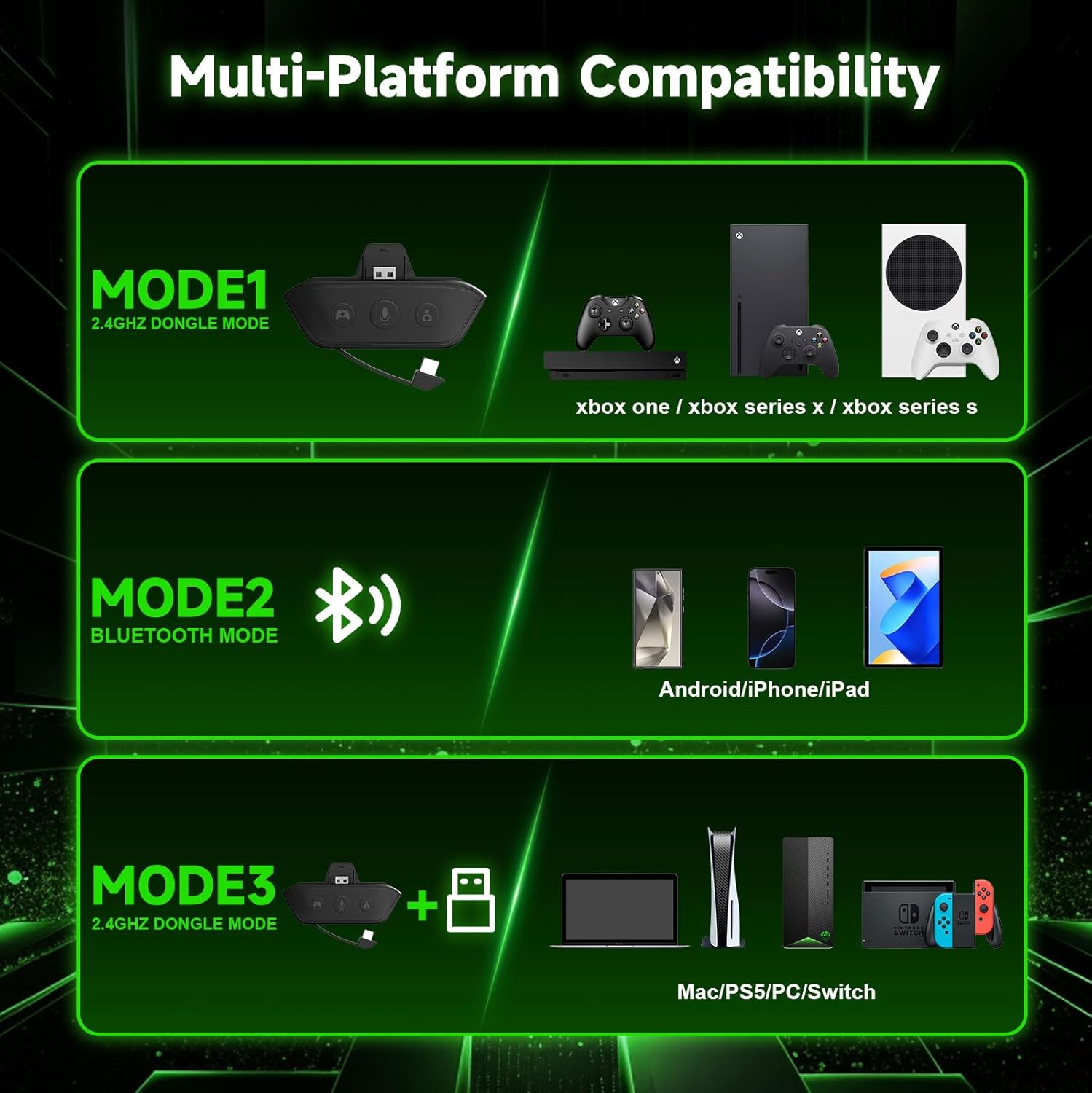
Image: Diagram illustrating the headset's multi-platform compatibility. Mode 1 (2.4GHz Dongle Mode) supports Xbox One, Xbox Series X, and Xbox Series S. Mode 2 (Bluetooth Mode) supports Android, iPhone, and iPad. Mode 3 (2.4GHz Dongle Mode) supports Mac, PS5, PC, and Nintendo Switch.
4. Setup
4.1 Attaching the Microphone
Insert the detachable boom microphone into the 3.5mm jack located on the left earcup. Ensure it is firmly seated.

Image: The headset showcasing its dual microphone system, including a built-in mic and a detachable boom microphone with 360° angle adjustment.
4.2 Connecting to Xbox (2.4GHz Dongle Mode)
- Insert the 2.4GHz adapter into the USB port of your Xbox console.
- Power on your Dinosoo X-Rawr 900 headset by pressing and holding the power button.
- Double-click the power button to switch to Dongle Mode (indicated by a green light).
- The headset will automatically attempt to pair with the adapter. If pairing is not successful, proceed to force pairing.
Force Pairing (Xbox)
- Ensure the headset is powered on and in Dongle Mode (green light).
- Press and hold the microphone mute button on the headset for 3 seconds. The indicator light will flash, signifying it is ready to pair.
- The light will become solid green once pairing is successful.
Video: This video demonstrates the process of connecting the Dinosoo X-Rawr 900 Wireless Gaming Headset to an Xbox console and how to perform a force pair if the initial connection fails. It shows inserting the adapter, powering on the headset, and holding the mic mute button for 3 seconds to initiate force pairing.

Image: The 2.4GHz adapter plugged into an Xbox controller, illustrating its low latency (less than 20ms) and plug-and-play compatibility with all original Xbox controllers, including those without a 3.5mm headset jack.
4.3 Connecting via Bluetooth (Mobile, PC, Mac, PS5, Switch)
- Power on your Dinosoo X-Rawr 900 headset.
- Double-click the power button to switch to Bluetooth Mode (indicated by a blue light).
- On your device (phone, tablet, PC, Mac, PS5, or Switch), go to Bluetooth settings and search for "Dinosoo X-Rawr 900".
- Select the headset to pair. The blue light will become solid once connected.
5. Operating Instructions
5.1 Power On/Off
- Power On: Press and hold the power button for 3 seconds.
- Power Off: Press and hold the power button for 3 seconds.
5.2 Switching Connection Modes
- Double-click the power button to toggle between 2.4GHz Dongle Mode (green indicator light) and Bluetooth Mode (blue indicator light).
5.3 Volume Control
- Use the volume up (+) and volume down (-) buttons on the earcup to adjust the overall audio volume.
5.4 Microphone Mute
- Press the dedicated mic mute button on the earcup to mute or unmute the microphone.
5.5 Game/Chat Audio Balance (with 2.4GHz Adapter)
When using the 2.4GHz adapter with an Xbox controller, the adapter provides dedicated buttons for game and chat audio balance:

Image: A close-up of the 2.4GHz adapter, clearly labeling its components: the 12-pin interface for Xbox controllers, a Game Balance Button, a Mic Mute Button, and a Chat Balance Button. Instructions for each button are provided.
- Game Balance Button: Increases game audio volume while decreasing chat audio volume.
- Chat Balance Button: Increases chat volume while lowering game audio.
- Mic Mute Button: Mutes the microphone with a single press.

Image: A comparative diagram showing the advantages of the 12-pin interface adapter over a standard 3.5mm jack adapter. The 12-pin offers direct game/chat audio balance control, a highly resistant digital signal, and more stable chat audio.
6. Maintenance
- Cleaning: Use a soft, dry cloth to clean the headset. Do not use harsh chemicals or abrasive materials.
- Storage: Store the headset in a cool, dry place away from direct sunlight and extreme temperatures. The headset is foldable for compact storage.
- Battery Care: To prolong battery life, avoid fully discharging the headset frequently. Charge it regularly, even if not in use for extended periods.
7. Troubleshooting
- No Connection: If the headset does not connect, ensure it is in the correct mode (green for dongle, blue for Bluetooth). Try force pairing as described in Section 4.2.
- No Audio/Poor Audio Quality: Check volume levels on both the headset and the connected device. Ensure the microphone is securely attached if using the boom mic. Verify the headset is fully charged.
- Microphone Not Working: Ensure the microphone is not muted. If using the detachable mic, ensure it is properly inserted. Check device settings to confirm the correct microphone input is selected.
- Short Battery Life: Ensure the headset is fully charged before use. Battery performance may vary based on usage and volume levels.
8. Specifications
| Feature | Specification |
|---|---|
| Brand Name | Dinosoo |
| Model Name | X-Rawr 900 |
| Model Number | Xbox Headset |
| Connectivity Technology | Wireless (Bluetooth, Wi-Fi) |
| Bluetooth Version | 5.4 |
| Bluetooth Range | 32 Feet |
| Headphone Jack | 3.5 mm Jack |
| Audio Driver Size | 40 Millimeters |
| Impedance | 16 Ohms |
| Frequency Response | 20 Microhertz |
| Audio Latency | 20 Milliseconds |
| Noise Control | Passive Noise Cancellation |
| Battery Capacity | 800mAh |
| Charging Time | 2.5 hours |
| Working Time | 24 hours |
| Send And Receive Distance | >10 meters |
| Product Weight | 260g |
| Additional Features | Adjustable Headband, Foldable, Game/Chat Audio Balance, Mic Mute, Microphone Included |
| Compatible Devices | Desktops, Gaming Consoles, Laptops, Xbox Series X/S, Xbox One |
9. Warranty & Support
This product comes with a 1-year warranty. For support or warranty claims, please refer to the contact information provided with your purchase or visit the Dinosoo official website.