
1. Product Overview
The GNCC GC4 is a 2K indoor security camera designed for home and pet monitoring. It features dual-band WiFi connectivity, motion detection, two-way audio, and night vision capabilities. The camera can be controlled via a smartphone application and integrates with smart home systems like Amazon Alexa and Google Assistant.

Image: GNCC GC4 Indoor Security Camera highlighting features such as 2.4G/5G WiFi, 2K FHD Resolution, Infrared Night Vision, Motion Detection, 2-Way Audio, and Local/Cloud Storage.
2. What's in the Box
- GNCC GC4 Indoor Security Camera
- Instruction Manual
- Power Adapter
- Mounting Screw (for wall installation)
- Adhesive Tape (for alternative mounting)

Image: The GNCC GC4 camera and its accessories laid out on a wooden table, including the camera, instruction manual, power adapter, and mounting screws/tape.
3. Setup Guide
3.1 Initial Power-Up and SD Card Installation
- Disconnect Power: Ensure the camera is disconnected from power before inserting the microSD card.
- Insert MicroSD Card: Locate the microSD card slot on the side of the camera. Gently insert a microSD card (up to 128GB, not included) until it clicks into place.
- Connect Power: Plug the power adapter into the camera's power port and then into a wall outlet.
Video: Demonstrates how to insert a microSD card into the GNCC GC4 camera and connect power. It also shows a dog sleeping, indicating the camera's monitoring capabilities.
3.2 App Installation and Camera Pairing
- Download Osaio App: Download and open the Osaio app on your smartphone.
- Connect to WiFi: Ensure your phone is connected to a 2.4GHz or 5GHz WiFi network.
- Enable Bluetooth: Turn on Bluetooth on your smartphone.
- Add Device: The app should detect the GC4 camera. Tap "Add device" when prompted.
- Enter WiFi Password: Input your WiFi password and confirm. The camera will begin pairing.
- Name Device: Once pairing is successful, name your camera.

Image: Visual guide showing the steps to plug in the camera, download the Osaio app, enable Bluetooth, add the device, and name it for successful setup.
Video: Detailed instructions on how to connect the GNCC GC4 camera to the Osaio app, including WiFi and Bluetooth setup.
3.3 Installation Methods
The GNCC GC4 camera offers flexible installation options:
- Freestanding: Place the camera on any flat surface using its integrated stand.
- Adhesive Tape: Use the included adhesive tape for secure mounting on smooth surfaces.
- Screws: Utilize the provided screws for a more permanent wall-mount installation.
Video: Demonstrates three different installation methods for the GNCC GC4 camera: freestanding, using adhesive tape, and mounting with a bracket.
4. Operating Instructions
4.1 Live View and Recording
Once connected, access the Osaio app to view the live feed from your camera. The camera provides 2K HD video resolution for clear monitoring.

Image: A clear 2K resolution view of a baby playing, illustrating the camera's high-definition video quality.
4.2 Night Vision
The GC4 camera is equipped with 6 infrared LEDs, providing up to 32 feet of night vision. This allows for discreet monitoring in low-light or dark conditions.
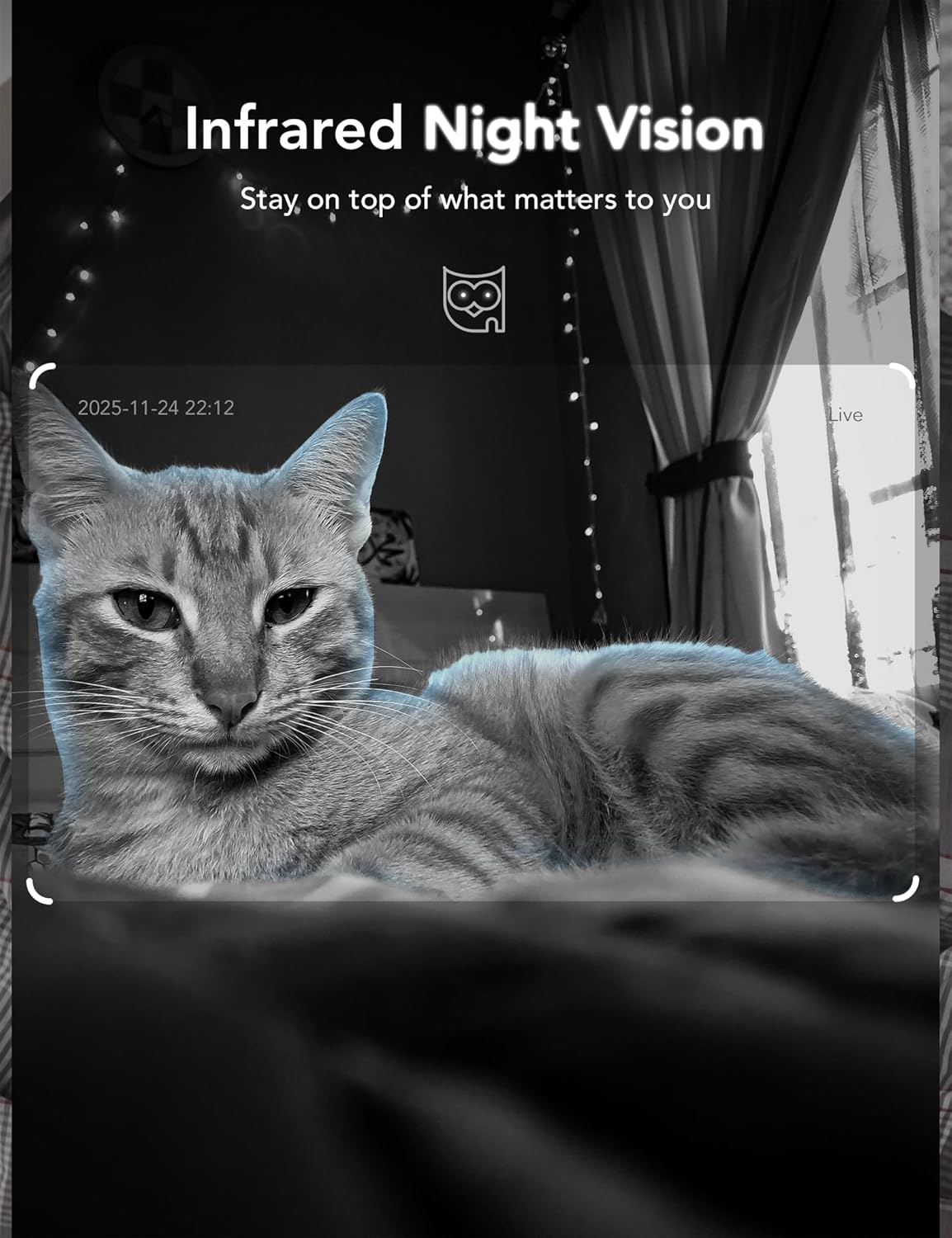
Image: A cat clearly visible in a dark room through the camera's infrared night vision feature.
4.3 Two-Way Audio
Use the two-way audio feature in the Osaio app to communicate with individuals or pets near the camera.

Image: A child and a dog interacting in a living room, demonstrating the camera's two-way audio functionality.
4.4 Motion and Sound Detection
The Osaio app provides instant notifications for detected motion and sound events. This feature helps you stay informed about activity in your home.
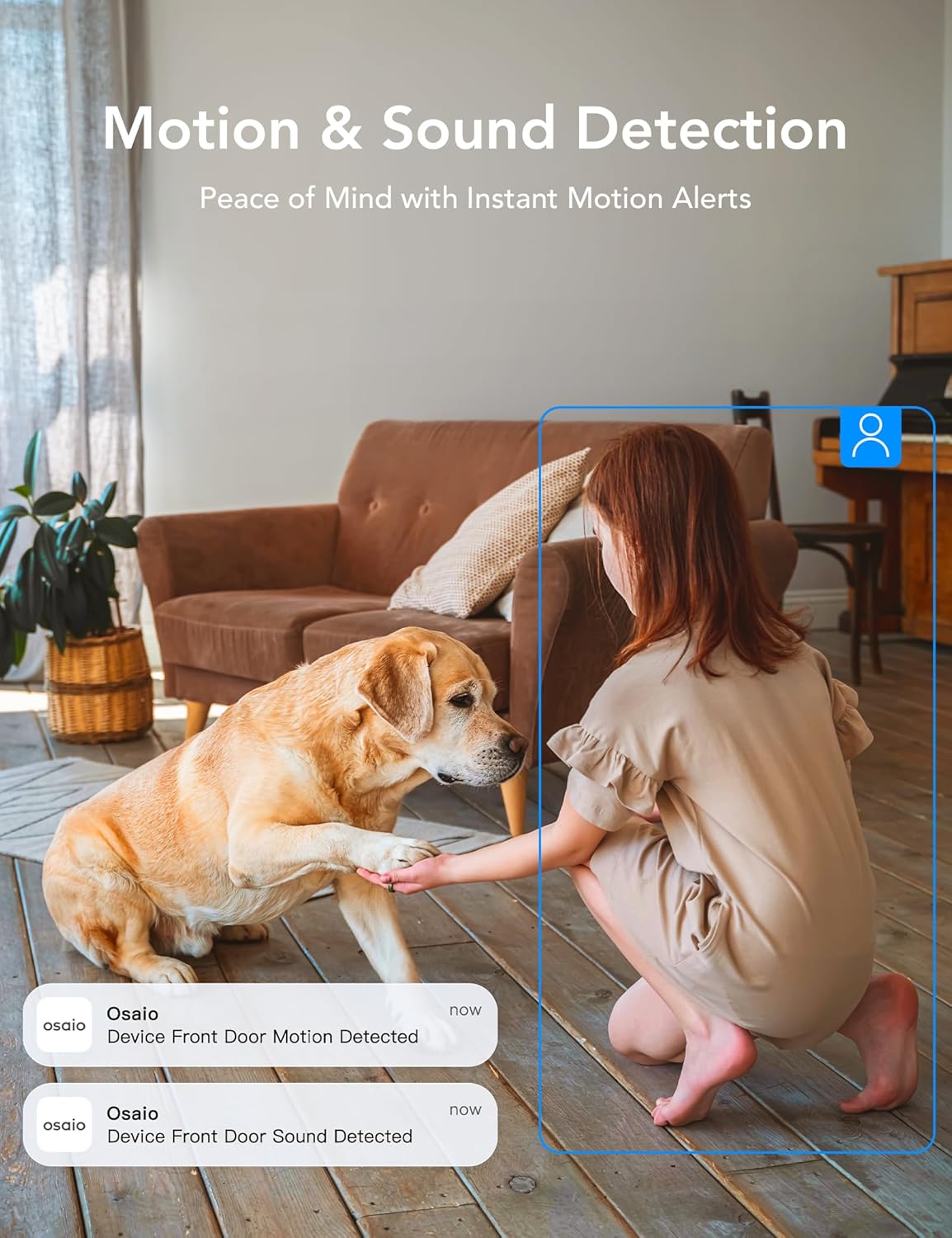
Image: A scene depicting a girl and a dog, with overlaid app notifications indicating motion and sound detection alerts.
4.5 Storage Options
The GC4 camera supports two storage methods:
- Local SD Card Storage: Supports 24/7 continuous recording to a microSD card (up to 128GB, not included). Video is stored locally on the card.
- Cloud Storage: A paid subscription is required for remote playback of recorded events and cloud backup. New accounts typically receive a 14-day free trial for one camera. Live streams, app notifications, and two-way audio remain free without a subscription.
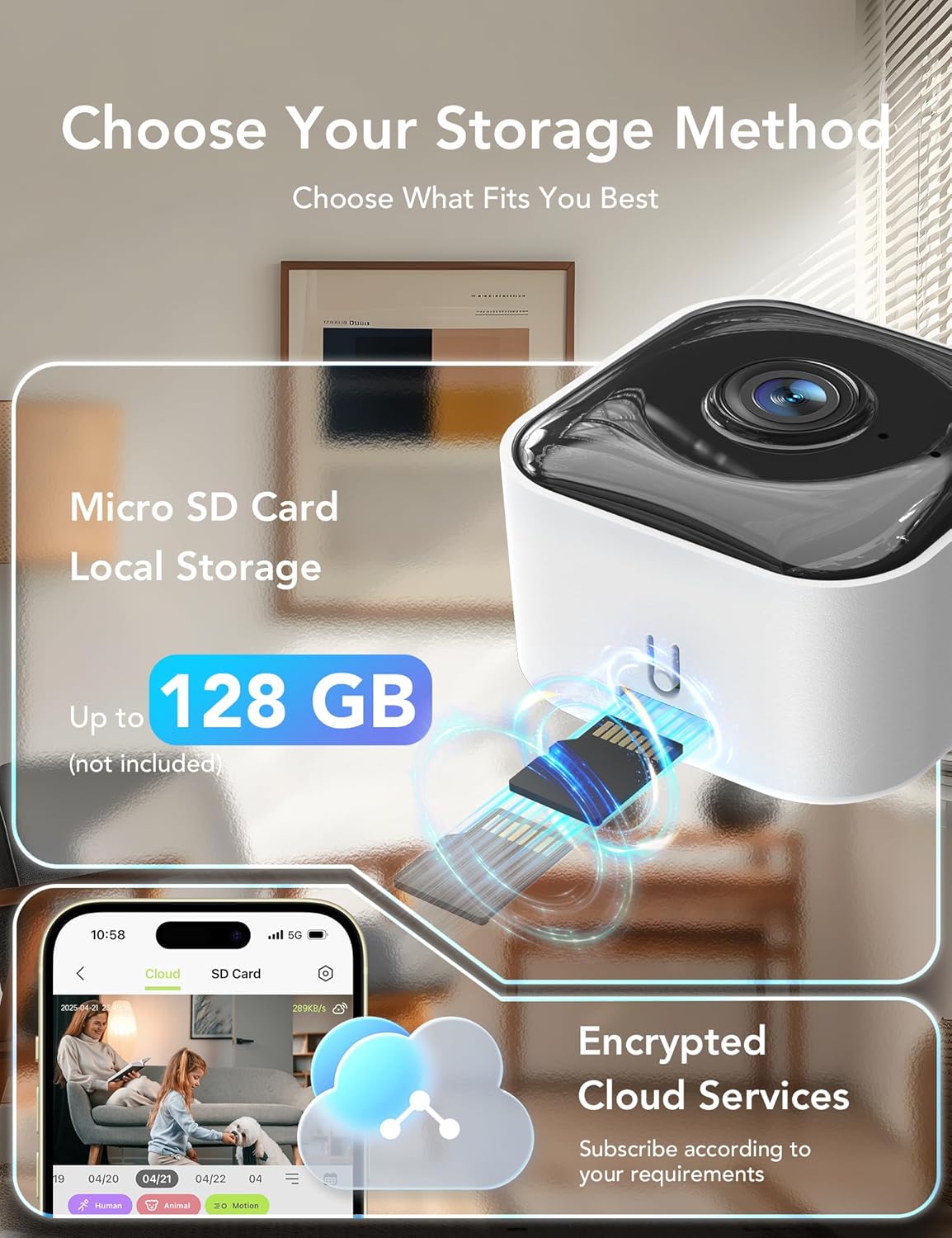
Image: A visual representation of the camera's storage options, showing both local microSD card storage (up to 128GB) and encrypted cloud services.
4.6 Smart Home Integration
The GC4 camera is compatible with Amazon Alexa and Google Assistant. You can view the live feed using simple voice commands.
Video: A guide demonstrating how to connect the GNCC GC4 camera with Amazon Alexa for voice control and live feed viewing.

Image: A woman in a kitchen using an Amazon Echo Show device to view the camera's live feed, illustrating smart home integration with Alexa.
4.7 Privacy Mode and Sharing
The Osaio app allows you to remotely turn off your camera and stop recording at any time to maintain privacy. You can also securely share camera access with up to 3 family members.

Image: A bedroom setting with a digital overlay demonstrating the privacy mode feature, allowing users to disable the camera remotely.
5. Maintenance
To ensure optimal performance and longevity of your GNCC GC4 camera, follow these maintenance guidelines:
- Clean the Lens: Gently wipe the camera lens with a soft, dry cloth to remove dust or smudges. Avoid abrasive cleaners.
- Power Supply: Ensure the camera is always connected to a stable power source using the provided adapter.
- Software Updates: Regularly check the Osaio app for firmware updates to ensure your camera has the latest features and security enhancements.
6. Troubleshooting
- Blurry Night Vision: If night vision images appear blurry, ensure the camera is placed indoors and away from windows. Infrared light can reflect off glass, causing image distortion.
- Connection Issues: If the camera fails to connect or loses connection, verify your phone is connected to a stable 2.4GHz or 5GHz WiFi network. Try resetting the camera by holding the reset button until the red light blinks, then attempt pairing again.
- App Login Issues: For data security, each Osaio app account can only be logged in on one device at a time. If you are unable to log in, check if another device is currently using the account.
- SD Card Recording Problems: Ensure the microSD card is correctly inserted and formatted. If issues persist, try a different compatible microSD card.
7. Specifications
| Feature | Detail |
|---|---|
| Model Name | GC4 Indoor Camera |
| Video Capture Resolution | 2K (3 MP Effective Still Resolution) |
| Connectivity Technology | Dual-Band Wi-Fi (2.4GHz & 5GHz) |
| Night Vision Range | 32 Feet (6 Infrared LEDs) |
| Special Features | 2-Way Audio, Motion Detection, Local Recording, Portable |
| Storage | Micro SD (up to 128 GB), Cloud Storage (subscription required) |
| Compatible Devices | Smartphone, Amazon Alexa, Google Assistant |
| Power Source | Corded Electric |
| Item Dimensions | 1.96 x 1.37 x 3.74 inches |
| Item Weight | 0.18 Kilograms |
8. Cloud Subscription Information
Cloud storage offers additional features such as remote playback and cloud backup. Various subscription plans are available through the Osaio app.

Image: A table outlining the different Osaio app cloud subscription plans, including features like motion/sound detection, event recording, video history, AI analysis, number of supported devices, and pricing.
9. Warranty and Support
For warranty information and technical support, please refer to the official GNCC website or contact their customer service directly. Keep your purchase receipt for warranty claims.
For further assistance, visit the GNCC Store on Amazon: GNCC Store


