
Introduction
This manual provides detailed instructions for the installation, operation, maintenance, and troubleshooting of your Carpuride W125P 11-inch Wireless CarPlay and Android Auto Screen. Please read this manual thoroughly before using the device to ensure proper functionality and safety.
Package Contents
Verify that all items listed below are included in your package:
- 1x Carpuride W125P Carplay Screen
- 1x Rearview Camera & Cable
- 1x Suction Mount
- 1x Sticker Bracket
- 1x Power Cable (Type-C USB Adapter)
- 1x Auxiliary Audio Cable
- 1x User Manual

This image displays all items included in the Carpuride W125P package: the 11-inch carplay screen, a suction mount, a sticker bracket, a rearview camera with its cable, a power cable, an auxiliary audio cable, and the user manual.
Safety Information
Always prioritize safety while driving. Do not operate the device in a manner that distracts you from the road. Ensure the device is securely mounted and cables do not obstruct your view or vehicle controls. Adhere to all local traffic laws and regulations.
Setup
1. Mounting Options
The Carpuride W125P offers flexible installation with two types of mounts:
- Suction Mount: Ideal for windshields or smooth dashboard surfaces.
- Sticker Bracket: Provides a secure, semi-permanent attachment to the dashboard.
Choose the mount that best suits your vehicle and ensures the screen does not obstruct your view or interfere with airbags. Clean the mounting area thoroughly before installation.

The Carpuride W125P includes two mounting options: a suction cup mount for windshields or smooth surfaces, and a self-adhesive bracket for dashboard installation. Both offer adjustable angles for optimal viewing.
2. Power and Audio Connection
Connect the device to your vehicle's power outlet using the provided Type-C USB adapter. For audio output, you have several options:
- Built-in Speakers: For direct audio output from the device.
- AUX: Connect the provided 3.5mm auxiliary cable to your car's AUX input for a direct, high-quality audio connection.
- FM Transmitter: Transmit audio to your car's FM radio. For optimal clarity and reduced static, use the provided car charger cable, as its wiring assists in transmitting the FM frequency.
- BT Transmitter: Connect to your car's audio system via Bluetooth. This allows simultaneous connection to your phone and the car's audio system.
This video demonstrates the unboxing of the Carpuride W125P and the connection of its power cable and auxiliary audio cable. It also highlights the recommended use of the car charger cable for improved FM transmission quality.

The Carpuride W125P offers multiple audio output modes: built-in speakers, Bluetooth Transmitter, FM radio transmission, and AUX connection. The image shows the screen interface for selecting these options.
3. Rear Camera Installation
If using the rearview camera, connect its cable to the designated input on the Carpuride W125P. Mount the camera at the rear of your vehicle, ensuring a clear view. The screen will automatically switch to the camera view when the vehicle is in reverse.
Operating Instructions
1. Power On/Off
The device powers on automatically when your vehicle starts and powers off when the vehicle is turned off. You can also manually power it on or off using the power button located on the device.
2. Wireless CarPlay & Android Auto Connection
To connect your smartphone wirelessly:
- Ensure Bluetooth and Wi-Fi are enabled on your smartphone.
- On the Carpuride W125P, navigate to the CarPlay or Android Auto application.
- Search for the device's Bluetooth name (e.g., "CARPURIDE_BT-XXXX") on your phone and pair.
- Confirm the pairing on both devices. The system will automatically establish the wireless connection.

This image illustrates the process of connecting your iPhone to the Carpuride W125P using wireless CarPlay. It details enabling Bluetooth and Wi-Fi on your phone, pairing with the device, and confirming the connection.

This image illustrates the process of connecting your Android phone to the Carpuride W125P using wireless Android Auto. It details enabling Bluetooth and Wi-Fi on your phone, finding and pairing with the device, and activating the connection.
3. Using Built-in Streaming Applications
Connect the device to a Wi-Fi hotspot (e.g., from your smartphone) to access pre-installed streaming apps like Netflix, YouTube, and TikTok. Tap on the desired app icon from the main menu to launch it.

The Carpuride W125P allows direct streaming of popular video and audio applications such as Netflix, YouTube, Prime Video, Disney+, Spotify, and TikTok when connected to Wi-Fi.
4. Voice Control
Utilize voice commands through CarPlay or Android Auto by saying "Hi Siri" or "Hey Google" to control navigation, make calls, send messages, and more, keeping your hands on the wheel.
5. GPS Navigation
Access real-time GPS navigation through CarPlay or Android Auto. The large screen provides clear map displays and live route planning to help you reach your destination efficiently.
6. Split-Screen Functionality
The 11-inch screen supports split-screen mode, allowing you to run two applications simultaneously. For example, you can display navigation on one side and a streaming video for passengers on the other.
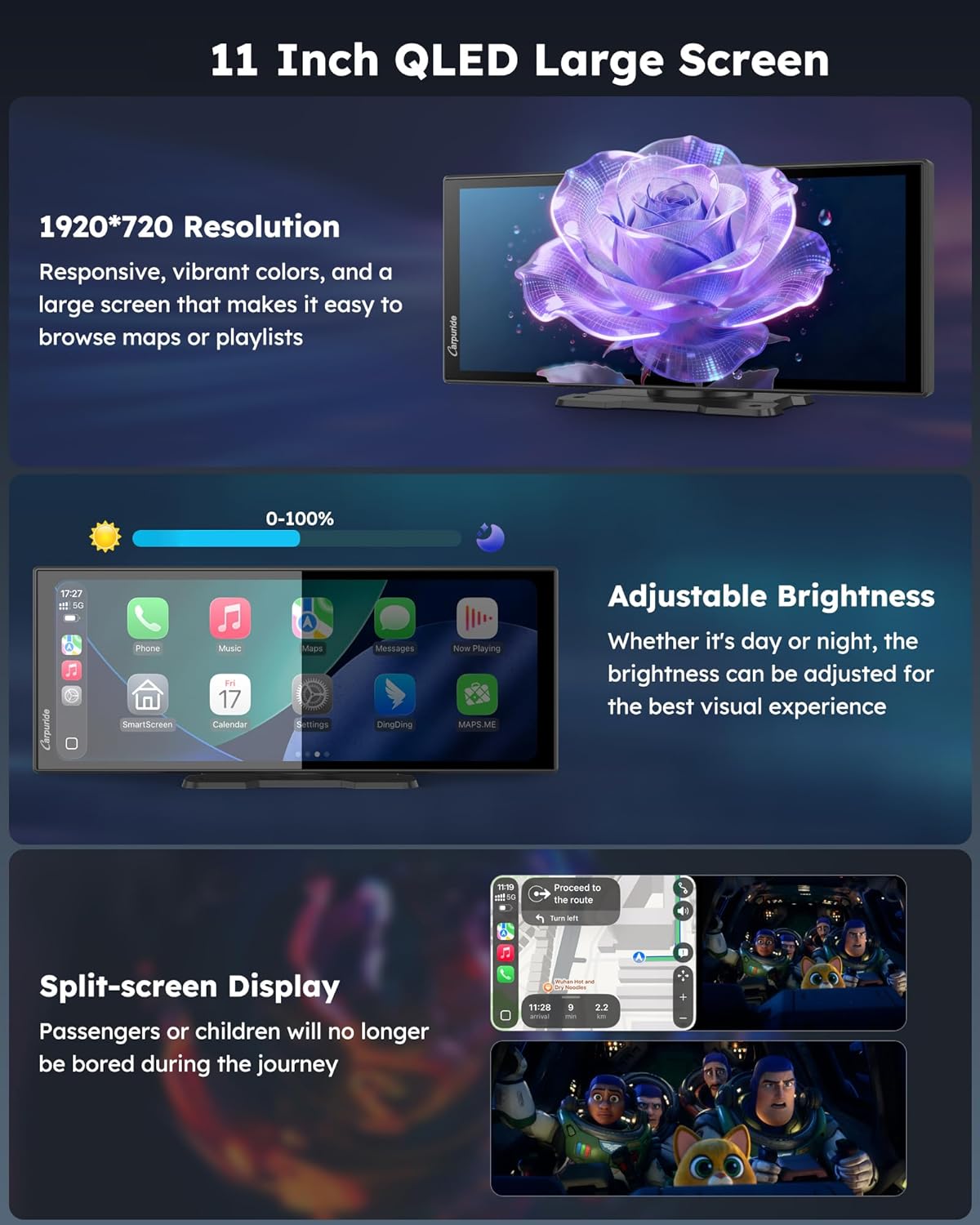
The 11-inch screen supports split-screen functionality, allowing users to view navigation maps and stream video content simultaneously, enhancing convenience for both driver and passengers.
7. Adjusting Brightness and Volume
Adjust the screen brightness via the settings menu to ensure optimal visibility in various lighting conditions. The device's volume can also be adjusted independently to suit your preferences.
8. Rear Camera View
When the vehicle is shifted into reverse, the screen automatically displays the rearview camera feed. You can also access the "Reverse" app while driving to view real-time traffic behind your car.
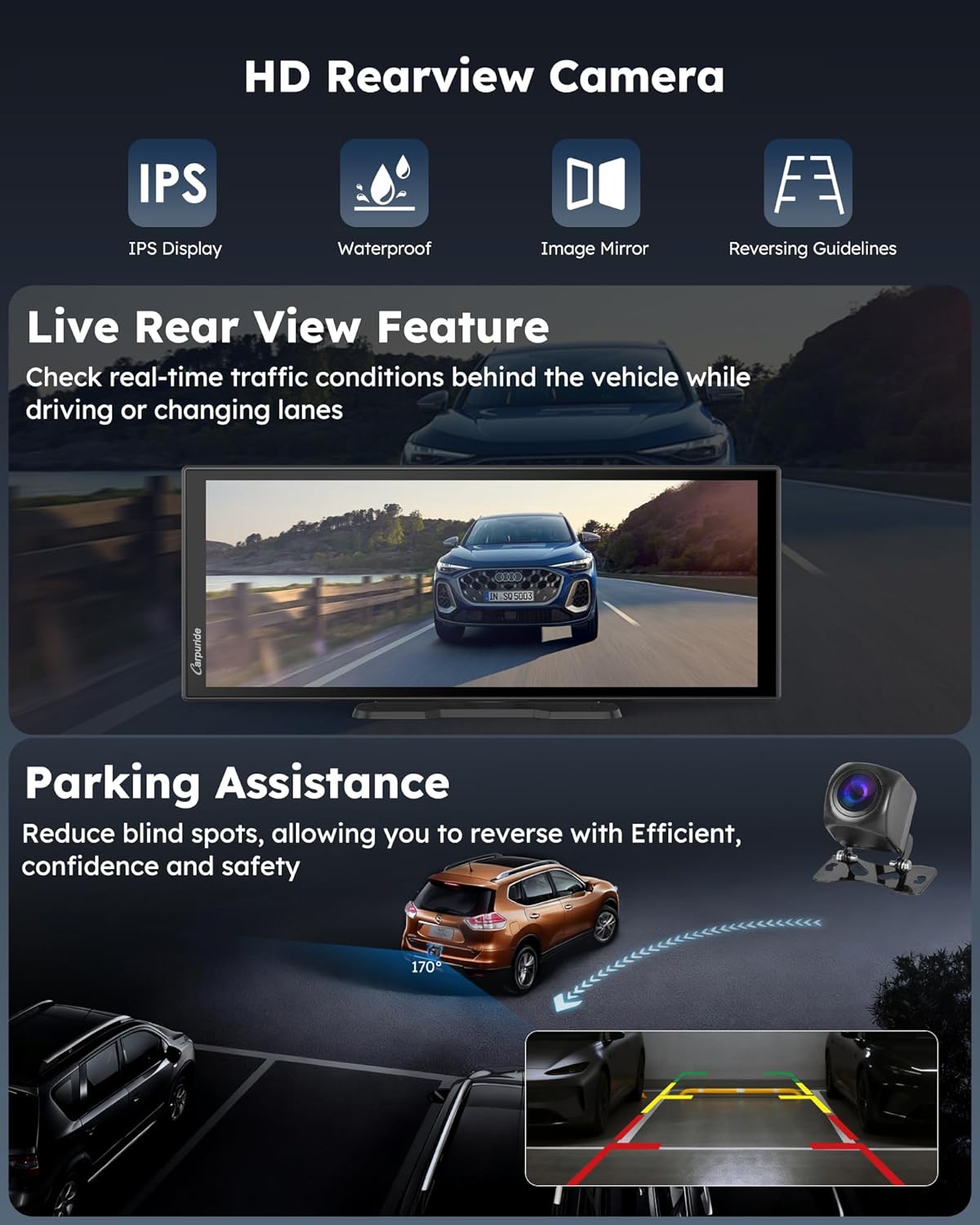
The device integrates with a rearview camera, providing a live feed for checking traffic behind the vehicle and offering parking assistance with dynamic guidelines when the car is in reverse.
Maintenance
1. OTA Software Updates
The Carpuride W125P supports Over-The-Air (OTA) software updates. Regularly check for and install updates to benefit from bug fixes, new features, and improved performance. Connect to Wi-Fi and navigate to the system update section in the settings.

The Carpuride W125P supports OTA software updates to ensure optimal performance, introduce new features, and provide bug fixes, keeping your device up-to-date.
2. Customization
Personalize your device with custom wallpapers and boot images through the settings menu. This allows you to tailor the screen's appearance to your preference.
3. Cleaning
Use a soft, dry cloth to clean the screen and device exterior. Avoid abrasive cleaners or solvents that may damage the surface.
Troubleshooting
Device Keeps Disconnecting (Android Auto)
For devices running Android 16, intermittent disconnection may occur when using Android Auto due to system compatibility. Updating to the latest firmware version can improve stability. Please refer to the support section for information on obtaining the latest updates.
Fuzzy or Static Audio via FM Transmitter
Ensure you are using the Car Charger Cable provided with the device. Its internal wiring is designed to help transmit the FM frequency more effectively, reducing static and improving audio clarity. Try adjusting the FM frequency on both the device and your car radio to find a clear channel.
Screen Not Responding
If the touchscreen is unresponsive, try restarting the device by pressing and holding the power button. If the issue persists, perform a factory reset (refer to the settings menu for this option).
No Power
Check the power cable connection to both the device and the vehicle's power outlet. Ensure the vehicle's power outlet is functioning correctly. Verify that the vehicle's ignition is on.
Specifications
| Brand | Carpuride |
| Model Number | W125P |
| Screen Size | 11.26 Inches (10.26 inch display area) |
| Native Resolution | 1920x720 |
| Display Type | LED |
| Connectivity Technology | Auxiliary, Dual Bluetooth, Dual Wi-Fi, Hotspot |
| Compatible Devices | Smartphone (Requires Android 11+ or iOS 13+) |
| Audio Output Mode | Stereo, Built-in 8Ω2W speakers, BT Transmitter, FM, AUX |
| Item Dimensions (L x W x H) | 10.43"L x 1"W x 4.13"H |
| Color | Black |
Warranty and Support
Warranty Information
The Carpuride W125P comes with a 24-Month Warranty, providing peace of mind for your purchase. Please retain your proof of purchase for warranty claims.
Customer Support
For any questions, technical assistance, or support needs, Carpuride offers:
- 24/7 Online Support: Access assistance anytime through the official Carpuride website or designated support channels.
- Technical Support: Receive support for custom boot logos and regular software updates to enhance your device's functionality.
For the most up-to-date support resources, please visit the official Carpuride website.