
1. Introduction
This manual provides detailed instructions for the setup, operation, and maintenance of your HUO JI K-700 Wired Mechanical Gaming Keyboard. Please read this manual thoroughly before using the product to ensure optimal performance and longevity.
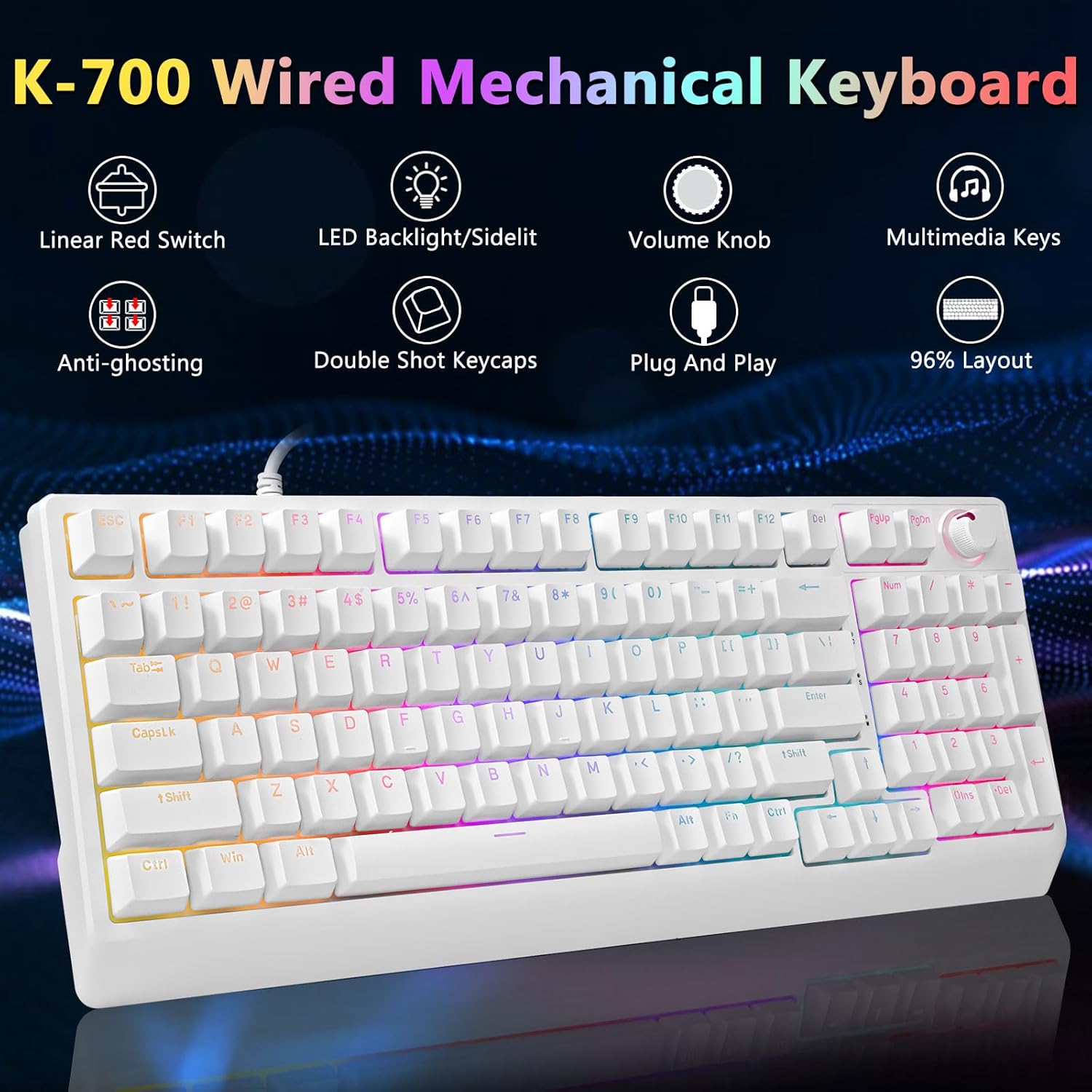
Image 1.1: Overview of the HUO JI K-700 Wired Mechanical Gaming Keyboard, showcasing its linear red switches, LED backlighting, volume knob, multimedia keys, anti-ghosting, double-shot keycaps, plug-and-play functionality, and 96% layout.
2. Setup
2.1 Connecting the Keyboard
The HUO JI K-700 keyboard features a simple plug-and-play design. No additional software or drivers are required for basic functionality.
- Locate an available USB-A port on your computer (PC or Mac).
- Plug the USB-A connector of the keyboard cable into the USB-A port.
- The keyboard will automatically be recognized by your operating system.

Image 2.1: The USB-A cable connecting the HUO JI K-700 keyboard to a computer, illustrating its plug-and-play feature.
2.2 Adjusting Keyboard Height
The keyboard is equipped with two-stage adjustable foot supports for ergonomic comfort.
- Flip the keyboard over to access the feet on the underside.
- Gently pull out the small feet for the first height adjustment.
- For a higher angle, pull out the larger feet.
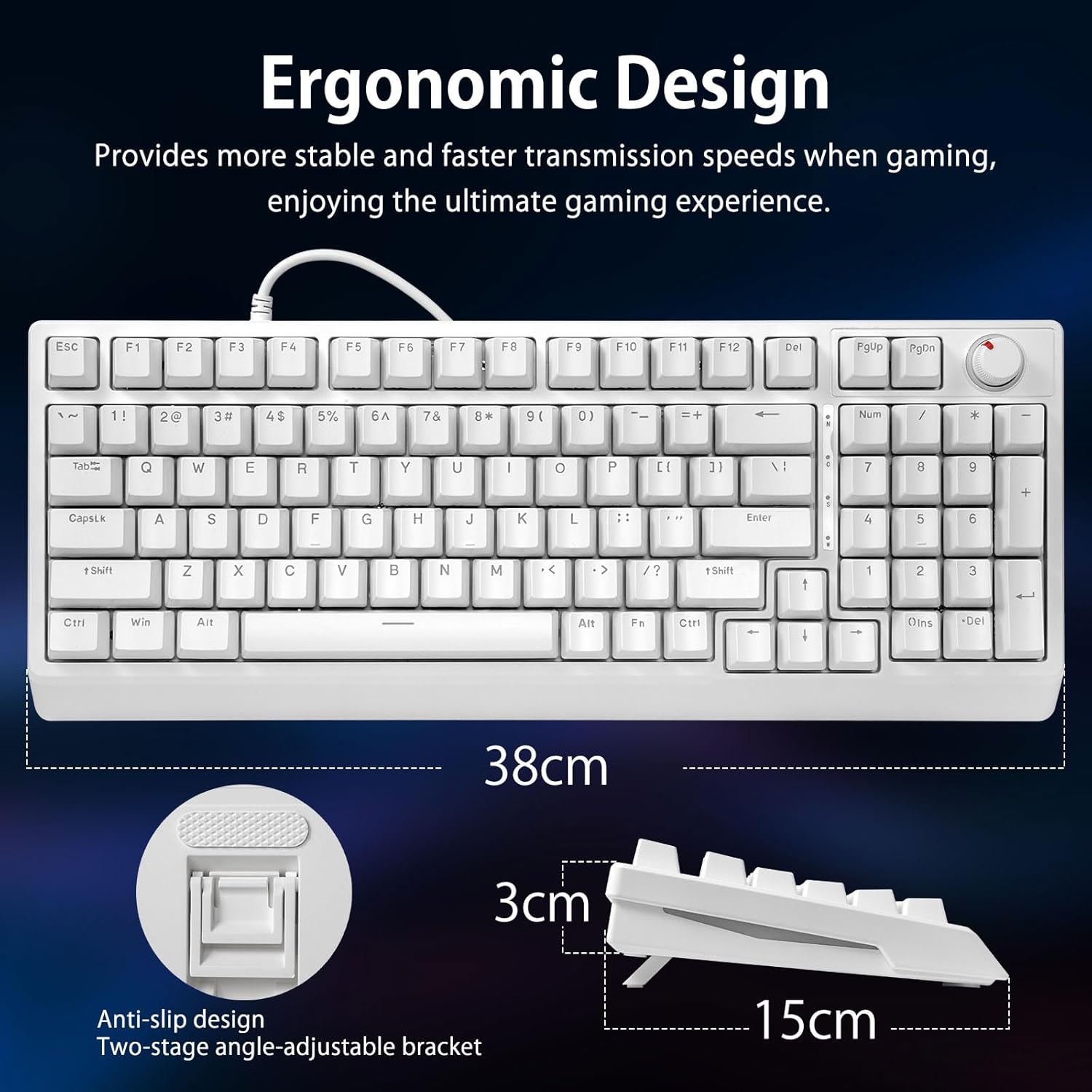
Image 2.2: The ergonomic design of the HUO JI K-700 keyboard, showing its two-stage adjustable foot support for customized typing angles.
3. Operating Instructions
3.1 LED Backlight Control
The keyboard features 17 LED backlight modes and side lighting for customizable ambiance.
- Switch Light Modes: Press FN + \| to cycle through 17 different backlight effects.
- Adjust Light Speed: Press FN + ← to decrease speed, FN + → to increase speed.
- Adjust Brightness: Press FN + ↑ to increase brightness, FN + ↓ to decrease brightness (5 levels).
- Turn Off Backlight and Side Lights: Press FN + Enter.
- LED Side-lit: Press FN + L to cycle through 3 side light modes or turn off.

Image 3.1: Visual guide for controlling the 17 LED backlight modes, speed, and brightness using FN key combinations.
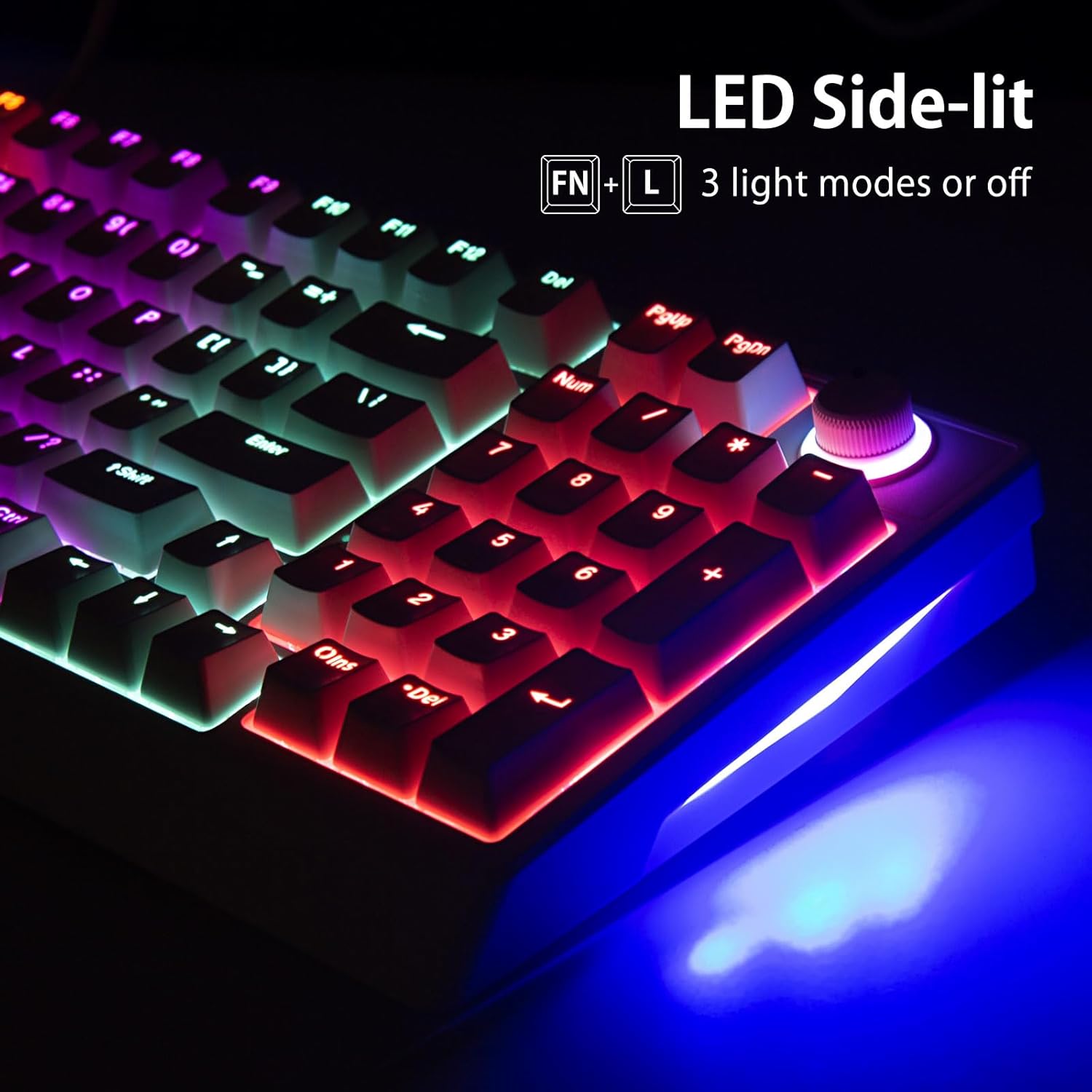
Image 3.2: Close-up view of the LED side-lit feature on the HUO JI K-700 keyboard, showing the FN + L shortcut for control.
3.2 Multi-Function Knob
The dedicated knob on the keyboard allows for quick adjustments to volume and lighting.
- Default (Volume Mode):
- Rotate the knob to adjust the system volume.
- Short press the knob to mute/unmute audio.
- Switch to Lighting Mode: Long press the knob for 3 seconds until the indicator light flashes twice.
- In Lighting Mode:
- Rotate the knob to adjust backlight brightness.
- Short press the knob to cycle through the 17 LED effects.
- Switch Back to Volume Mode: Long press the knob for 3 seconds until the indicator light flashes twice.

Image 3.3: Diagram illustrating the functions of the multi-function knob for volume control and switching to backlight adjustment modes.
3.3 Anti-Ghosting and Multimedia Keys
The keyboard supports 26-key anti-ghosting and includes dedicated multimedia shortcuts.
- Anti-Ghosting: The 26-key anti-ghosting feature ensures that multiple simultaneous key presses are registered accurately, preventing input conflicts during fast-paced gaming or typing.
- Windows Key Lock: Press FN + Win to lock the Windows key, preventing accidental presses during gaming.
- Multimedia Functions: Use FN + F1-F12 for various multimedia controls.
- WASD and Arrow Key Interchange: Press FN + W to swap the functionality of the WASD keys with the arrow keys.

Image 3.4: Visual representation of the 26-key anti-ghosting feature and key combinations for Windows lock, multimedia, and WASD/arrow key interchange.
4. Features
4.1 Linear Red Switches
The K-700 keyboard is equipped with responsive linear red switches, designed for smooth and consistent keystrokes.
- Require less force to actuate.
- Provide a smooth, non-tactile feel.
- Ideal for rapid key presses in gaming and fast typing.
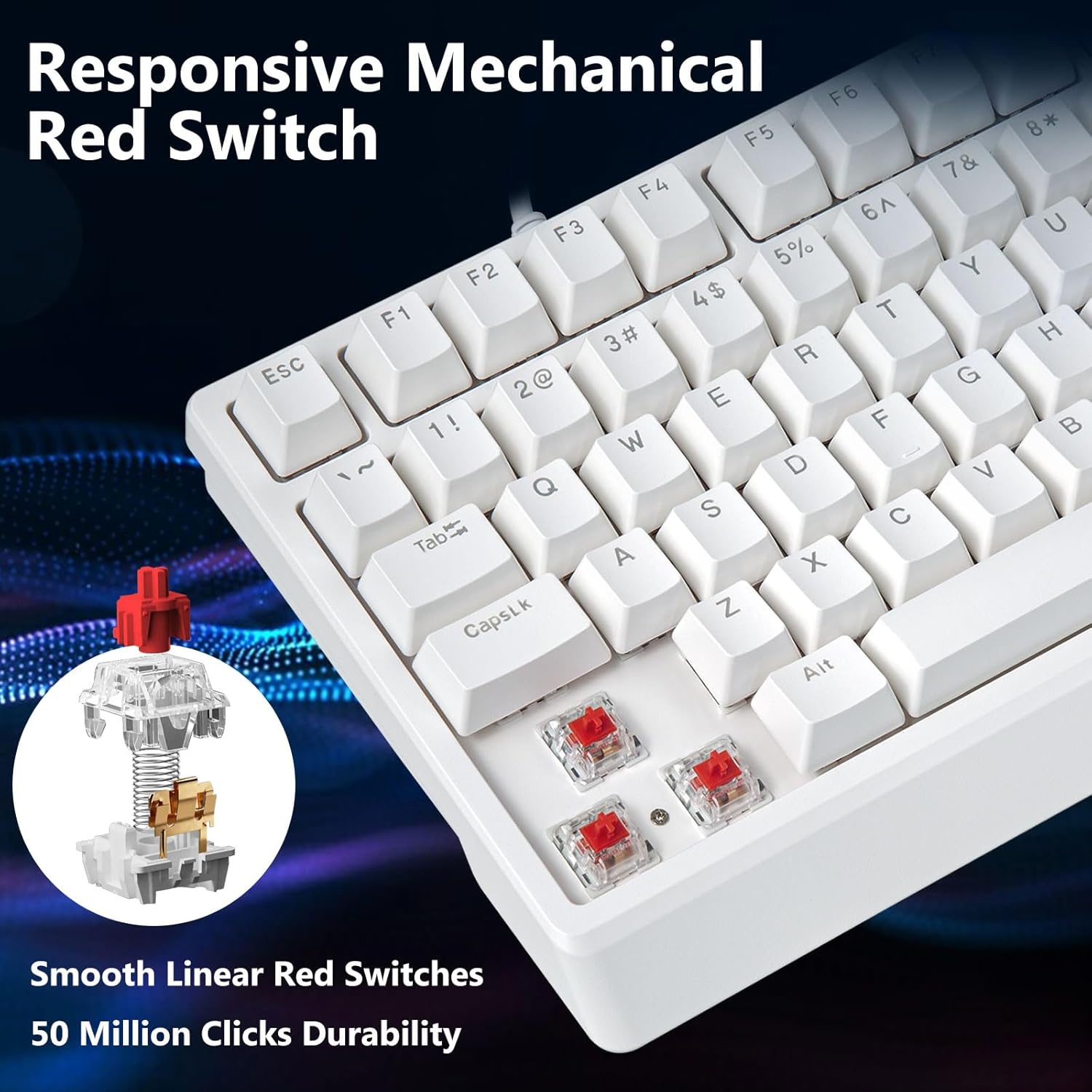
Image 4.1: Detailed view of a linear red mechanical switch, highlighting its structure and smooth operation.
4.2 Double-Shot Keycaps
The keycaps are manufactured using a double-shot injection molding process.
- Ensures legends never fade or wear off.
- Allows for clear backlight shine-through.
- Made from durable ABS material.
4.3 Compact 96% Layout
The K-700 features a 96% layout, offering a balance between compactness and full functionality.
- Saves desktop space compared to full-sized keyboards.
- Retains essential keys, including a number pad and arrow keys.

Image 4.2: A visual comparison demonstrating the space-saving benefits of the 96% compact keyboard layout while retaining a number pad.
4.4 Wide Compatibility
The keyboard is compatible with a variety of operating systems and devices.
- Operating Systems: Windows XP, Vista, 7, 8, 10, 11, Android, Linux, Mac.
- Compatible Devices: Laptop, PC, PS, Playstation, XBOX.
5. Maintenance
5.1 Cleaning the Keyboard
Regular cleaning helps maintain the keyboard's appearance and functionality.
- Disconnect the keyboard from your computer before cleaning.
- Use a soft, lint-free cloth slightly dampened with water or a mild cleaning solution to wipe the keycaps and surface.
- For dust and debris between keys, use compressed air.
- Avoid using harsh chemicals or abrasive materials.
5.2 Storage
When not in use for extended periods, store the keyboard in a dry, cool place away from direct sunlight and extreme temperatures.
6. Troubleshooting
6.1 Keyboard Not Responding
- Ensure the USB cable is securely connected to both the keyboard and the computer.
- Try plugging the keyboard into a different USB port on your computer.
- Test the keyboard on another computer to determine if the issue is with the keyboard or the computer's USB port.
6.2 Backlight Not Working or Incorrect
- Check if the backlight is turned off (press FN + Enter to toggle).
- Adjust brightness using FN + ↑ / ↓.
- Cycle through different lighting modes using FN + \|.
- Ensure the multi-function knob is not in volume mode if you are trying to adjust lighting with it (long press 3s to switch modes).
6.3 Keys Not Registering (Ghosting)
- The keyboard features 26-key anti-ghosting. If specific keys are not registering, ensure no physical obstruction is present.
- Clean around the affected keys using compressed air.
7. Specifications
| Feature | Detail |
|---|---|
| Brand | HUO JI |
| Model | K-700 |
| Connectivity Technology | USB-A (Wired) |
| Keyboard Description | Mechanical |
| Switch Type | Linear Red (Outemu Red) |
| Number of Keys | 98 |
| Keyboard Layout | QWERTY (96% Compact) |
| Backlighting | 17 LED Backlit Modes, LED Side-lit |
| Special Features | Anti-Ghosting (26 keys), Volume Roller, Ergonomic Design, Double-Shot Keycaps |
| Compatible Devices | Laptop, PC, PS, Playstation, XBOX |
| Compatible OS | Windows XP/Vista/7/8/10/11, Android, Linux, Mac |
| Color | White |
| Product Dimensions | 15.2"L x 5.3"W x 1.5"H (38cm L x 15cm W x 3cm H) |
| Item Weight | 1.5 Pounds |
| Material | Metal, Plastic |
8. Warranty and Support
8.1 Warranty Information
This HUO JI K-700 Mechanical Gaming Keyboard comes with a 1-year warranty from the date of purchase. This warranty covers manufacturing defects and malfunctions under normal use. It does not cover damage caused by misuse, accidents, unauthorized modifications, or normal wear and tear.
8.2 Customer Support
For technical assistance, troubleshooting, or warranty claims, please contact HUO JI customer support through the retailer where the product was purchased or visit the official HUO JI website for contact information.
9. Product Videos
9.1 HUO JI Mechanical Gaming Keyboard Overview
Video 9.1: An official overview of the HUO JI Mechanical Gaming Keyboard, demonstrating its various features and lighting effects. This video provides a general look at the product's design and functionality.


