
1. Introduction
The ZWXYVUT DC40V is a portable retro handheld game console designed to provide an immersive gaming experience. Featuring a 4-inch IPS screen, a Linux operating system, and a 4000mAh rechargeable battery, this device supports over 30 simulators and comes with a 64GB TF card pre-loaded with over 18,000 games. Its compact design makes it suitable for gaming on the go.
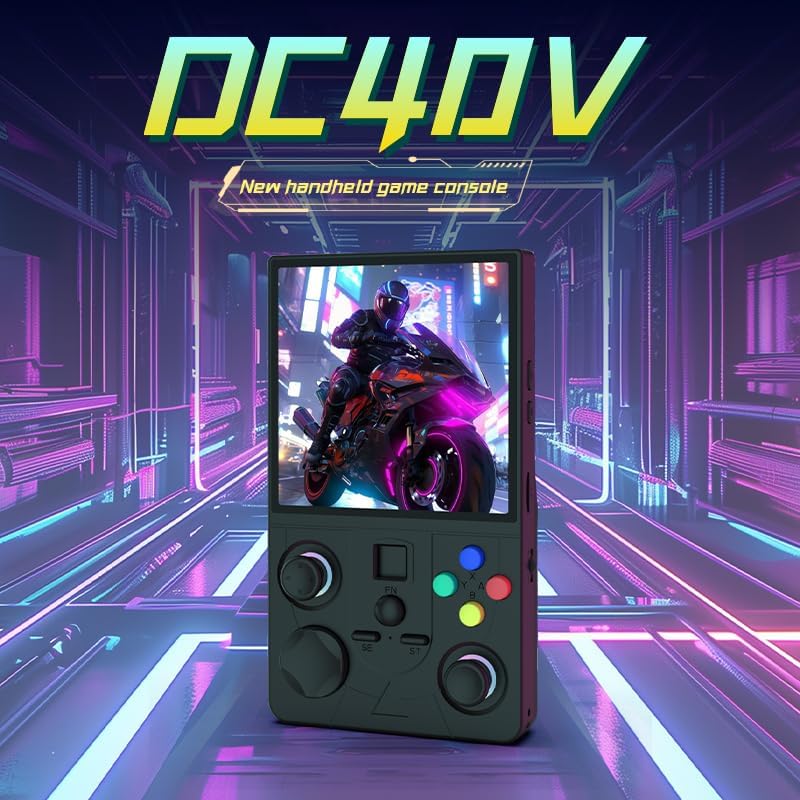
Image 1.1: The ZWXYVUT DC40V Retro Handheld Game Console, showcasing its compact design and screen.
2. Safety Information
Please read all safety instructions before using the device to ensure safe and proper operation. Keep this manual for future reference.
- Do not expose the device to extreme temperatures, direct sunlight, or high humidity.
- Avoid dropping or subjecting the device to strong impacts.
- Keep the device away from water and other liquids.
- Do not attempt to disassemble or repair the device yourself. Contact customer support for assistance.
- Use only the provided charging cable or a compatible charger to prevent damage.
- Avoid prolonged use at high volume to prevent hearing damage.
3. Package Contents
Verify that all items are present in the package:
- ZWXYVUT DC40V Handheld Game Console
- 64GB TF Card (pre-installed or separate)
- USB Charging Cable
- User Manual
4. Product Overview
4.1. Device Layout and Controls
Familiarize yourself with the buttons, ports, and features of your DC40V console.
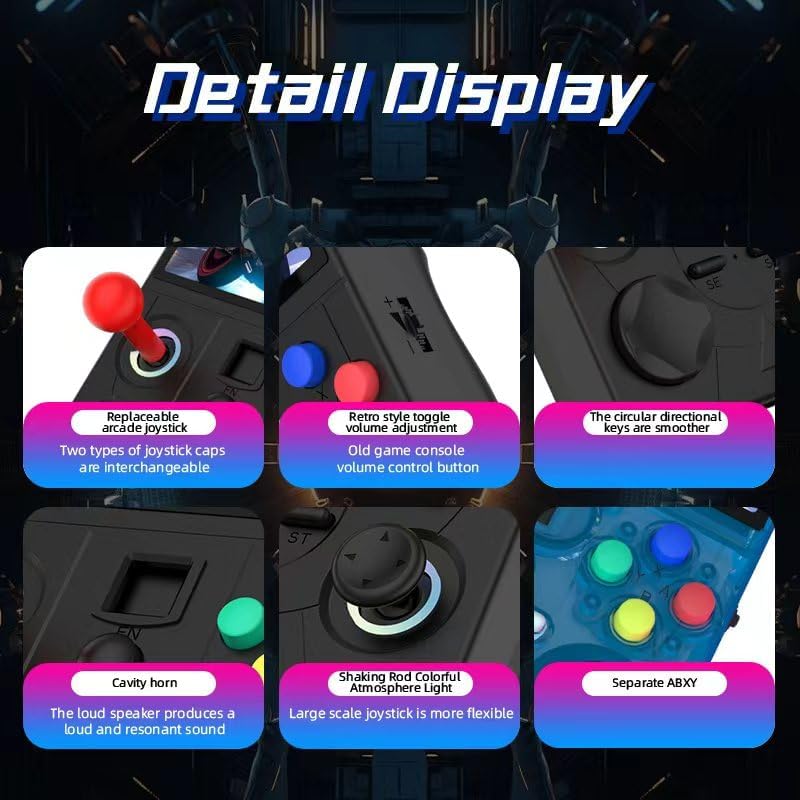
Image 4.1: Detailed view of the DC40V console's controls, including joysticks, buttons, and speaker.
- 4-inch IPS Screen: High-definition display for clear visuals.
- Dual Joysticks: For precise control in games.
- Directional Pad (D-Pad): For menu navigation and game control.
- Action Buttons (A, B, X, Y): Standard gaming input buttons.
- Shoulder Buttons (L1, L2, R1, R2): Additional control options.
- Start/Select Buttons: For game functions and menu navigation.
- Volume Control: Adjusts audio output.
- Power Button: Turns the device on/off.
- USB-C Port: For charging and data transfer.
- 3.5mm Headphone Jack: For private audio listening.
- TF Card Slot: For expandable storage.

Image 4.2: The 4-inch IPS screen of the DC40V, highlighting its full view capabilities.

Image 4.3: The DC40V console displaying its colorful atmosphere light feature around the joysticks.

Image 4.4: Various color options available for the DC40V console.
5. Setup
5.1. Charging the Device
- Connect the provided USB charging cable to the USB-C port on the console.
- Connect the other end of the cable to a compatible USB power adapter (not included) or a computer's USB port.
- The charging indicator light will illuminate, indicating that the device is charging.
- A full charge typically takes approximately 2-3 hours. The indicator light will change or turn off once fully charged.
5.2. Inserting the TF Card
The 64GB TF card containing games is usually pre-installed. If not, or if you wish to use a different card:
- Locate the TF card slot on the side or bottom of the console.
- Gently insert the TF card into the slot with the metal contacts facing down until it clicks into place.
- To remove, gently push the card inward until it springs out.
5.3. Initial Power On
- Press and hold the Power button for a few seconds until the screen illuminates.
- The device will boot into the Linux operating system.
- Follow any on-screen prompts for initial setup, such as language selection.
6. Operating Instructions
6.1. Power On/Off
- To Power On: Press and hold the Power button until the screen turns on.
- To Power Off: Press and hold the Power button until a power-off menu appears, then select "Power Off" or "Shutdown". Alternatively, a quick press might put it to sleep, depending on system configuration.
- Sleep Mode: A short press of the Power button typically puts the device into sleep mode to conserve battery.
6.2. Navigating the System Interface
The DC40V uses an open-source Linux system. Navigation is primarily done using the D-Pad and action buttons.
- Use the D-Pad or Left Joystick to move between menu options.
- Press the A button (or equivalent confirm button) to select an option.
- Press the B button (or equivalent back button) to return to the previous menu.
- The Start and Select buttons may have specific functions within games or system menus, often for pausing, accessing in-game menus, or quick settings.
6.3. Playing Games
- From the main menu, navigate to the desired emulator or game category.
- Select the game you wish to play from the list.
- The game will load. Controls will typically map to the console's physical buttons.
- Saving/Loading Game Progress: Most emulators allow for in-game saves and "save states." Refer to the specific emulator's menu (often accessed by a combination of buttons like FN + Start/Select) for these options.
6.4. Audio Control
- Volume Adjustment: Use the dedicated volume buttons or toggle switch (if present) to increase or decrease the sound output.
- Headphones: Plug 3.5mm headphones into the headphone jack for private listening. The internal speaker will automatically mute.
6.5. System Settings
Access the system settings menu to configure various aspects of the console, such as:
- Language settings.
- Display brightness.
- Network settings (if Wi-Fi is supported, not explicitly mentioned but common for Linux handhelds).
- Controller mapping.
- System information and updates.

Image 6.1: Representation of the DC40V's open-source Linux system and internal chip architecture.
7. Maintenance
7.1. Cleaning the Device
- Use a soft, dry, lint-free cloth to wipe the screen and body of the console.
- For stubborn smudges, slightly dampen the cloth with water or a screen cleaner (avoid harsh chemicals).
- Do not spray cleaners directly onto the device.
7.2. Battery Care
- To prolong battery life, avoid fully discharging the battery frequently.
- If storing the device for an extended period, charge it to about 50% before storage.
- Avoid exposing the device to high temperatures, as this can degrade the battery.
7.3. Software Updates
Periodically check the manufacturer's website or the device's system settings for available software updates. Updates can improve performance, add features, or fix bugs.
8. Troubleshooting
| Problem | Possible Solution |
|---|---|
| Device does not power on. | Ensure the battery is charged. Connect the charger and try again. If unresponsive, try holding the power button for 10-15 seconds for a hard reset. |
| Games are not loading or crashing. | Check if the TF card is properly inserted. Ensure the game files are not corrupted. Some games may require specific emulator settings. |
| Screen is blank or flickering. | Restart the device. If the issue persists, contact customer support. |
| No sound from speakers/headphones. | Check the volume level. Ensure headphones are fully plugged in. Test with different headphones if applicable. |
| Device is unresponsive. | Perform a hard reset by holding the Power button for 10-15 seconds. |
9. Specifications
| Feature | Detail |
|---|---|
| Model | DC40V |
| Screen | 4-inch IPS High-definition (640*480 resolution) |
| Operating System | Open-source Linux System |
| Storage | 64GB TF Card (expandable) |
| Battery | 4000mAh Rechargeable |
| Battery Life | Up to 6 hours |
| Simulators Supported | 30+ |
| Material | Plastic |
| Dimensions | 1"L x 1"W x 1"H (Approximate, based on provided data) |
10. Warranty and Customer Support
ZWXYVUT is committed to providing high-quality products. This product undergoes a strict full inspection process to ensure quality.
If you encounter any problems during use, please contact our customer service team via email. Our support staff will assist you as soon as possible to resolve your issue.
Please retain your proof of purchase for warranty claims.