
1. Introduction
This manual provides detailed instructions for the proper setup, operation, and maintenance of your TELESIN Master Grip Kit for iPhone 17 Pro Max. Please read this manual thoroughly before using the product to ensure optimal performance and safety. This kit enhances your iPhone's photography and videography capabilities with a magnetic grip, wireless charging, and various filters.
2. Package Contents
Verify that all items listed below are included in your package:
- TELESIN Master Grip x 1
- Graphene Case for iPhone 17 Pro Max x 1
- C03 Selfie Light x 1
- UV Filter x 1
- CPL Filter x 1
- Wrist Strap x 1
- Charging Cable x 1
- Instruction Manual x 1

Image: All components included in the TELESIN Master Grip Kit.
3. Setup Guide
3.1 Attaching the Graphene Case
- Carefully place your iPhone 17 Pro Max into the provided Graphene Case. Ensure the phone is securely seated and all ports and buttons align correctly.
3.2 Attaching the Master Grip
- Align the magnetic attachment points on the Master Grip with the corresponding area on the Graphene Case.
- The grip will snap into place magnetically, providing a secure connection.

Image: TELESIN Master Grip attached to an iPhone 17 Pro Max.
3.3 Installing Filters (UV/CPL)
- The UV and CPL filters are designed to attach magnetically to the camera lens area of the Graphene Case.
- Gently place the desired filter over the iPhone's camera lenses. The magnetic connection will secure it.
- For the CPL filter, rotate the outer ring to adjust the polarization effect.
3.4 Initial App Setup (ReefColor App)
- Download the "ReefColor" app from your device's app store.
- Open the app and grant all necessary permissions (e.g., camera, microphone, photo library, wireless data).
- Turn on the Master Grip Controller by pressing and holding the power button. The indicator light will flash green.
- In the ReefColor app, tap the '+' sign in the upper left corner to add a new device.
- Select "Master Grip" from the list of available devices and pair it with your iPhone via Bluetooth.
Video: Demonstrates the process of connecting the TELESIN Master Grip to the ReefColor app and customizing button functions.
4. Operating Instructions
4.1 Basic Photography and Videography
- Shutter Button: Half-press to focus and lock exposure. Full-press to capture a photo or start/stop video recording.
- Zoom Rocker: Use the rocker switch to zoom in or out.
- Mode Dial: Default function is to switch shooting modes. Can be customized via the app.
- Fn Custom Key: Customizable via the app for functions like switching dial mode, pressing capture, or double-clicking to start/stop.
- Screen Off Wake Button: Press to wake the camera or switch between cameras.

Image: Overview of Master Grip features and controls.
4.2 Using the C03 Selfie Light
- Attach the C03 Selfie Light magnetically to the designated area on the Graphene Case.
- Power on the light using its dedicated controls. Adjust brightness and color temperature as needed for your shooting environment.
4.3 Wireless Charging Functionality
- The Master Grip features a built-in 3200mAh battery for wireless charging your iPhone.
- Ensure the grip is securely attached to the Graphene Case for wireless power transfer.
- The grip can also charge another device simultaneously via a cable (not included).
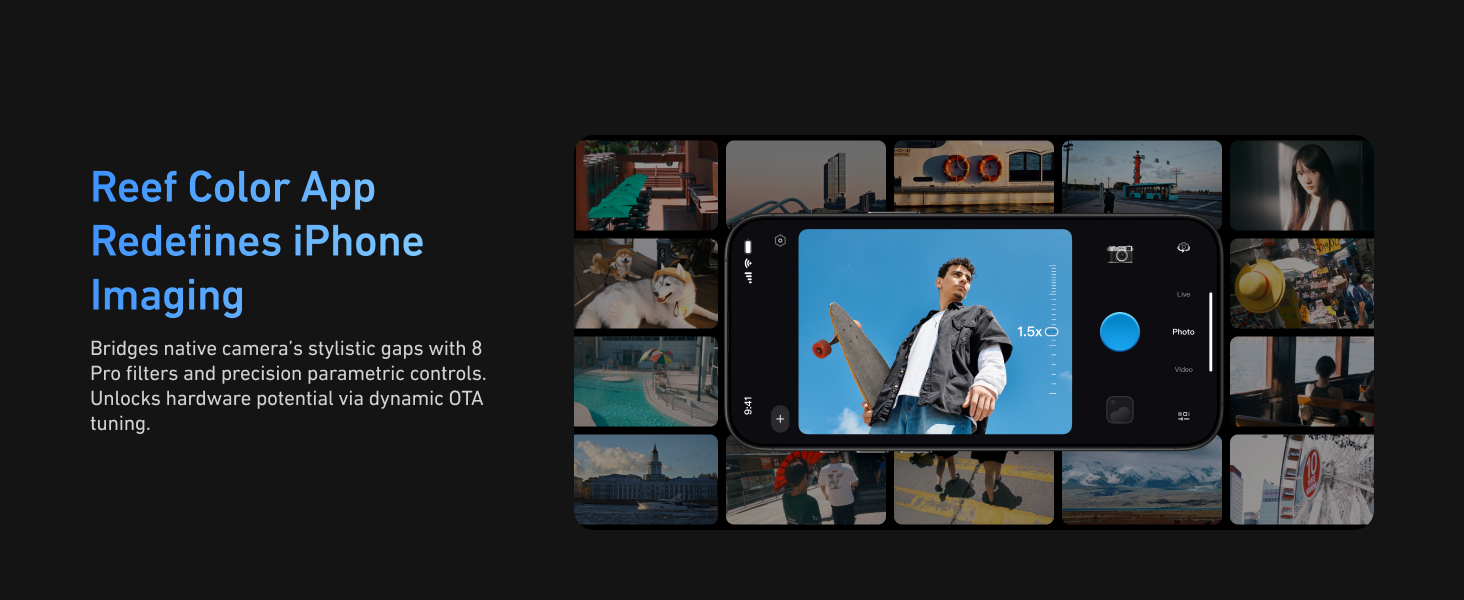
Image: Wireless charging feature of the Master Grip.
4.4 ReefColor App Features
- Master-Level Filters: The app integrates eight filters to enhance your iPhone's camera capabilities.
- Parameter Adjustments: Access professional parameter adjustments for fine-tuning your shots.
- Custom Keys: Customize the functions of the dial and Fn buttons on the grip for quick access to settings like filter intensity, EV, shutter speed, or ISO.

Image: ReefColor App interface for iPhone imaging.
4.5 Expanding Accessories
The Master Grip features a 1/4" tripod screw connector, allowing for attachment of additional accessories:
- Tripod Mount: Attach the grip to a tripod for stable shots.
- Microphones: Connect external microphones for improved audio quality.
- Other Accessories: Utilize the 1/4" mount for various compatible photography and videography tools.

Image: Master Grip with various expandable accessories.
5. Maintenance
5.1 Cleaning Filters
- Use a soft, lint-free cloth to gently wipe the filter surfaces.
- For stubborn smudges, use a specialized lens cleaning solution applied to the cloth, not directly to the filter.
- Avoid abrasive materials or harsh chemicals that could damage the filter coating.
5.2 Charging the Grip
- Connect the provided charging cable to the Type-C charging port on the Master Grip.
- Connect the other end to a suitable USB power source.
- The indicator lights on the grip will show the charging status.
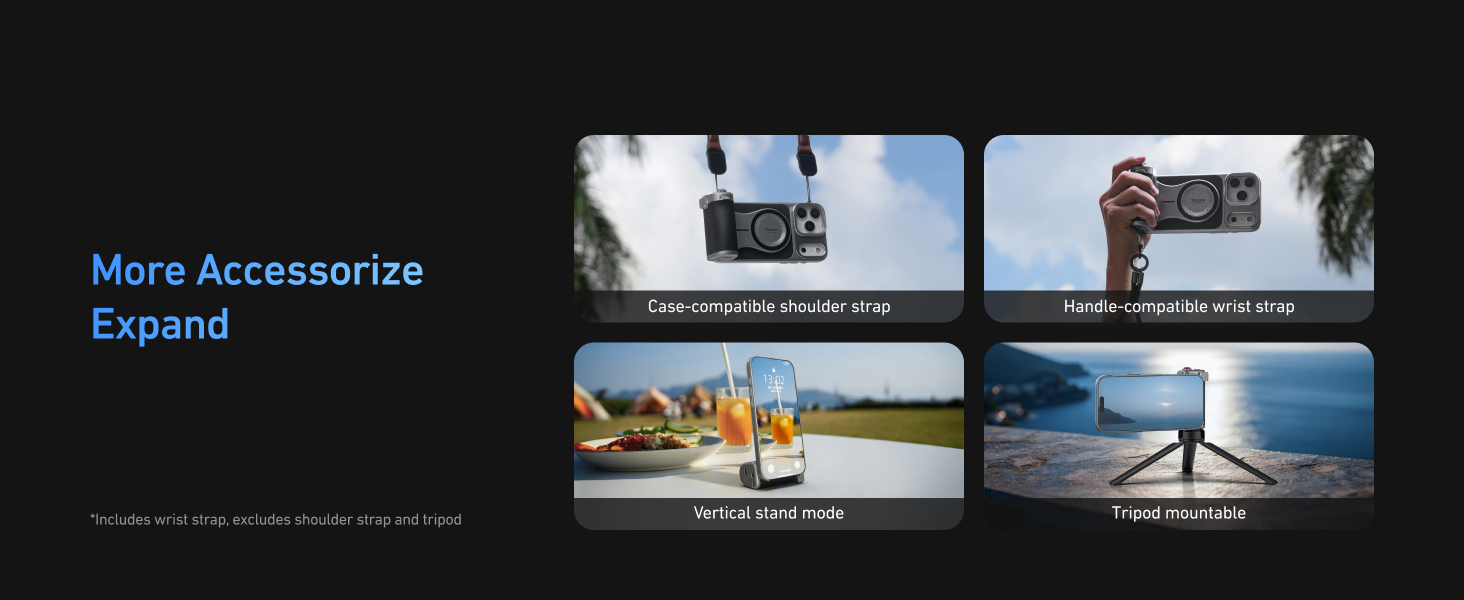
Image: Master Grip ports and power controls.
5.3 Firmware Updates
- Regularly check the ReefColor app for available firmware updates for your Master Grip.
- Follow the in-app instructions to perform updates, ensuring the grip is sufficiently charged during the process.

Image: Steps to update device firmware.
6. Troubleshooting
- Grip not connecting to app: Ensure Bluetooth is enabled on your iPhone and the grip is powered on. Try restarting both the app and the grip.
- Wireless charging not working: Verify the grip is fully charged and securely attached to the Graphene Case. Ensure no foreign objects are between the phone and the grip.
- Filter not producing desired effect: For CPL filters, rotate the outer ring to adjust the polarization. Ensure the filter is clean and correctly positioned over the camera lenses.
- Buttons unresponsive: Check if the grip's battery is low. Ensure the app is open and connected to the grip.
Video: Overview of the TELESIN Master Grip for iPhone 17 Pro Max/Pro, showcasing its features and usage scenarios.
7. Specifications
| Feature | Detail |
|---|---|
| Package Dimensions | 9.69 x 4.92 x 4.25 inches |
| Item Weight | 7.1 ounces (200 Grams) |
| Batteries | 1 Lithium Polymer battery (included) |
| Wireless Communication | Wireless Charging |
| Special Features | Wireless Charging Compatible |
| Other Display Features | Photography |
| Flash | Built-in flash (C03 Selfie Light) |
| Compatible Devices | iPhone |
8. Warranty and Support
For warranty information and technical support, please refer to the official TELESIN website or contact their customer service directly. Keep your purchase receipt as proof of purchase for warranty claims.